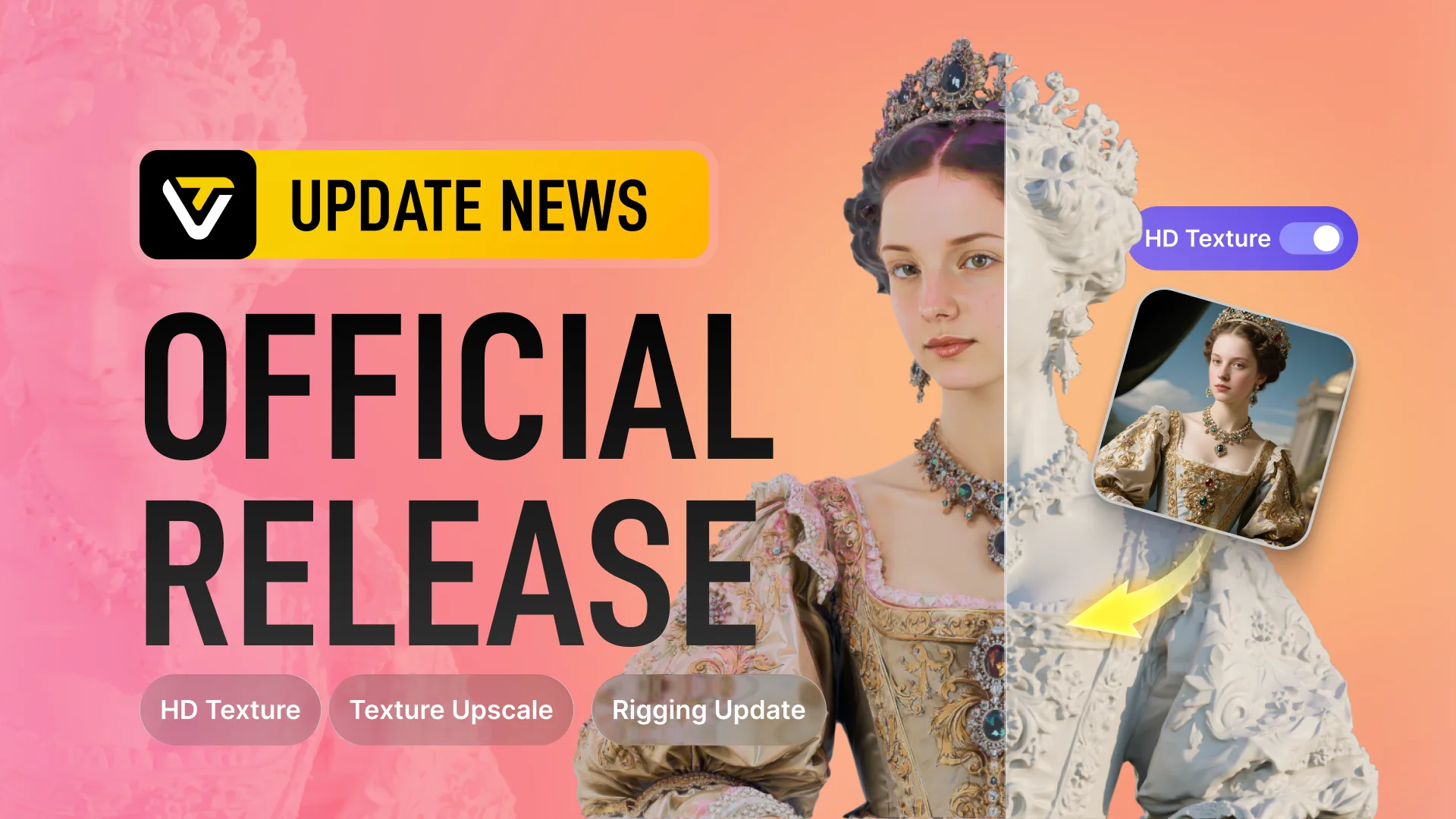
Einführung von 8K Texture: Skaliere jedes 3D-Modell mit Tripo AI auf 8K hoch
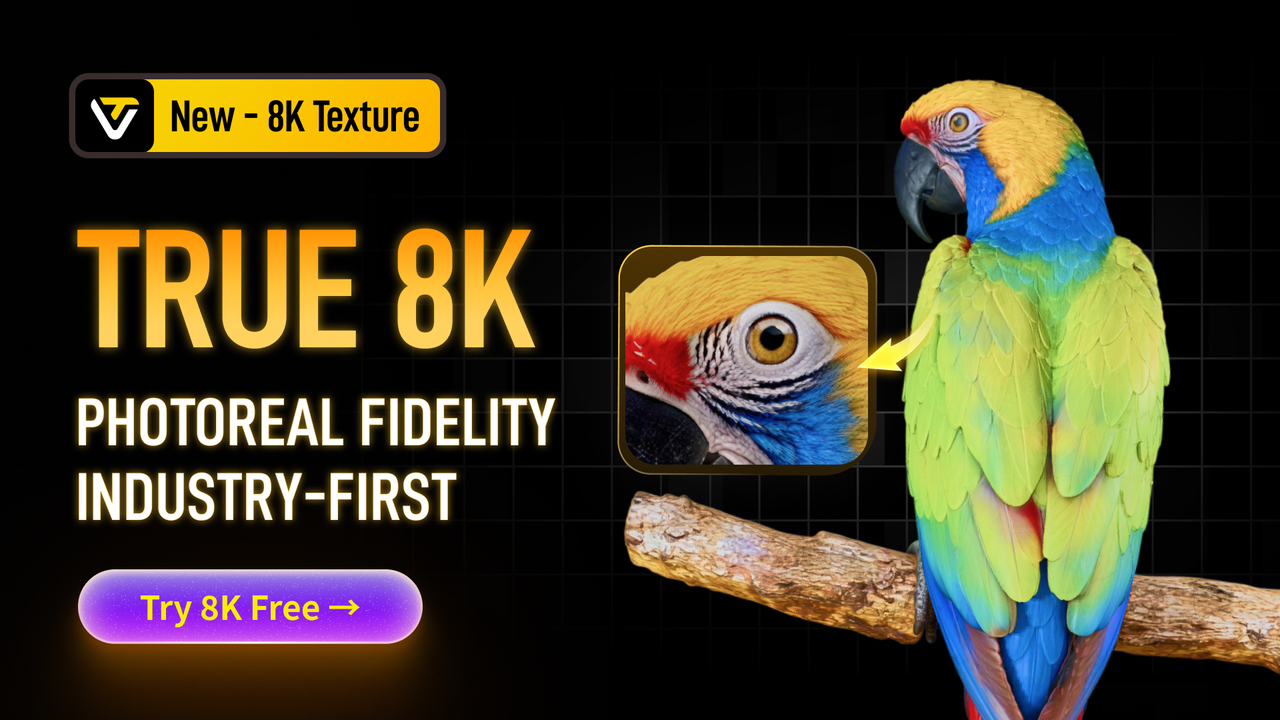
Früher bedeutete es langsame Spezialarbeit, 8K-Texturen richtig hinzubekommen: tagelanges manuelles Texturieren, teure Asset-Produktion oder eine scanbasierte Pipeline, die trotzdem noch Nachbearbeitung erforderte.
Tripo 8K Texture macht dieses Detailniveau in weniger als 2 Minuten deutlich einfacher erreichbar. Es erzeugt echtes 8192×8192-BaseColor-Output mit fotorealistischer Wiedergabetreue für Modelle, die auch aus der Nähe überzeugen müssen: Hero-Assets, cinematische Aufnahmen und Produktvisualisierungen.
Du musst nicht bei null anfangen. Wenn die Form des Modells bereits passt, egal ob es in Tripo, Meshy, Rodin, Hitem oder einer anderen 3D-Plattform erstellt wurde, kannst du es in Tripo importieren und Upscale Features verwenden, um die Textur zu verbessern. Und sobald es fertig ist, ist dein Asset exportbereit für alle wichtigen 3D-Tools.
Dein erster Versuch ist kostenlos. Upgrade to unlock more.
Warum 8K Texture wichtig ist
Die Texturqualität ist oft die letzte Lücke zwischen einem brauchbaren Modell und einem Modell, das du aus der Nähe zeigen kannst. Tripo AI bietet dir drei Auflösungsstufen in einem Workflow, damit du den Texturdetailgrad daran anpassen kannst, wie das Asset tatsächlich verwendet wird.
Für schnelle Vorschauen oder Web-Renderings reicht eine leichtere Textur aus. Für Hero-Assets, cinematische Aufnahmen, Produktvisualisierungen oder alles, was Betrachter aus der Nähe prüfen können, braucht die Textur mehr Raum, um Oberflächeninformationen zu tragen: Stoff, Maserung, Kratzer, bemalte Kanten, Labels, Hautdetails und Materialabnutzung.
Genau dort ist 8K Texture am wichtigsten: bei Assets, die sich nicht im Hintergrund verstecken können.
Was Tripo 8K Texture leistet
Tripo 8K Texture ist ein produktionsreifes 8K-AI-Textursystem. Es erzeugt echtes 8192×8192-BaseColor-Output, nicht eine geschärfte Textur mit geringerer Auflösung.
Du kannst es zu Beginn eines Projekts oder später im Workflow verwenden. Wähle deine Texturauflösung, bevor du ein neues Modell erzeugst, oder nutze Upscale Features bei einem Modell, das du bereits hast.
In der Praxis gibt dir das drei Auflösungsstufen in einem Workflow:
- 2K Standard: schnell und leichtgewichtig, gut für Vorschauen, Web-Renderings und Low-Poly-Arbeiten.
- 4K HD: detailreiche Qualität für die meisten Produktions-Assets. Dies ist der Standard für alle Nutzer.
- 8K Ultra: vollständiges 8192×8192-BaseColor-Output mit Oberflächendetails in maximaler Präzision für game-ready Assets, cinematische Renderings und Arbeiten, die gedruckt oder stark vergrößert werden.
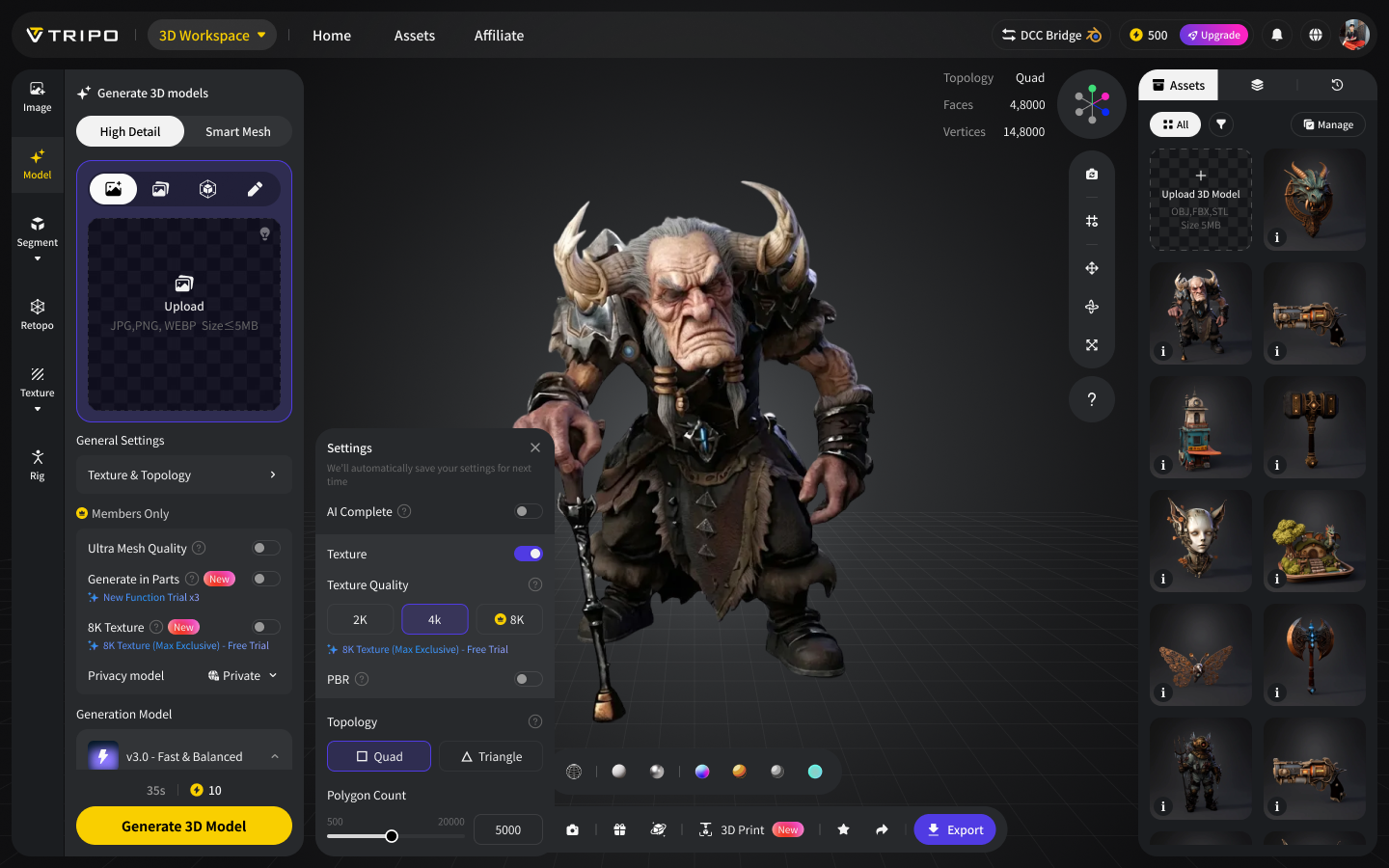
Wie 8K Texture im Vergleich zu anderen AI-3D-Tools abschneidet
Öffne jedes Bild in voller Größe, um die Texturdetails zu vergleichen. Tripo 8K Texture liefert das klarste Nahergebnis: schärfere Materialien, sauberere Kanten und besser lesbare kleine Details.
Eingabebild
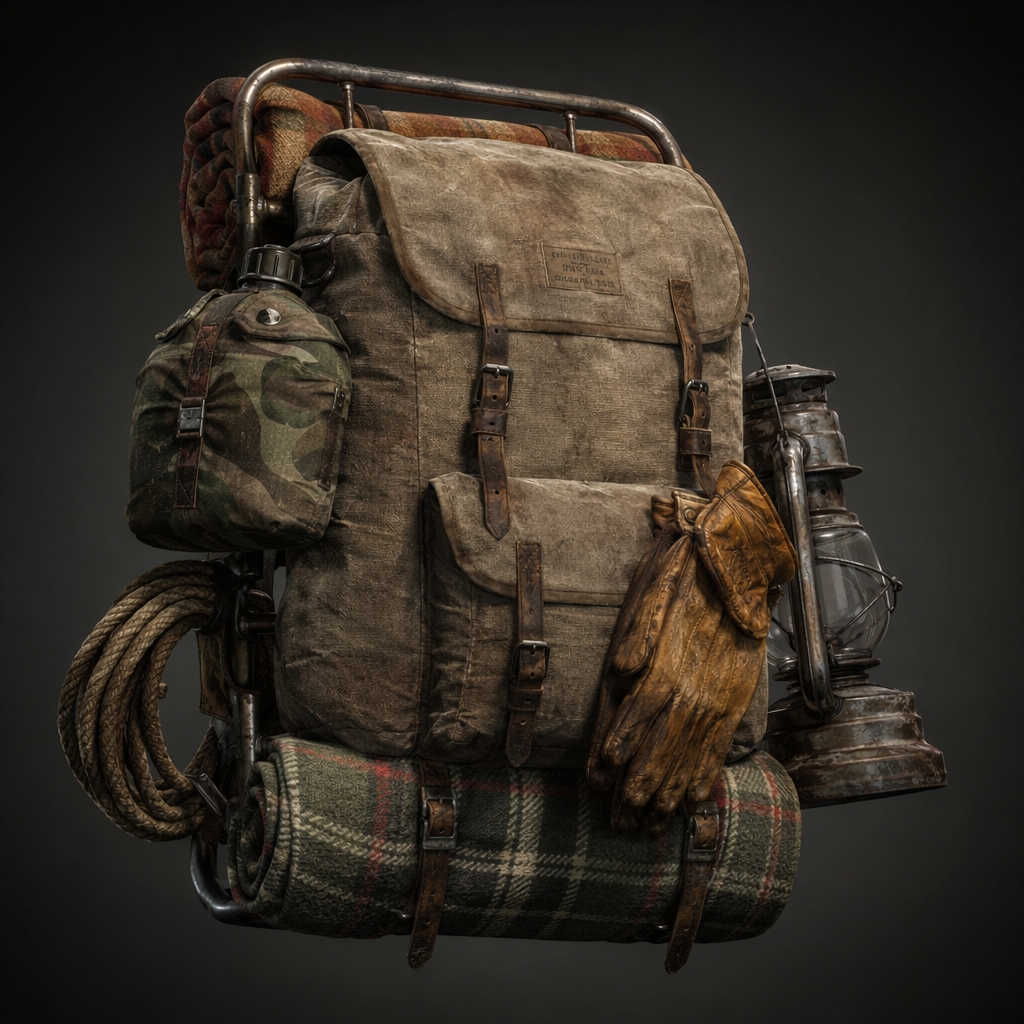
Referenzbild für Farbe, Materialtrennung und feine Details.
Vergleichsergebnisse
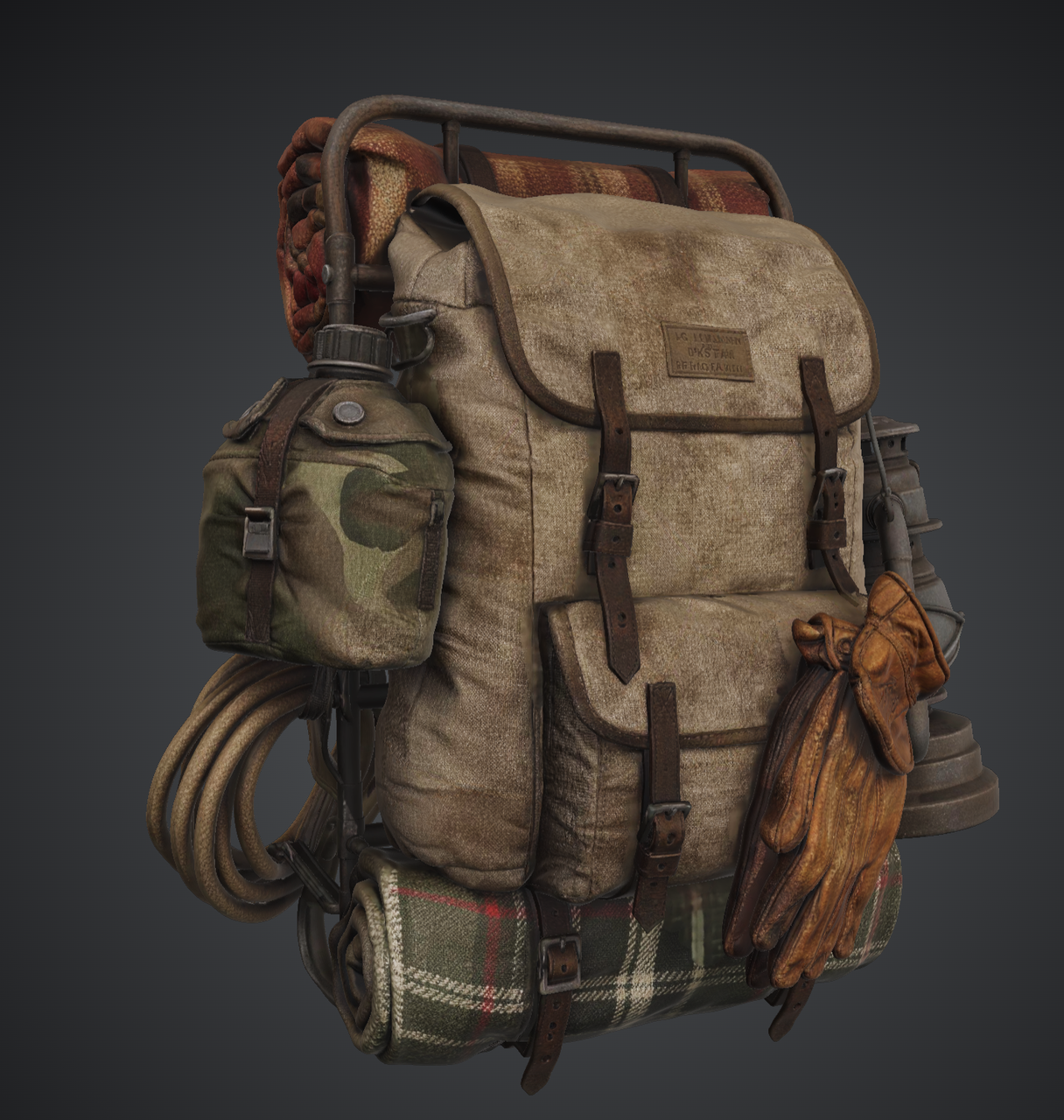
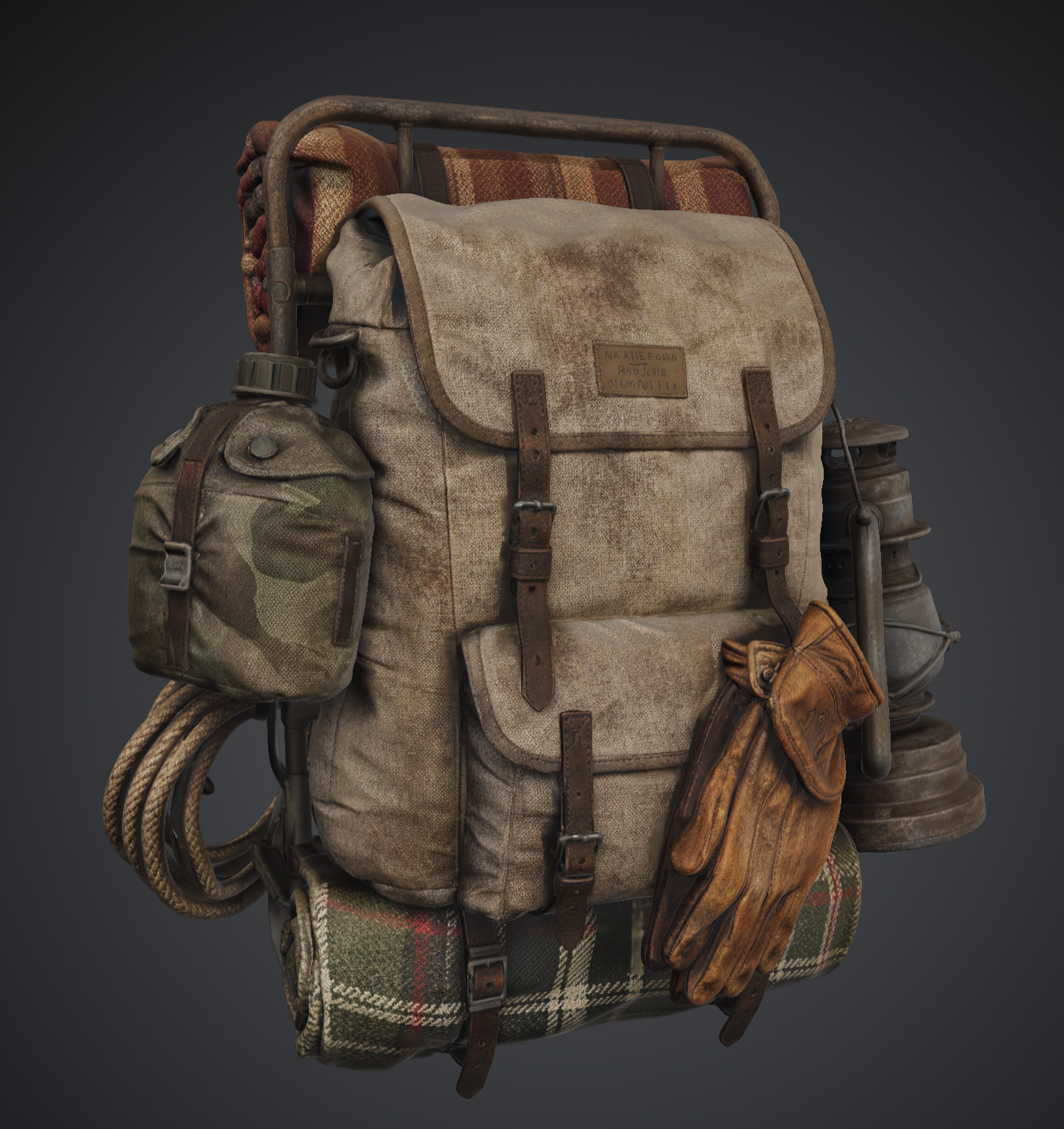
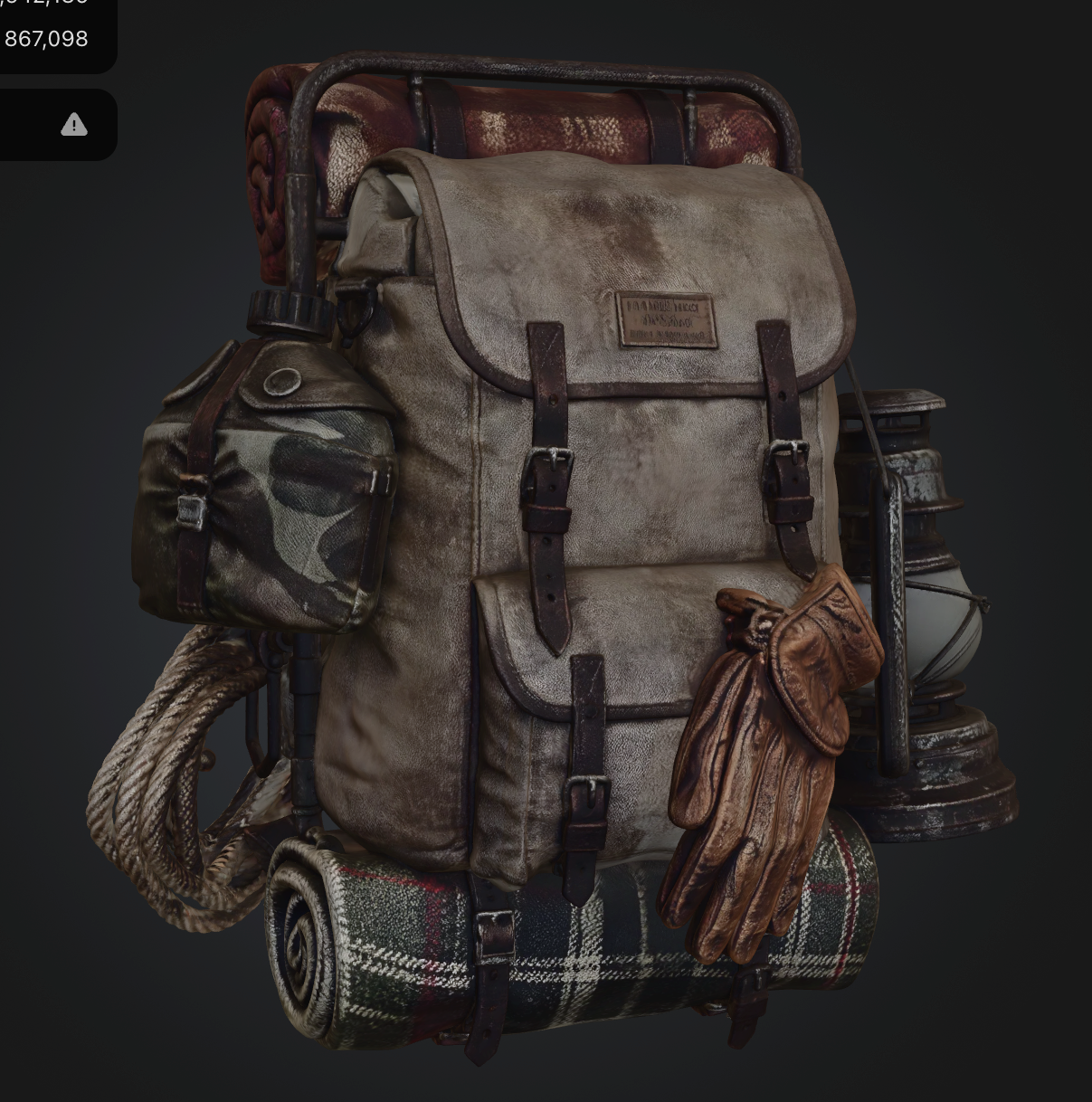
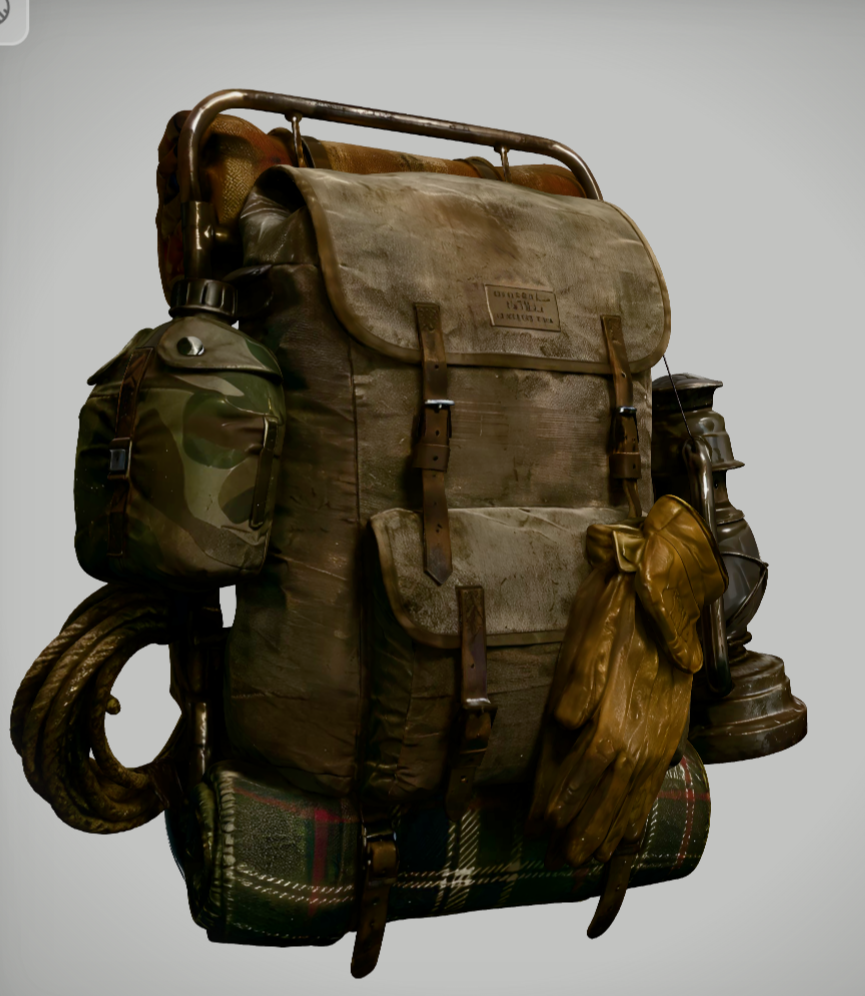
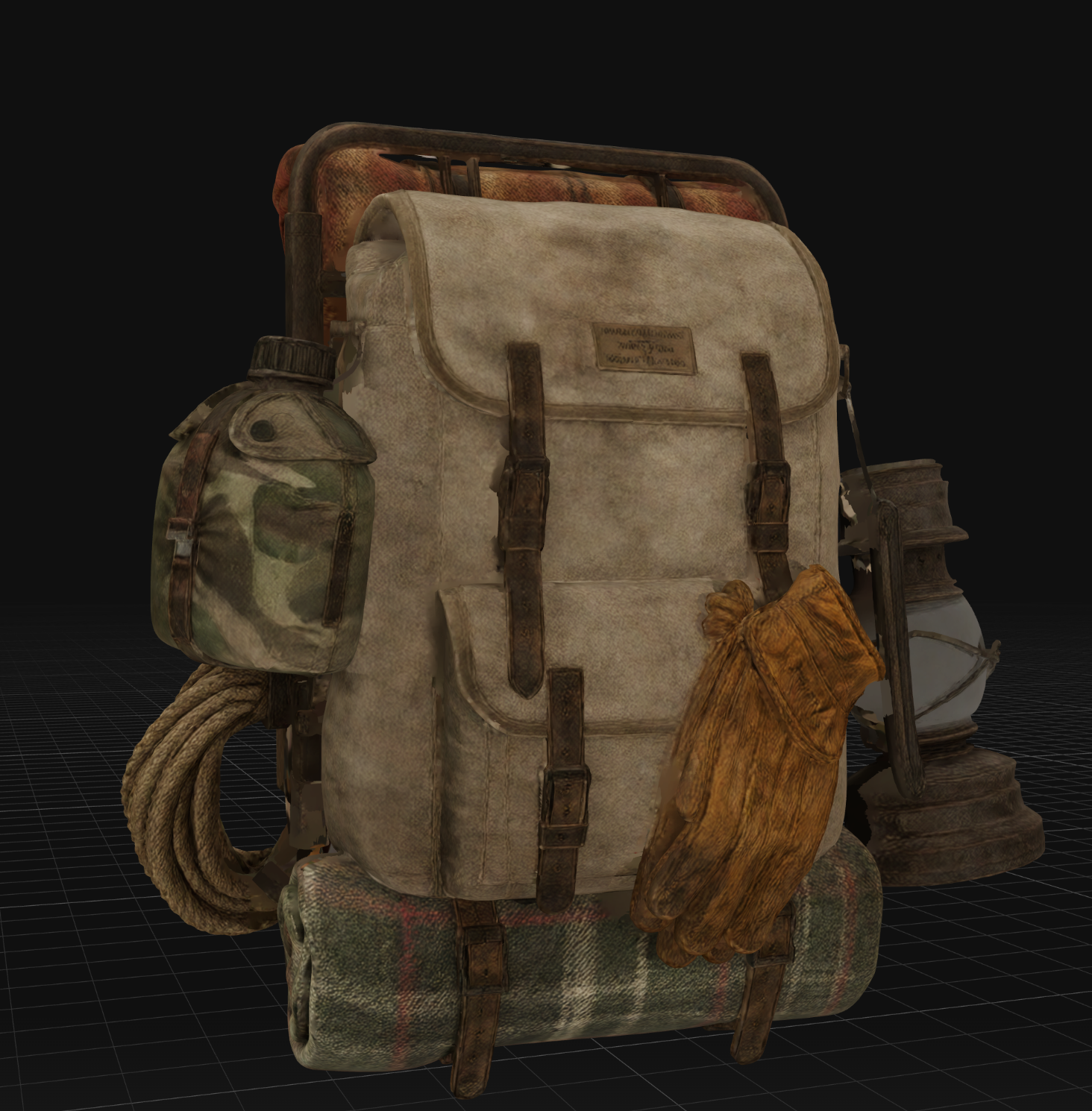
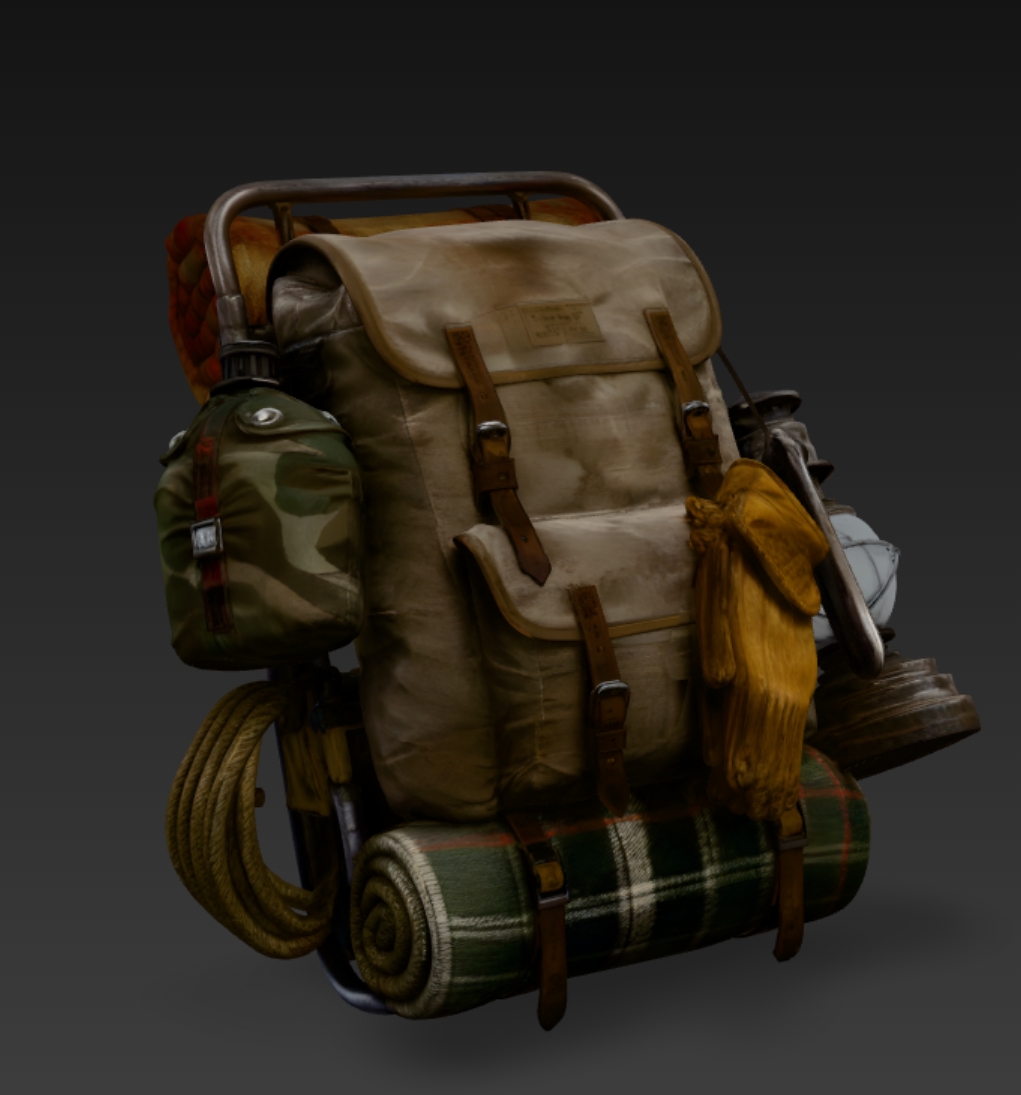
Kurz gesagt: Tripo 8K zeigt im Vergleich zu 4K, Meshy, Rodin, Hitem und Hunyuan die stärkste Nahaufnahme-Texturqualität.
Für wen 8K Texture entwickelt wurde
Unabhängige Game-Entwickler und kleine Studios, die an Hero-Assets, detailreichen Umgebungen und Requisiten für Nahaufnahmen arbeiten. Erhalte stärkere Texturdetails, ohne für jedes Modell einen dedizierten Texture Artist zu benötigen.
Film-, CG- und Virtual-Production-Teams, die Modelle erstellen, die nah an der Kamera stehen. Wenn eine Aufnahme von Oberflächendetails lebt, lässt sich Texturauflösung nur schwer vortäuschen.
Creator, die von Meshy, Rodin, Hitem oder anderen AI-3D-Tools wechseln. Wenn du bereits ein Modell mit brauchbarer Geometrie hast, dessen Textur aber in Nahaufnahmen nicht überzeugt, importiere es in Tripo und nutze Upscale Features, statt es von Grund auf neu aufzubauen.
So verwendest du 8K Texture in Tripo
Ein neues Modell mit 8K Texture erzeugen
Wenn du mit einem neuen Prompt oder Bild startest, aktiviere 8K Texture vor der Generierung. Nutze dies, wenn die Texturqualität von Anfang an Teil des Ziels ist, etwa bei einem Hero-Asset, einem cinematischen Rendering oder einer Produktvisualisierung.
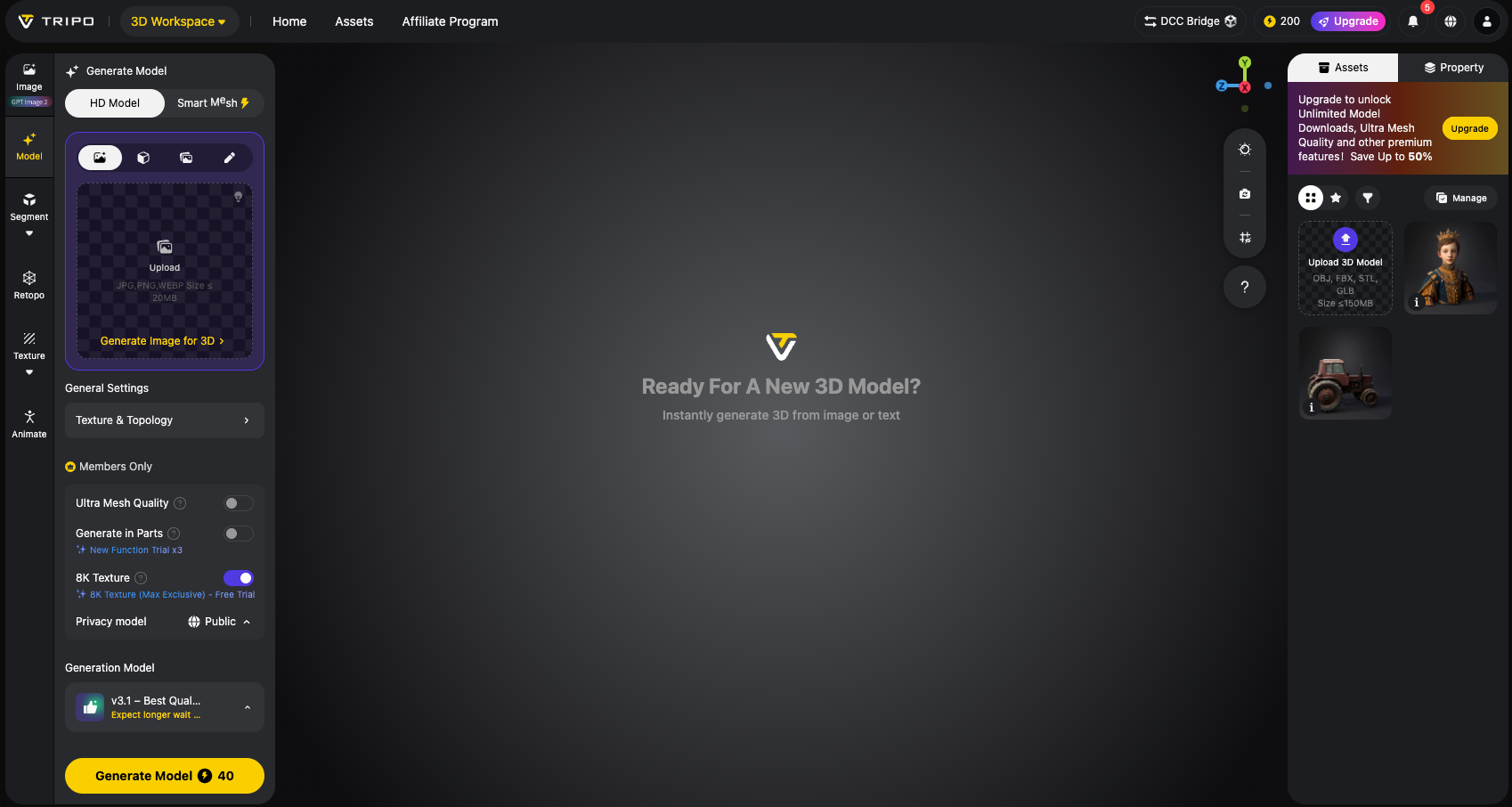
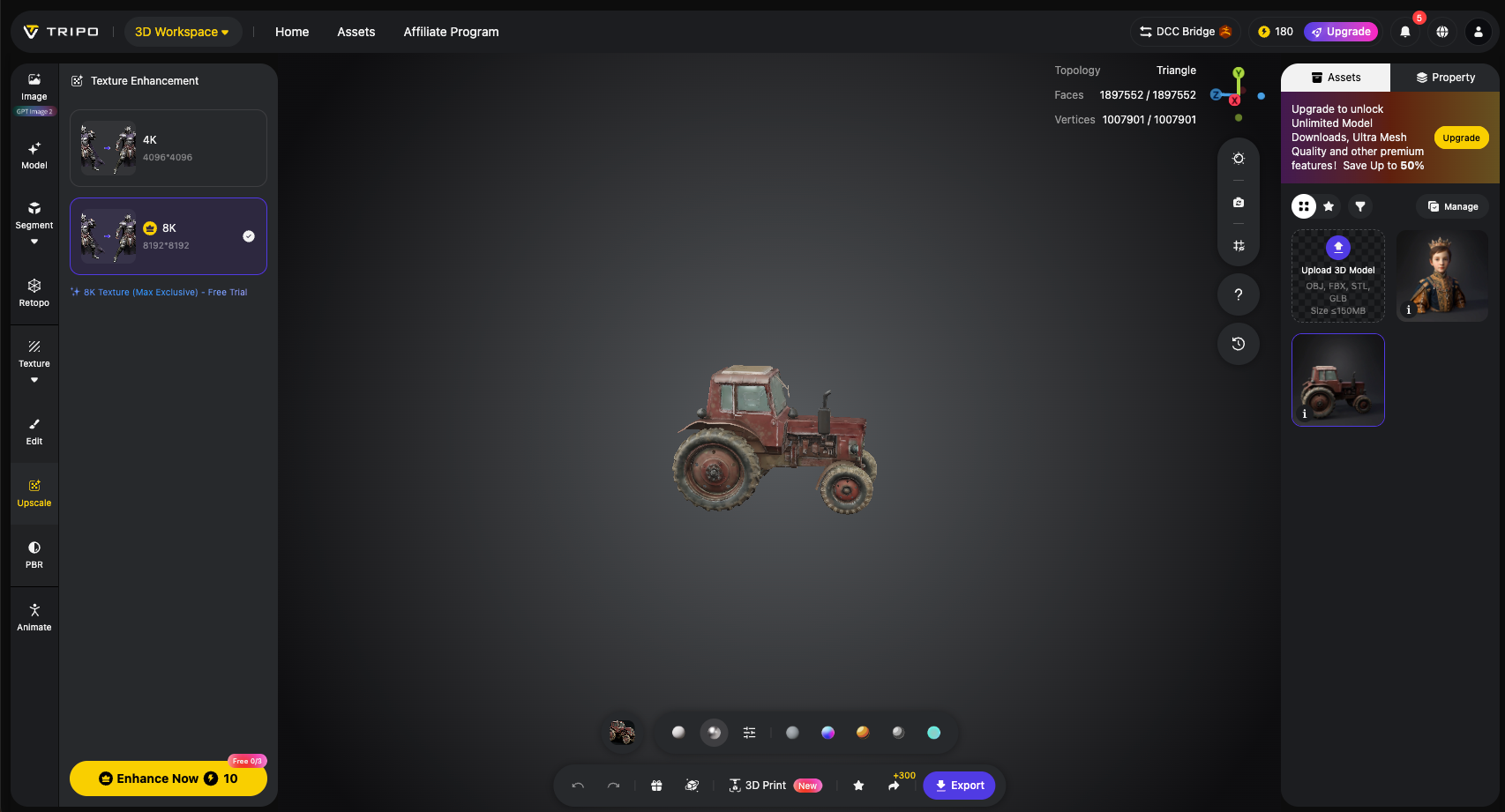
Upscale Features bei einem vorhandenen Tripo-Modell verwenden
Wenn du bereits ein Modell in Tripo erstellt hast und die Geometrie passt, öffne das Modell und nutze Upscale Features, um die Texturdetails zu verbessern, während du das vorhandene Modell beibehältst.
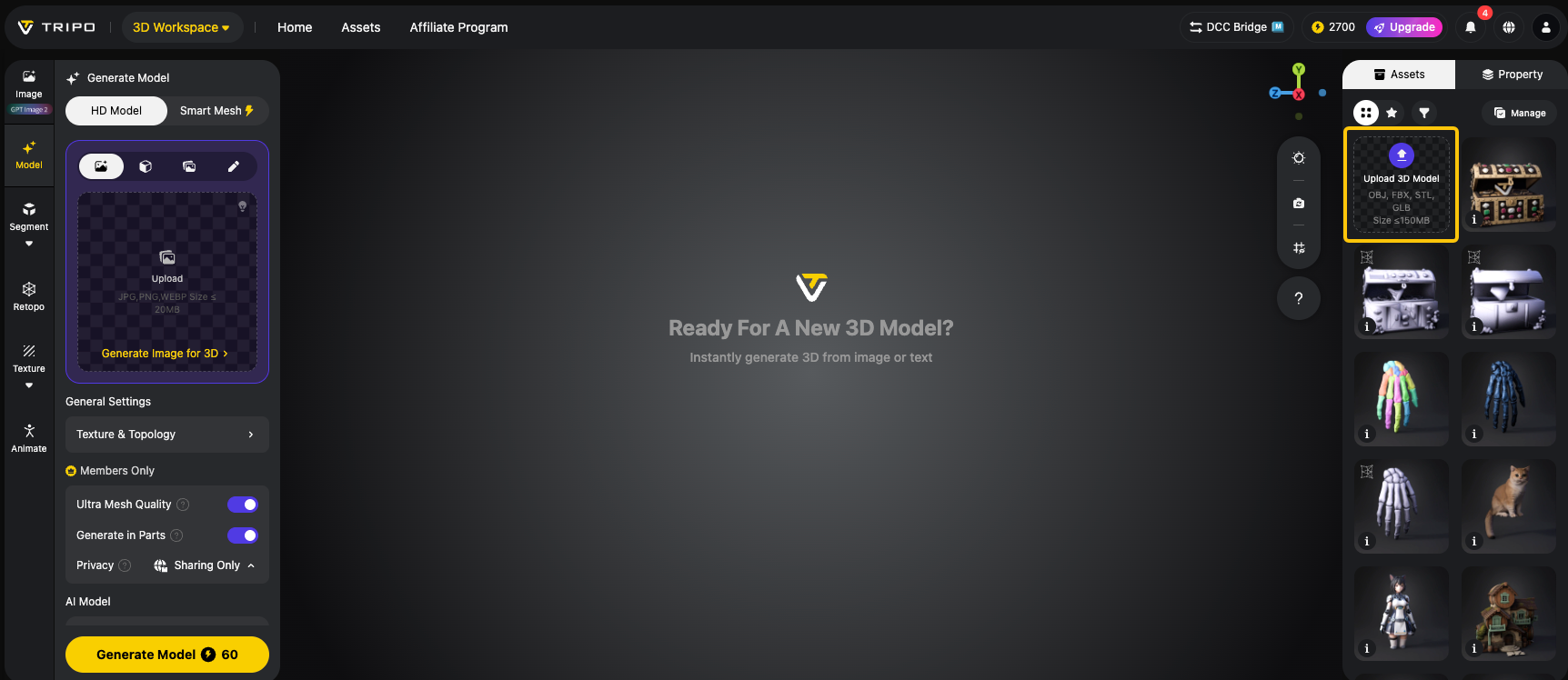
Ein externes Modell importieren und Upscale Features verwenden
Wenn dein Modell in Meshy, Rodin, Hitem oder einer anderen Plattform erstellt wurde, exportiere es zuerst und lade es dann in Tripo hoch.
Klicke in Assets auf Upload 3D Model. Tripo unterstützt derzeit OBJ-, FBX-, STL- und GLB-Dateien unter 150 MB. Wenn du das bestehende UV-Layout des Modells beibehalten möchtest, wähle Use Original UV, bevor du Upscale Features ausführst.
Häufig gestellte Fragen
Wird 8K Texture wirklich in 8K erzeugt?
Ja. Tripo 8K Texture erzeugt echtes 8192×8192-BaseColor-Output. Es wird nicht einfach nur aus einer Textur mit geringerer Auflösung hochskaliert oder geschärft.
Kann ich Upscale Features bei einem externen Modell verwenden?
Ja. Importiere ein Modell aus Meshy, Rodin, Hitem oder einer anderen 3D-Plattform und nutze dann Upscale Features. Du musst die Geometrie nicht neu generieren.
Welche Dateiformate kann ich hochladen?
Der Workflow Upload 3D Model unterstützt OBJ-, FBX-, STL- und GLB-Dateien unter 150 MB.
Welche Maps sind in einem 8K-Export enthalten?
Tripo exportiert 8192×8192 BaseColor-, 4096×4096 Normal- und 4096×4096 ORM-Maps.
Kann ich 8K-Texture-Exporte in Blender, Unity oder Unreal Engine verwenden?
Ja. Tripo-Exporte mit 8K Texture lassen sich in gängige 3D-Workflows integrieren, darunter Blender, Unity und Unreal Engine. Prüfe vor der finalen Auslieferung deine Export-Einstellungen und die Anforderungen der Ziel-Engine.
Welche Tarife unterstützen 8K-Export?
Advanced, Max und Team unterstützen unbegrenzte 8K-Generierung und -Exporte. Bei Starter und Pro gilt das standardmäßige Modell-Exportlimit des jeweiligen Tarifs. Sieh auf der aktuellen Pricing-Seite oder in der Produkt-UI nach den neuesten Tarifdetails.
Starte mit 8K Texture
Wähle ein Modell, bei dem die Form bereits stimmt, die Textur aber noch nicht überzeugt. Es kann aus Tripo, Meshy, Rodin, Hitem oder einer anderen Plattform stammen.
Führe Upscale Features aus und vergleiche dann das Ergebnis bei 100 % Zoom. Dort ist der Unterschied am einfachsten zu erkennen.
Tripo bietet eine kostenlose Testsession für 8K Generation, 8K Texture und Upscale Features. Nach der kostenlosen Testversion kannst du einen kostenpflichtigen Tarif für mehr Nutzung wählen.