Game-Ready 3D Asset Checklist (for AI-Generated Models)
TL;DR
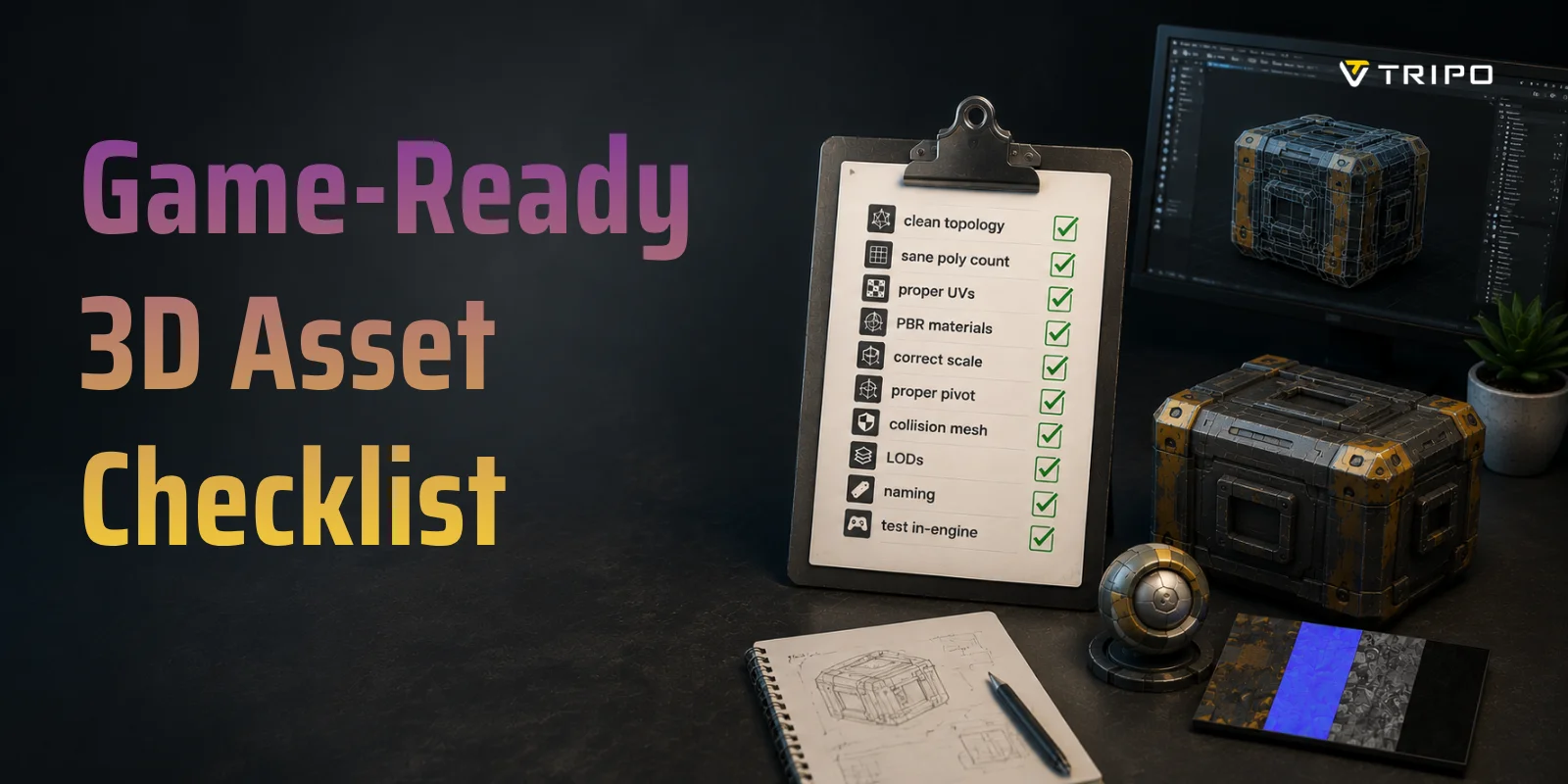
- "Game-ready" means optimized for real-time: clean topology, a sane poly budget, proper UVs, PBR textures, correct scale, and LODs.
- Use a checklist: tick off topology, poly count, UVs, texel density, PBR maps, scale/pivot, LODs, collision, and naming before import.
- AI-generated models need extra care—they often ship with dense triangulated meshes and no UVs, so retopologize and re-UV first.
- Poly budgets vary by platform: mobile characters ~5K–20K, PC/console characters ~30K–100K; props scale from 500–3K (mobile) to 3K–15K (PC/console).
- Export FBX or GLB, match engine units, and test the asset in-engine before you call it done.
A game-ready 3D asset is one that enters a game engine and works immediately, with clean topology like the kind Tripo Smart Mesh generates, an optimized polygon budget, properly unwrapped UVs, and correctly scaled PBR textures. This checklist covers every requirement modern engines expect, plus the additional cleanup AI-generated models need before they are truly production-ready.
What "Game-Ready" Actually Means
In production, a game-ready model is built for real-time rendering rather than offline beauty shots. It needs to load efficiently, perform consistently under dynamic lighting, and integrate cleanly into different engines and pipelines. A model that looks impressive in a static render isn't necessarily suitable for games if it lacks optimized geometry, usable UVs, or physically based materials. In other words, game-ready assets are designed not just to look good, but to work reliably in interactive environments.
Game-Ready vs. Cinematic or Sculpt Quality
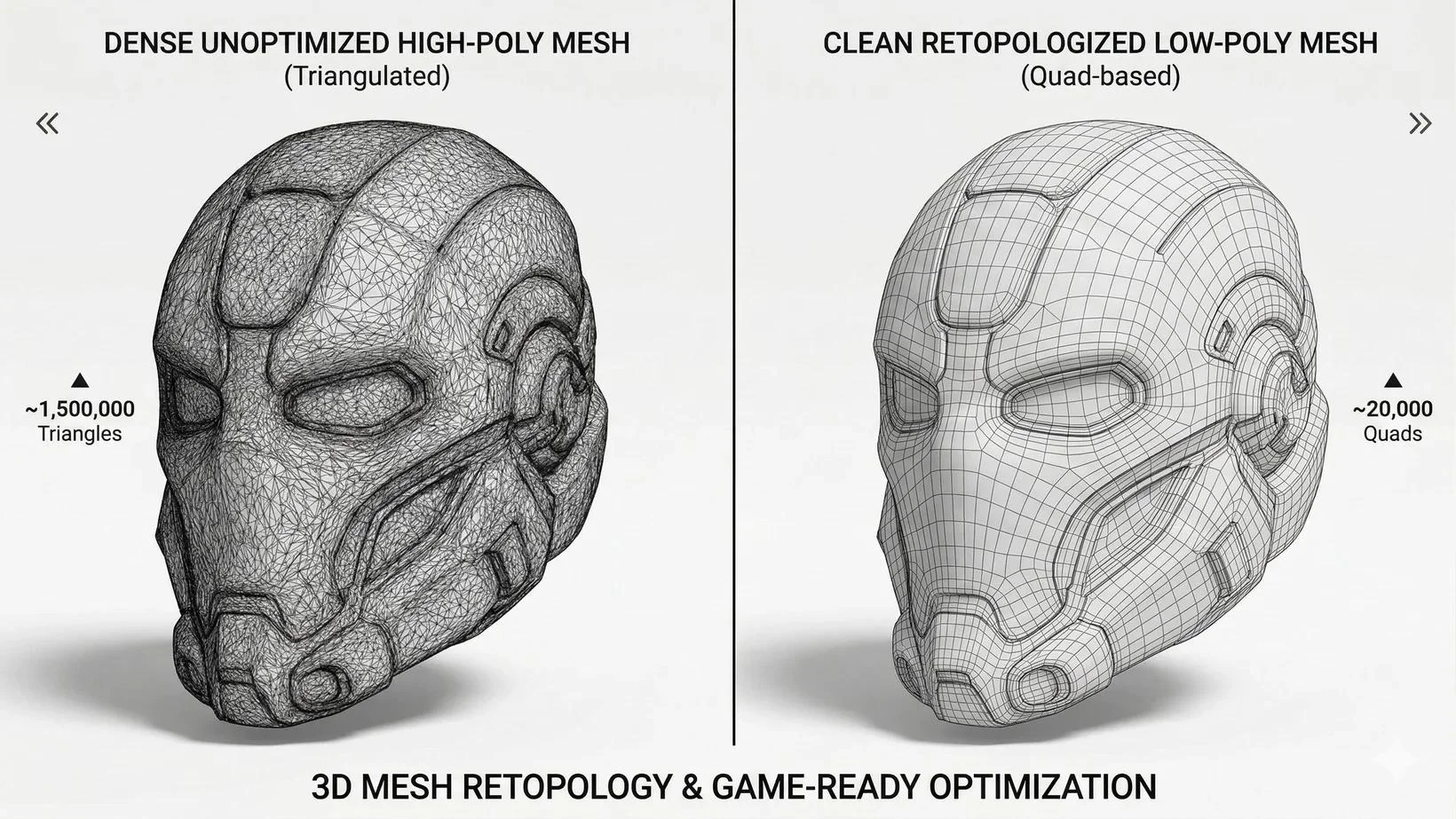
The distinction comes down to poly count and approach. High-poly meshes—typically hundreds of thousands to millions of faces—express every surface detail through raw geometry. They are built for sculpting, offline rendering, and 3D printing, where frame rate is not a constraint. Low-poly game-ready assets work the opposite way: they keep face counts in the thousands to tens of thousands, rely on baked texture maps to reproduce high-poly surface detail, and are engineered to run smoothly inside a real-time engine. A well-executed low-poly model with baked normal and ambient-occlusion maps can visually match its high-poly counterpart at a fraction of the rendering cost.
Why AI-Generated Models Aren't Game-Ready by Default
AI-generated meshes can produce impressive shapes quickly, but they rarely satisfy production requirements out of the box. Many come with dense triangulated geometry, uneven edge flow, overlapping faces, or no UV layout at all. Materials may be missing, scale can be inconsistent, and topology is often unsuitable for animation or optimization. Before an AI model becomes truly game-ready, these issues must be cleaned up and validated—exactly what the checklist below is designed to cover.
The Game-Ready Asset Checklist (9 Boxes to Tick)
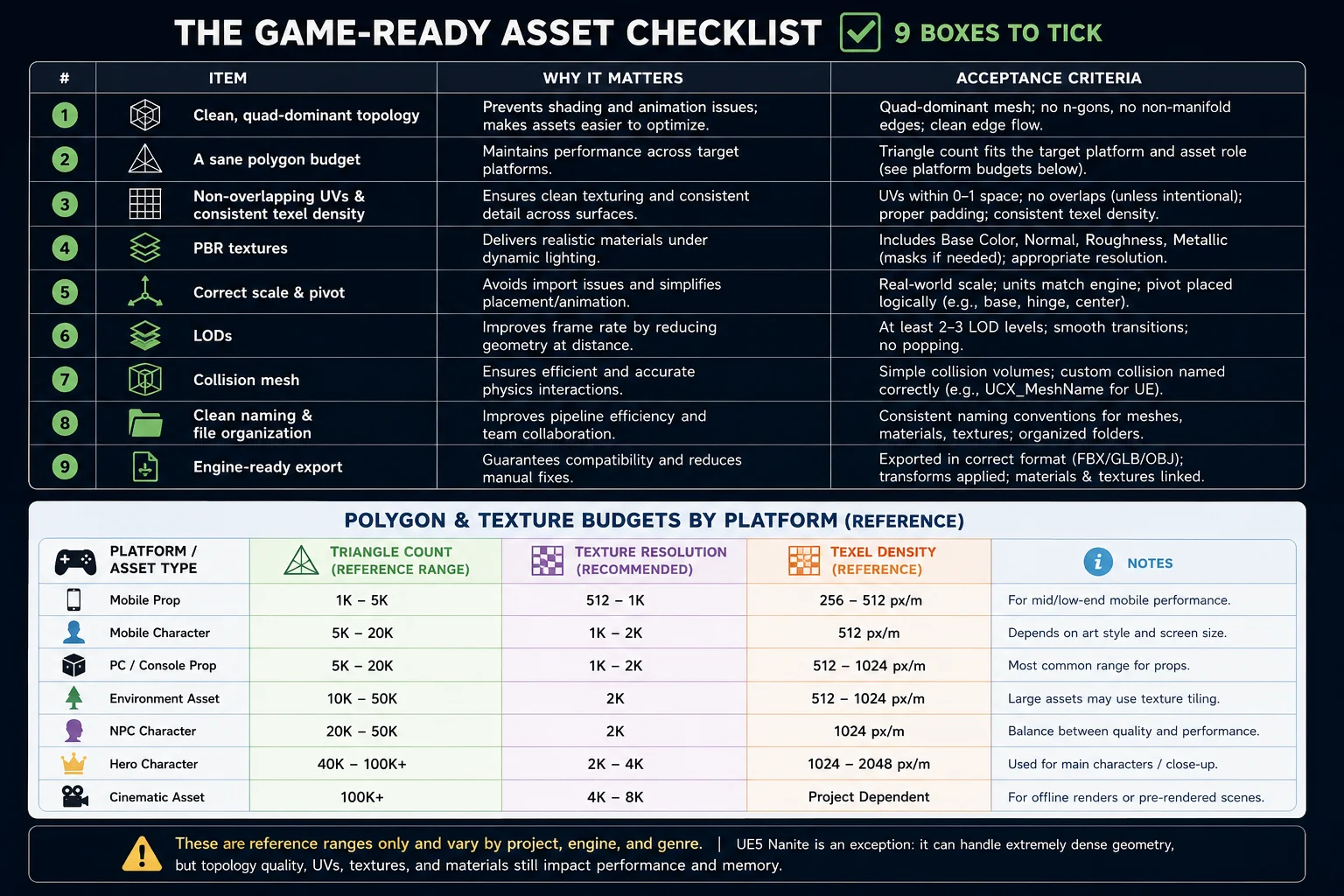
A game-ready asset combines clean topology, optimized polygon counts, UVs, PBR textures, proper scale, and engine-compatible exports.
Before importing a model into Unity, Unreal Engine, or another real-time engine, make sure it checks all nine boxes below.
1 · Clean, Quad-Dominant Topology
Good topology is the foundation of every game asset. Meshes should be mostly quads with clean edge flow and free from n-gons, overlapping faces, or non-manifold geometry. This helps deformation, lighting, and optimization later in the pipeline. Tools like Tripo Smart Mesh can automatically convert dense AI meshes into cleaner, retopology-friendly geometry.
2 · A Sane Polygon Budget
More polygons do not automatically mean better quality. The right budget depends on both the asset type and the target platform:
- Mobile characters: 5,000–20,000 triangles
- PC / console characters: 30,000–100,000 triangles
- Mobile props: 500–3,000 triangles
- PC / console props: 3,000–15,000 triangles
Film and offline assets can reach hundreds of thousands to millions of faces, but for real-time use the goal is to preserve visual quality while keeping performance predictable. As a reference: Tripo Smart Mesh output (~5,000 faces by default) targets the mobile low-poly range; HD Model (up to 2 million faces) covers the offline and high-fidelity end.
3 · Non-Overlapping UVs and Consistent Texel Density
UV islands should fit inside the 0–1 UV space without overlapping unless intentional. Leave enough padding between islands to prevent texture bleeding, and keep texel density consistent so surfaces maintain similar detail levels.
4 · PBR Textures
Modern engines expect physically based rendering maps. At minimum, provide Base Color, Normal, Roughness, and Metallic textures. Most props work well with 1K–2K textures, while hero assets may justify 4K maps.
5 · Correct Scale and Pivot
Assets should use real-world dimensions and match the engine's unit system. Pivots should be placed logically—for example, at the base of props or the hinge of doors—to simplify placement and animation.
6 · LODs
Level-of-detail (LOD) systems automatically swap meshes as objects move farther from the camera, reclaiming GPU budget where it matters least. A typical four-level LOD chain looks like this:
- LOD 0 (close range): ~10,000 faces
- LOD 1 (mid distance): ~5,000 faces
- LOD 2 (far): ~1,000 faces
- LOD 3 (very far): ~200 faces, or a flat billboard sprite
An object that occupies only a few pixels on screen gains nothing from a high-resolution mesh. Swapping to 200 faces at that distance costs nothing visually and frees significant rendering capacity for geometry that actually matters. Most modern engines generate LODs automatically from the highest-detail mesh; review the results against your performance targets before shipping.
7 · Collision Mesh
Collision geometry should remain simple and lightweight. Unreal Engine commonly uses naming conventions such as UCX_MeshName for custom collision meshes.
8 · Clean Naming and File Organization
Consistent naming prevents confusion during production. Use clear conventions for meshes, materials, and texture maps, and organize assets into predictable folders.
9 · Engine-Ready Export
Before delivery, verify that transforms are applied and the asset exports correctly in FBX, GLB, or OBJ format. Materials, textures, and scale should import cleanly without manual fixes.
Polygon and Texture Budgets by Platform
There is no universal polygon limit for a game-ready asset. The right budget depends on the target platform, camera distance, and rendering pipeline. The ranges below are practical starting points used in many production workflows. They should be treated as guidelines rather than hard rules.
These values are only reference ranges. Different engines and genres have different requirements. Stylized mobile games often target lower budgets, while modern PC and console projects can afford more detail.
Unreal Engine 5's Nanite system changes some traditional polygon constraints by allowing extremely dense geometry. However, topology, UV quality, texture memory, and material complexity still affect performance. Even with Nanite, efficient assets remain easier to manage, stream, and optimize.
As a rule of thumb, texture memory usually becomes a bottleneck before polygon count does. Maintaining consistent texel density across assets is often more important than maximizing triangle counts.
Accelerating This Workflow with Tripo Studio
Tripo Studio helps speed up early asset creation by generating usable base meshes from images or prompts. Instead of starting from scratch, artists begin with structured geometry that can be refined into production-ready assets.
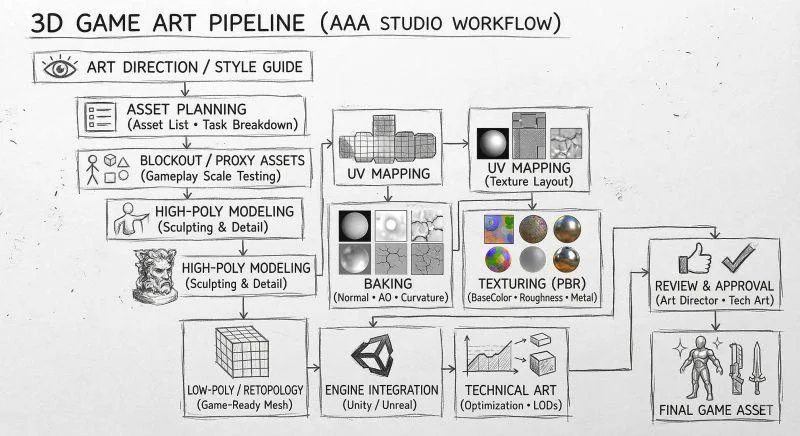
AI base mesh → cleanup & retopology → UVs → textures → engine export
Game Assets Workflow
Upload / generate image → Smart Mesh → 5K–20K faces → Retry → Generate textures → Export to DCC (Blender/Maya)
This is ideal for fast creation of props like rocks, barrels, and environment assets, where iteration speed matters more than manual sculpting from zero.
Game Characters Workflow
Upload / generate image → T-pose → Smart Mesh → ~20K faces → Retry → Segment → Texture → Rig → Export to DCC
This pipeline is especially useful for characters, where correct proportions and rig-ready structure are critical before animation.
The key value of Tripo is not replacing traditional workflows, but reducing early modeling time and accelerating iteration from concept to production-ready assets.
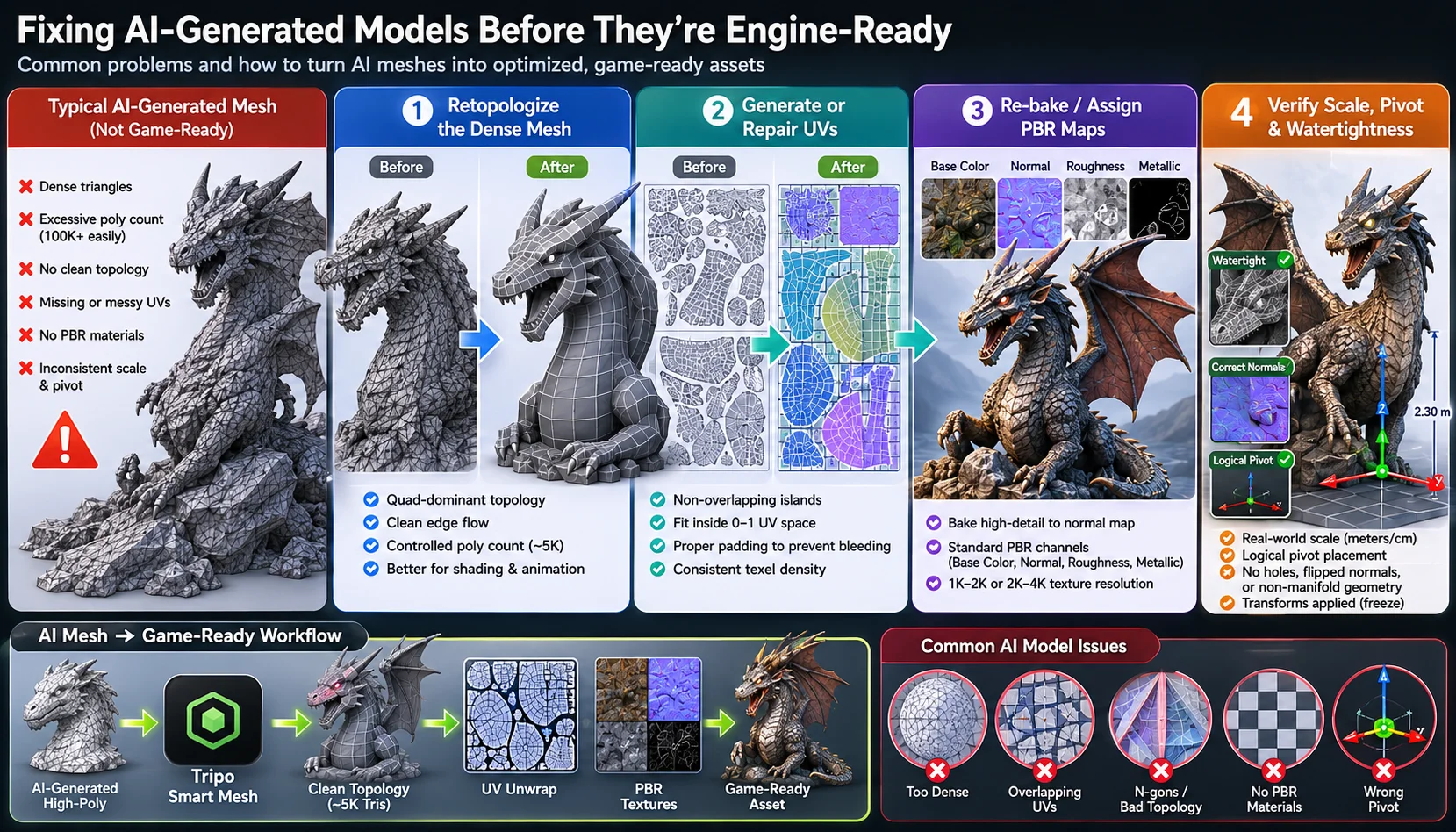
Fixing AI-Generated Models Before They're Engine-Ready
AI-generated 3D models can produce impressive shapes in seconds, but they rarely satisfy production standards without additional cleanup. Common issues include excessively dense triangulated meshes, inconsistent edge flow, missing UVs, and materials that are unsuitable for physically based rendering. Before importing an AI asset into Unity or Unreal Engine, several fixes are usually required.
Retopologize the Dense Mesh
Most AI-generated meshes prioritize appearance rather than efficiency. They often contain chaotic triangles and unnecessarily high polygon counts that hurt performance and make animation difficult. Retopology converts those dense meshes into cleaner, quad-dominant geometry with predictable edge flow.
Modern tools can automate much of this process. For example, Tripo Smart Mesh can generate game-ready topology in seconds, producing optimized meshes with roughly 5,000 polygons by default. Existing assets can also be processed through retopology workflows to target specific polygon budgets for mobile, PC, or console projects.
The same challenge applies to photogrammetry and scan assets. A raw scan produces millions of faces with chaotic topology—far too heavy for real-time use. The game-ready pipeline handles scans the same way: build a clean optimized low-poly on top, bake the scan surface detail into Normal and AO maps, then deliver the low-poly plus textures to the engine.
Tripo AI generation provides a strong geometric foundation—detailed models that would otherwise require hours of manual sculpting. Smart Mesh then converts that geometry into clean game-ready topology in seconds, significantly shortening the path from AI output to production-ready asset.
Generate or Repair UVs
AI models frequently lack clean UV layouts or contain overlapping UV islands that create texture artifacts. Before texturing, UVs should be regenerated or repaired so that islands fit within the 0–1 space, maintain consistent texel density, and include enough padding to prevent bleeding.
Re-Bake or Assign PBR Maps
The core principle: sculpt all surface detail on a high-poly mesh, then bake it onto the low-poly game mesh as texture maps. The low-poly carries the performance-friendly geometry; the baked maps recreate the visual richness of the original. This is how a 10,000-face engine model can look as detailed as a million-face sculpt—a technique at the heart of virtually every modern game production pipeline.
Standard four-step baking workflow:
- Align the high-poly and low-poly meshes in the same position
- UV unwrap the low-poly model
- Bake Normal, AO, and curvature maps from the high-poly onto the low-poly UV layout
- Apply the baked maps to the low-poly material — done
At minimum, include Base Color, Normal, Roughness, and Metallic maps. AI-generated textures often need tuning to fit standard PBR workflows, but the baked normal map carries most of the visual weight.
Verify Scale, Pivot, and Watertightness
Before export, perform a final validation pass. Confirm that the asset uses real-world dimensions, that pivots are positioned logically, and that there are no holes, flipped normals, or non-manifold geometry. A watertight mesh with correct scale and transforms will import far more reliably into game engines and downstream pipelines.
Engine-Specific Import Requirements
Even a technically correct asset can fail if it isn't configured for the target engine. Each engine has its own import conventions, shader systems, and collision workflows, so a quick validation pass is always worthwhile.
Unity
Unity imports FBX and GLB assets easily, but materials often need manual adjustment. Make sure shaders match your render pipeline—Standard for Built-in RP, Lit for URP, and HDRP/Lit for HDRP. Another common issue is incorrect scale or missing colliders, which can lead to unexpected physics behavior.
Unreal Engine
Unreal Engine supports high-detail assets well, especially with Nanite in UE5, but efficient topology and texture memory still matter. Custom collision meshes should follow the UCX_MeshName naming convention so Unreal recognizes them automatically. Material Instances are recommended to reduce duplication and simplify parameter editing.
Godot
Godot 4 works best with glTF and GLB formats, which preserve materials and hierarchy more reliably than FBX. One common issue is scale mismatch caused by inconsistent unit settings between DCC tools and Godot. Verifying transforms before export helps avoid oversized or undersized assets.
Common Workflow Tip
Regardless of the engine, always test an asset after import rather than assuming it is production-ready. Check materials, scale, normals, and collision behavior inside the engine itself. Tools such as Tripo's Blender, Unity, Unreal Engine, and Godot DCC Bridges can streamline the process by enabling one-click transfers and reducing manual setup.
Export Formats — Which One Should You Use?
Choosing the right export format depends on where the asset will be used. As a general rule, FBX remains the industry standard for games and animation, GLB is ideal for web and real-time applications thanks to embedded materials, and OBJ provides broad compatibility for simple geometry exchange. Before exporting, always apply transforms and confirm that units and scale match the target engine.

If you're unsure which format to choose, FBX is usually the safest option for game development. GLB is increasingly popular because it packages geometry, materials, and textures into a single file, reducing import issues. OBJ remains useful for static meshes but lacks modern material and animation support.
Tripo supports exporting to common formats including FBX, GLB, and OBJ, though available export options may depend on your subscription plan and workflow. Regardless of format, verifying scale and applying transforms before export will prevent many downstream issues.
Frequently Asked Questions
How do you make a 3D model game-ready?
Making a 3D model game-ready involves more than creating a visually appealing mesh. The model should have clean topology, an appropriate polygon count, non-overlapping UVs, and physically based rendering textures. Scale, pivot placement, collision meshes, and export settings should also be verified before import. Testing the asset inside Unity, Unreal Engine, or another target engine is the final step to ensure everything works correctly.
Can AI create game-ready 3D assets?
AI tools can generate impressive meshes, but most AI-generated assets still require additional cleanup before they are suitable for production. Dense triangulated geometry, missing UVs, and inconsistent materials are common issues. Retopology, UV generation, and physically based rendering texture creation are usually necessary. Modern workflows can automate much of this process, making AI-generated models much closer to game-ready than before.
What is a good polygon count for a game asset?
There is no single polygon limit that works for every project—the right count depends on platform and asset type. Mobile character models typically use 5,000–20,000 triangles, while PC and console characters commonly range from 30,000–100,000 triangles. Props scale proportionally: 500–3,000 for mobile, 3,000–15,000 for PC/console. Film and offline assets can reach hundreds of thousands or more. Texture memory and level-of-detail systems are usually more important optimization levers than raw polygon count.
Why isn't my AI-generated model game-ready out of the box?
Most AI models are optimized for appearance rather than real-time performance. They frequently contain excessive triangles, irregular topology, overlapping geometry, and missing UV layouts. Materials may not follow physically based rendering workflows, and scale or pivot placement can be inconsistent. These issues need to be corrected before the model can be used reliably inside a game engine.
What is the difference between a game-ready asset and a high-poly sculpt?
A high-poly sculpt focuses on visual detail and is usually intended for offline rendering or baking workflows. It may contain millions of polygons and is not optimized for real-time performance. A game-ready asset balances quality and efficiency through optimized geometry, UV layouts, and physically based materials. The goal is to maintain visual fidelity while keeping the asset lightweight enough for interactive applications.
What file format should I export game assets in?
FBX remains the most widely used format for game development because it supports animation, skeletons, and broad engine compatibility. GLB is an excellent option for web, AR, VR, and modern real-time workflows because it stores geometry, materials, and textures in a single file. OBJ is suitable for simple static meshes but lacks support for advanced material and animation data. Before exporting, always apply transforms and confirm that the unit scale matches the target engine.
Conclusion
A game-ready asset is more than a model that looks good—it needs clean topology, a sensible polygon budget, proper UVs, physically based rendering textures, correct scale, and engine-ready exports. Run every asset through this checklist and always validate it inside your target engine before shipping.
If you want to start with cleaner geometry from the beginning, you can generate and optimize assets directly in Tripo Studio, then export them to Unity, Unreal Engine, Godot, or your preferred workflow.