如何使用 Tripo Smart Mesh P1.0:逐步教學
你畫好了一個角色。週五前需要把它放進遊戲裡。通常流程是:生成高面數 mesh、匯出、打開 Blender、花一小時重新拓撲、最佳化多邊形數量、清理 edge flow、再次匯出、匯入到你的引擎,然後發現 normals 壞掉了。
Smart Mesh 省去了大部分這些步驟。上傳圖片、設定多邊形數量、按下生成。兩秒後,你就會得到一個乾淨的 low-poly mesh,具備合理的 edge flow,並且可直接進行 rigging。不需要重新拓撲,也不需要在匯入時修東修西。
它是為遊戲開發者,以及任何需要資產能直接丟進引擎並即時執行的 pipeline 而打造的。
本教學會完整走過整個 workflow,從打開工作區到匯出一個已貼圖、可直接進引擎的模型,最後還會提供兩個真實製作範例。
Smart Mesh 能做什麼
Smart Mesh 會直接從你的輸入圖片生成結構化的 low-poly topology。它不會產生需要清理的高密度混亂 mesh,而是輸出乾淨的 geometry、組織良好的 edge flow,以及你可控制的多邊形數量。若想了解它被設計來解決的 topology 問題完整背景,請參閱 Smart Mesh P1.0 announcement。
結果是一個你可以直接丟進 Unity、Unreal,或 browser-based renderer 的 mesh,無需碰任何 mesh editor。對於 mobile NPC、web game character 和次要 props,retopology 這一步就消失了。
生成大約需要 2 秒。對正在迭代大型資產庫的團隊來說,這種速度會快速累積成明顯優勢。
適合誰使用
Indie developers 和小型 game studios,用於製作 mobile 或 web games。如果你的 pipeline 包含中階 NPC、背景角色,或需要維持在多邊形預算內的 props,Smart Mesh 可以處理 geometry layer,讓你專注在 gameplay 上。
進行快速 prototyping 的 3D artists。 Smart Mesh 可作為 prototype layer。先生成乾淨的 low-poly 版本,驗證形狀與比例,再決定該資產是否需要完整 HD pass。
任何一直在使用 generate-then-retopo workflow 的人。 如果你目前的流程是匯出 AI 生成的 mesh,再到 Blender 清理後才能使用,Smart Mesh 會移除這個步驟。正如一位使用者所說:「Saves me a step in doing a retopography.」
如何使用 Smart Mesh
Step 1:打開 Smart Mesh Workspace
前往 Tripo Studio。在首頁畫面中,你會看到兩個生成選項:High Detail Model 和 Smart Topology Mesh。點擊 Generate Smart Mesh → 進入工作區。
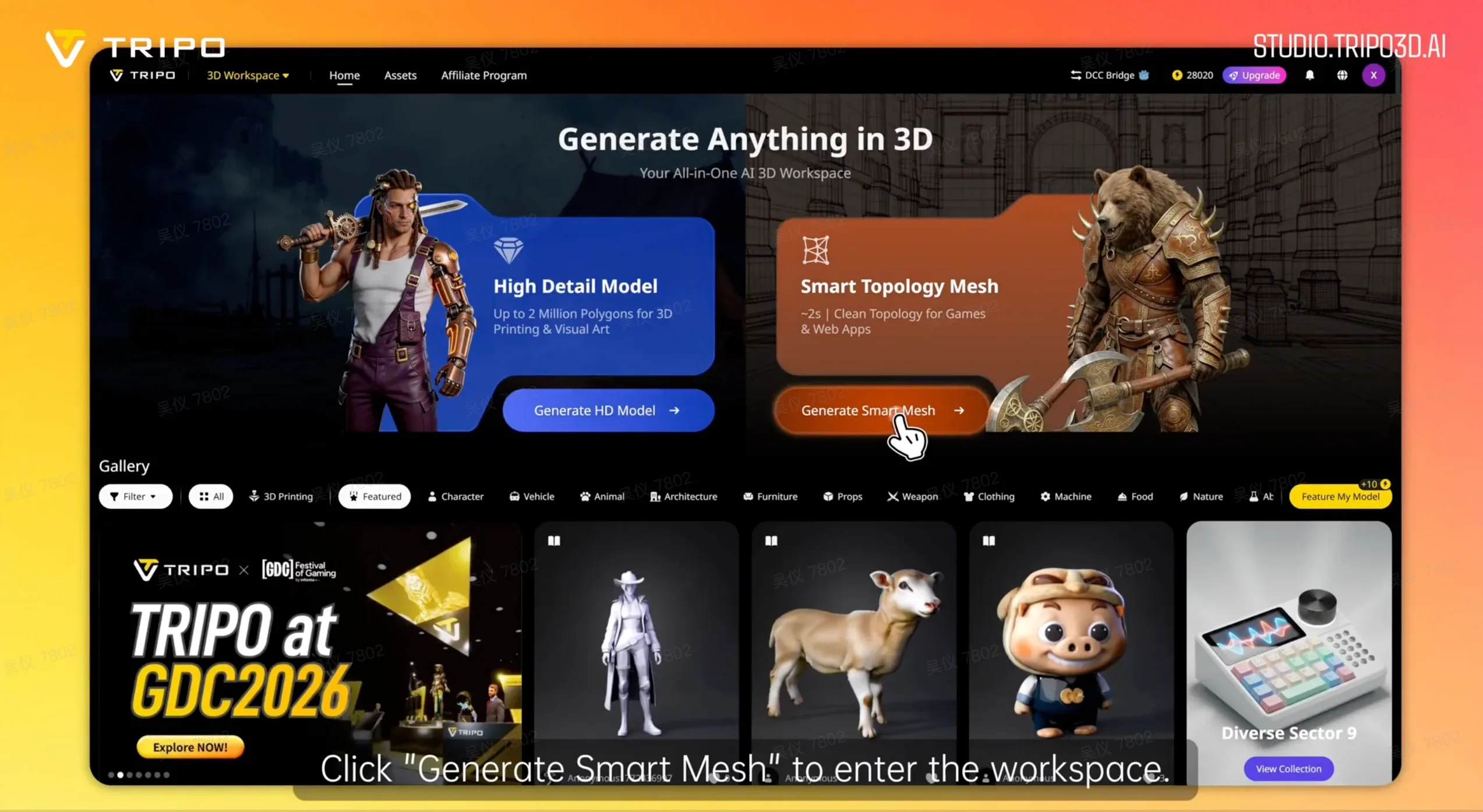
在 Tripo Studio 首頁點擊「Generate Smart Mesh」以打開工作區。
Step 2:選擇你的輸入方式
在工作區中,左側面板會顯示 Generate Model 面板,並已選取 Smart Mesh。你有三種輸入選項:
- Single image: 上傳一張參考圖片,讓 AI 推斷完整 3D 形狀
- Multi-view: 上傳正面、左側、右側和背面視圖,以取得更精準的 geometry
- Batch upload: 一次上傳最多 10 張圖片,在一次執行中生成多個模型
對單一角色或 prop 來說,single image 就很適合。對於 symmetry 和 silhouette 準確度很重要的資產(例如 hero NPC),multi-view 能提供更精準的控制。
Single image upload:
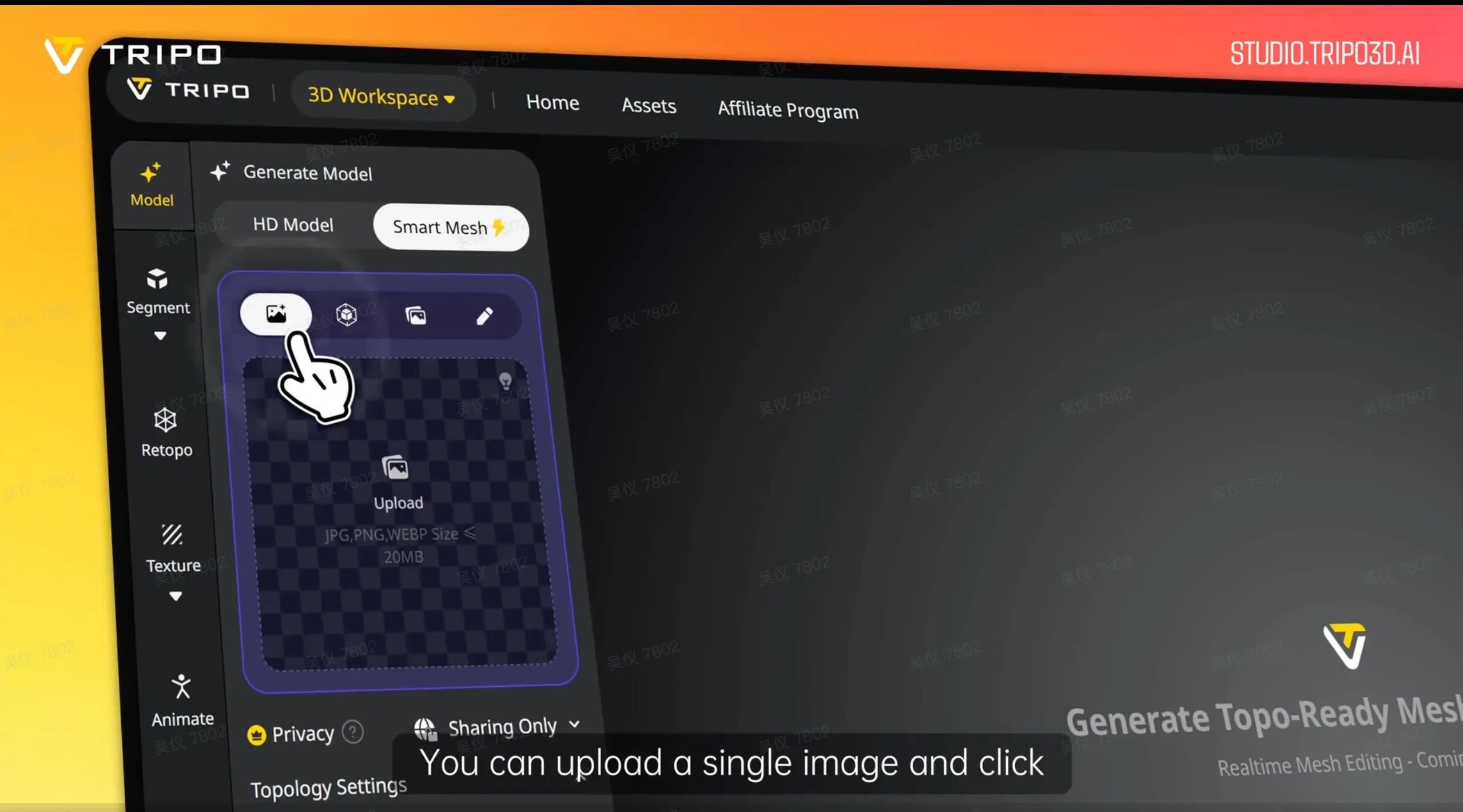
上傳單張圖片並點擊「Generate Multi-View」,讓 AI 推斷完整 3D 形狀。
Multi-view upload:
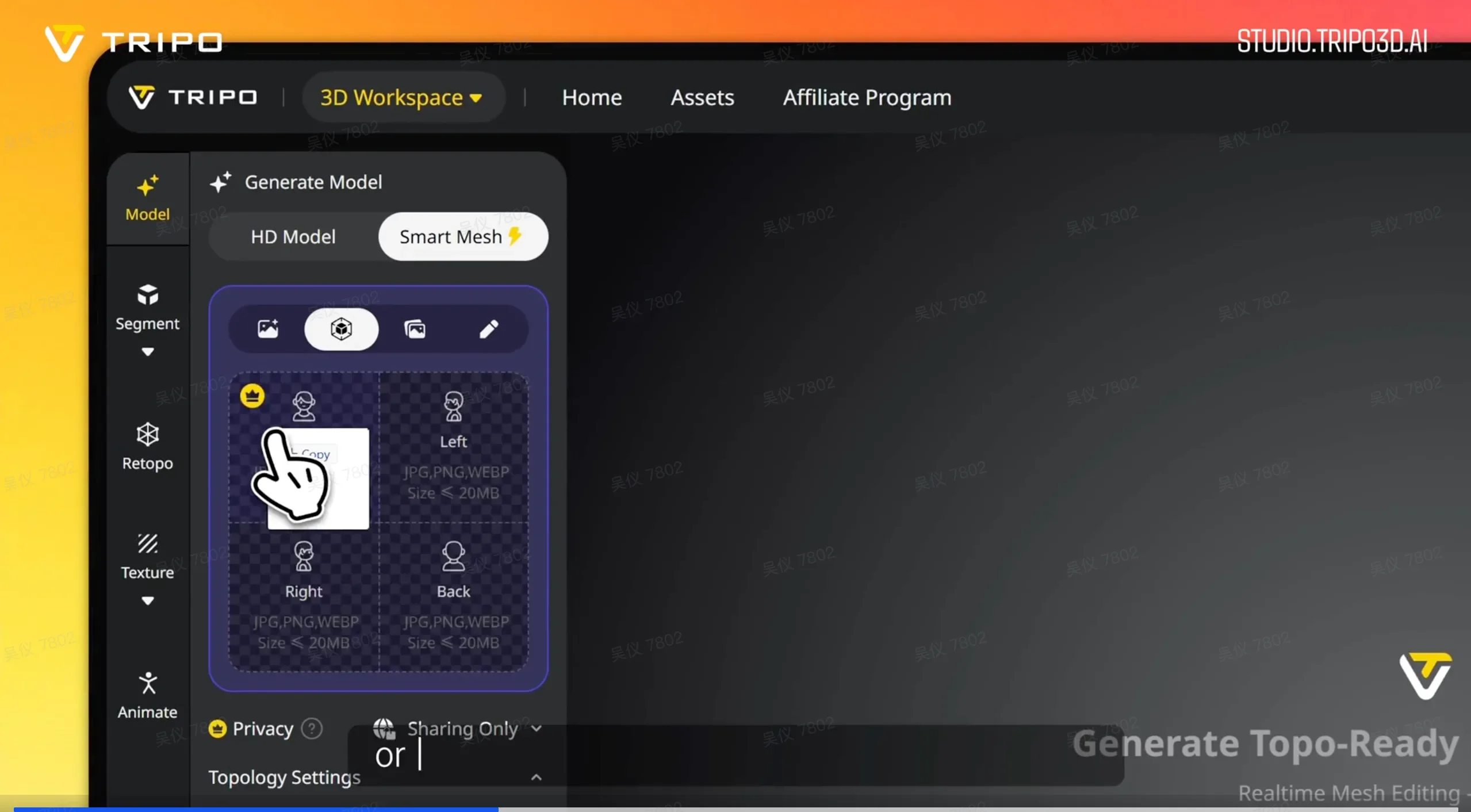
直接上傳正面、左側、右側和背面視圖,以取得更精準的 geometry。
Batch upload(最多 10 張圖片):
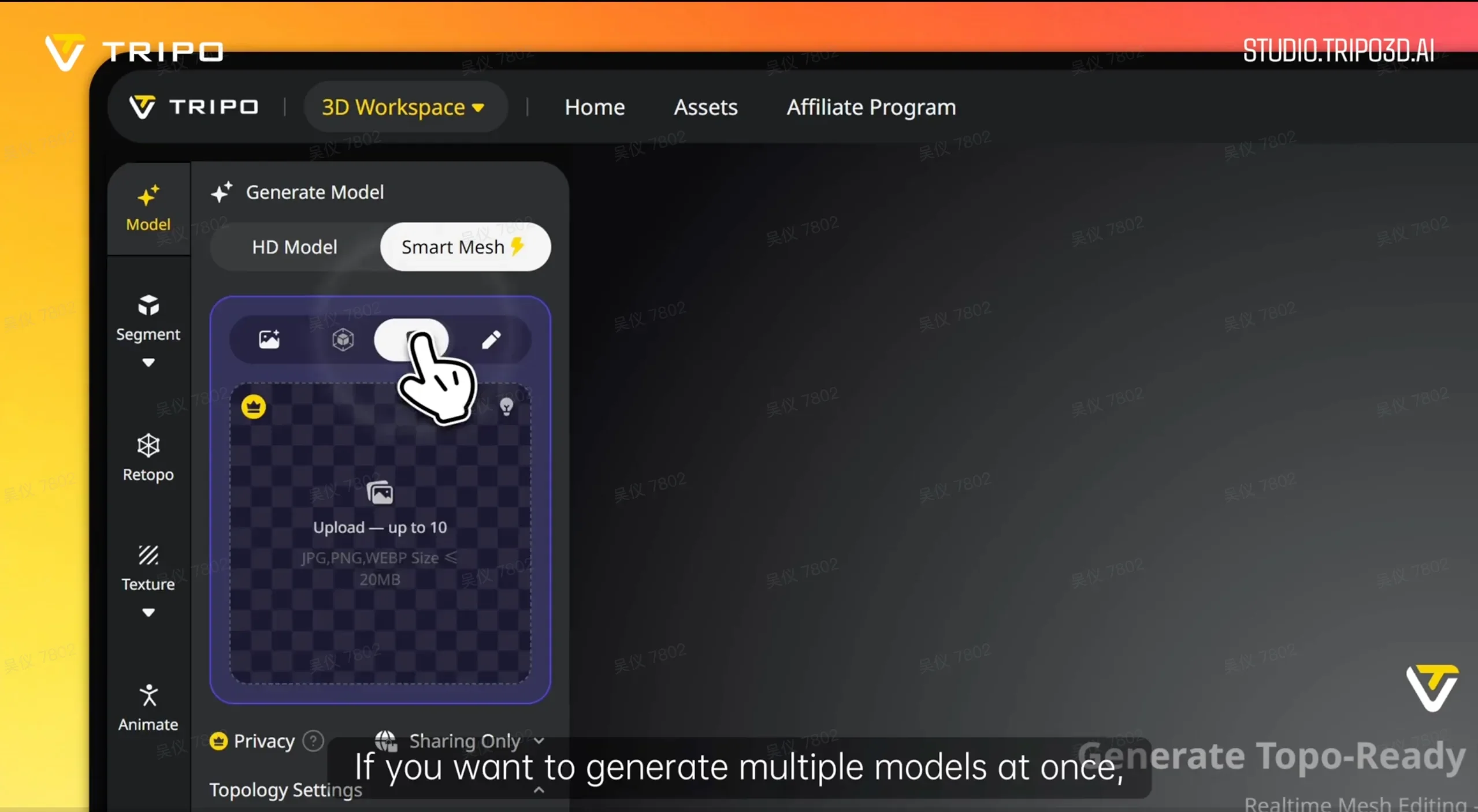
使用 batch upload 一次生成最多 10 個模型。
支援格式:JPG、PNG、WEBP,每個檔案最高 20MB。
Step 3:設定你的多邊形數量
生成前,打開面板底部的 Topology Settings。你會看到兩個控制項:
- Topology type: Quad 或 Triangle。即時 game engines 請選 Triangle;需要進一步 rigging 或 subdivision 的資產請選 Quad。
- Polycount slider: 拖曳到你的目標多邊形數量。對 mobile NPC 來說,8k–15k 是常見範圍。對於以 GLB 匯出並使用 DRACO compression 的 web game character,20k 多邊形可壓縮到 1MB 以下,並在瀏覽器中乾淨渲染。
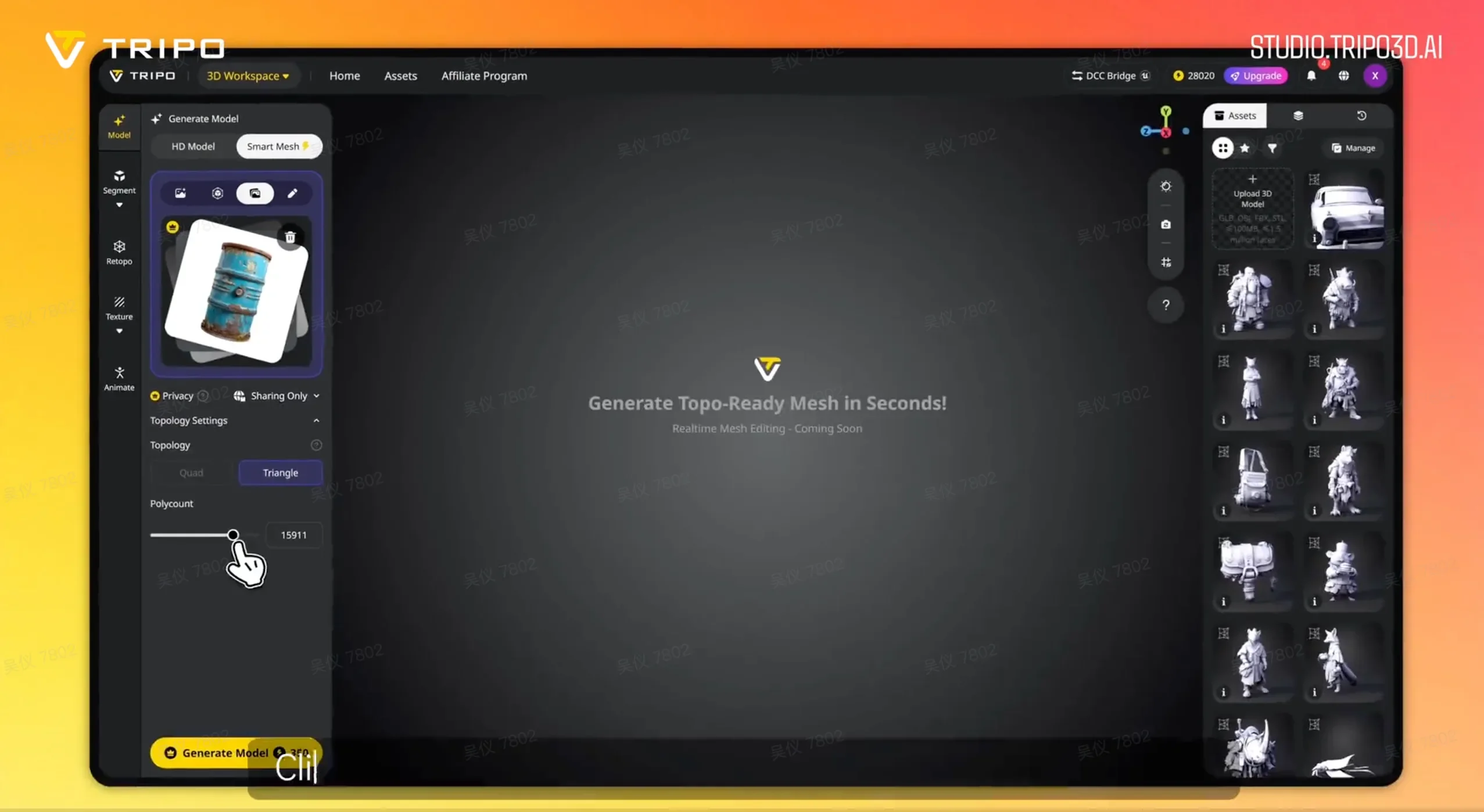
在生成前設定 topology type(Quad 或 Triangle),並將 polycount slider 拖曳到你的目標。
Step 4:生成你的模型
點擊 Generate Model。大約 2 秒後,你的模型會出現在 viewport 中。你可以旋轉它、檢查 wireframe,並在繼續下一步前檢視 topology。
如果形狀需要調整,可以微調 polycount 或切換輸入方式後重新生成。每次執行只需 2 秒,迭代非常快速。
Step 5:加入貼圖(選用)
如果你需要已貼圖的資產,請在 Texture 面板中點擊 Generate Textures。你可以啟用 4K 或 8K Texture 來取得更高解析度輸出。Texture generator 會使用你的原始參考圖片作為風格指南。
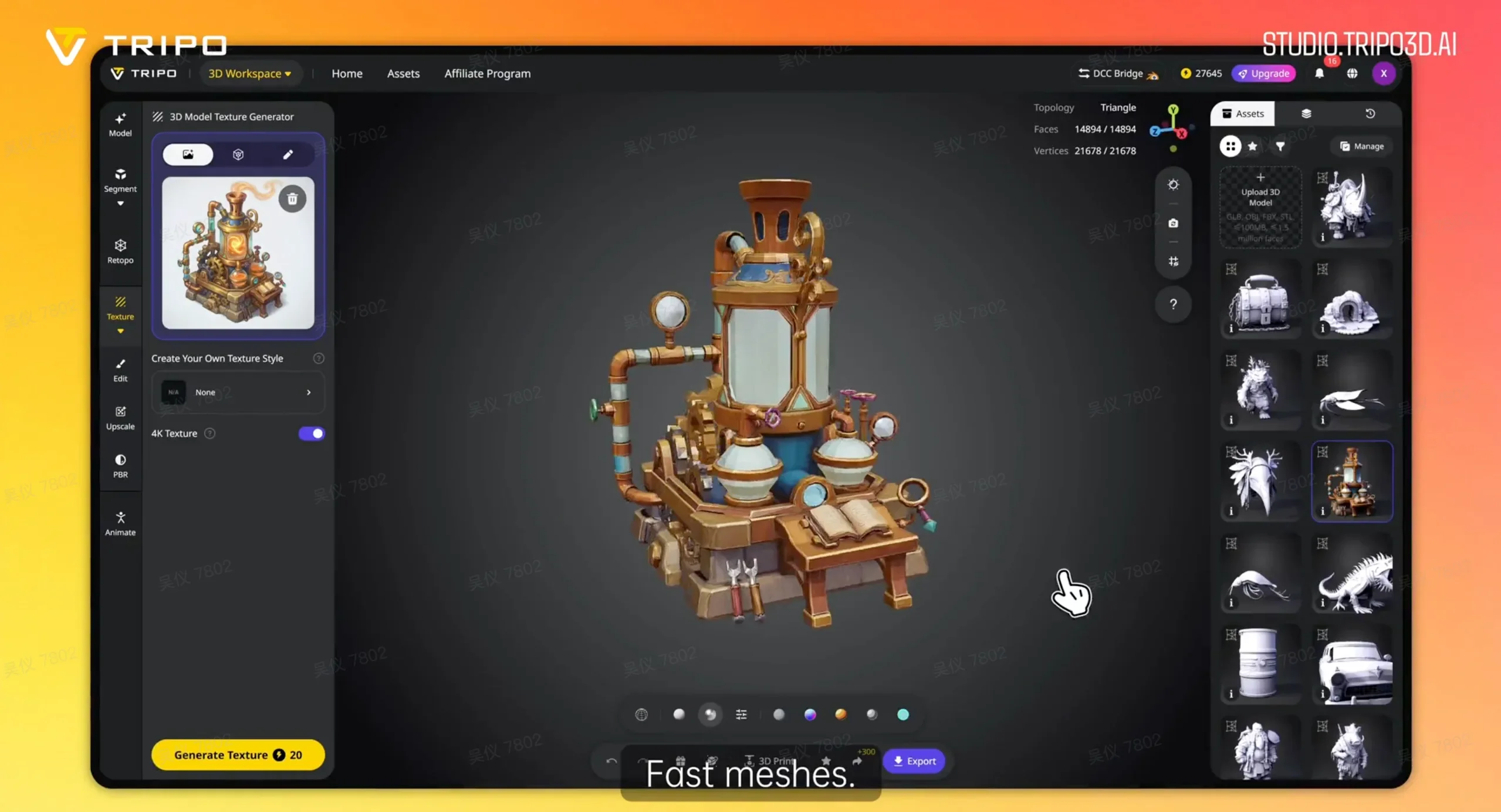
在 Texture 面板中點擊「Generate Textures」,為你的模型加入 4K 或 8K textures。
Step 6:匯出你的資產
點擊底部工具列中的 Export。Smart Mesh 支援 GLB、OBJ、FBX 和 STL。對 game engines 來說,GLB 是最具可攜性的格式。對 browser-based games 來說,即使是 20k 多邊形,搭配 DRACO compression 的 GLB 也能將檔案大小維持在 1MB 以下。
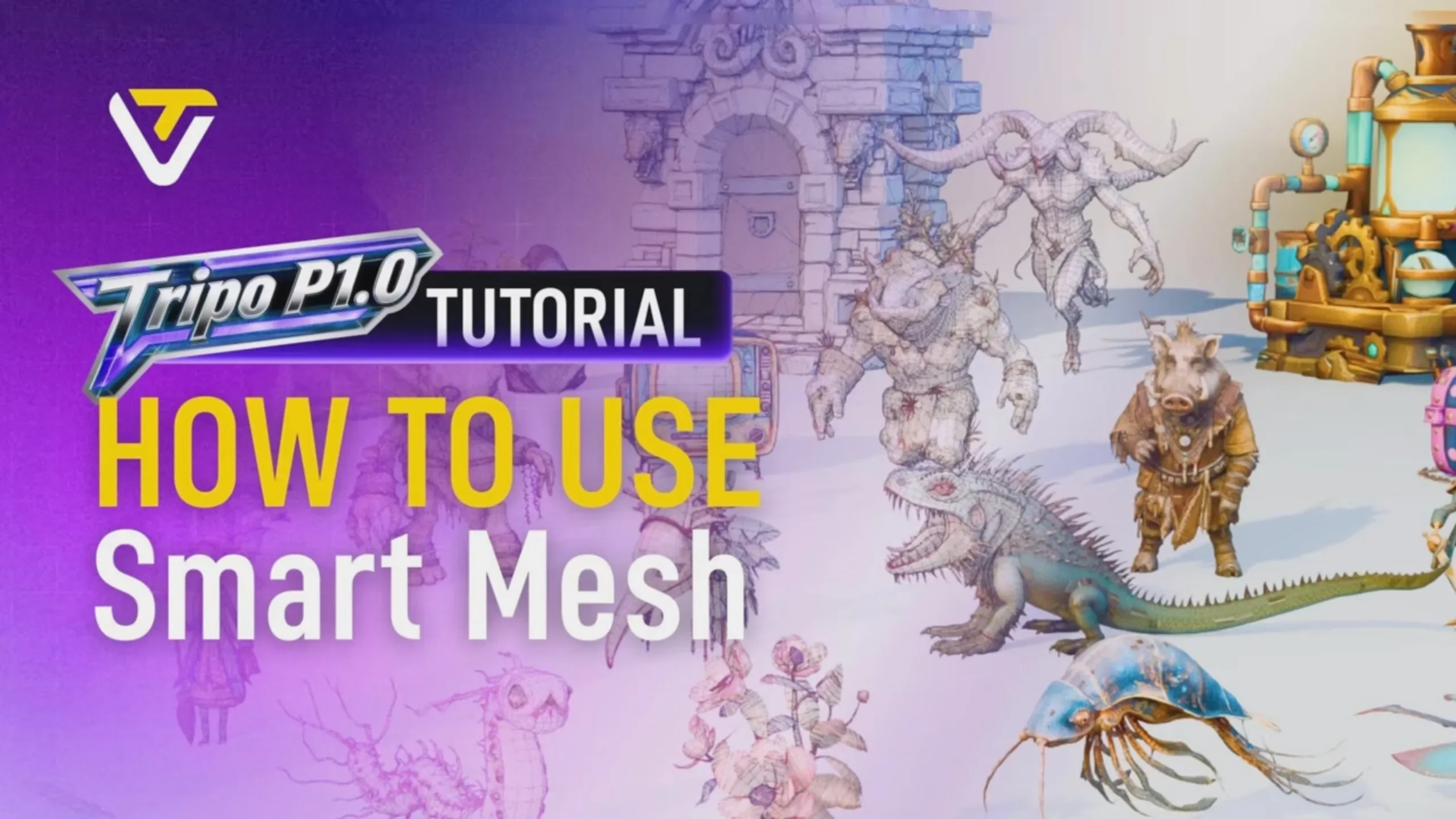



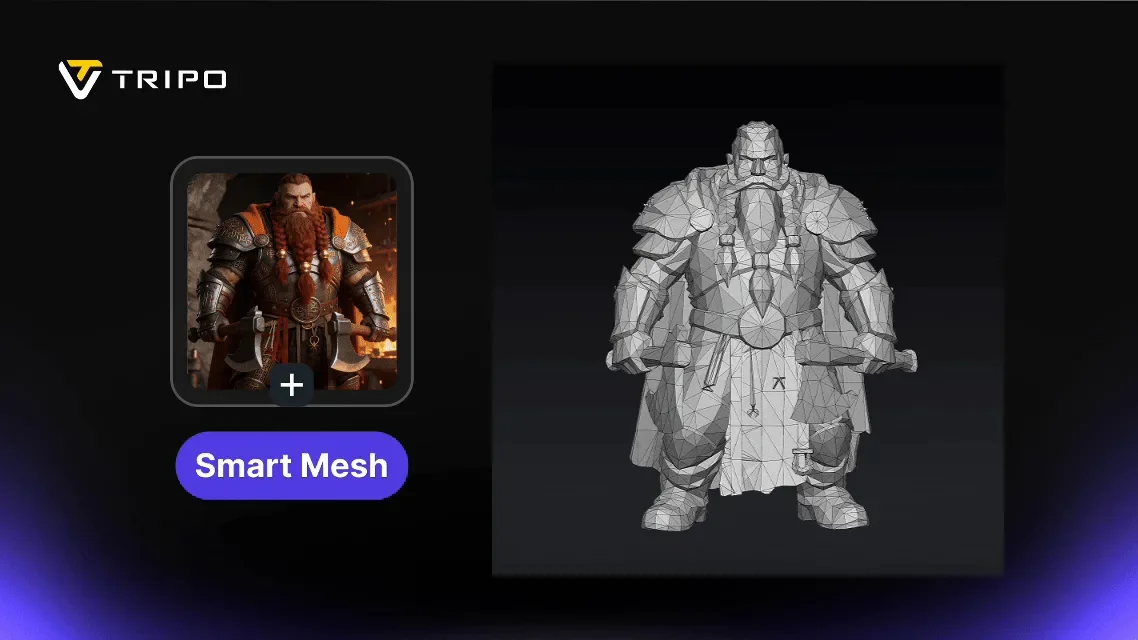


以下是幾個 Smart Mesh 輸出,以 wireframe 顯示,讓你看見每個結果背後乾淨且有組織的 topology:
Smart Mesh 的真實 Workflow
| Use Case | Pipeline | Highlights |
|---|---|---|
| Browser game:批次 ship assets | LLM style guide → 2D concept art → Smart Mesh(20k 多邊形)→ GLB + DRACO | 檔案大小低於 1MB,可直接部署到瀏覽器。從 2D 開始比 text prompts 更能掌握 art direction。 |
| Game NPC:完整 production pipeline | Concept → Smart Mesh → Rigging → Animation → 少量手動調整 | 從 concept 到 in-game NPC 的完整 pipeline。乾淨的 topology 可支援 rigging,無需清理。 |
| 小型團隊:快速 asset iteration | Sketch → AI concept art → Smart Mesh → Texture | 「Generation speed outpaces sketching.」Artists 仍能掌控設計方向。 |
| VR scene:批次 environment assets | Smart Mesh → VR engine | 批次生成符合 VR performance budgets 的家具與 props。 |
Smart Mesh vs. HD Model:何時使用哪一個
多數團隊最後會在 pipeline 的不同部分使用 Smart Mesh 和 HD Model:
| Stage | Recommended Approach | Why |
|---|---|---|
| Prototyping / batch assets | Smart Mesh | 生成快速、topology 乾淨,且可在生成前控制多邊形數量 |
| Hero shots / high-detail models | HD Model + Auto Retopo | 為 marketing renders 和 close-up shots 提供更高視覺品質 |
| 最終 animated characters | HD Model + manual retopo | manual retopo 可為複雜 rigging 和 animation 提供最佳 edge flow |
當你需要數量和速度時,使用 Smart Mesh。當資產需要在近距離下經得起檢視,或承載完整 animation rig 時,使用 HD Model。
開始使用
Smart Mesh P1.0 現已可在 Tripo Studio 使用。打開工作區、上傳你的 concept image、設定 polycount,然後生成。
你會在 2 秒內得到乾淨、結構化的 mesh。無需 retopology pass。無需繞去 Blender。直接匯出並使用。
.webp?x-oss-process=image%2Fresize%2Cw_720%2Fformat%2Cwebp%2Fquality%2Cq_80)

.webp?x-oss-process=image%2Fresize%2Cw_720%2Fformat%2Cwebp%2Fquality%2Cq_80)