如何在 Tripo Studio 使用 Nano Banana:逐步 Image Generation 指南
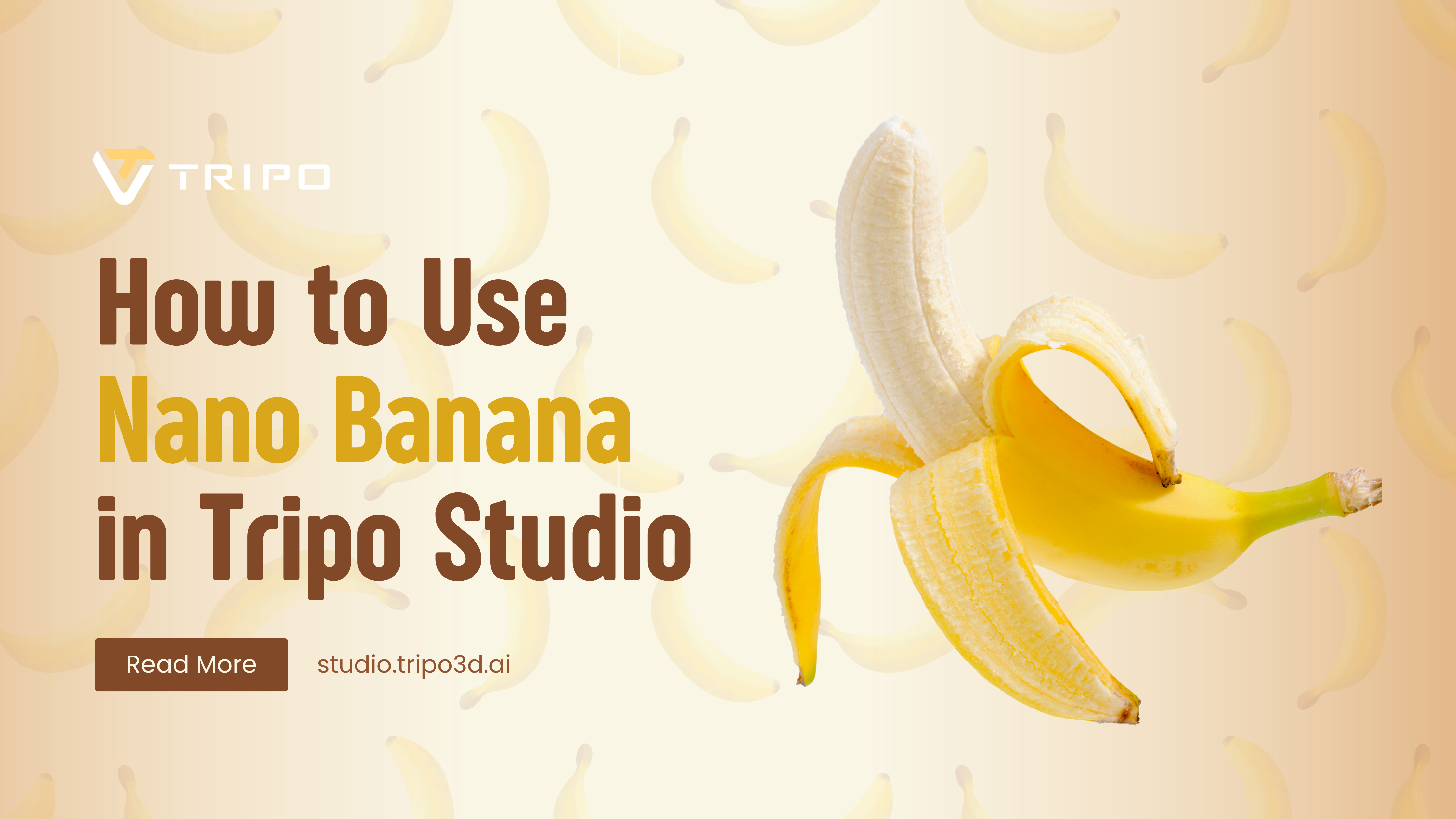
Google 最近推出了一款改變遊戲規則的 AI 模型,迅速席捲創意世界。這款代號為「Nano Banana」(官方名稱為 Gemini 2.5 Flash Image)的強大 3d model generator ai 生成器搭檔人氣暴增,全球創作者都在運用其卓越能力,將影像轉換為 image to 3d model generator。過去仍屬實驗性的技術,如今已正式上線並向所有人開放,包括透過 free ai 3d model generator generator free no sign up 使用,徹底革新我們處理 image to 3D 工作流程與數位藝術創作的方式。
什麼是 Nano Banana?

Nano Banana,官方名稱為 Google 的 Gemini 2.5 Flash Image 模型,是一款由文字驅動的影像生成與編輯模型,擅長處理多影像融合、自然語言編輯,並維持主體一致性。作為 AI 3D model generator 的搭檔工具,它具備幾項代表性優勢:
- 透過文字進行局部編輯 - 對特定元素做出精準變更(例如:「移除眼鏡」、「將 T-shirt 顏色改成紅色」)
- 多影像融合 - 結合多張參考影像來組合新的場景
- 強大的角色/元素一致性 - 在不同變化中維持主體身分,非常適合建立一致的素材
這些能力讓 Nano Banana 對產品修圖、行銷橫幅、概念藝術、視覺發想,以及生成日後可透過 image to 3D 流程轉換的目錄素材特別有價值。
如何存取與使用 Nano Banana
在 Google AI Studio 存取 Nano Banana
- 前往 Google AI Studio
- 使用你的 Google 帳戶登入
- 從模型選項中選擇「Try Gemini 2.5 Flash Image (Nano Banana)」
- 你現在會進入工作區,可在其中生成新影像或編輯既有影像
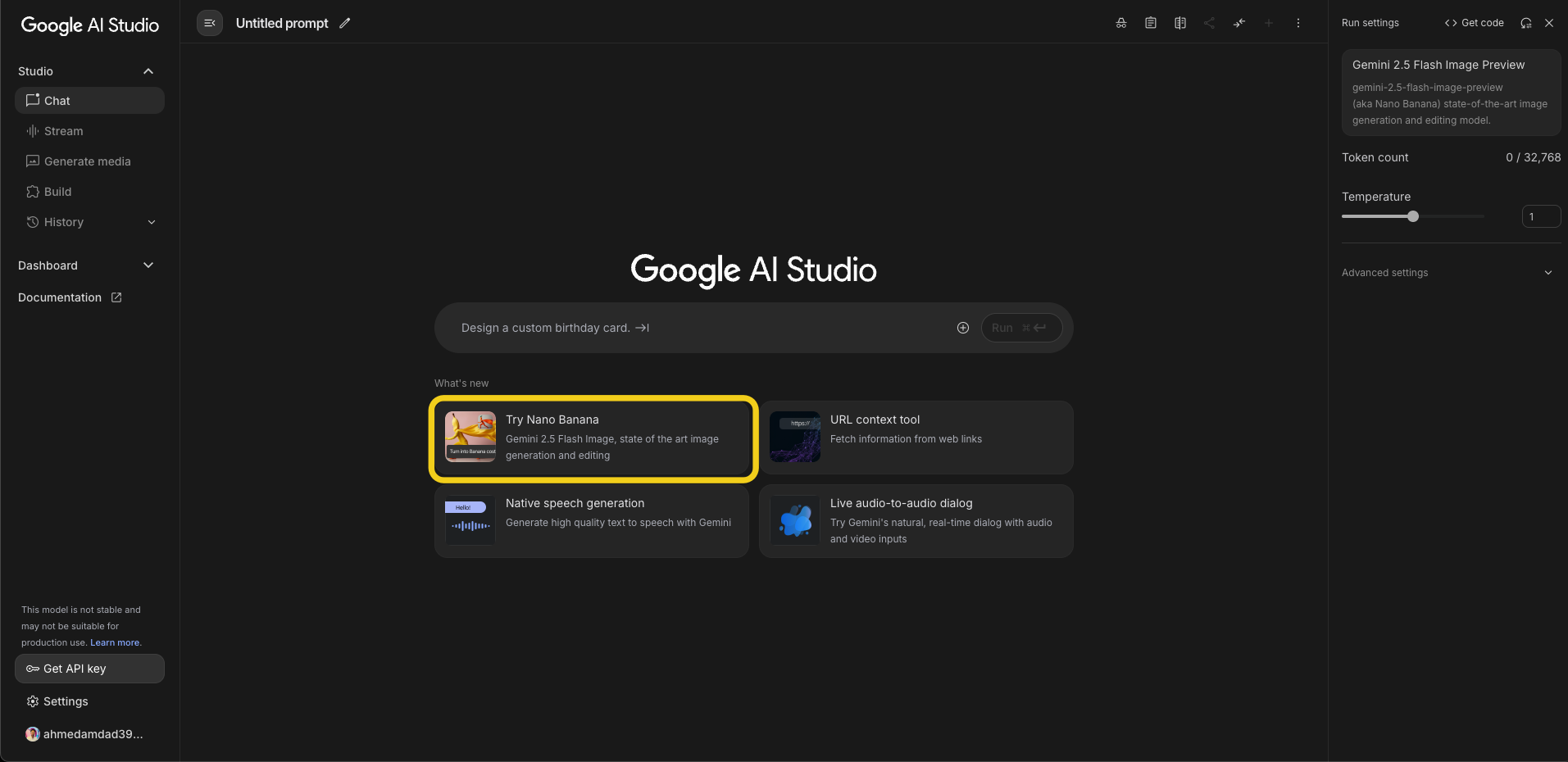
使用 Nano Banana 進行影像生成與編輯
無論你想從零建立新影像,或修改既有影像,Nano Banana 都能透過簡單的文字提示提供強大能力:
撰寫有效的生成提示詞
- 使用以下公式組織你的提示詞:
[主體] + [構圖] + [風格/情境] + [其他細節]
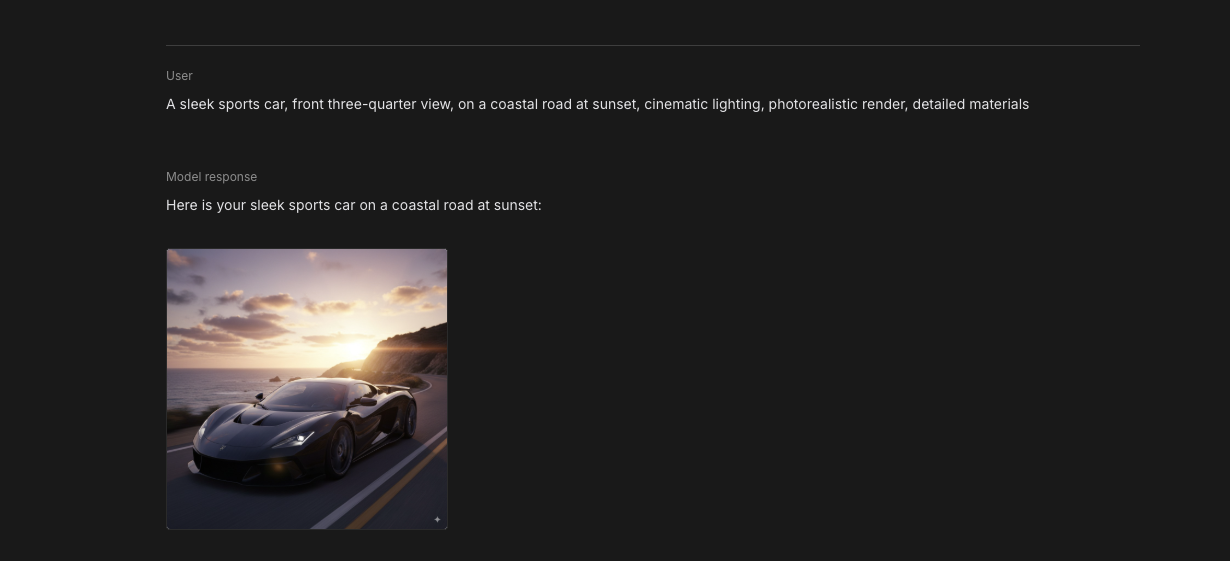
範例:「A sleek sports car, front three-quarter view, on a coastal road at sunset, cinematic lighting, photorealistic render, detailed materials」
- 加入 negative prompts 以避免不想要的元素:
範例:「blurry, distorted proportions, unrealistic lighting, text, watermarks, low resolution」
- 指定藝術風格,以取得更可控的結果:
「In the style of Studio Ghibli animation」
「Photorealistic product photography」
「Watercolor illustration style」
影像生成的實用範例
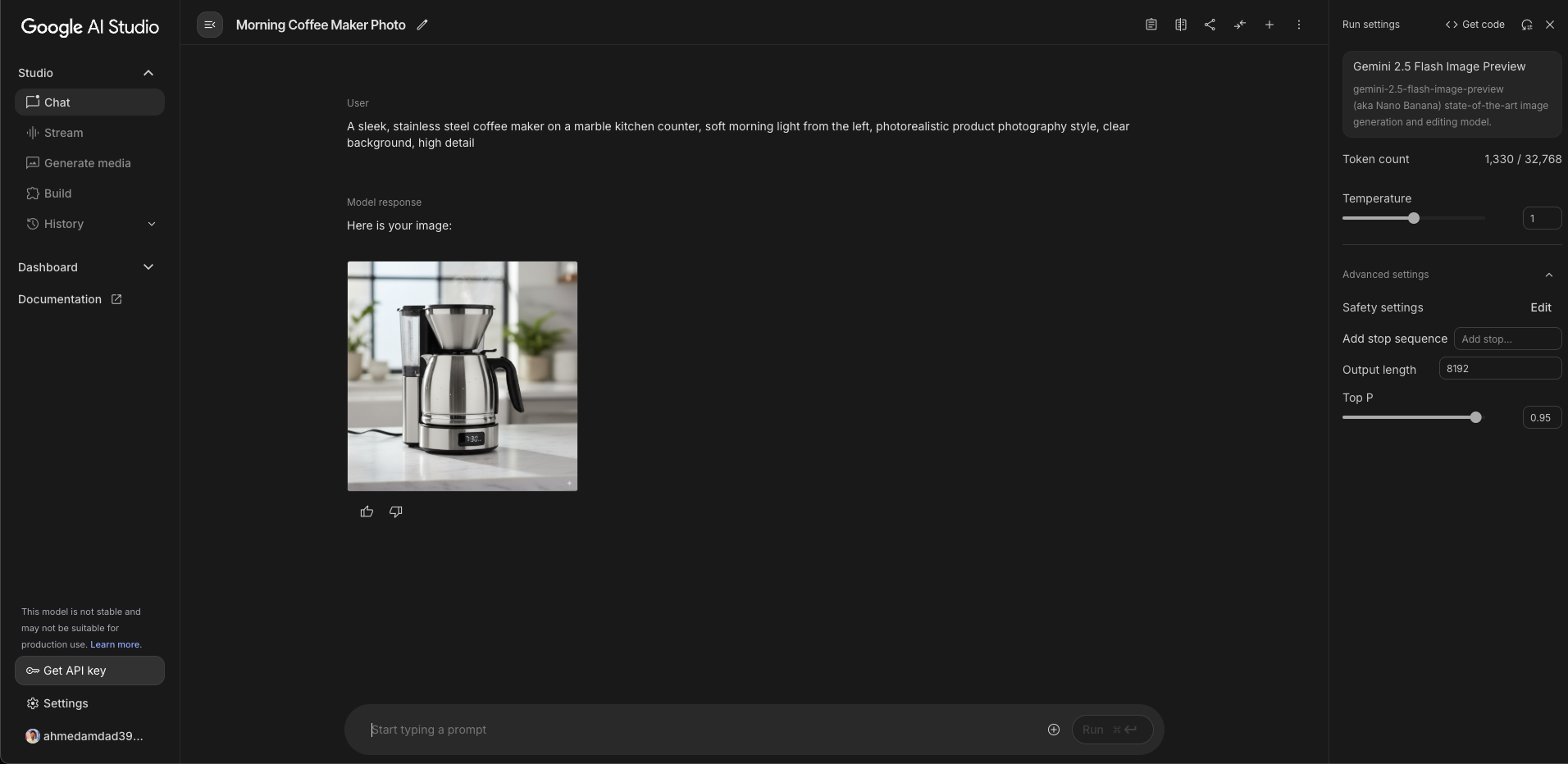
「A sleek, stainless steel coffee maker on a marble kitchen counter, soft morning light from the left, photorealistic product photography style, clear background, high detail」
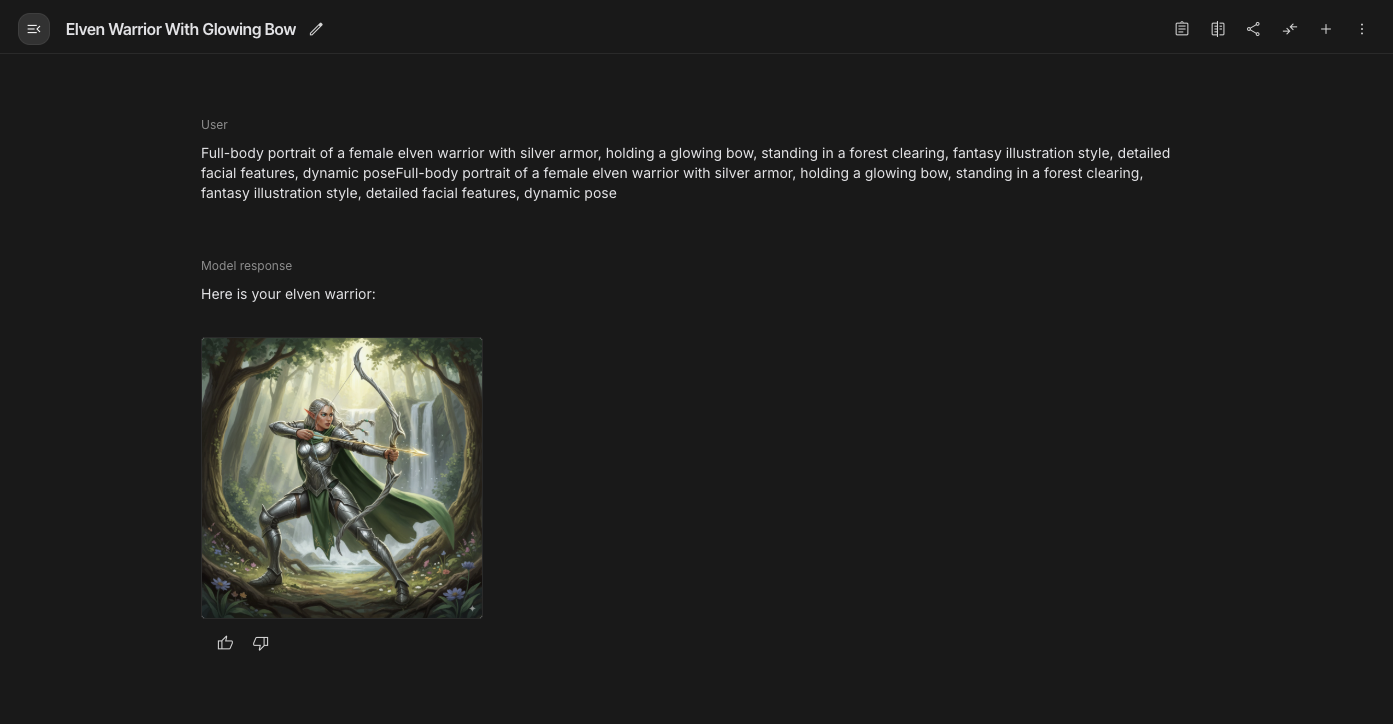
角色創作:
「Full-body portrait of a female elven warrior with silver armor, holding a glowing bow, standing in a forest clearing, fantasy illustration style, detailed facial features, dynamic pose」
環境設計:
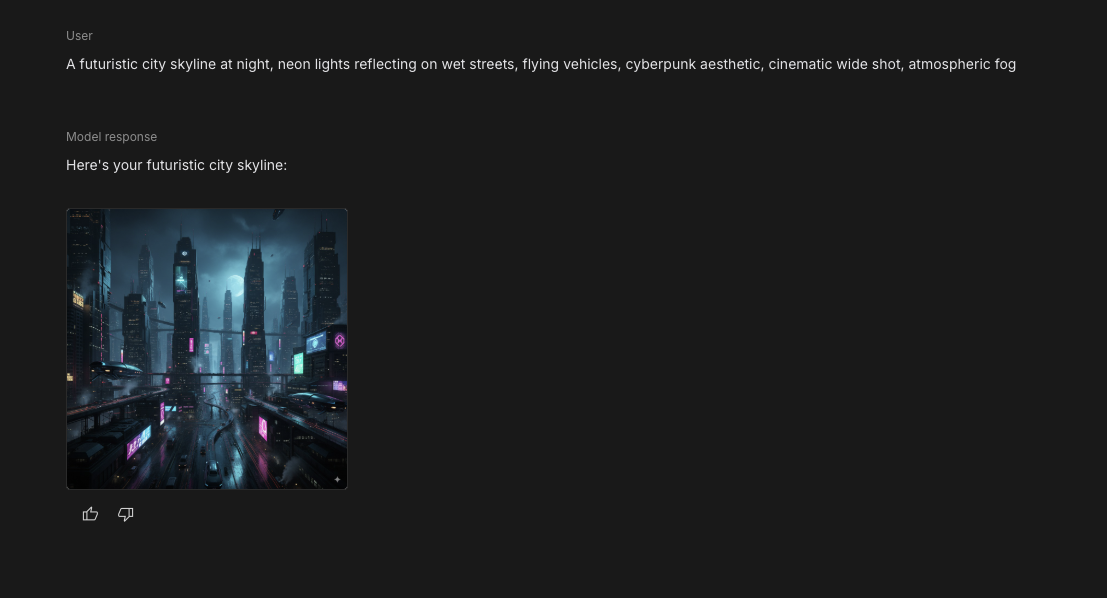
「A futuristic city skyline at night, neon lights reflecting on wet streets, flying vehicles, cyberpunk aesthetic, cinematic wide shot, atmospheric fog」
影像編輯技巧
若要在 Google AI Studio 編輯既有影像:
- 點擊上傳按鈕加入你的影像
- 在提示詞欄位寫下清楚的編輯指令
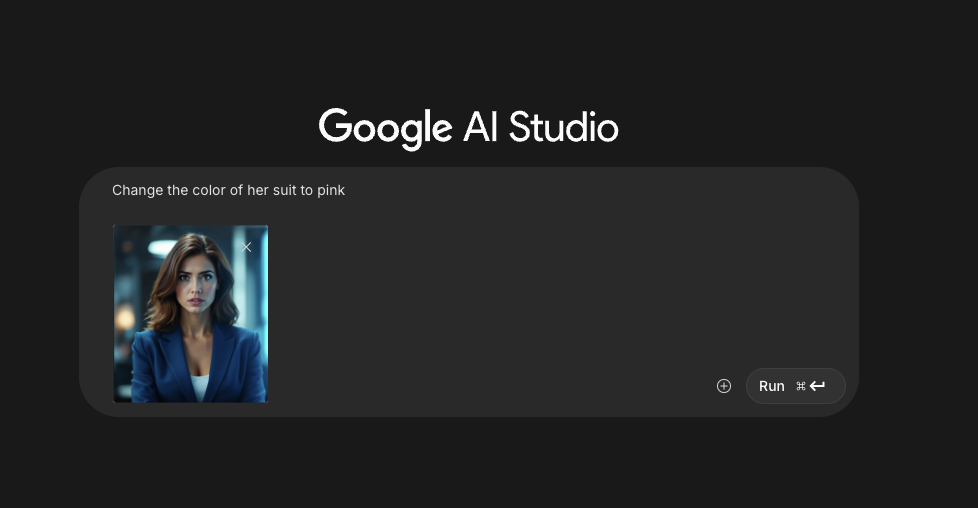
- 點擊「Generate」套用你的編輯

以下是一些有效的編輯技巧:
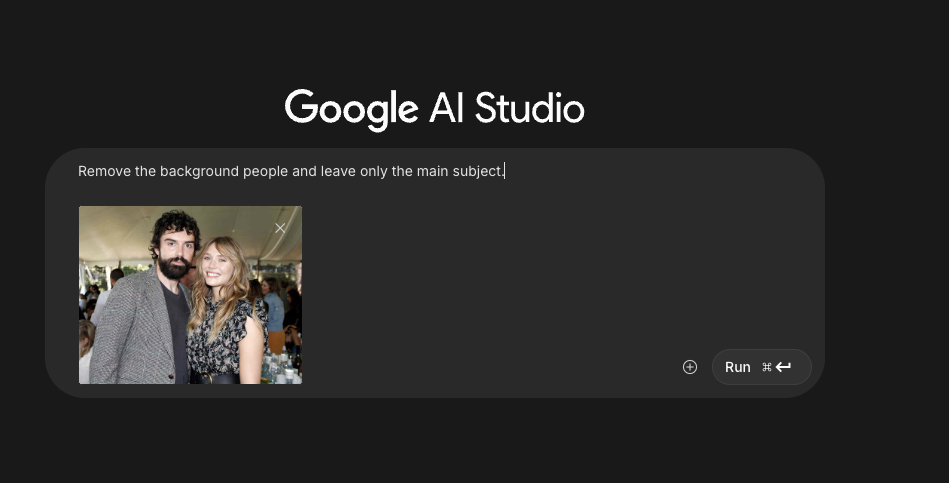
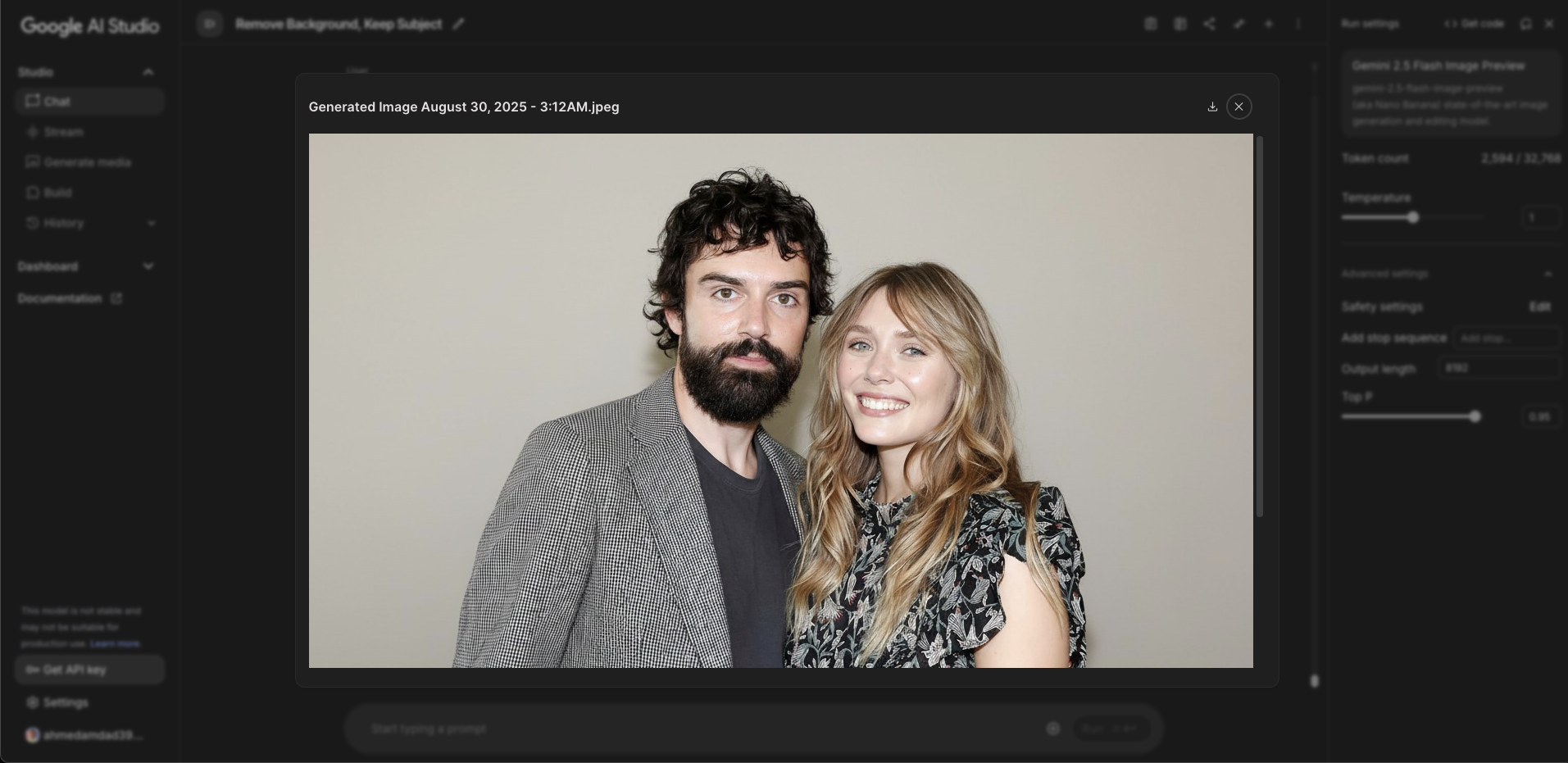
- 移除或新增物件:
「Remove the background people and leave only the main subject.」
「Add a small flying dragon in the top right corner of the image.」
- 風格轉換:
「Change the art style to watercolor painting while maintaining the exact same composition」
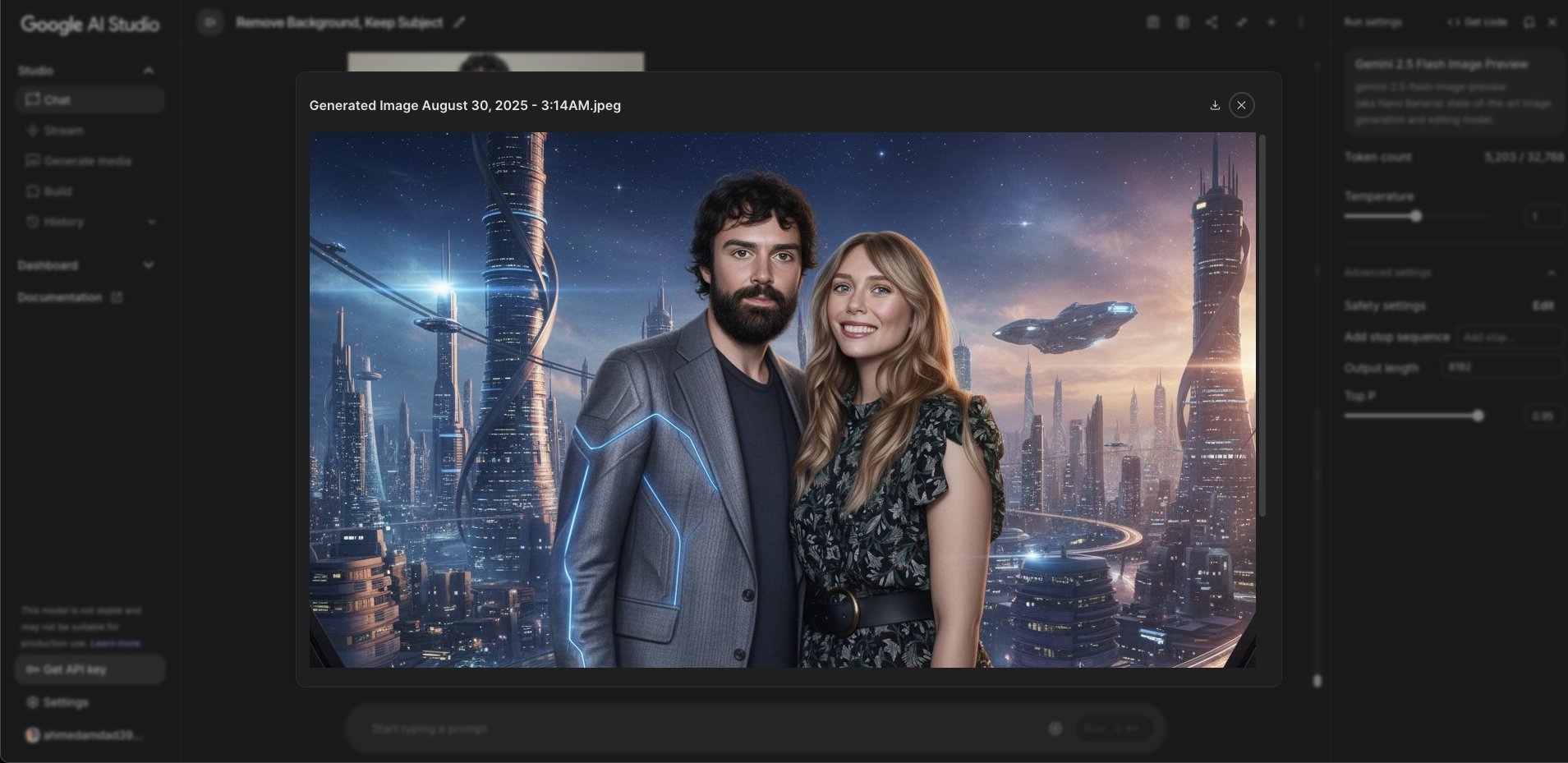
「Transform this photo into a cinematic sci-fi scene」
- 顏色與材質修改:
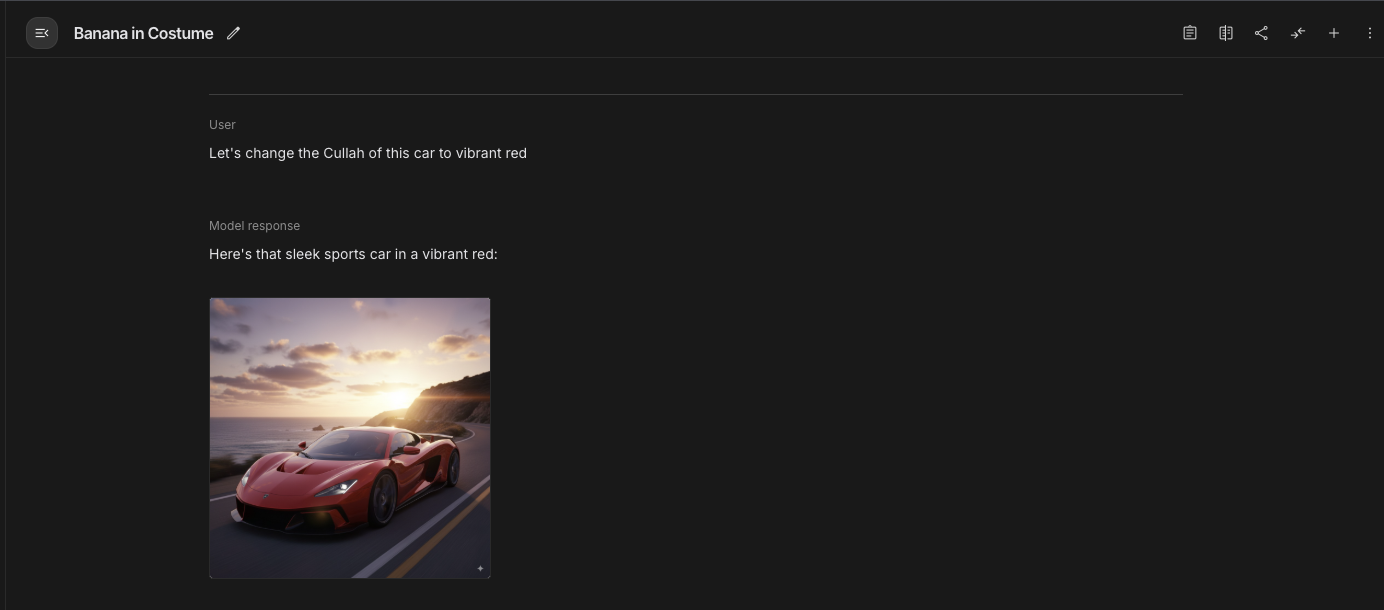
「Change the red car to metallic blue while keeping everything else the same」
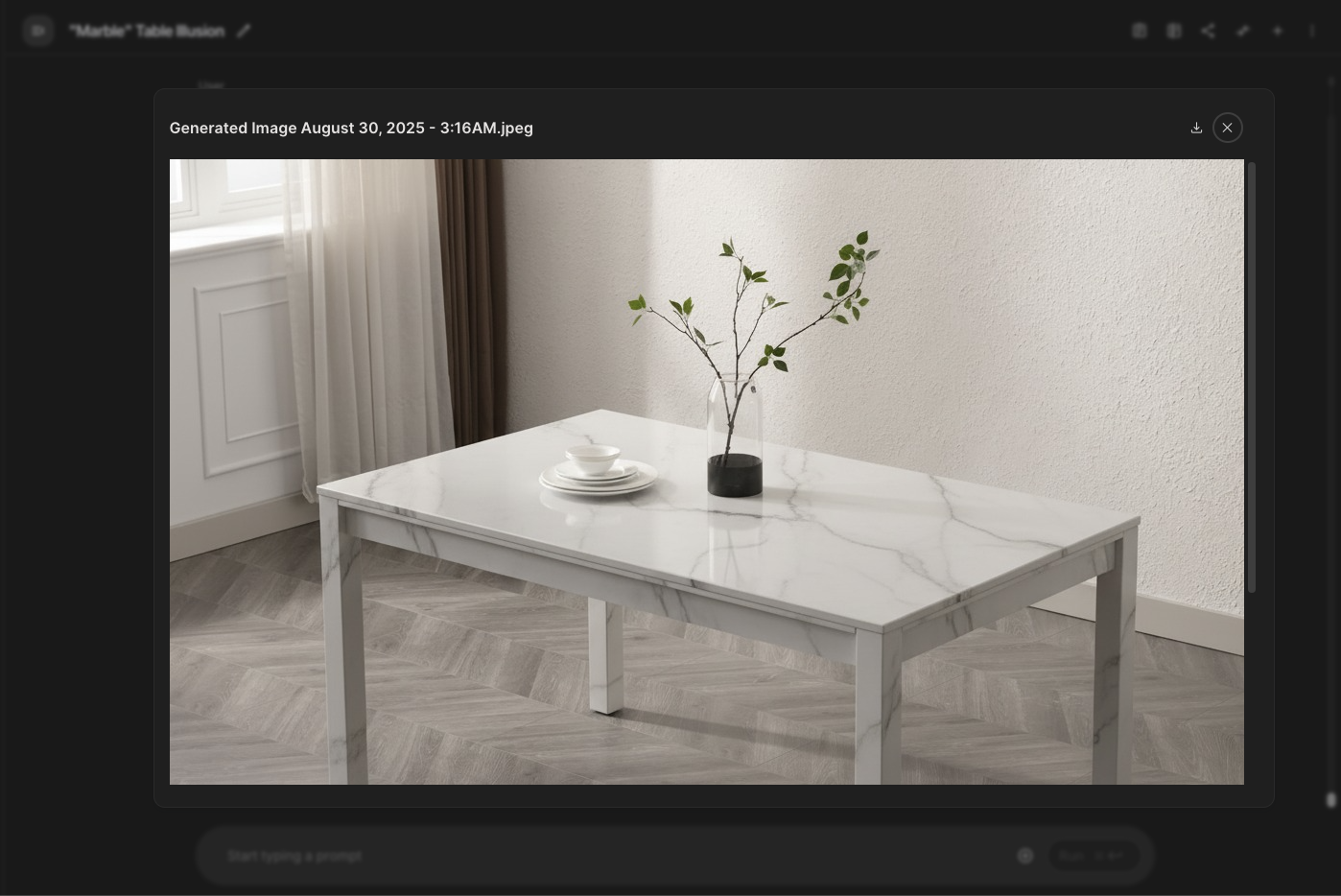
「Make the wooden table appear to be made of marble.」
- 背景變更:
「Replace the background with a sunset beach scene」
「Blur the background while keeping the subject in sharp focus」

在 Tripo Studio 使用 Nano Banana
Tripo AI 使用者現在可以直接在 Tripo Studio 工作區內存取 Nano Banana,打造從影像創作到 image to 3D 轉換的無縫管線:
- 前往 studio.tripo3d.ai/home 登入你的 Tripo Studio 帳戶
- 導航至 Image/Text to 3D 區段
- 開啟模型選擇器下拉選單,選擇「Nano Banana」
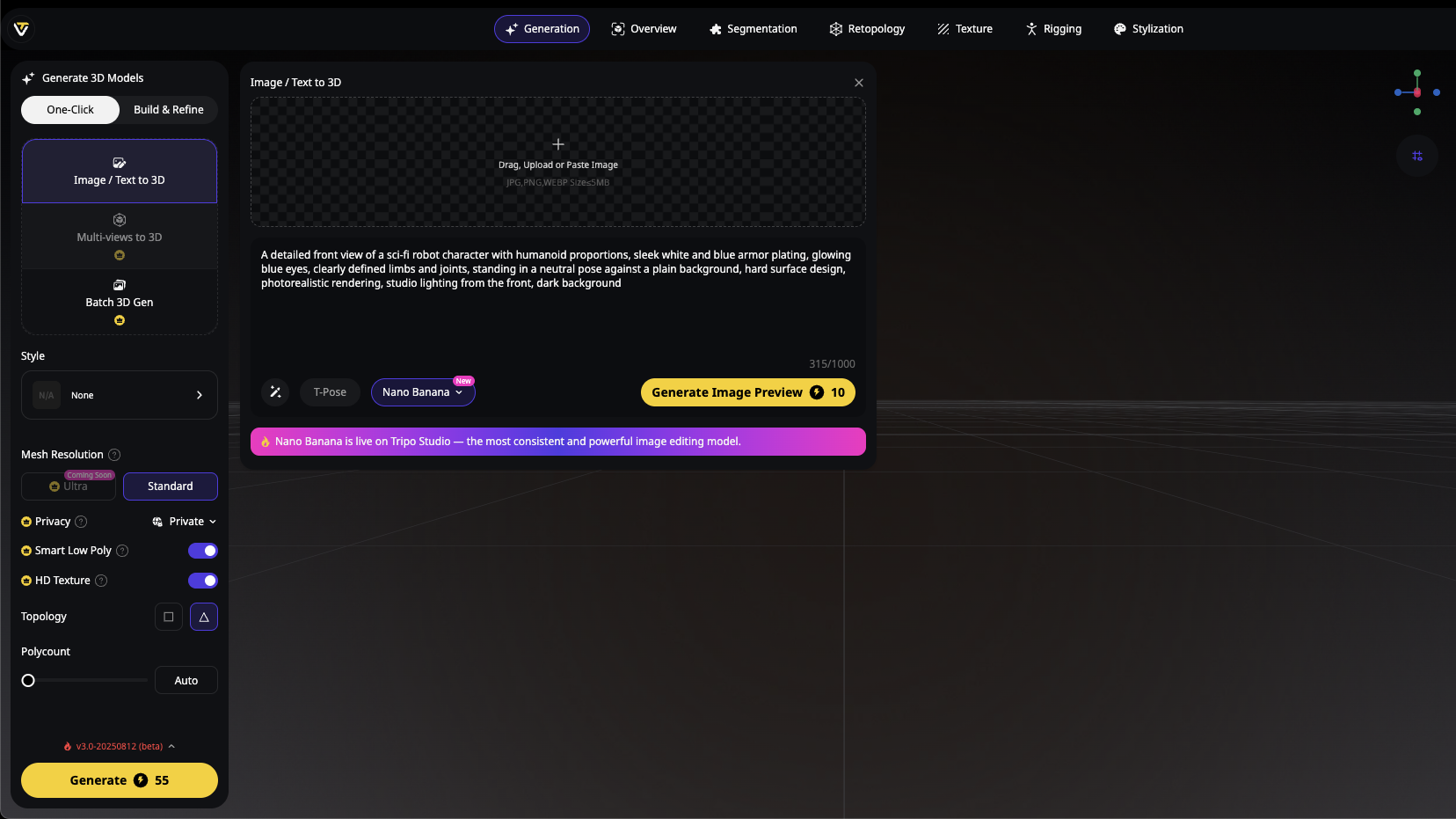
- 使用上述相同技巧輸入提示詞,或上傳影像進行編輯
輸入這段詳細的角色提示詞:
A detailed front view of a sci-fi robot character with humanoid proportions, sleek white and blue armor plating, glowing blue eyes, clearly defined limbs and joints, standing in a neutral pose against a plain background, hard surface design, photorealistic rendering, studio lighting from the front
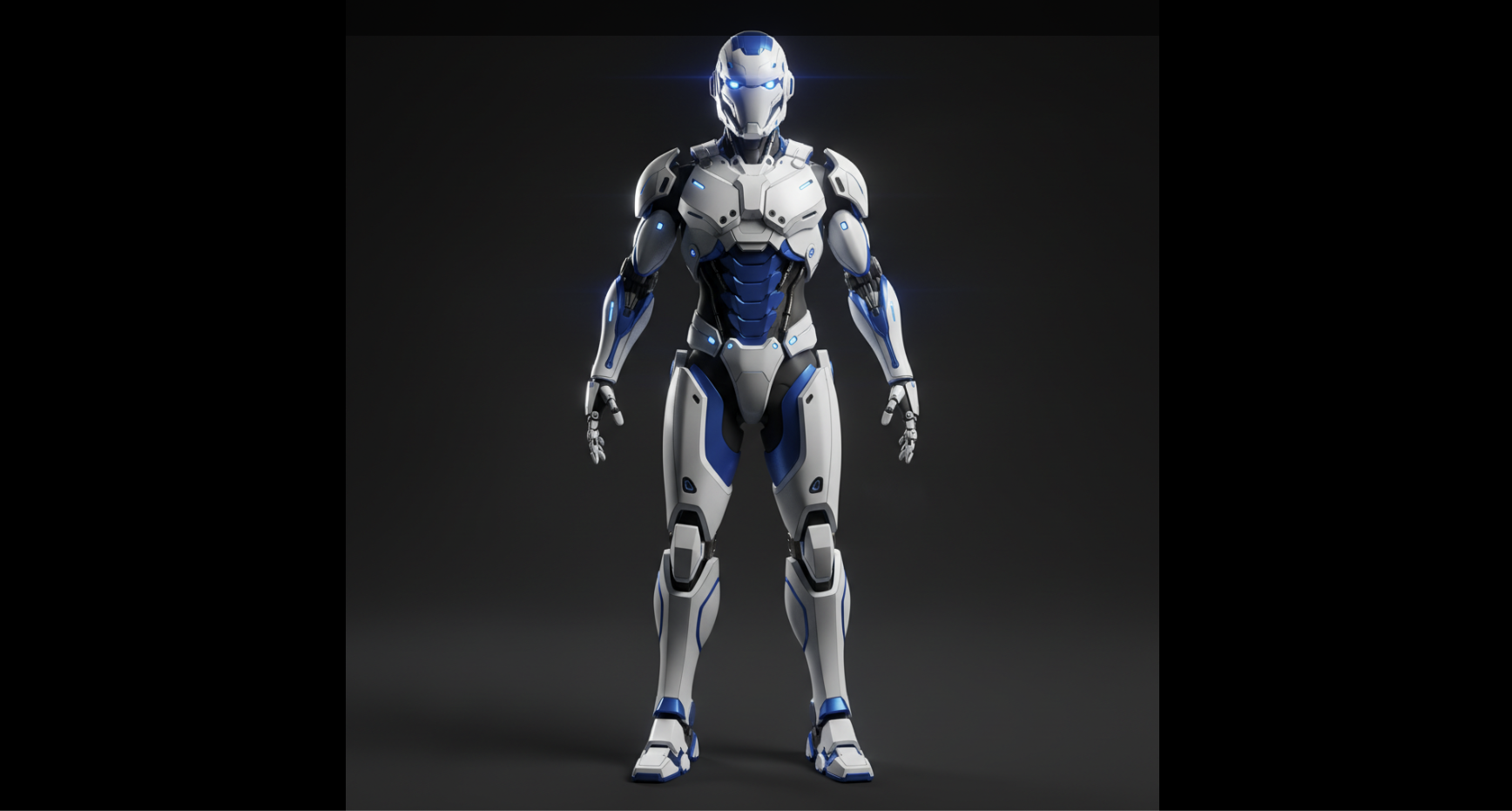
- 影像完善後,你可以一鍵將其直接送往 Tripo 的 image-to-3D conversion tool
- 觀看你的 2D 創作如何透過 Tripo 先進的 AI 3D model generator 技術轉換成精細的 3D 模型
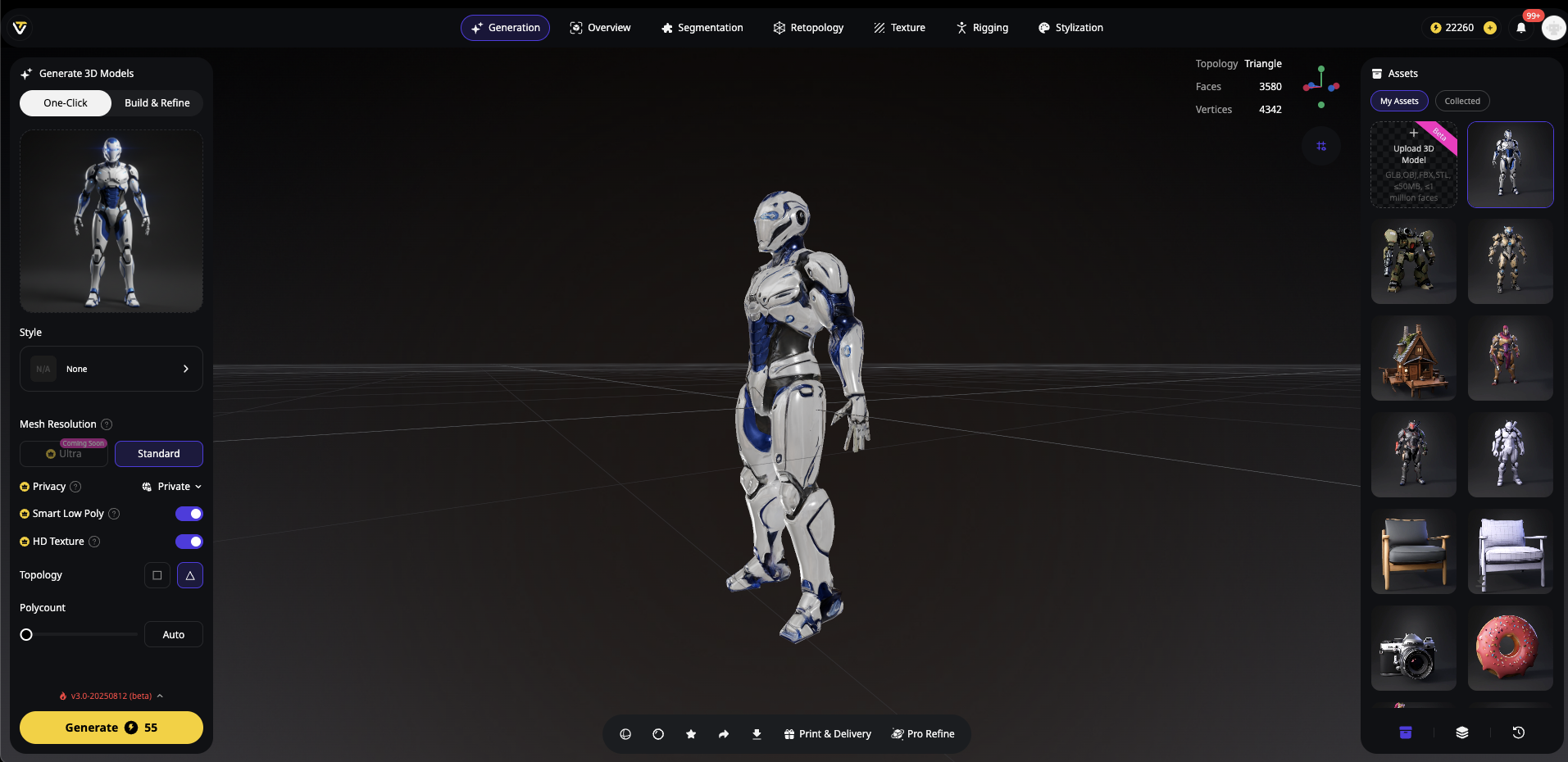
這項整合讓 Tripo 使用者能在同一個統一平台內,將 Nano Banana 強大的影像生成與編輯能力納入 3D 創作工作流程。
使用 Nano Banana 取得更好結果的專業提示
若要充分發揮 Nano Banana 的能力,尤其是在建立用於 image to 3D 轉換的素材時,請遵循以下專家建議:
明確指定視角:對於將成為 3D 模型的物件,指定清楚角度,例如「front three-quarter view」或「top-down perspective」
詳細描述光線:良好的光線資訊有助於 image to 3D 流程中的紋理擷取
提及材質:明確說明材質,例如「glossy ceramic」、「brushed metal」或「rough stone」,以獲得更好的紋理生成效果
使用參考影像:對於複雜編輯,上傳參考影像可幫助引導 AI
逐步迭代:一次進行一項變更,而不是同時要求多個複雜編輯
為 3D 轉換最佳化 Nano Banana 影像
在 Tripo Studio 中準備專門用於 image to 3D 轉換的影像時,請考慮以下最佳化策略:
- 最佳化光線條件 - 使用像「object with even, three-point lighting」這樣的提示詞,確保照明恰當
- 建立清晰輪廓 - 生成具有明確物件邊界的影像,以利更好的幾何擷取
- 包含多個角度 - 生成同一主體的多個視圖,為 AI 3D model generator 提供更多資訊
- 維持一致紋理 - 建立多張參考影像時,確保所有視角的紋理一致
- 在關鍵處增加細節 - 將細節聚焦於 3D 模型中最顯眼的區域
遵循這些準則,將幫助 Tripo AI 的 image to 3D 技術從 Nano Banana 生成的影像中產出更準確且更精細的 3D 模型。
使用 Morph Studio 建立更乾淨的參考素材
對於在 3D 製作前準備視覺素材的創作者,Morph Studio 提供一套一站式 AI 創意套件,可用於生成、編輯、風格化及放大參考影像。透過 Morph Studio 的 AI Image Generator,創作者可以從簡單提示詞開始,快速探索不同的角色設計、產品概念、道具、材質與視覺風格,再選定最終方向。
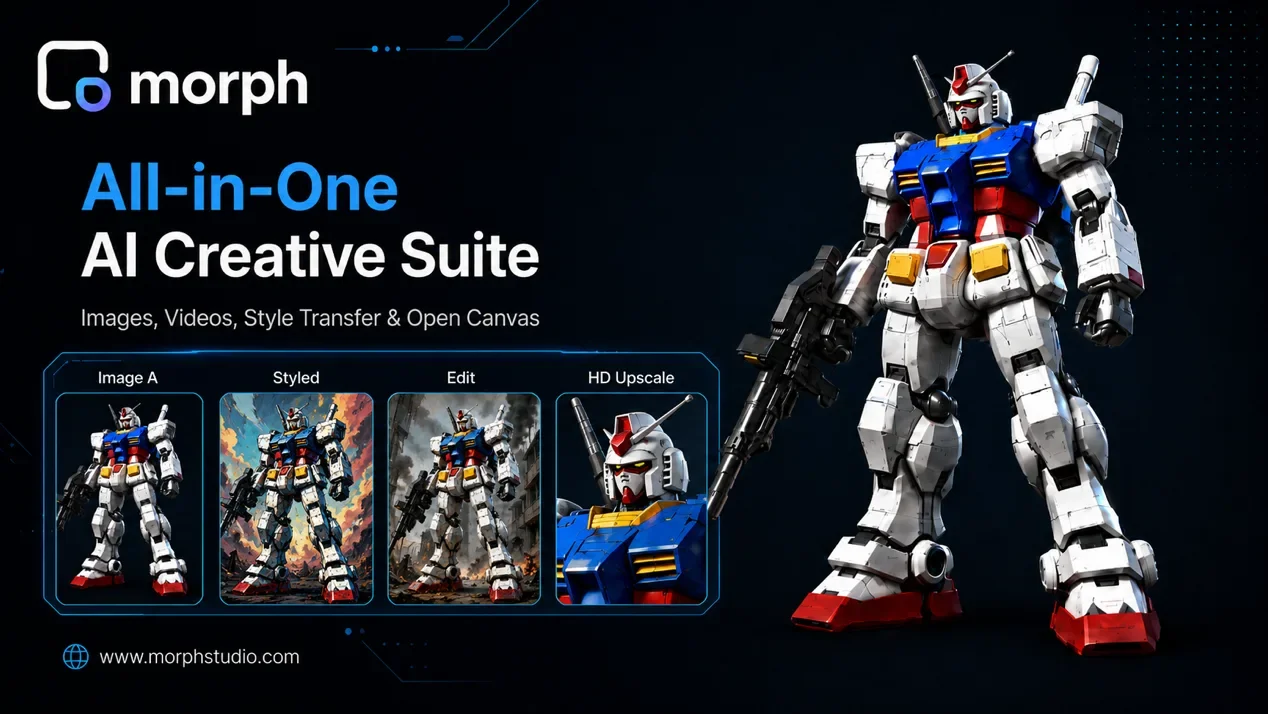
圖 1. Morph Studio 幫助創作者將文字提示轉換為精緻的參考影像,並透過造型、編輯與 HD 放大進一步完善。
針對單一物件素材,Morph Studio 的 Transparent Image Maker 可協助建立邊緣清晰、背景簡潔、輪廓明確的產品、道具或角色參考圖。這些更乾淨的素材更容易在設計檔案、行銷視覺、簡報及 3D-ready 創意工作流程中重複使用。
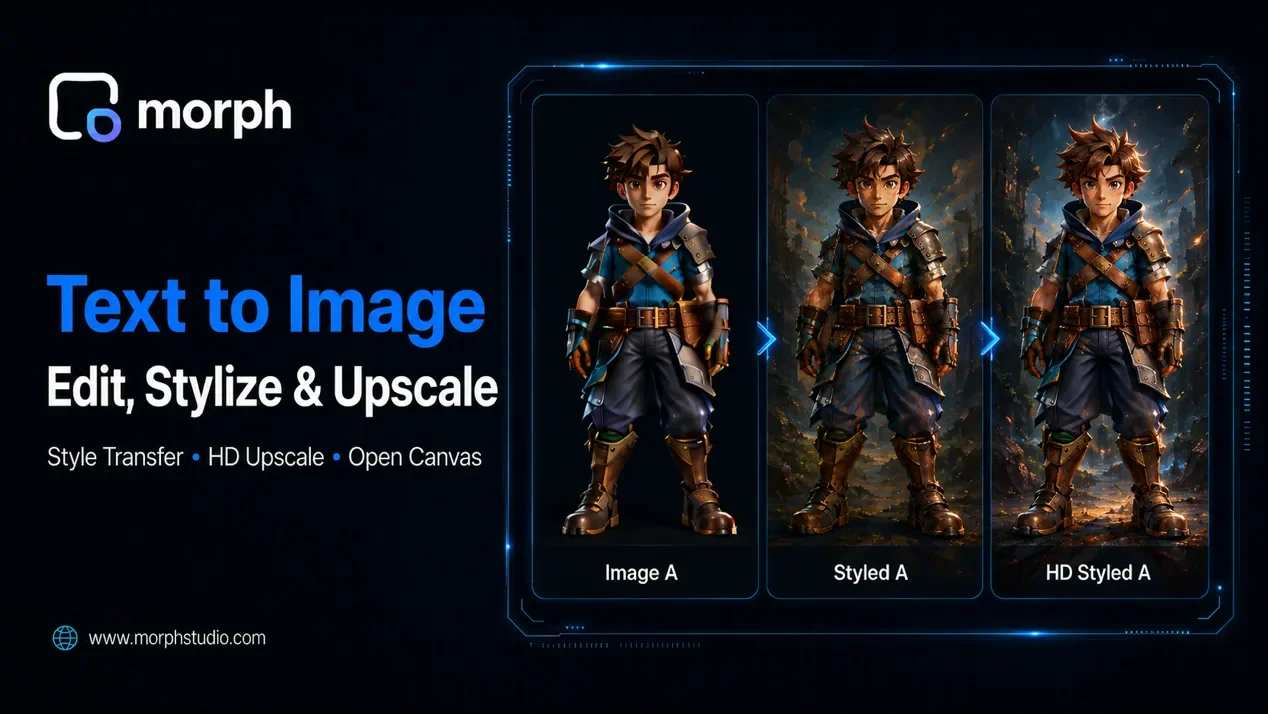
圖 2. Morph Studio 提供完整的影像工作流程,可在下一個製作步驟前建立、編輯、風格化並強化參考素材。
參考影像準備完成後,創作者可以繼續在 Tripo Studio 或其他 image-to-3D 工具中使用它,作為更廣泛創意製作管線的一部分。
FAQ
- Nano Banana 可以免費使用嗎?
- 在 Google AI Studio 中,你每天可獲得一定數量的免費生成次數。在 Tripo Studio 中,使用量會依你的帳戶方案採用 credit-based 計算。
- 我可以將輸出用於商業用途嗎?
- 可以——付費層級包含商業使用權。請查看你所用平台的授權區段以了解詳情。
- 如果我需要批次處理怎麼辦?
- 若需要批次處理,可考慮使用 Google AI Studio 中提供的 API 選項,或 Tripo Studio 的批次功能。
- Nano Banana 可以直接建立 3D 模型嗎?
- 不行,Nano Banana 專注於 2D 影像生成與編輯。若要生成 3D 模型,請搭配 Tripo AI 的 image to 3D 轉換工具使用其輸出。
- 我可以生成什麼解析度的影像?
- Nano Banana 通常支援生成最高 1024x1024 pixels 的影像,部分差異取決於你的平台設定。
結論
Nano Banana 代表 AI 驅動影像生成與編輯的一項重大進展。無論你是透過 Google AI Studio 使用,或在 Tripo Studio 的整合工作流程中使用,其能力都能帶來前所未有的創意控制與效率。
對 3D 創作者而言,Nano Banana 的影像生成結合 Tripo AI 的 image to 3D 技術,形成了一條強大的素材創作管線。你現在可以快速生成參考影像、將其編輯到完美,並轉換為精細的 3D 模型——一切都由 AI 的力量完成。
今天就開始嘗試 Nano Banana,探索它如何改變你的創意工作流程,尤其是在搭配 Tripo AI 強大的 AI 3D model generator 能力時。
深入了解 AI 工作流程中的 prompt engineering,進一步提升你使用 Nano Banana 與 Tripo AI 的 AI 3D model generator 時的成果。