Comment rigger un personnage généré par IA pour Mixamo : Guide complet du rigging automatique
Avez-vous déjà passé des heures à essayer de rigger un personnage IA Mixamo pour finir avec des membres tordus et des animations cassées ? Vous n'êtes pas seul. Avec des outils IA comme Tripo AI révolutionnant la création de modèles 3D, des milliers de créateurs font face au même défi : transformer de beaux personnages générés par IA en assets prêts à l'animation.
Voici le game-changer : le système de rigging automatique de Mixamo peut transformer votre sortie de générateur de modèles 3D IA statique en un personnage entièrement rigué en moins de 5 minutes. Aucun placement manuel d'os. Aucune peinture de poids complexe. Téléchargez simplement, cliquez et animez.
Qu'est-ce que Mixamo et pourquoi l'utiliser pour les modèles IA ?
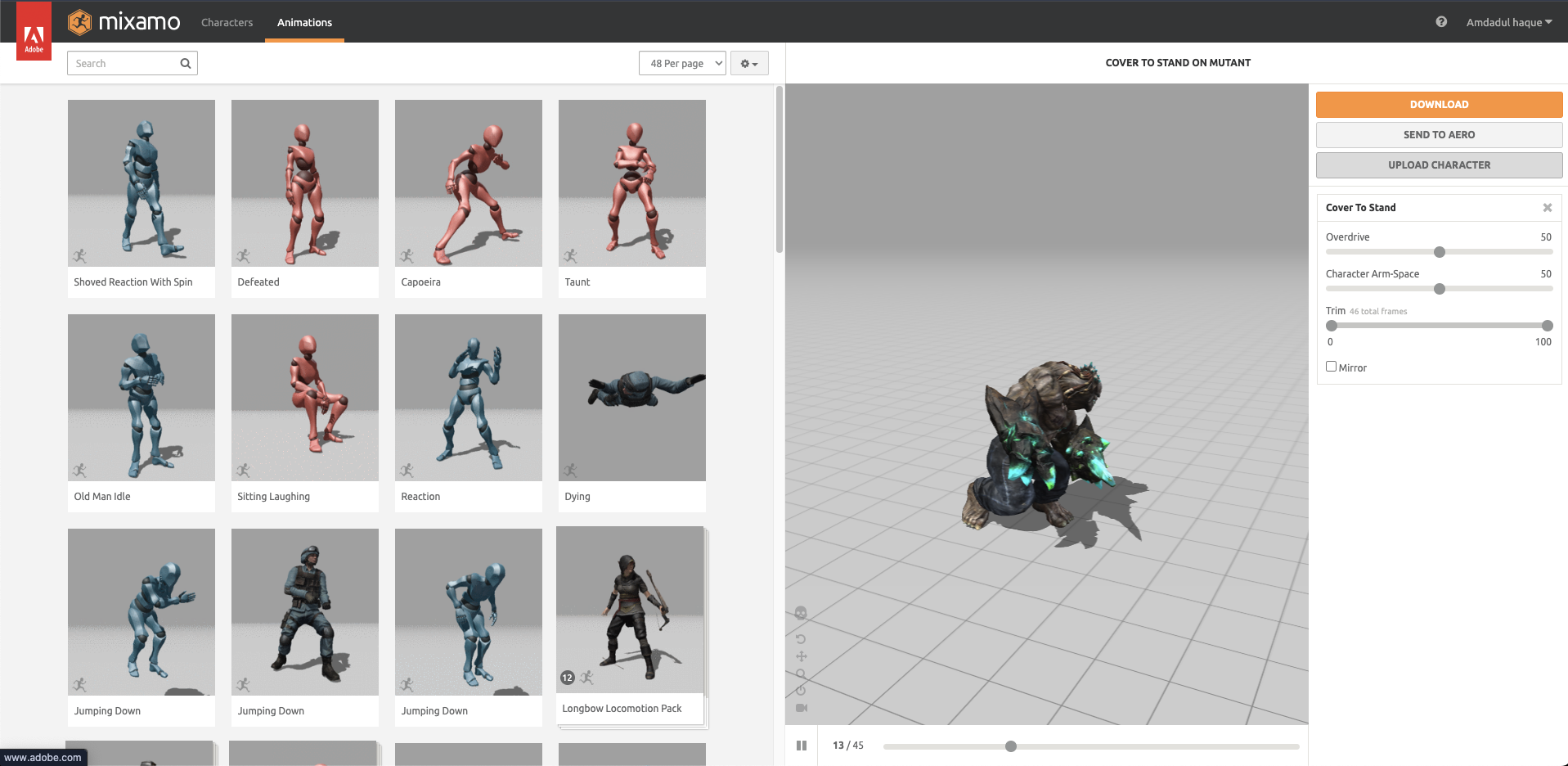
Mixamo est le service de rigging automatique gratuit basé sur le web d'Adobe qui ajoute automatiquement un squelette et des cartes de poids aux personnages humanoïdes. Pour les modèles générés par IA provenant de plateformes comme Tripo AI, qui commencent souvent par une image 2d vers modèle 3d gratuit, c'est la solution parfaite, en particulier lorsque vous utilisez un générateur local de modèles 3d IA, car :
- Vitesse : Le rigging manuel prend 4 à 8 heures ; Mixamo prend 3 minutes
- Accessibilité : Aucune expertise en rigging requise
- Compatibilité : Fonctionne avec les modèles de n'importe quel générateur de modèles 3D IA
- Bibliothèque d'animations : Accès à des milliers d'animations prêtes à l'emploi
Le défi ? Les mailles générées par IA manquent souvent de la structure appropriée que Mixamo attend. C'est là que ce tutoriel de rigging automatique Mixamo intervient.
Alignement T-Pose : Le moyen intelligent avec Tripo AI
C'est ici que Tripo AI vous donne un énorme avantage. Contrairement à d'autres générateurs de modèles 3D IA qui génèrent des personnages en pose A, Tripo Studio propose une option T-pose intégrée :
Générer des personnages prêts à l'animation dans Tripo :
- Ouvrir l'espace de travail Tripo Studio
- Entrer votre invite de texte ou télécharger une image de référence
- Activer l'option « T-Pose » dans les paramètres de génération
- Cliquer sur générer - votre personnage apparaît en parfaite T-pose
- Exporter directement en FBX - aucune pose manuelle nécessaire !
Cette fonctionnalité révolutionnaire élimine l'étape la plus longue lorsque vous préparez un modèle pour Mixamo. Ce qui prend traditionnellement 15-20 minutes d'ajustement manuel est maintenant automatique.
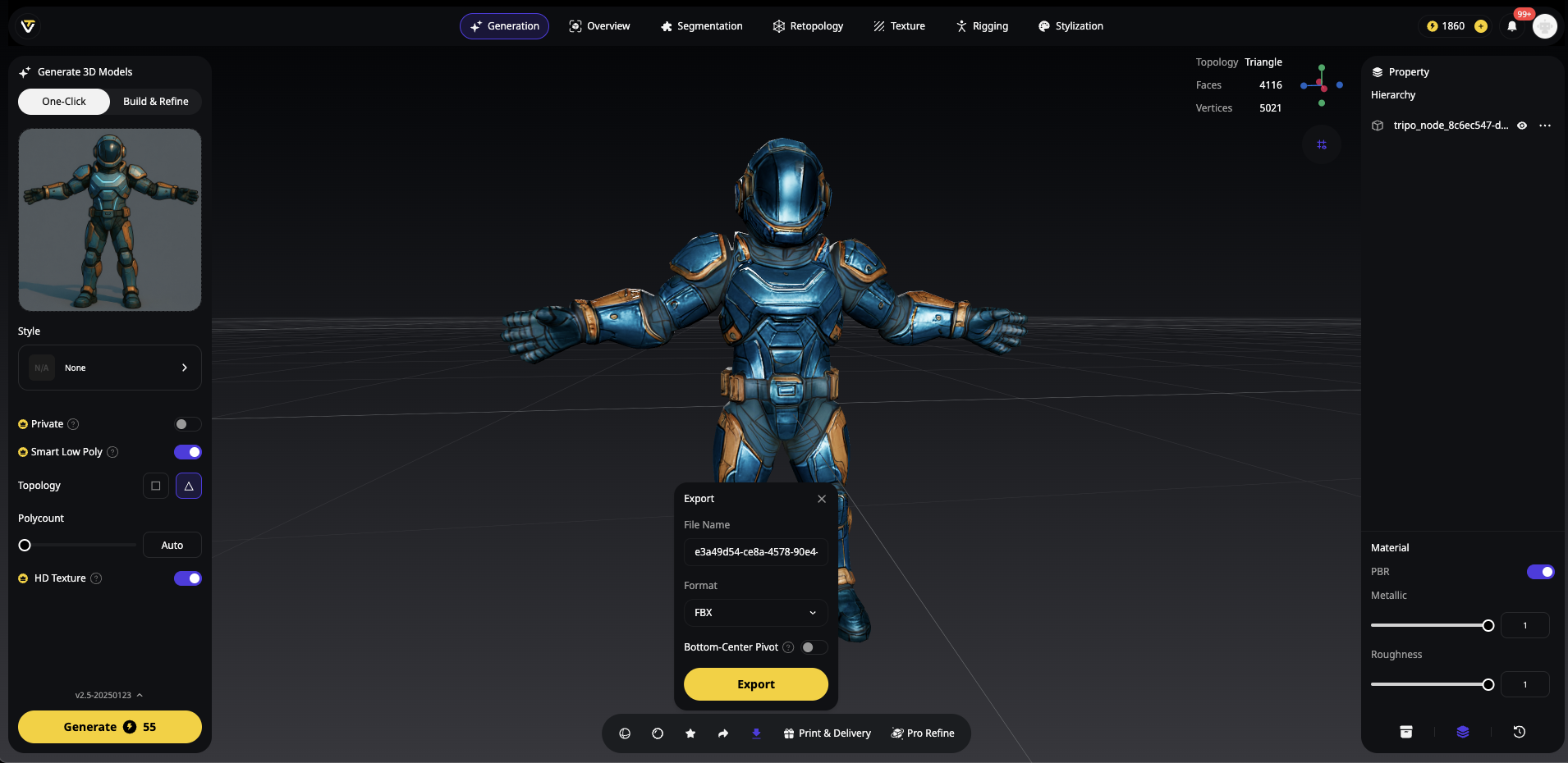
Pourquoi la T-Pose est importante :
- Mixamo s'attend à ce que les bras soient horizontaux
- Meilleure distribution du poids calculée
- Prévient 90% des erreurs de rigging
- Résultats professionnels prêts à l'animation
Pour les modèles provenant d'autres sources, vous pouvez toujours convertir manuellement à T-pose dans Blender, mais avec la génération de T-pose de Tripo AI, vous êtes déjà en avance dans votre workflow de rigging de personnage IA.
Préparer votre modèle généré par IA pour le succès
Avant de plonger dans le workflow de rigging de personnage IA, une préparation appropriée garantit un rigging automatique en douceur. Voici votre liste de contrôle :
Exigences du format d'exportation
| Format | Exigences | Mieux pour |
|---|---|---|
| FBX | Média intégré activé | Projets Unity/Unreal |
| OBJ | ZIP avec .MTL + textures | Workflows Blender |
Pro Tip : Lorsque vous utilisez Tripo Studio pour générer votre personnage, exportez en FBX avec des textures intégrées pour l'expérience Mixamo la plus fluide.
Étapes essentielles de nettoyage du modèle
- Appliquer toutes les transformations
- Dans Blender : Ctrl+A → All Transforms
- Garantit un scale et une rotation correctes
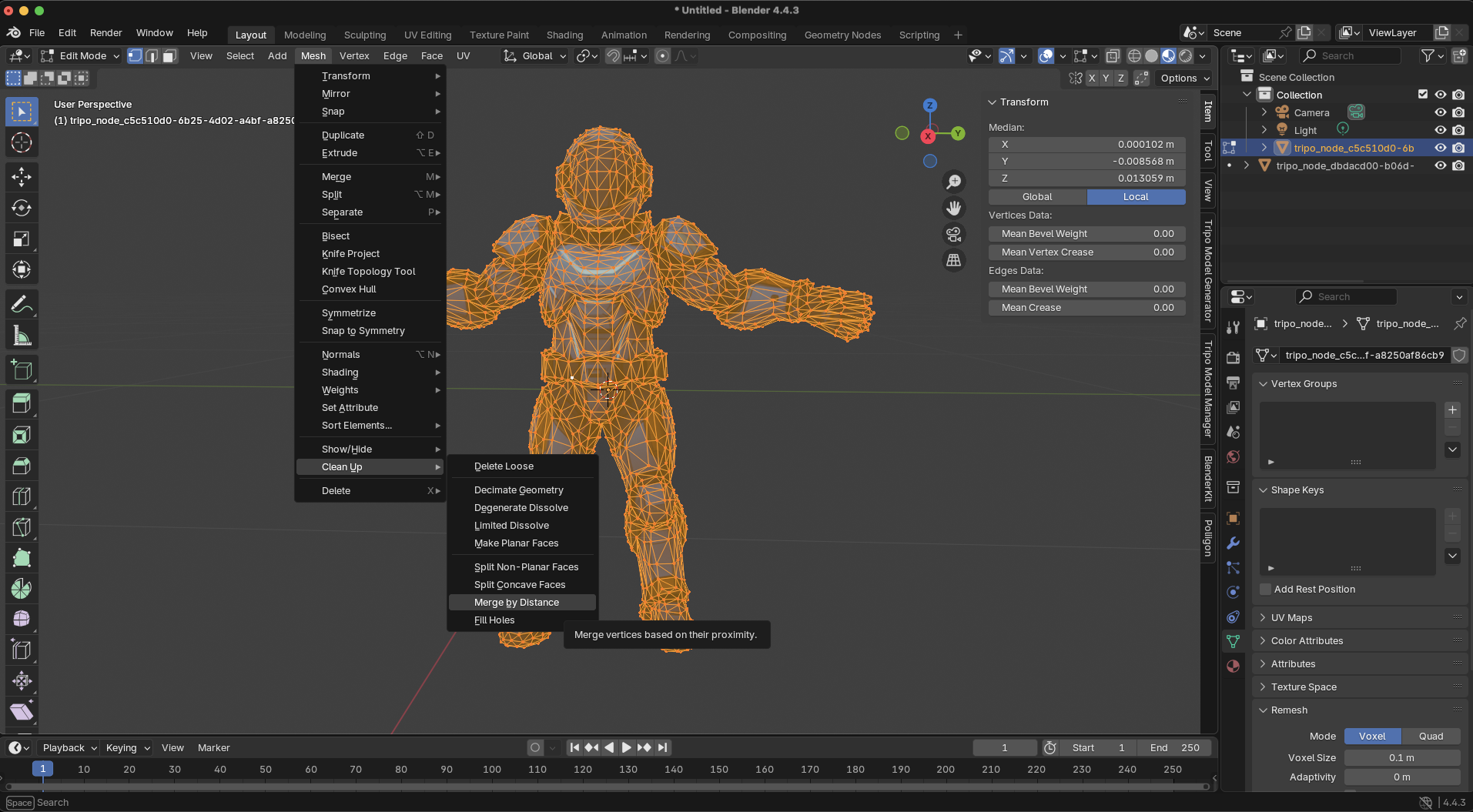
- Fusionner les sommets en double
- Mesh → Clean Up → Merge by Distance
- Prévient les erreurs de rigging dues à la géométrie chevauchante
- Créer une maille unique étanche
- Joindre les pièces séparées (Ctrl+J dans Blender)
- Supprimer les faces internes et les sommets libres
- Vérifier l'orientation
- Le personnage doit faire face à +Z (vers l'avant)
- Faire tourner si nécessaire avant l'exportation
Workflow complet de rigging automatique Mixamo
Maintenant pour le grand événement - rigger un personnage généré par IA Mixamo style :
Étape 1 : Télécharger votre personnage
- Visiter mixamo.com et se connecter avec Adobe ID
- Cliquer sur le bouton « Upload Character »
- Sélectionner votre fichier FBX ou ZIP préparé
- Attendre l'aperçu du modèle (généralement 10-30 secondes)
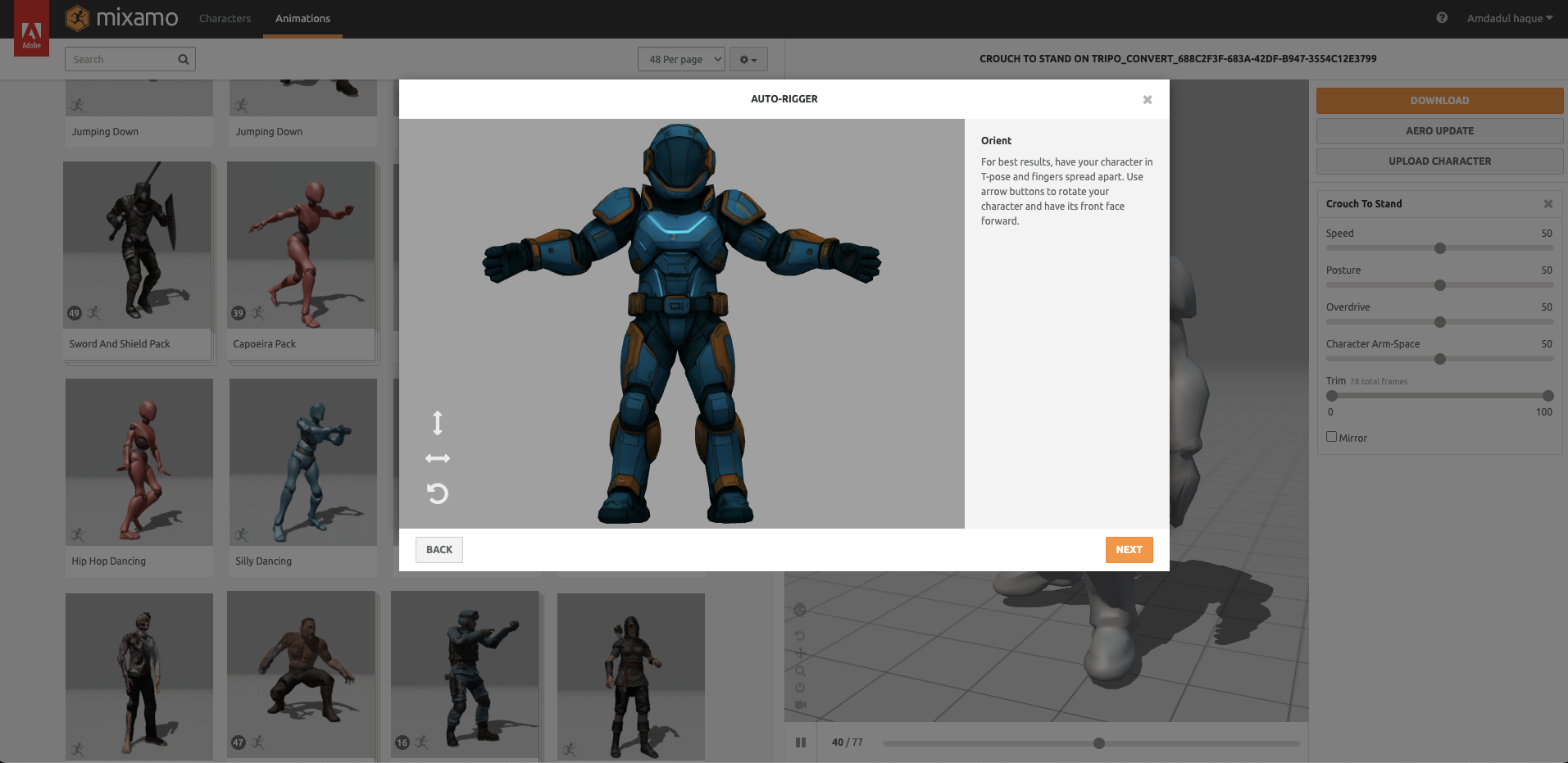
Étape 2 : Placer les marqueurs de rigging
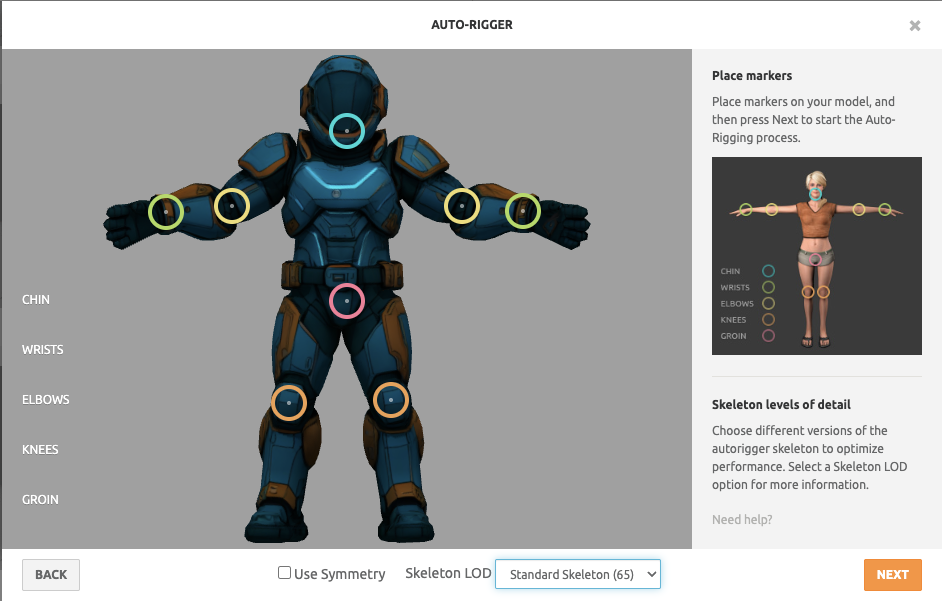
Mixamo affiche des points marqueurs que vous devez positionner. Voici le placement optimal :
- Menton : Centre de la mâchoire, pas du cou
- Poignets : Milieu de l'articulation du poignet
- Coudes : Centre de la flexion du coude
- Genoux : Centre de la rotule
- Aine : Centre de l'articulation de la hanche
Conseil critique : Faire un zoom avant pour un placement précis. Même 1 cm de décalage peut causer des problèmes d'animation.
Étape 3 : Traitement du rigging automatique
Cliquer sur « Next » pour démarrer la magie. Mixamo :
- Analyse la topologie de la maille
- Crée un squelette personnalisé
- Calcule les cartes de poids
- Applique le skinning
Temps de traitement : 1-2 minutes, selon la complexité de la maille.
Étape 4 : Aperçu et test
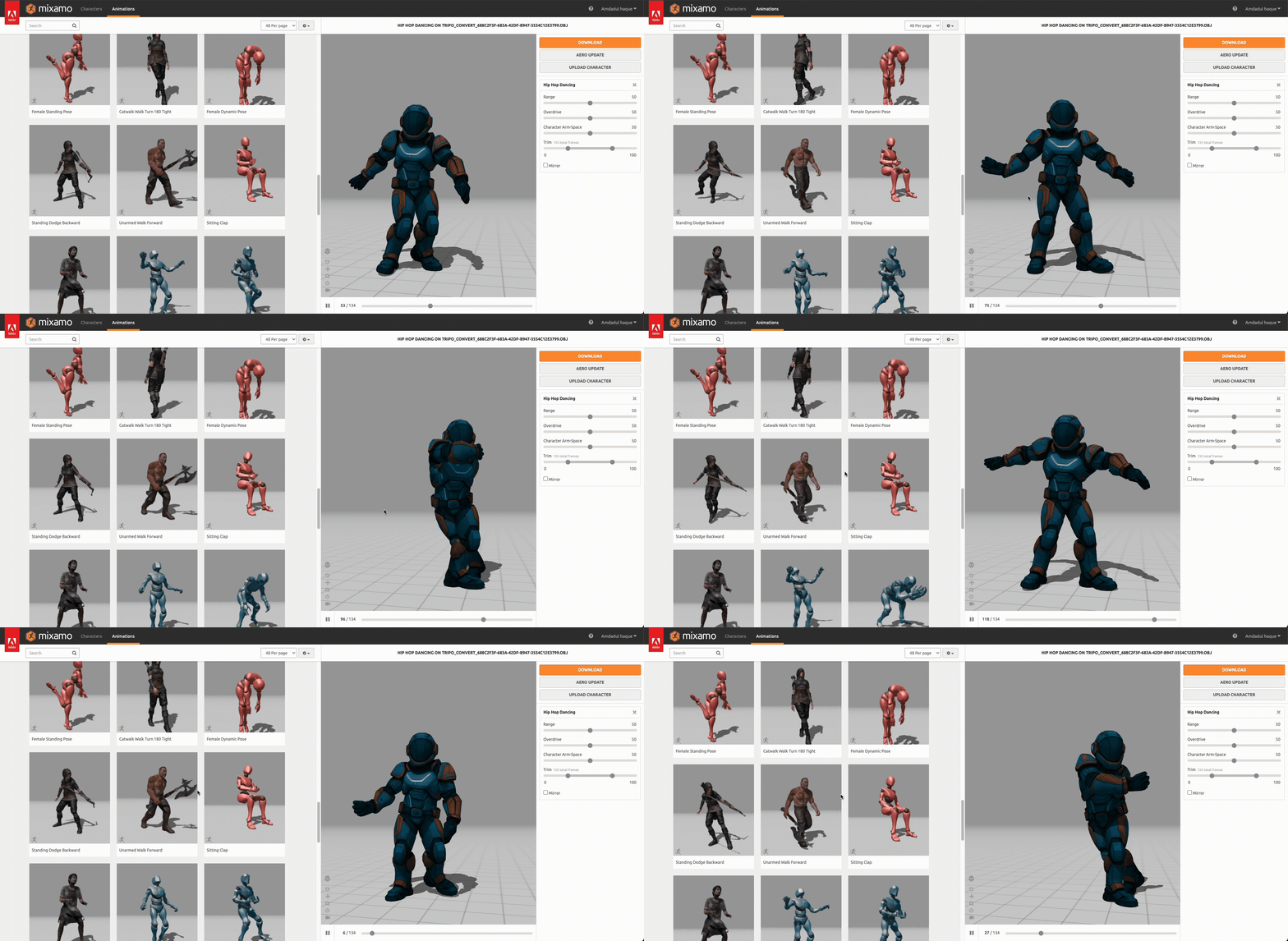
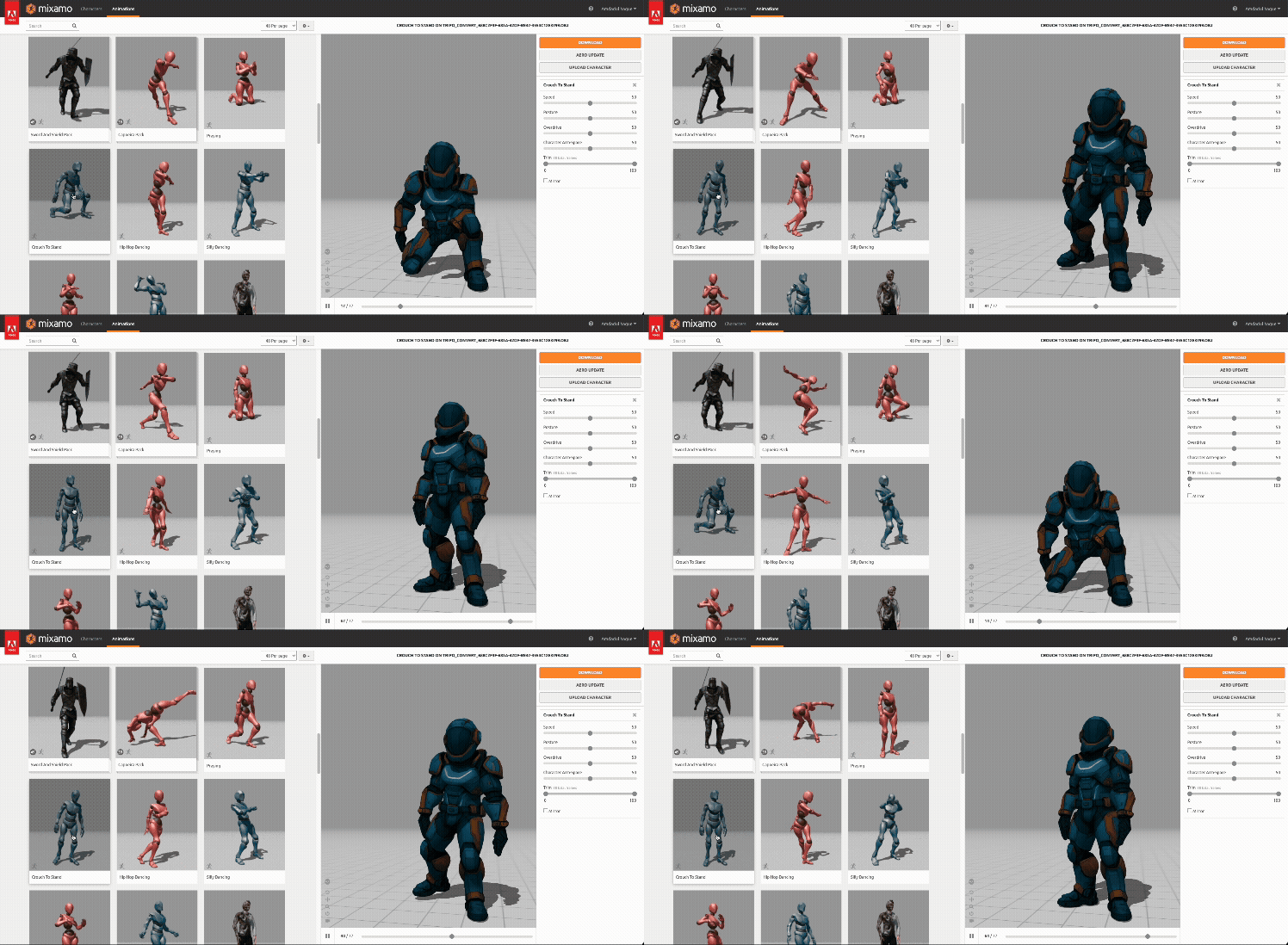
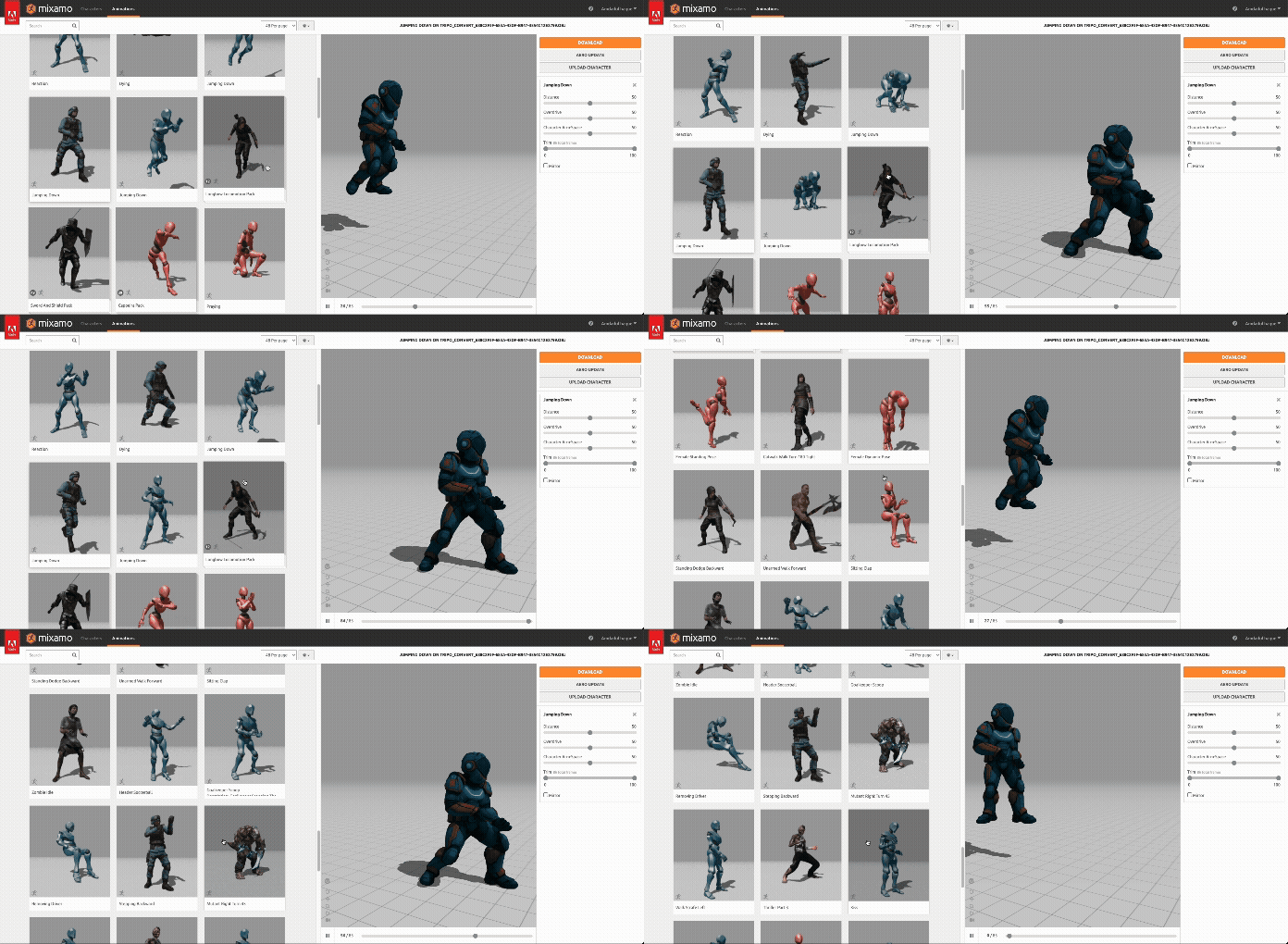
Avant de télécharger, testez ces animations :
- Pose d'inactivité de base
- Cycle de marche
- Mouvements des bras
- Animation de saut
Cherchez :
- Déformations fluides
- Pas d'étirement de maille
- Flexion appropriée des articulations
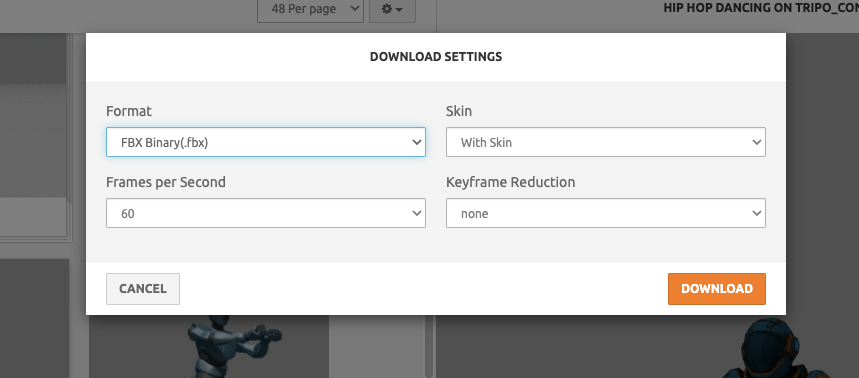
Étape 5 : Options de téléchargement
| Paramètre | Choisir quand |
|---|---|
| Format : FBX pour Unity | Développement de jeux |
| Format : FBX pour Blender | Édition supplémentaire nécessaire |
| Avec Skin | Toujours (inclut les poids) |
| Images par seconde | Correspondre à votre projet |
Importer et tester votre personnage rigué
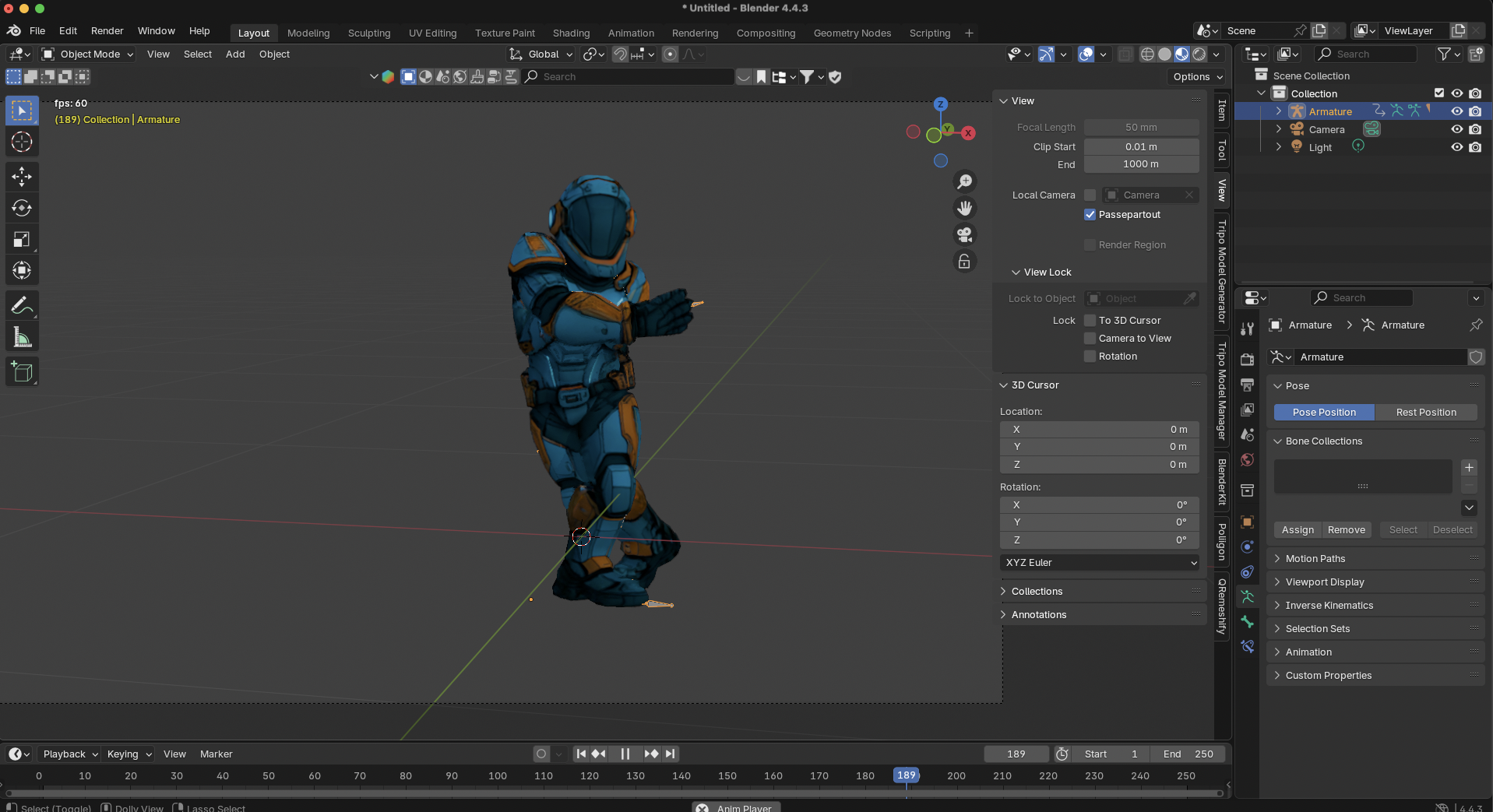
Processus d'importation Blender
- File → Import → FBX
- Désactiver « Automatic Bone Orientation » dans les paramètres d'importation
- Basculer en Mode Pose
- Tester les rotations sur les articulations principales
- Vérifier la peinture de poids (affinement optionnel)
Intégration Unity/Unreal
Configuration Unity :
- Faire glisser FBX dans le dossier Assets
- Définir Animation Type sur « Humanoid »
- Configurer Avatar Definition
- Appliquer un contrôleur d'animation
Configuration Unreal :
- Importer dans Content Browser
- Activer l'option « Import Rig »
- Définir Skeleton sur « None » (crée un nouveau)
- Tester avec Animation Blueprint
Bonnes pratiques pour le rigging de personnage IA
Optimiser avant le téléchargement
- Nombre de sommets : Garder en dessous de 50k pour les applications en temps réel
- Topologie : Assurer les edge loops autour des articulations
- Symétrie : Utiliser la symétrie X pour des résultats prévisibles
- Scale : La hauteur de 1,7-2m fonctionne mieux
Conseils avancés des utilisateurs de Tripo AI
Lors de la génération de personnages avec l'algorithme 2.5 de Tripo Studio :
- Utiliser le mode « High Detail » pour une meilleure définition des articulations
- Activer le préset « Animation Ready »
- Exporter avec l'option topologie propre
Ces paramètres créent des modèles que Mixamo rige 40% plus rapidement avec moins d'erreurs.
Dépannage : Comment corriger les problèmes de rigging Mixamo
Même avec une préparation parfaite, des problèmes peuvent survenir. Voici votre guide de dépannage :
Problèmes courants et solutions
| Problème | Symptômes | Solution |
|---|---|---|
| Membres étirés | Bras/jambes allongés | Réexporter en T-pose appropriée |
| Textures manquantes | Modèle gris | Inclure les textures dans ZIP |
| Mauvaise orientation | Personnage de côté | Faire pivoter pour faire face +Z, réexporter |
| Mauvaise déformation | Déchirure de maille aux articulations | Ajouter des edge loops, réduire le nombre de sommets |
| Problèmes de doigts | Les doigts ne bougent pas | Peinture de poids manuelle dans Blender |
Correctifs rapides pour les modèles récalcitrants
- Stratégie de re-rigging
- Ajuster le placement des marqueurs de 2-3 cm
- Essayer différentes variations de pose
- Réduire la complexité de la maille
- Affinement manuel
- Importer dans Blender
- Utiliser le mode peinture de poids
- Lisser les zones problématiques
- Réexporter vers le moteur de jeu
Maximiser votre workflow de personnage IA
Intégration avec le pipeline Tripo AI
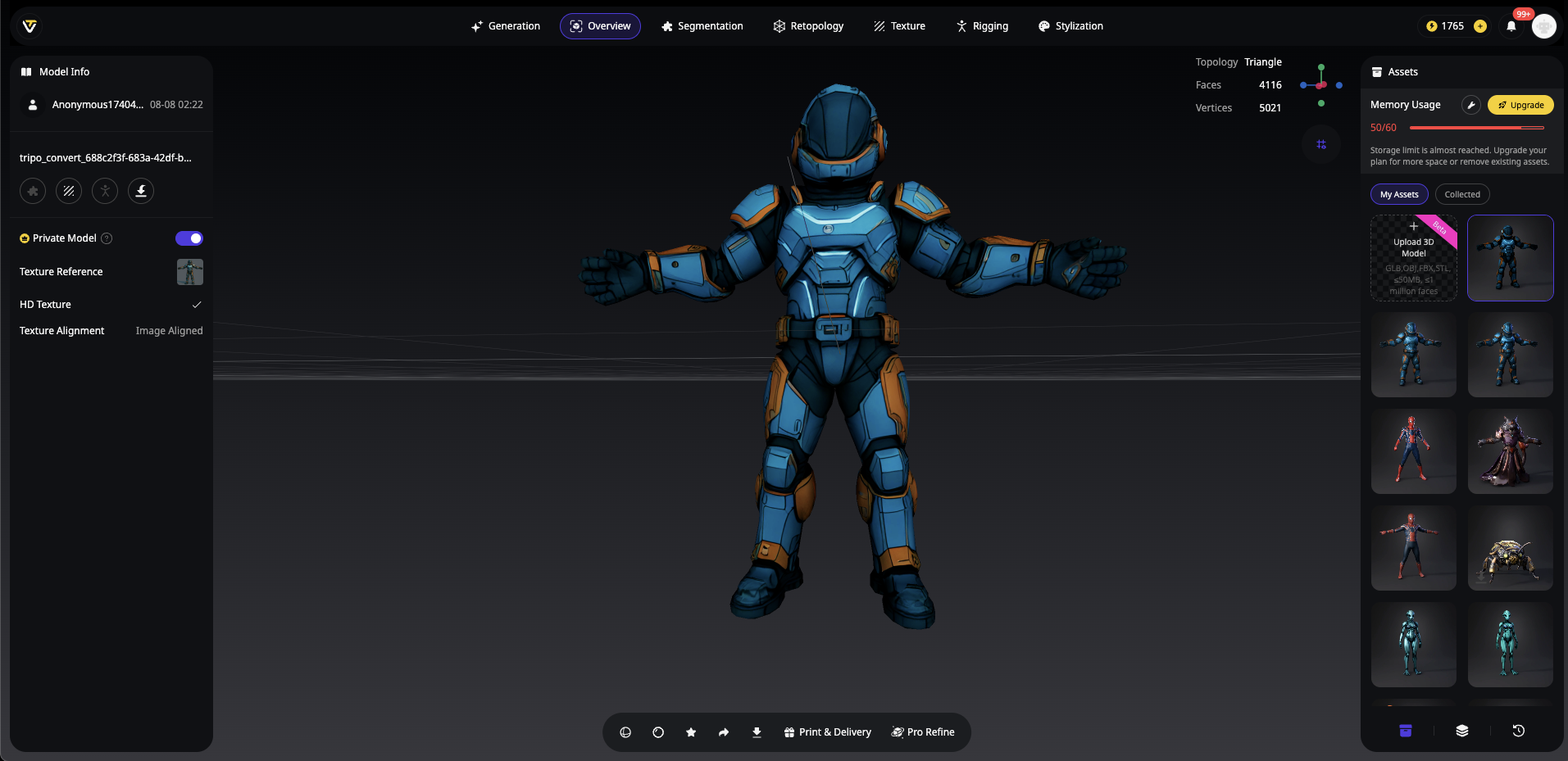
- Générer un personnage de base à l'aide de la fonctionnalité image vers 3D
- Affiner dans l'espace de travail Tripo Studio
- Exporter FBX optimisé
- Rigging automatique dans Mixamo
- Importer à la plateforme finale
Ce workflow réduit la création de personnages de jours à heures tout en maintenant une qualité professionnelle.
Avantages de la bibliothèque d'animations
Une fois rigué, accédez aux 2 500+ animations de Mixamo :
- Mouvements de combat
- Séquences de danse
- Actions sportives
- Variations d'inactivité
- Expressions émotionnelles
Télécharger plusieurs animations et mélanger dans votre moteur de jeu pour des personnages dynamiques.
Techniques avancées pour la production
Traitement par lots de plusieurs personnages
Pour les studios utilisant l'API Text-to-CAD de Tripo AI :
- Générer des variantes de personnages par programmation
- Standardiser les paramètres d'exportation
- Créer des scripts de téléchargement Mixamo
- Automatiser le placement des marqueurs avec des modèles cohérents
Modifications de rigging personnalisé
Après le rigging Mixamo :
- Ajouter des os faciaux dans Blender
- Créer des chaînes IK personnalisées
- Implémenter des contraintes avancées
- Mélanger avec des données mocap
Pérenniser votre workflow
Avec l'évolution des générateurs de modèles 3D IA, rester en avance signifie :
- Standardiser les pipelines : Documenter votre workflow exact
- Contrôle de version : Suivre les itérations de modèles
- Création de modèles : Enregistrer les configurations de rigging réussies
- Apprentissage communautaire : Rejoindre Discord Tripo AI pour les dernières techniques
La combinaison de la génération rapide de Tripo AI et du rigging automatique de Mixamo crée un workflow imbattable pour la production 3D moderne.
Conclusion : Vos prochaines étapes
Vous avez maintenant tout ce qu'il faut pour rigger un personnage généré par IA Mixamo avec succès. Les points clés à retenir :
- La préparation T-pose appropriée prévient 90% des problèmes
- Le placement précis des marqueurs assure des animations fluides
- Les tests avant le téléchargement économisent des heures de corrections
- Le workflow de rigging de personnage IA devient sans effort avec la pratique
Prêt à donner vie à vos personnages générés par IA ? Commencez par l'algorithme 2.5 le plus récent de Tripo AI pour des modèles prêts à l'animation, puis suivez ce guide pour un rigging Mixamo parfait à chaque fois.
Transformez vos modèles statiques en stars animées dès aujourd'hui ! Essayez Tripo Studio pour les personnages générés par IA optimisés pour l'animation, ou explorez la plateforme complète à tripo3d.ai.
Rejoignez les 2+ millions de créateurs qui ont découvert le chemin le plus rapide du concept au personnage animé. Votre prochain personnage révolutionnaire n'est qu'à quelques minutes !