AI 3D Props for Games: A Full Workflow Guide (Text/Image to Engine)
TL;DR
- Two inputs: text-to-3D for fast ideation, image-to-3D for matching concept art.
- Raw AI props are NOT game-ready by default—plan a poly budget and retopologize.
- A clean, low-poly mesh (~3K–15K tris for most props) + PBR textures = drop-in asset.
- Export FBX or GLB; import to Unity/Unreal, or skip files with a DCC bridge.
- AI props can be used commercially, but the legal status hinges on your input sources—know the rules before you ship.
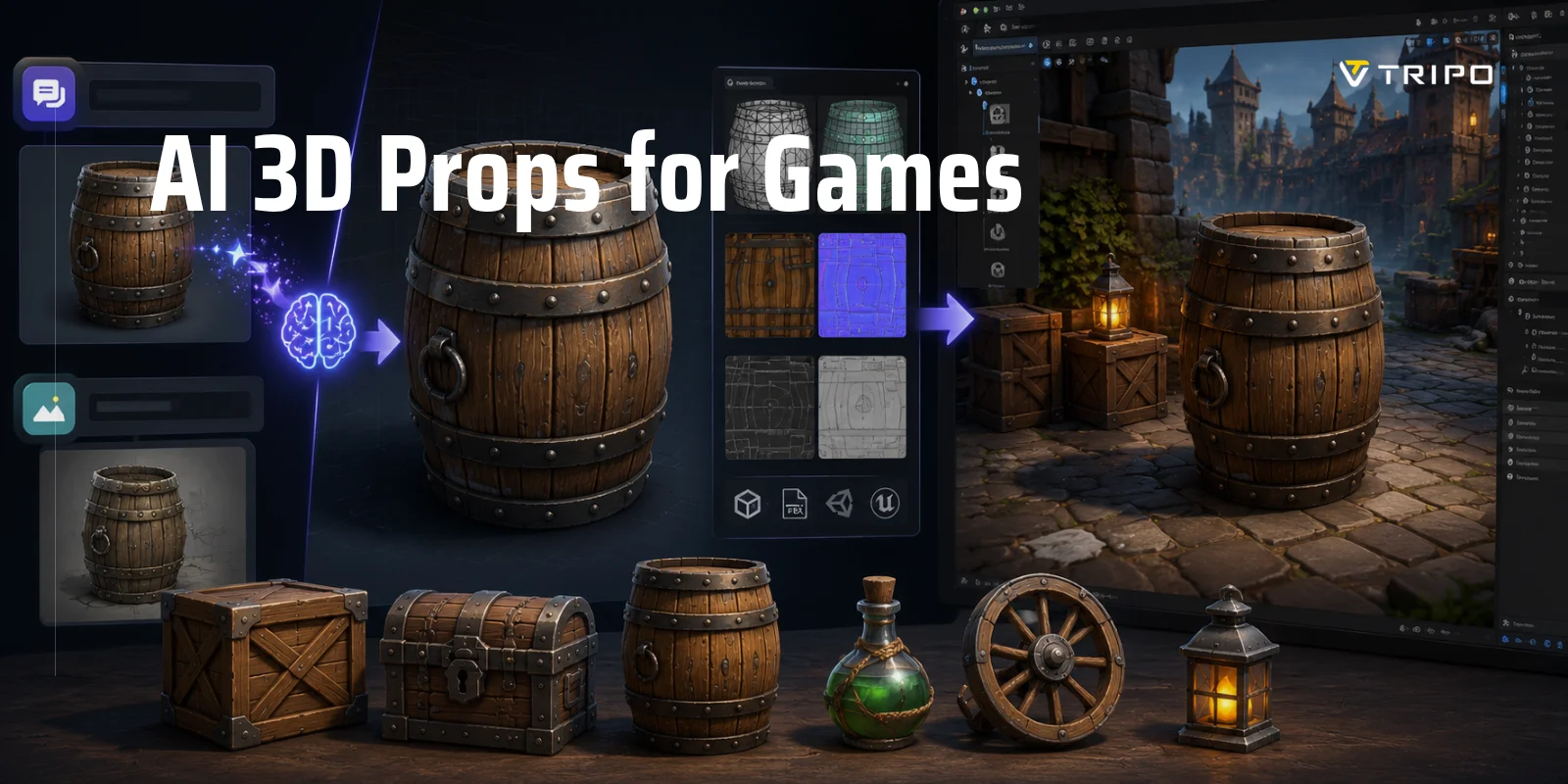
AI 3D props for games allow developers to turn a text prompt or a reference image into a usable asset, then optimize it through retopology, PBR texturing, export, and import into Unity or Unreal for production-ready use. While a game props AI generator can dramatically speed up asset creation, AI-generated meshes still require cleanup and optimization before they are ready for real-time games.
This guide covers the complete 3D prop workflow—from generation to engine integration—and explains how AI props for Unity and Unreal fit into modern game development pipelines.
AI 3D Props for Games, Explained
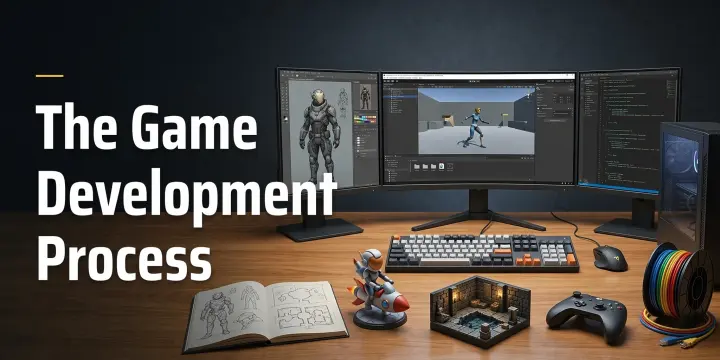
In game development, props are the objects that populate a world rather than the characters that inhabit it. Weapons, crates, furniture, barrels, signs, rocks, tools, and environmental decorations are all considered props. Unlike characters, which require complex anatomy, deformation, and animation, props are usually static assets designed to support gameplay and visual storytelling.
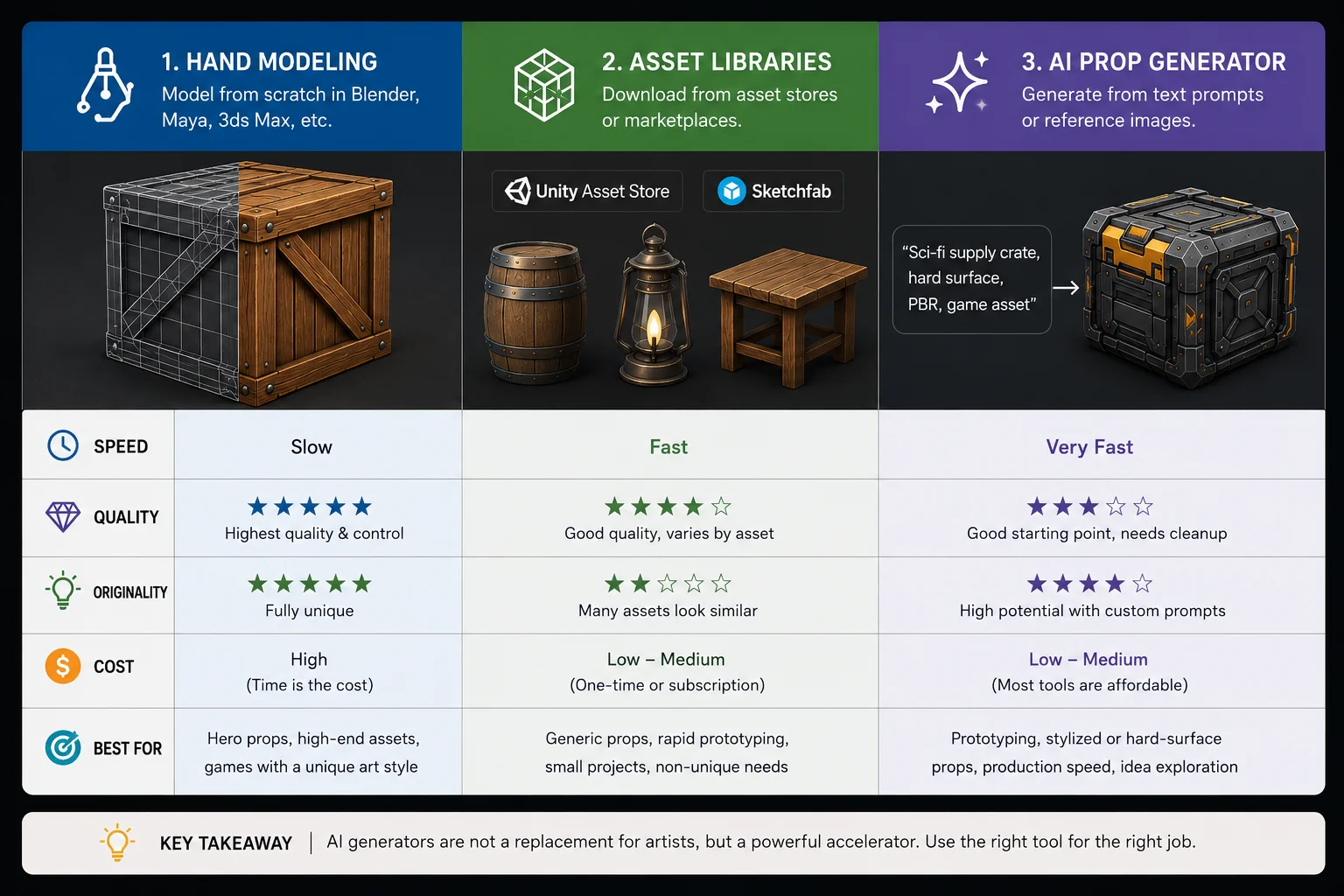
Today, developers generally have three ways to create game props. The traditional route is hand-modeling assets in Blender, Maya, or similar software, which provides maximum control but requires the most time. Another option is sourcing assets from libraries such as the Unity Asset Store or Sketchfab, which is fast but often limits originality. The third approach is using an AI-powered game props AI generator, which can turn a text prompt or reference image into a base mesh within minutes.
AI works best for hard-surface and relatively simple objects. Weapons, furniture, sci-fi devices, crates, architectural details, and stylized environmental assets are often reliable candidates because they feature clear shapes and symmetrical structures. Organic objects, highly detailed hero props, and anything requiring precise topology or animation usually still benefit from manual modeling and cleanup.
In other words, AI 3D props for games are excellent for speeding up concepting and production, but generated meshes are starting points rather than finished assets. Understanding where AI excels—and where traditional workflows remain necessary—helps set realistic expectations before moving into the full 3D prop workflow.
3 Ways To Create Game Props
Choose Your Input — Text-to-3D vs Image-to-3D
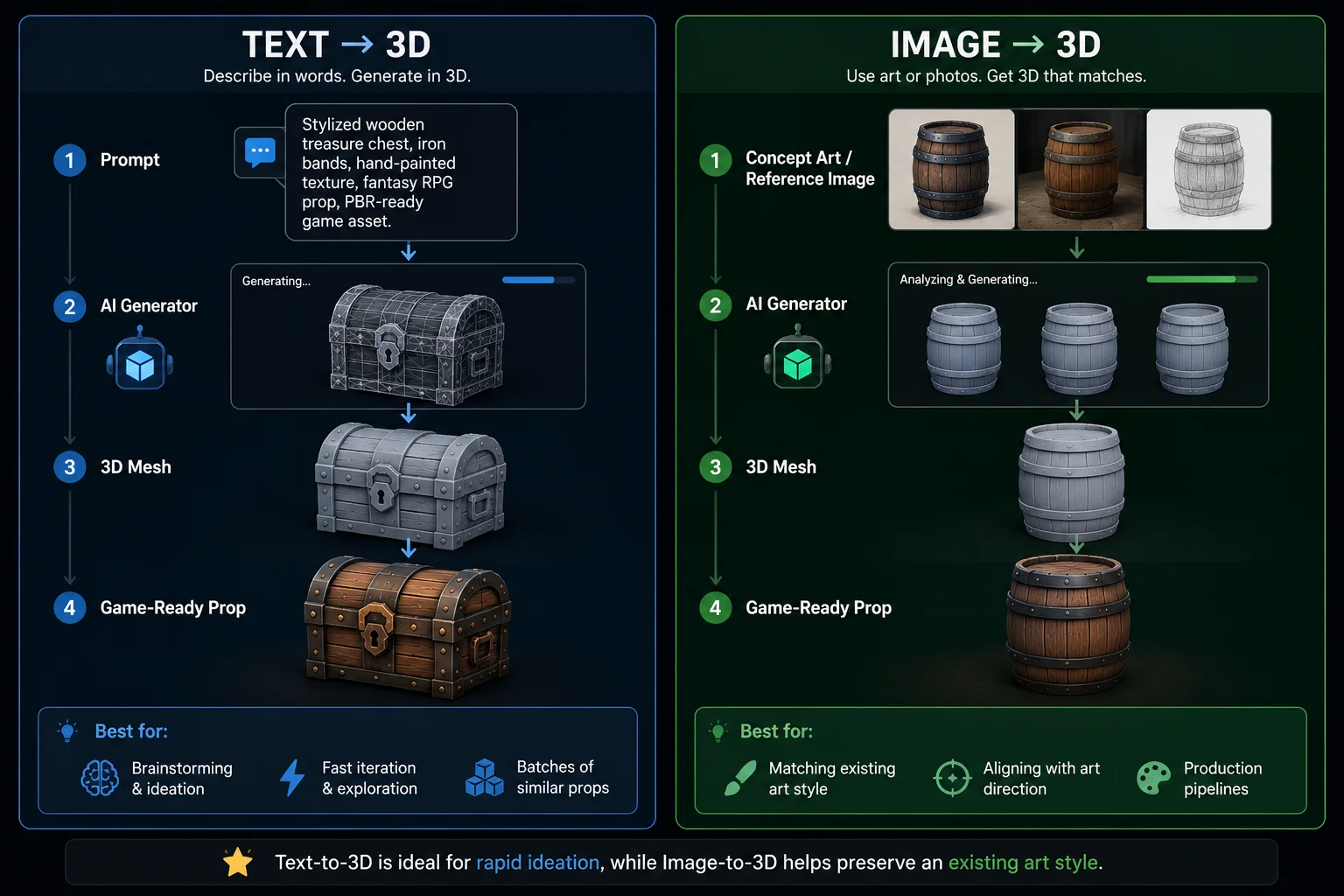
Most AI 3D props for games start from one of two inputs: text or images. Both workflows can produce usable meshes, but they solve different problems. If you're starting from an idea, text-to-3D is usually faster. If you already have concept art or want to match an existing style, image-to-3D gives you more control.
Text-to-3D
Text-to-3D lets you describe a prop in plain language and generate a mesh within minutes. It's ideal for brainstorming, rapid iteration, and producing many assets with a consistent visual style. This approach works especially well for hard-surface props such as barrels, crates, treasure chests, lamps, or sci-fi containers.
Quick Steps
- Open Tripo Text to 3D.
- Enter a prompt.
- Generate the mesh and preview the result.
- Export and continue with optimization.
Example prompt
Stylized wooden treasure chest, iron bands, hand-painted texture, fantasy RPG prop, symmetrical hard surface, PBR-ready game asset.
Image-to-3D
Image-to-3D starts from concept art, sketches, or photos and converts them into 3D geometry. This workflow is useful when you need props to match a specific art direction or reproduce an existing design. It is commonly used for environment assets and production pipelines where visual consistency matters.
Quick Steps
- Upload your concept art or reference image to Tripo Image to 3D.
- Generate the base mesh.
- Inspect proportions and silhouette.
- Export for cleanup and texturing.
Which to Pick for Props?
Choose text-to-3D when you need speed, ideation, or batches of similar props. Choose image-to-3D when you already have artwork and need the final asset to closely follow an established style. In practice, many teams combine both approaches throughout the 3D prop workflow.
Text-to-3D vs Image-to-3D for Game Props
Step 1 — Generate the Prop
The first step in any AI 3D prop workflow is generating a base mesh. Whether you start with text or images, think of the result as a starting point rather than a finished asset. If you're using Tripo Text to 3D, good inputs dramatically improve the quality of the first generation.
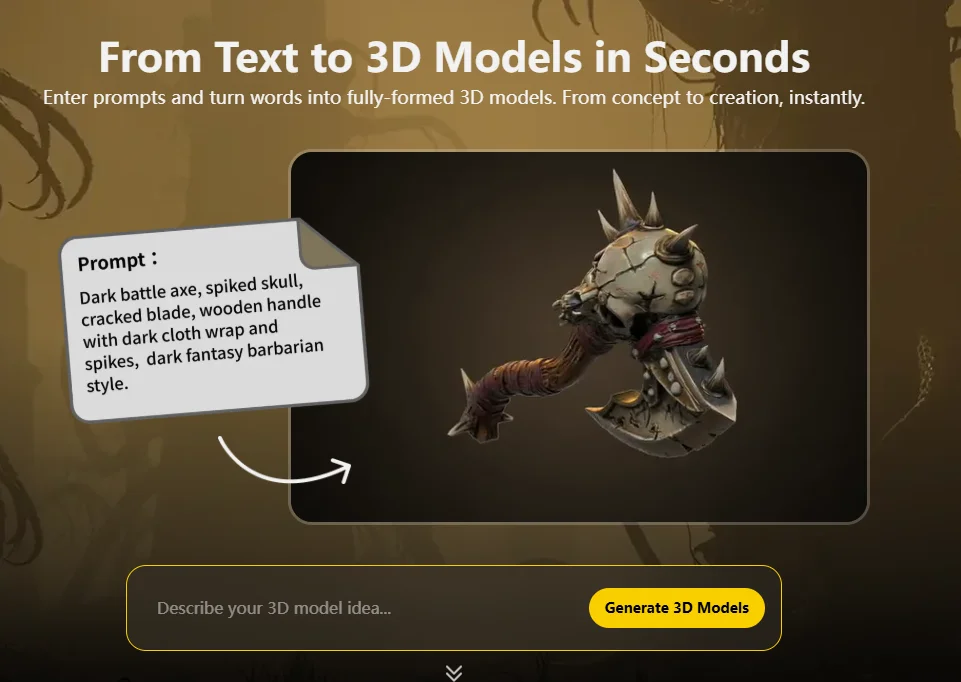
For text prompts, the most reliable structure is:
Object + Material + Style + Structural Details
This gives the model enough information to understand both appearance and silhouette.
Good Prompt
Stylized wooden treasure chest, dark oak planks with iron bands, fantasy RPG prop, symmetrical hard-surface design, engraved lock, hand-painted texture, PBR-ready game asset.
Weak Prompt
Treasure chest.
Specific prompts usually produce cleaner topology and more consistent details than short or vague descriptions.
If you're using Tripo Image to 3D, choose a single object with a clean background and even lighting. Concept art, sketches, and product photos work best when the subject is centered and unobstructed. Busy scenes or multiple objects often confuse the model and create unwanted geometry.
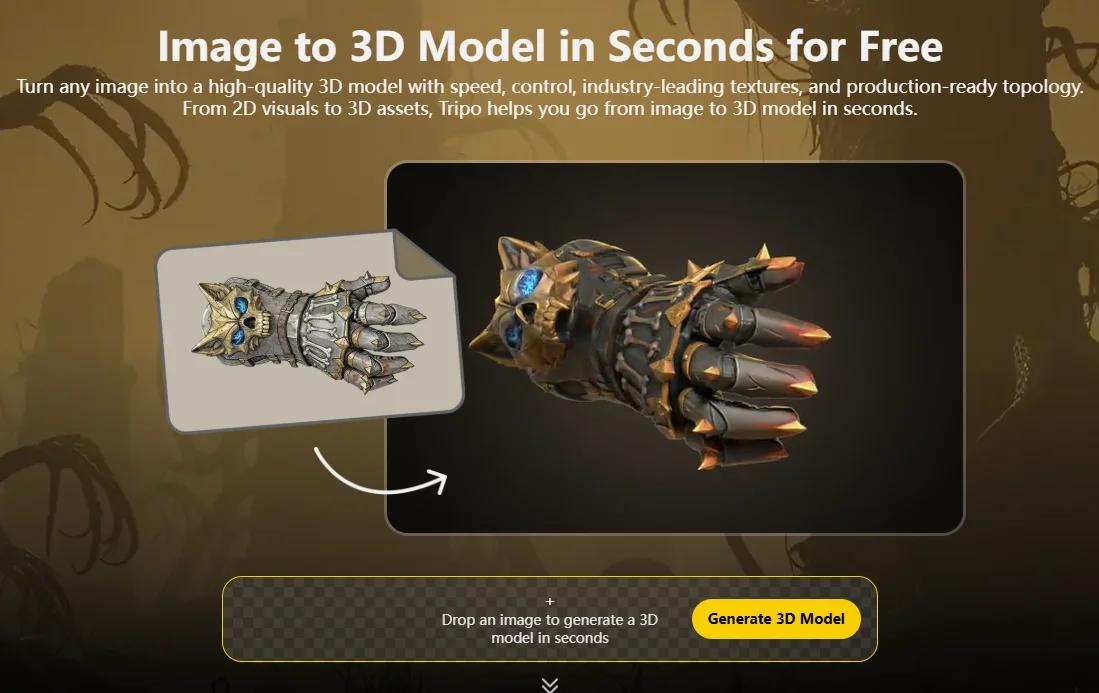
Regardless of the input method, expect some randomness. AI generation is iterative, not deterministic. The first result may have imperfect proportions, strange details, or missing parts. Instead of spending time fixing a poor output, it's often faster to generate several variations and select the strongest one.
A practical workflow is simple:
- Write a clear prompt or upload a clean image.
- Generate three to five variations.
- Pick the best silhouette and proportions.
- Move on to cleanup, retopology, and texturing.
The goal of Step 1 isn't perfection—it's getting a solid base mesh that can be refined into a game-ready prop.
Step 2 — Make It Game-Ready (Poly Budget & Retopology)
Generating a mesh is only the beginning. Raw AI models are often too dense or irregular for real-time engines, so optimization is what turns an interesting shape into a practical game asset.
Why Raw AI Meshes Aren't Game-Ready
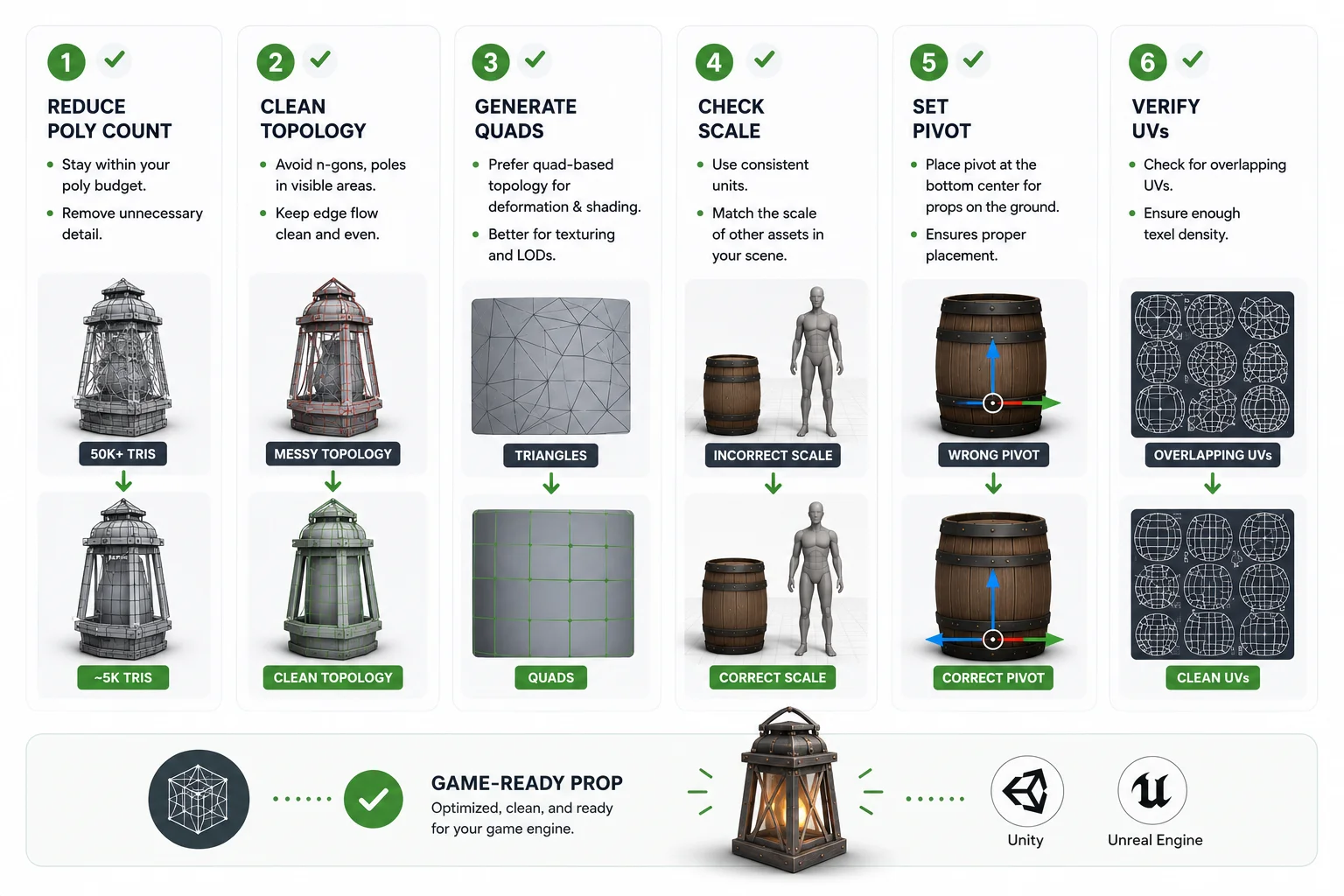
AI-generated props frequently contain excessive polygons, uneven topology, and messy UVs. While they may look fine in previews, dense meshes consume memory and rendering resources unnecessarily. Strange edge flow can also make texturing and later edits difficult. That's why most AI assets need cleanup before entering a production pipeline.
Set a Poly Budget
Poly count depends on platform, camera distance, and the importance of the asset. Small environmental props usually fall between 1K–5K triangles, while hero props or first-person objects often range from 10K–20K triangles.
Typical guidelines are:
- Small props (barrels, crates, lamps): 1K–5K tris
- Medium props (weapons, machinery): 5K–10K tris
- Hero props or close-up assets: 10K–20K tris
The goal isn't maximizing detail—it's keeping enough shape information without wasting polygons.
Retopologize or Decimate the Mesh
Reducing polygons manually can be time-consuming, which is why automated retopology tools are useful. Tripo Smart Mesh generates game-ready topology in seconds and typically outputs around 5K polygons, making it suitable for many common props. When more control is needed, Tripo Retopology allows you to specify a target polygon count, perform one-click decimation, and convert messy geometry into cleaner quad-based topology while preserving the overall silhouette.
Whether you use automatic tools or Blender, focus on preserving the outline rather than tiny surface details that can later be recovered with textures and normal maps.
Check Scale, Pivot, and UVs
Before exporting, verify several basics:
- Use consistent units and scale.
- Place the pivot at the bottom center for props that sit on floors or tables.
- Confirm forward orientation and axis settings.
- Check UVs to ensure textures can be applied correctly.
- Remove hidden geometry or unnecessary faces.
Once poly count, topology, scale, and UVs are under control, your AI-generated asset becomes much easier to texture and integrate into Unity or Unreal.
Step 2 Checklist
Step 3 — Texture the Prop (PBR Materials)
A clean mesh still needs materials before it feels believable inside a game engine. Most modern games rely on PBR (Physically Based Rendering) materials, which allow props to react naturally to lighting. Instead of a single color map, PBR assets typically use multiple texture channels such as Base Color, Normal, Roughness, and sometimes Metallic or Ambient Occlusion maps.
With Tripo's One-Click Texturing, you can quickly generate PBR materials for a prop without manually painting every surface. This creates a solid starting point and helps maintain consistency across multiple assets. Once the base textures are in place, local adjustments become much easier.
Not every area needs to be perfect from the beginning. Small issues such as incorrect colors, worn edges, or missing details can be refined with Magic Brush, allowing targeted edits without rebuilding the entire material. This combination of automatic texturing and selective touch-ups is often faster than painting everything manually.
For stylized games, consistency matters more than realism. Applying the same texturing style across barrels, treasure chests, crates, and other environment props helps create a cohesive visual language. Rather than treating each object individually, think in terms of asset sets and shared art direction.
At this stage, the goal isn't hyper-realism. It's creating clean, consistent PBR materials that look believable and respond properly to lighting inside Unity or Unreal Engine.
Step 4 — Export the Right Format
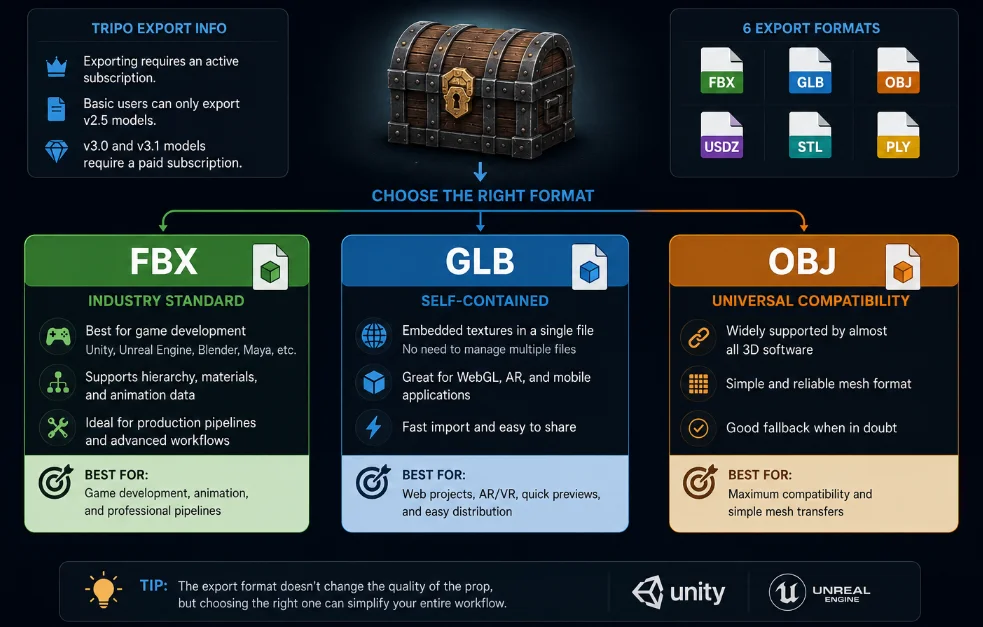
Once the mesh and textures are ready, the final preparation step is exporting the asset in a format that fits your game pipeline. Tripo supports six export formats, making it easy to move props into DCC tools, game engines, or web experiences. Keep in mind that exporting generated models requires an active subscription for v3.0 and v3.1 models, while Basic users can export v2.5 models.
For most game props, FBX, GLB, and OBJ are the formats you'll use most often.
- FBX is the industry standard for game development and is fully compatible with Unity, Unreal Engine, Blender, Maya, and other DCC tools. It supports hierarchy, materials, and animation data, making it the most common choice for production pipelines.
- GLB packages geometry and textures into a single file. This makes it convenient for WebGL, AR applications, and quick imports into engines without managing separate texture files.
- OBJ is a universal fallback format. It offers broad compatibility, although materials and advanced features are more limited than FBX or GLB.
FBX vs GLB for Game Props
Choose FBX if the asset will go through a traditional game pipeline or may later require animation and editing. Choose GLB if you want a self-contained file with embedded textures for web projects, AR experiences, or fast engine imports. If compatibility is your only concern, OBJ remains a reliable backup option.
The export format doesn't change the quality of the prop—but choosing the right one can simplify the rest of your workflow.
Export Formats For Game Props
Step 5 — Import AI Props into Unity (and Unreal)
Once your mesh and textures are ready, the final step is bringing the asset into your engine. In both Unity and Unreal, AI-generated props follow the same import workflow as traditional assets.
Manual Import
The simplest approach is to drag your FBX or GLB file directly into the project. In Unity, check the Import Settings, assign materials, and add colliders if the object needs interaction. In Unreal Engine, import the mesh, review material slots, and configure collisions and LOD settings if necessary.
This workflow works everywhere, but managing files manually becomes tedious when you're iterating on dozens of props.
One-Click with a DCC Bridge
Modern bridge tools eliminate most of that friction. Tripo Unity Bridge supports Unity 2021.3 LTS and later, automatically detecting whether your project uses the Standard Render Pipeline, URP, or HDRP. Instead of downloading assets manually, you can send models directly from the browser into your Unity project.
For Unreal users, Tripo Unreal Bridge supports Unreal Engine 5.4+, while Tripo Godot Bridge works with Godot 4.6+. These integrations make it much easier to iterate without constantly exporting and reimporting files.
Fixing the Purple-Material Problem
One of the most common issues when importing AI props into Unity is the infamous purple material. This usually isn't a texture problem—it's a shader mismatch.
For example, if your project uses URP, materials imported with Standard shaders may appear magenta. The fix is straightforward:
- Select the material.
- Change the Shader to Universal Render Pipeline/Lit.
- Reassign Base Color, Normal, and other texture maps if needed.
The same principle applies to HDRP projects. In most cases, purple materials are caused by render pipeline incompatibility rather than broken textures.
Once materials, collisions, and import settings are configured correctly, your AI prop is ready for production inside Unity, Unreal Engine, or Godot.
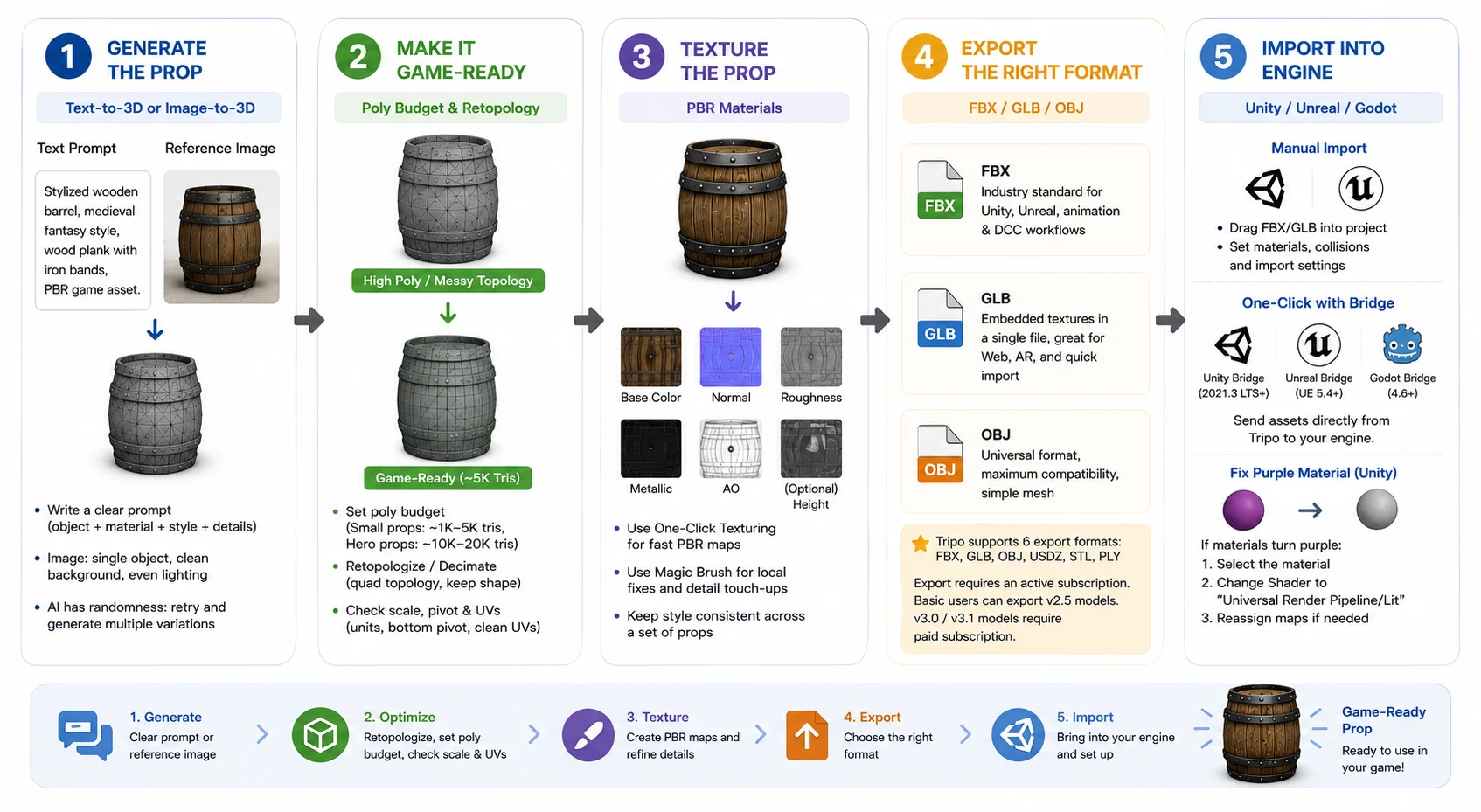
AI 3D Game Prop Workflow
Where AI Props Fit — and Their Limits
AI 3D props for games are most valuable when speed matters. They excel at generating hard-surface assets, batches of stylistically consistent objects, and placeholder content for early production. Crates, barrels, treasure chests, furniture, signs, tools, and stylized environment pieces are all strong candidates. They're also useful for prototyping, grayboxing, and quickly filling a scene before final art is completed.
However, AI-generated meshes aren't equally reliable for every type of asset. Objects with precise mechanical tolerances, extremely thin geometry, or highly intricate structures often require more manual work. Large modular environment pieces with strict UV seam requirements can also be difficult to generate consistently. In these cases, traditional modeling or extensive cleanup may still be the better option.
Even after retopology and texturing, "game-ready" doesn't always mean "production-perfect." Small adjustments to topology, UVs, pivots, or materials are sometimes necessary before an asset fits into a production pipeline.
The key is to treat AI as an accelerator rather than a replacement for established workflows. Used strategically, AI can remove repetitive work and speed up iteration, while artists and technical pipelines still provide the precision needed for final production quality.
In short, AI-generated props are excellent starting points—and often very usable—but the best results usually come from combining automation with a bit of human refinement.
Are AI-Generated Game Assets Legal? (Copyright)
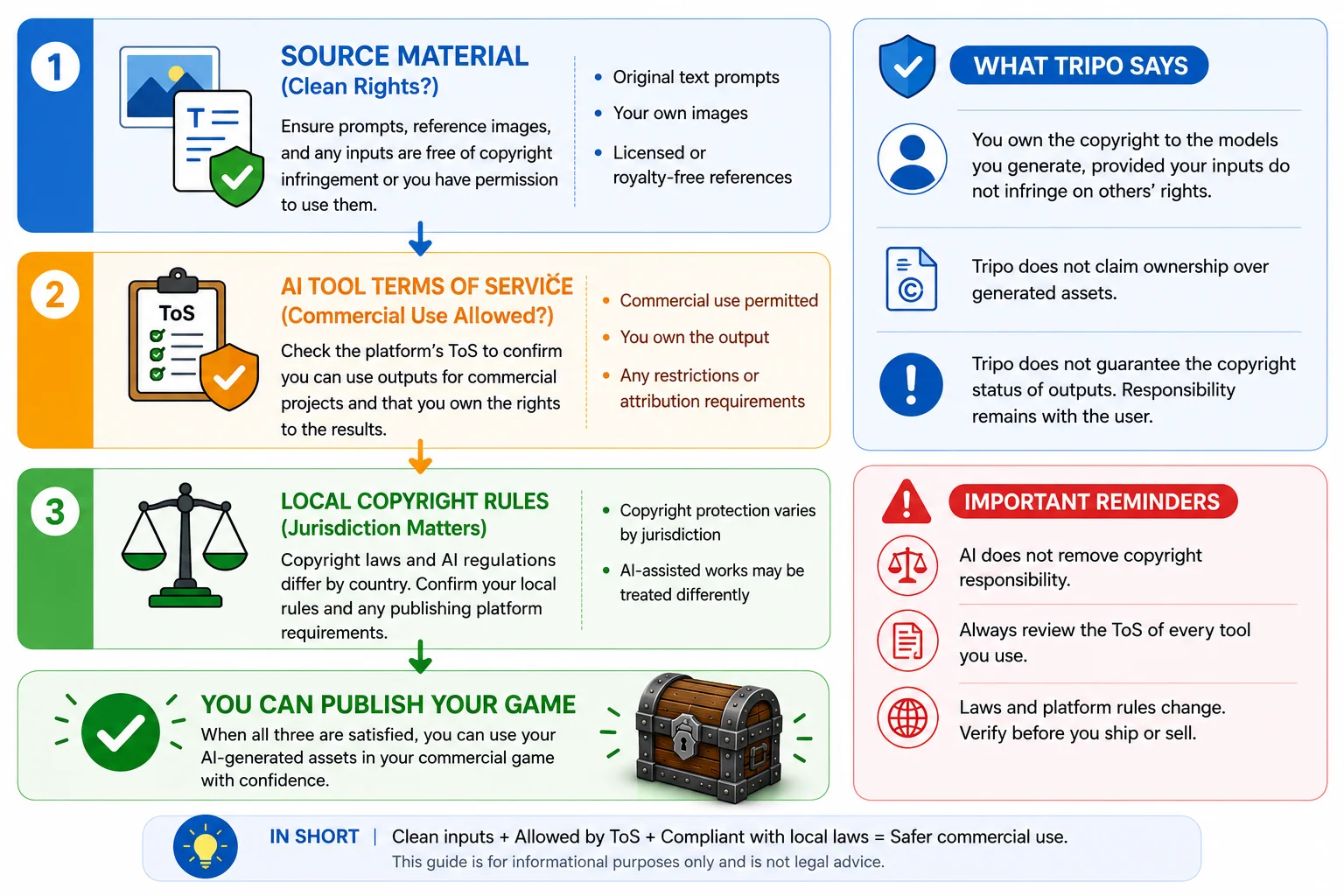
In most cases, yes—you can use AI-generated game assets commercially. But legality depends less on the fact that AI was involved and more on the rights associated with the inputs and the terms of the tool you use.
The first requirement is making sure your source material is free of copyright disputes. If you're generating props from text prompts, this is usually straightforward. If you're using concept art, photos, or reference images, make sure you have the rights to use them. Uploading copyrighted artwork without permission can create legal risks regardless of which AI tool is involved.
According to Tripo's copyright policy, users own the copyright to the models they generate, provided the inputs themselves do not infringe on someone else's rights. Tripo does not claim ownership over generated assets, but it also does not guarantee the copyright status of outputs. Responsibility ultimately remains with the user.
It's also important to remember that copyright rules and AI regulations differ across jurisdictions. Questions such as whether AI-assisted works qualify for copyright protection can vary from country to country. In addition, every platform has its own Terms of Service regarding commercial usage and ownership.
So, before shipping a game or selling assets, verify three things:
- Your prompts and source images are legally usable.
- The AI platform's Terms of Service allow commercial use.
- Your local laws and publishing requirements align with your intended use.
This section is informational only and should not be considered legal advice.
Can You Legally Use AI-Generated Game Assets?
Frequently Asked Questions
Can AI make 3D assets for games?
Yes. AI tools can generate props and environment assets from text prompts or images. They are especially useful for hard-surface objects and rapid prototyping. Most assets still need optimization and texturing before production use.
Are AI-generated 3D models game-ready?
Not usually. Raw AI meshes often have high polygon counts and messy topology. Retopology, UV checks, and PBR materials are typically needed before importing them into a game engine.
How do I reduce the poly count on an AI-generated prop?
Use retopology or mesh decimation tools to simplify the geometry. Small props commonly target 1,000–5,000 triangles, while hero props may use 10,000–20,000 triangles. Always check the silhouette and UVs after optimization.
How do I import an AI 3D prop into Unity?
Export the asset as FBX or GLB and drag it into Unity. Assign materials, configure import settings, and add colliders if needed. If the material turns purple, switch the shader to Universal Render Pipeline/Lit when using Universal Render Pipeline.
Is it legal to make a game with AI-generated assets?
In many cases, yes. Make sure your prompts and reference images are legally usable and review the AI platform's Terms of Service. Copyright rules vary by jurisdiction, so verify local requirements before publishing.
Text-to-3D or image-to-3D — which is better for game props?
Text-to-3D is best for brainstorming and generating batches of similar props. Image-to-3D is better when matching concept art or an existing style. Many teams use both workflows together.
Conclusion
From a one-line prompt to a textured, game-ready prop inside your engine, the workflow is simpler than ever—but AI-generated assets still benefit from optimization, texturing, and a quick quality check. Used thoughtfully, AI can dramatically speed up prototyping and production without replacing traditional game art pipelines.
If you're ready to try the full workflow yourself, explore Tripo AI Studio to generate, optimize, texture, and export your first AI prop directly into your game project.