How to Create a Talking Tom 3D Model: Expert Workflow & Tips
Creating a production-ready Talking Tom 3D model is a process that combines artistic vision, technical skill, and the right tools. In this guide, I’ll walk you through the workflow I use—from gathering references and modeling, to texturing, rigging, and animation, with insights on how AI-powered tools like Tripo can speed up and simplify key steps. Whether you’re a game developer, animator, or hobbyist, you’ll find actionable advice, essential techniques, and expert tips to take your 3D character from concept to completion.
Key takeaways:
- Start with strong references and clear scope for efficient modeling.
- Blocking and proportion checks are critical in early modeling stages.
- UV unwrapping and texturing make or break the final look—don’t rush them.
- Rigging and facial animation require careful planning for believable results.
- AI-powered tools like Tripo can drastically reduce manual workload.
- Optimize your model for the target platform before export.
Executive Summary: Key Steps to a Talking Tom 3D Model
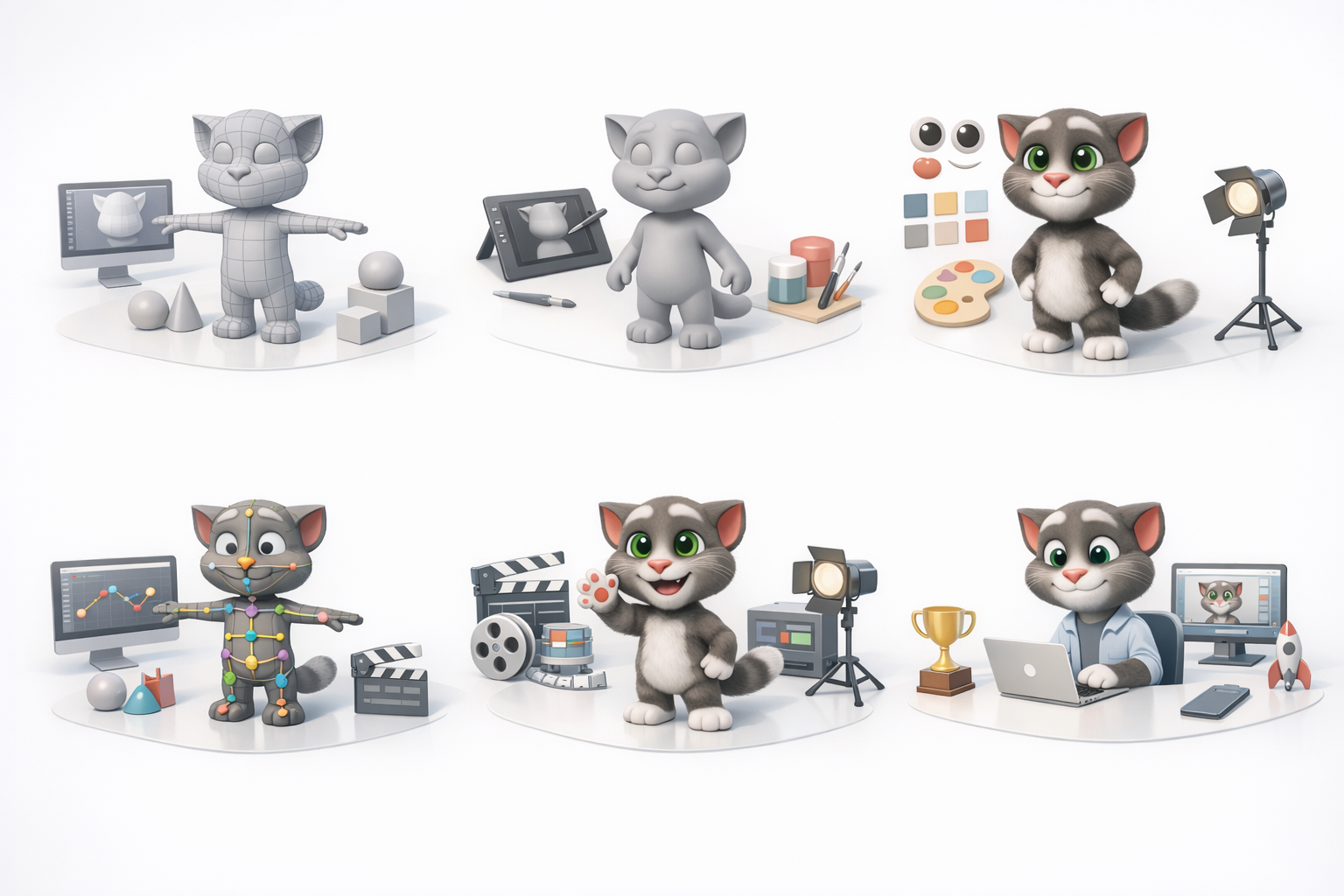
What to Expect from This Guide
This article covers the complete 3D workflow for creating a Talking Tom character, including planning, modeling, texturing, rigging, and animation. I’ll share both traditional and AI-assisted methods, highlighting where automation can save time without sacrificing quality. You’ll also get troubleshooting advice and lessons learned from real-world projects.
Essential Tools and Skills Needed
At a minimum, you’ll need a 3D modeling suite (like Blender or Maya), a texturing tool (Substance Painter or similar), and a basic understanding of rigging and animation. For efficiency, I recommend integrating AI-powered platforms such as Tripo into your pipeline—especially if you want to accelerate base mesh creation, retopology, or texturing. Some familiarity with game engine requirements (like Unity or Unreal) is also helpful.
Planning and Reference Gathering for Talking Tom
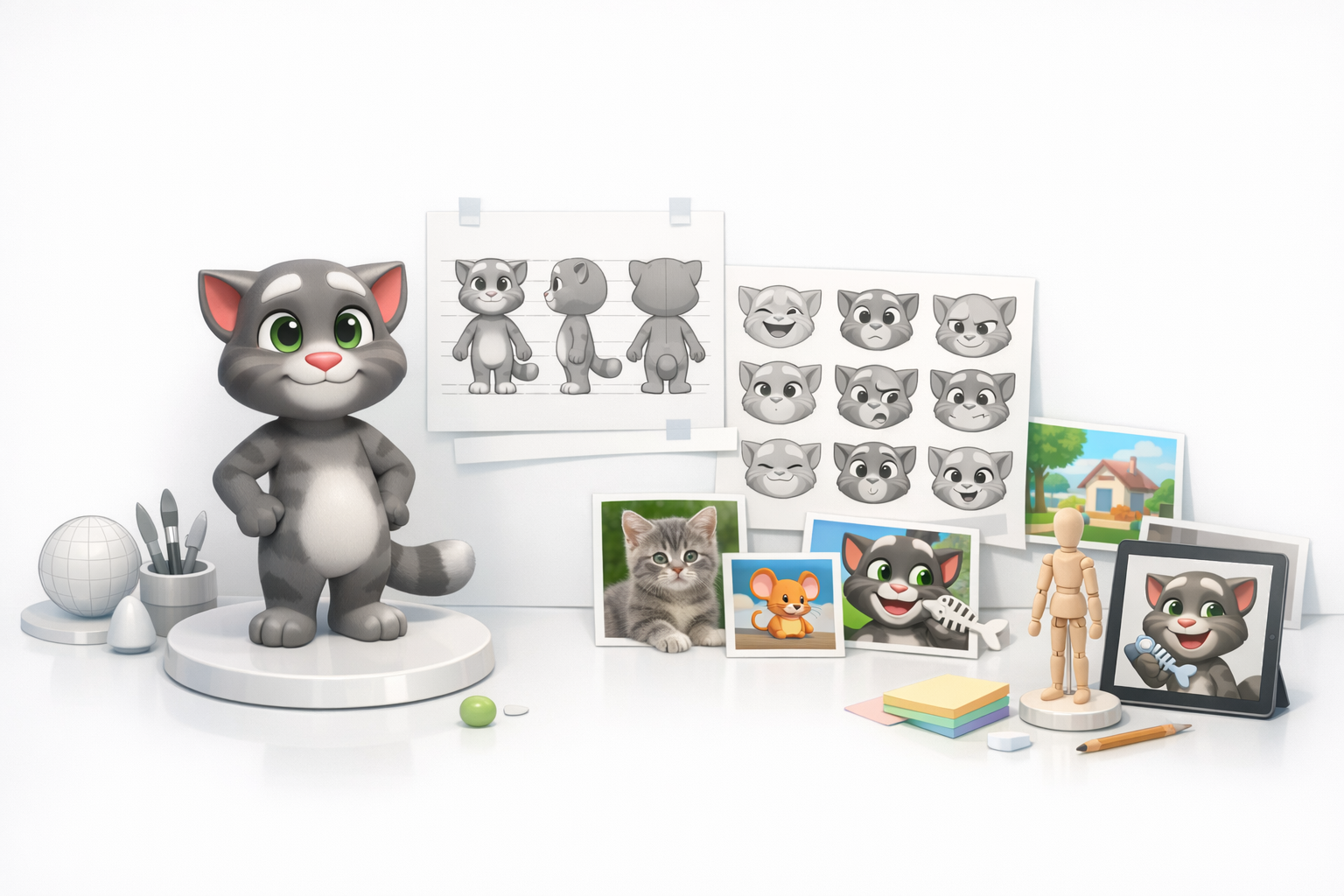
Collecting Visual References
I always start by gathering as many images of Talking Tom as possible—official artwork, screenshots, and even fan art. This helps nail down proportions, color schemes, and personality. For stylized characters, front, side, and ¾ views are especially helpful.
Reference checklist:
- Official character sheets or model turnarounds
- Close-ups of facial expressions
- Images from different angles and lighting
Defining Model Scope and Level of Detail
Before opening any 3D software, I define the project’s scope: Is this for real-time use (games/XR) or pre-rendered animation? For games, I prioritize clean topology and optimized textures; for animation, I might allow higher poly counts and more complex rigs.
Pitfall: Over-modeling details that won’t be visible in your target use case wastes time and resources.
3D Modeling Workflow: From Concept to Base Mesh
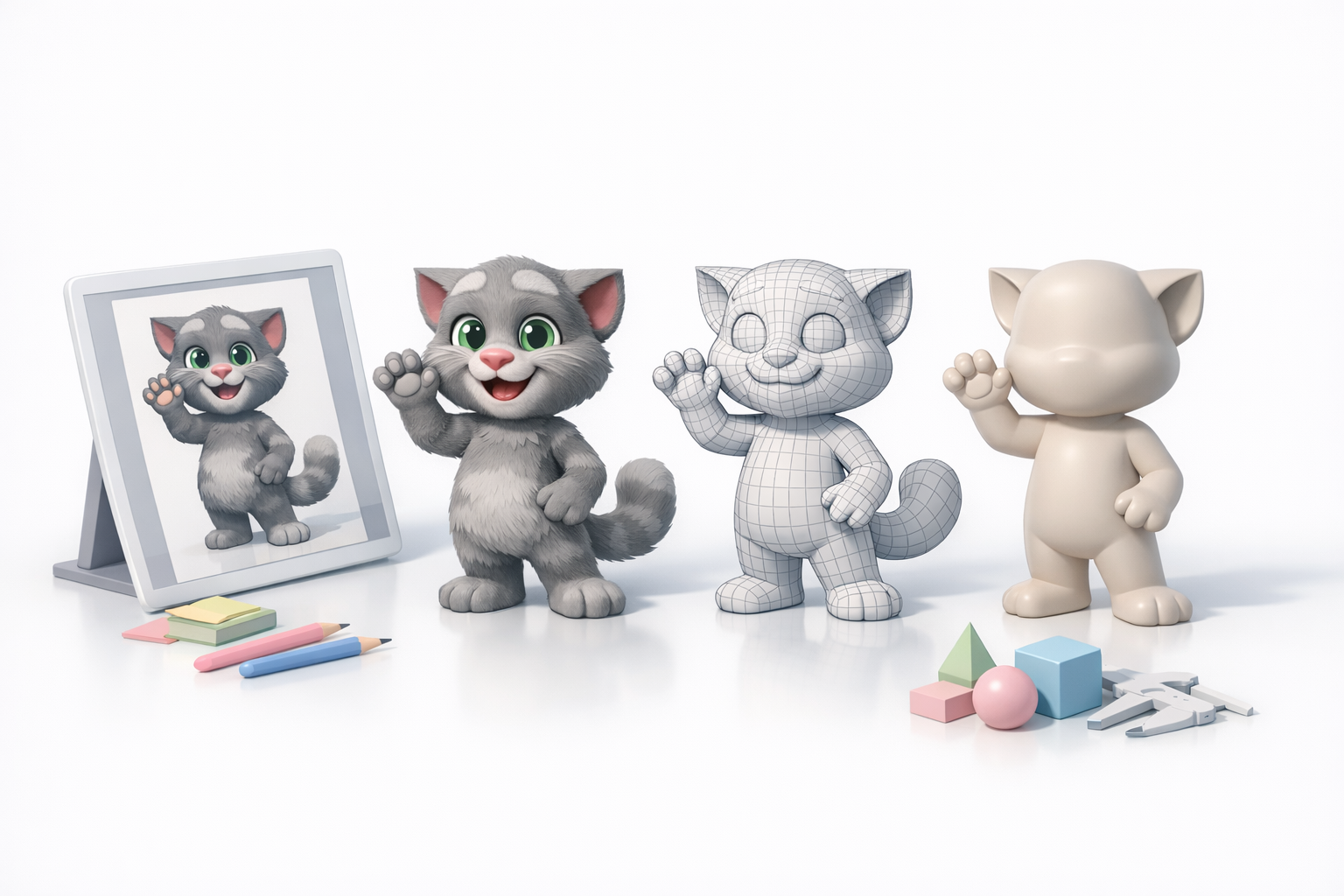
Blocking Out the Main Shapes
I begin modeling by blocking out the largest forms—head, body, limbs—using basic shapes. This stage is about volume and silhouette, not details. I often use Tripo to quickly generate a base mesh from a sketch or text description, then refine it by hand.
Steps:
- Import references into your 3D viewport.
- Block out head, torso, limbs as separate objects.
- Check proportions against references constantly.
Refining Proportions and Features
Once the blockout feels right, I merge and sculpt the forms, paying attention to facial features and signature details like Talking Tom’s ears and eyes. I iterate between sculpting and low-poly modeling, ensuring the mesh remains clean and animation-friendly.
Tips:
- Use symmetry tools for efficiency.
- Don’t commit to fine details until proportions are solid.
- Save incremental versions to backtrack if needed.
Texturing and Materials: Bringing Talking Tom to Life
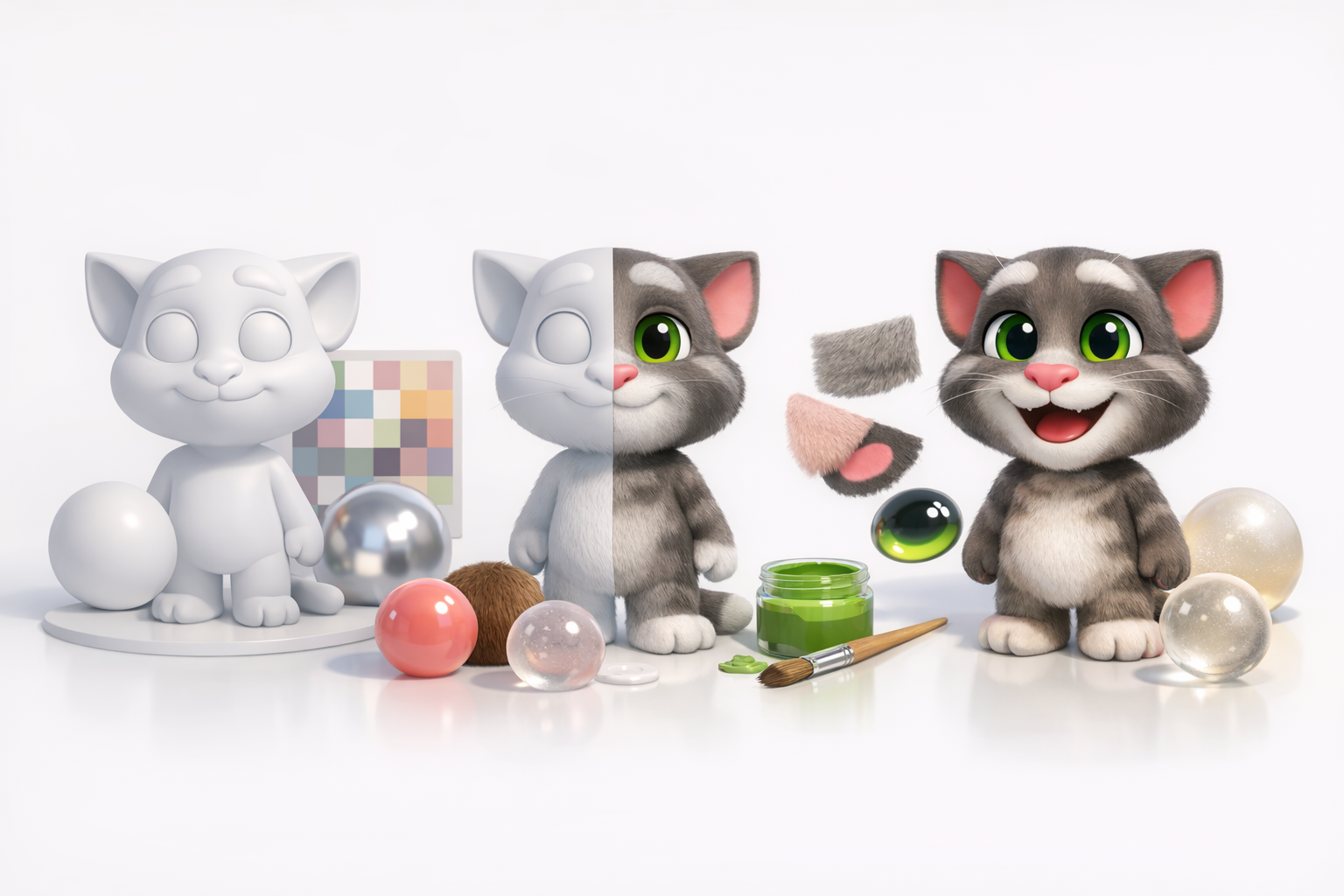
UV Unwrapping Best Practices
Clean UVs are essential for seamless texturing. I use automatic unwrapping tools for base layouts, then manually tweak seams in high-visibility areas like the face. Tripo’s intelligent segmentation can help auto-generate UVs, saving time on complex shapes.
Checklist:
- Minimize stretching and seams on visible surfaces.
- Pack UV islands efficiently to maximize texture resolution.
Painting and Applying Textures
I usually bake ambient occlusion and curvature maps to guide hand-painting or procedural texturing. For Talking Tom, focus on expressive eyes, fur patterns, and subtle color variation. Tripo can auto-generate base textures, which I refine for uniqueness and polish.
Tips:
- Keep color palettes consistent with references.
- Preview textures under different lighting conditions.
Rigging and Animation: Making Talking Tom Talk
Setting Up a Basic Rig
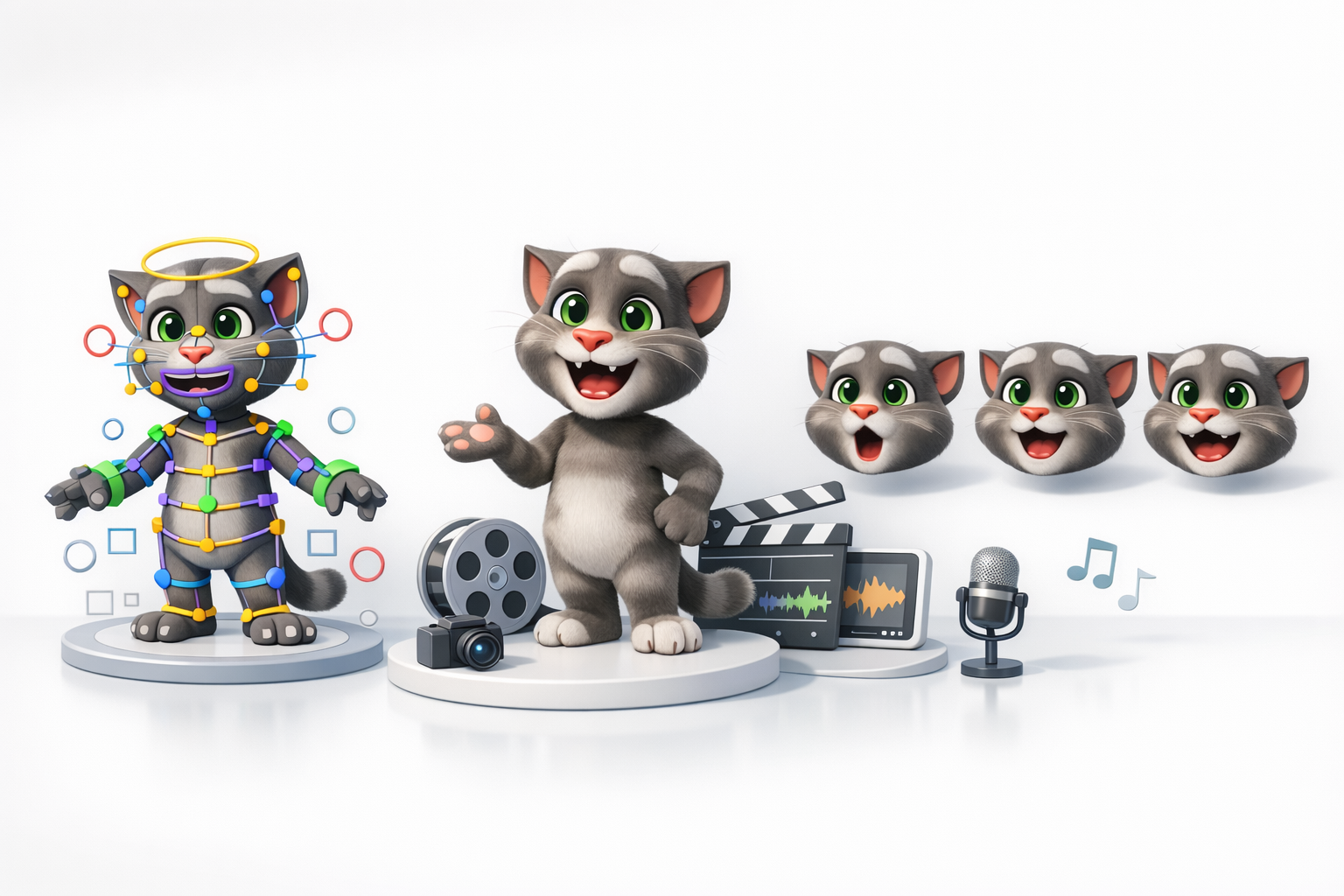
A solid rig is crucial for expressive animation. I start with a basic biped rig, adding extra bones for facial features and ears. Automated rigging tools can speed up the process, but I always check joint placements manually.
Steps:
- Place bones for body, limbs, and face.
- Weight paint carefully—especially around the mouth and eyes.
- Test deformations with simple poses.
Animating Facial Expressions and Lip Sync
Talking Tom’s appeal comes from expressive talking animations. I create blend shapes (morph targets) for key mouth shapes (visemes) and facial emotions. For lip sync, I either hand-keyframe or use audio-driven animation tools.
Tips:
- Reference real speech and expressions.
- Keep animations loopable for games.
Exporting and Optimizing for Games or XR
Retopology and Mesh Optimization
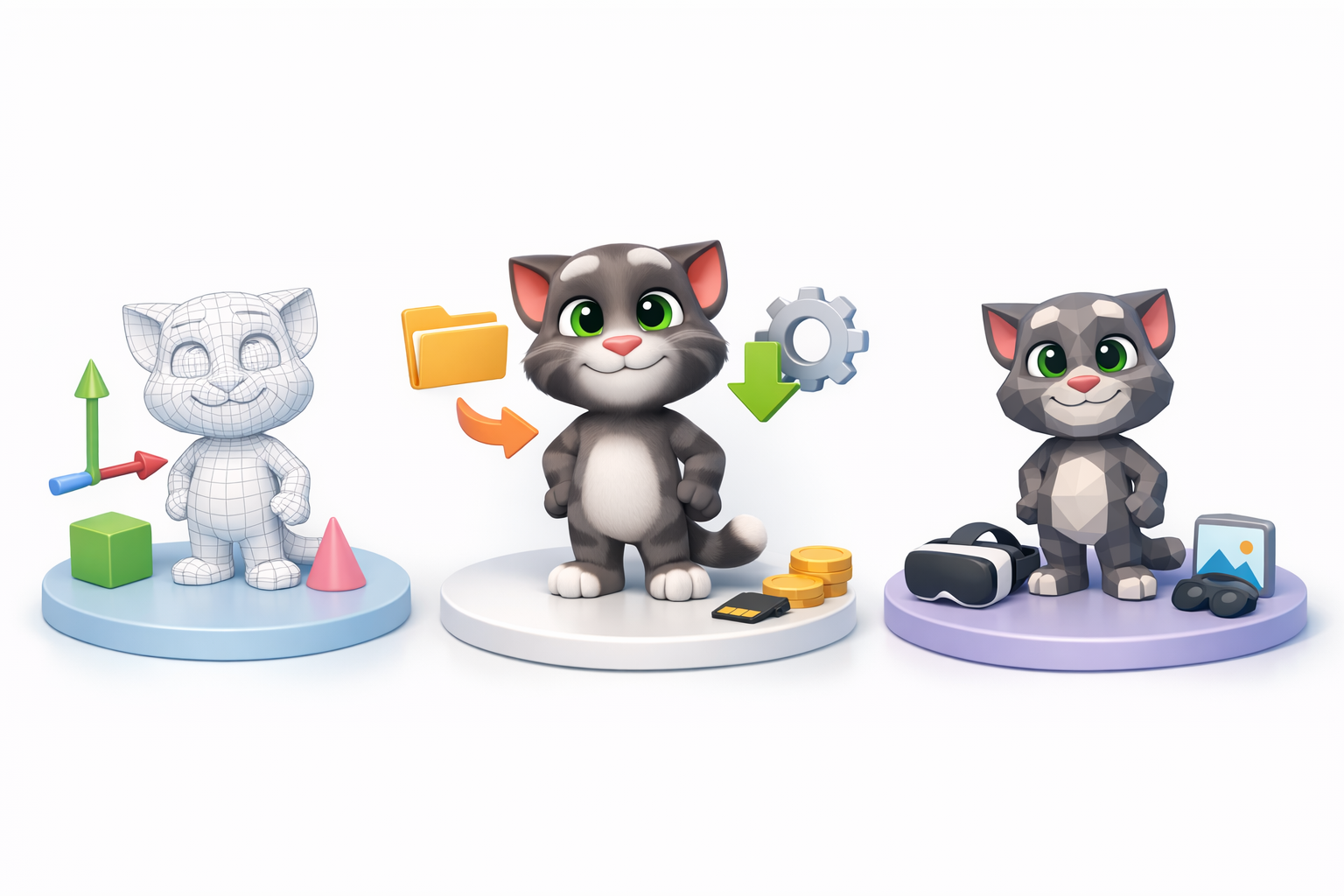
Game-ready models need efficient topology. I use retopology tools (manual or AI-assisted) to reduce poly count and ensure clean edge flow. Tripo’s auto-retopology is fast and usually produces good results, but I always inspect for artifacts.
Checklist:
- Target poly count based on platform (mobile vs. PC/console).
- Remove hidden or unnecessary geometry.
Export Settings and File Formats
I export models in formats like FBX or GLB, ensuring correct scale and orientation. For textures, I use PNG or JPEG, and pack maps when possible (e.g., roughness, metallic, AO in one file).
Pitfall: Forgetting to apply transforms or bake animations before export can cause issues in game engines.
AI-Powered Tools and My Workflow Insights
How I Use Tripo for Fast 3D Model Generation
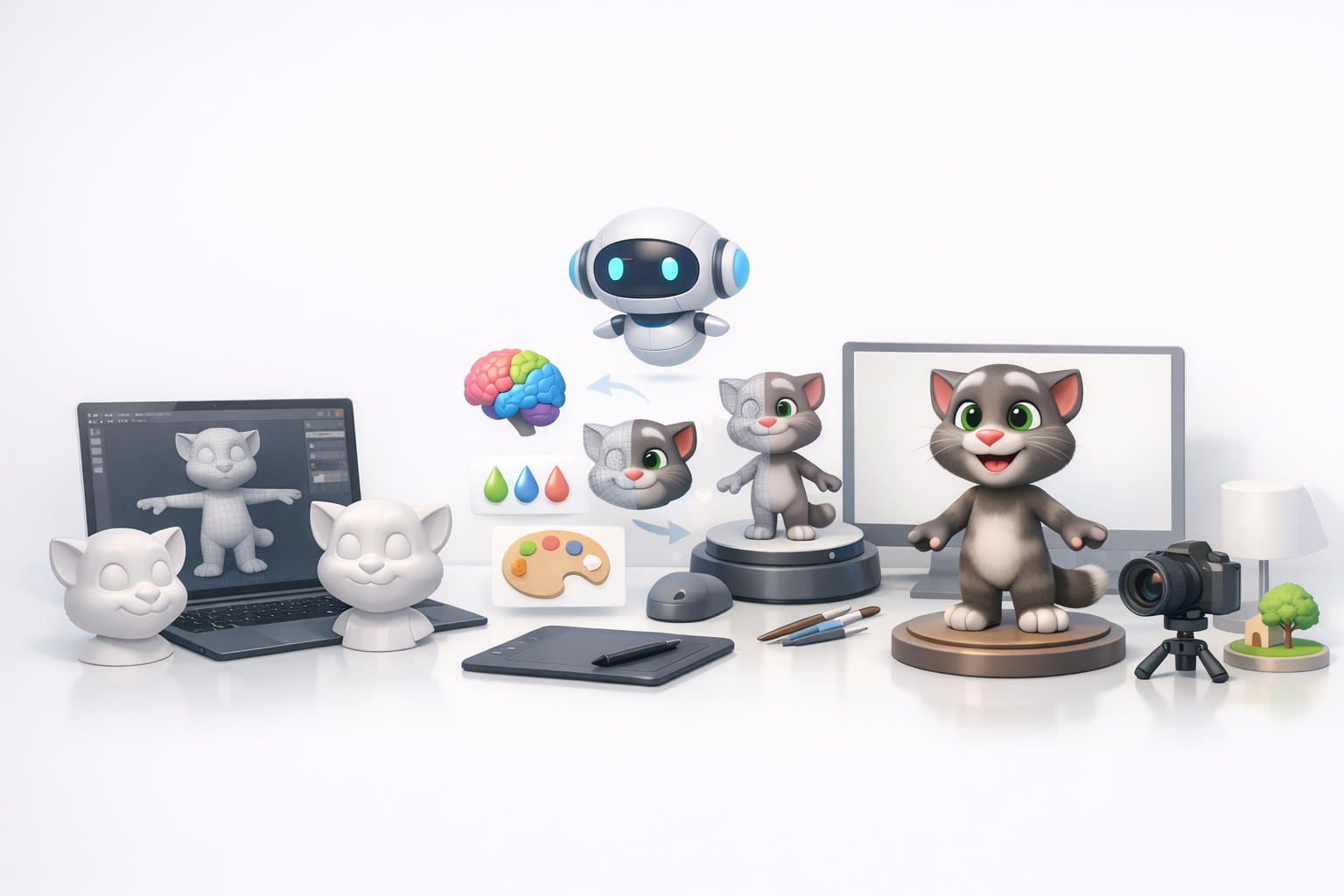
In my workflow, Tripo accelerates the concept-to-base-mesh phase. I input a sketch or text prompt, then receive a ready-to-edit mesh with UVs and textures. This lets me skip repetitive setup and focus on creative tweaks and polish.
Practical uses:
- Rapid prototyping for client pitches
- Generating variants for A/B testing
- Automating retopology and UV unwrapping
Comparing Manual and AI-Assisted Methods
Manual modeling gives full control but is time-consuming. AI tools like Tripo offer speed and consistency, especially for base meshes and repetitive tasks. For stylized characters like Talking Tom, I find a hybrid approach works best: AI for base generation, manual work for final polish and personality.
What I’ve found:
- AI speeds up early stages but manual refinement is still essential.
- Automated UVs and textures are good starting points, but hand-painting brings uniqueness.
Common Challenges and Expert Tips
Troubleshooting Modeling Issues
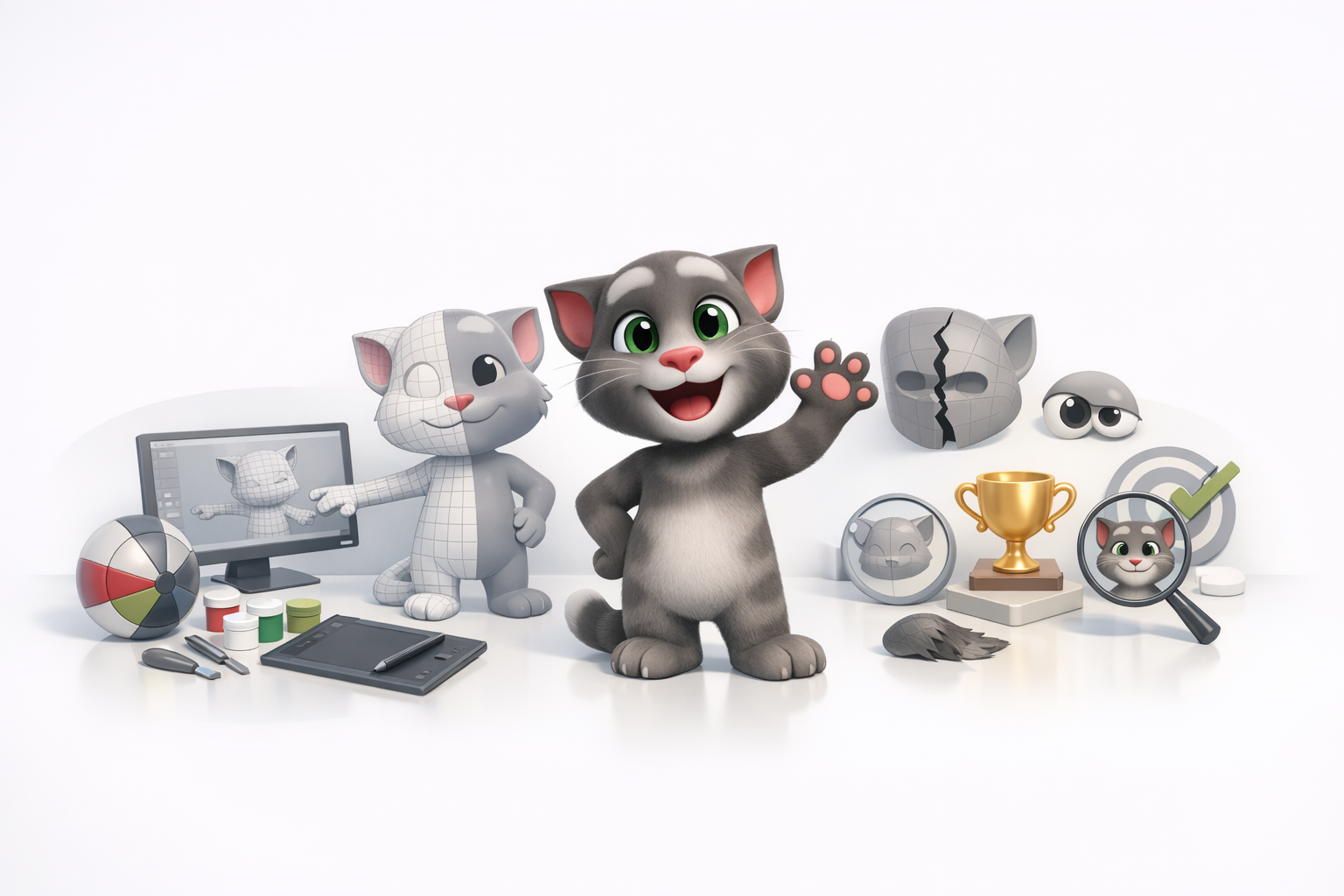
Common issues include proportion mismatches, visible seams, and deformation problems during animation. I always test the model in the target engine early to catch problems before they compound.
Checklist:
- Regularly check silhouette and proportions.
- Test rig deformations with extreme poses.
- Preview textures at game resolution.
What I’ve Learned from Real Projects
Every project has surprises—tight deadlines, shifting requirements, or technical constraints. What’s saved me most often is a flexible workflow and the willingness to iterate. AI tools are great for speed, but attention to detail and creative problem-solving remain irreplaceable.
Pro tips:
- Always keep backups of major milestones.
- Don’t be afraid to rework areas that aren’t working.
- Communication with collaborators (designers, animators, developers) prevents late-stage surprises.
By following this workflow and leveraging both traditional skills and AI-powered tools, you can create a production-ready Talking Tom 3D model efficiently and with professional polish.