How to Find, Use, and Optimize 3D Models on Sketchfab
Finding, using, and optimizing 3D models from Sketchfab is a core part of my workflow when building assets for games, XR, and design projects. Sketchfab’s library offers a vast range of production-ready models, but making the most of them requires understanding licensing, knowing how to integrate them efficiently, and leveraging AI tools for enhancement. In this guide, I’ll share my hands-on process for searching, selecting, and customizing Sketchfab models, and how I streamline tasks like retopology and texturing with platforms like Tripo AI. This article is for 3D artists, developers, and anyone looking to speed up asset creation without sacrificing quality.
Key takeaways
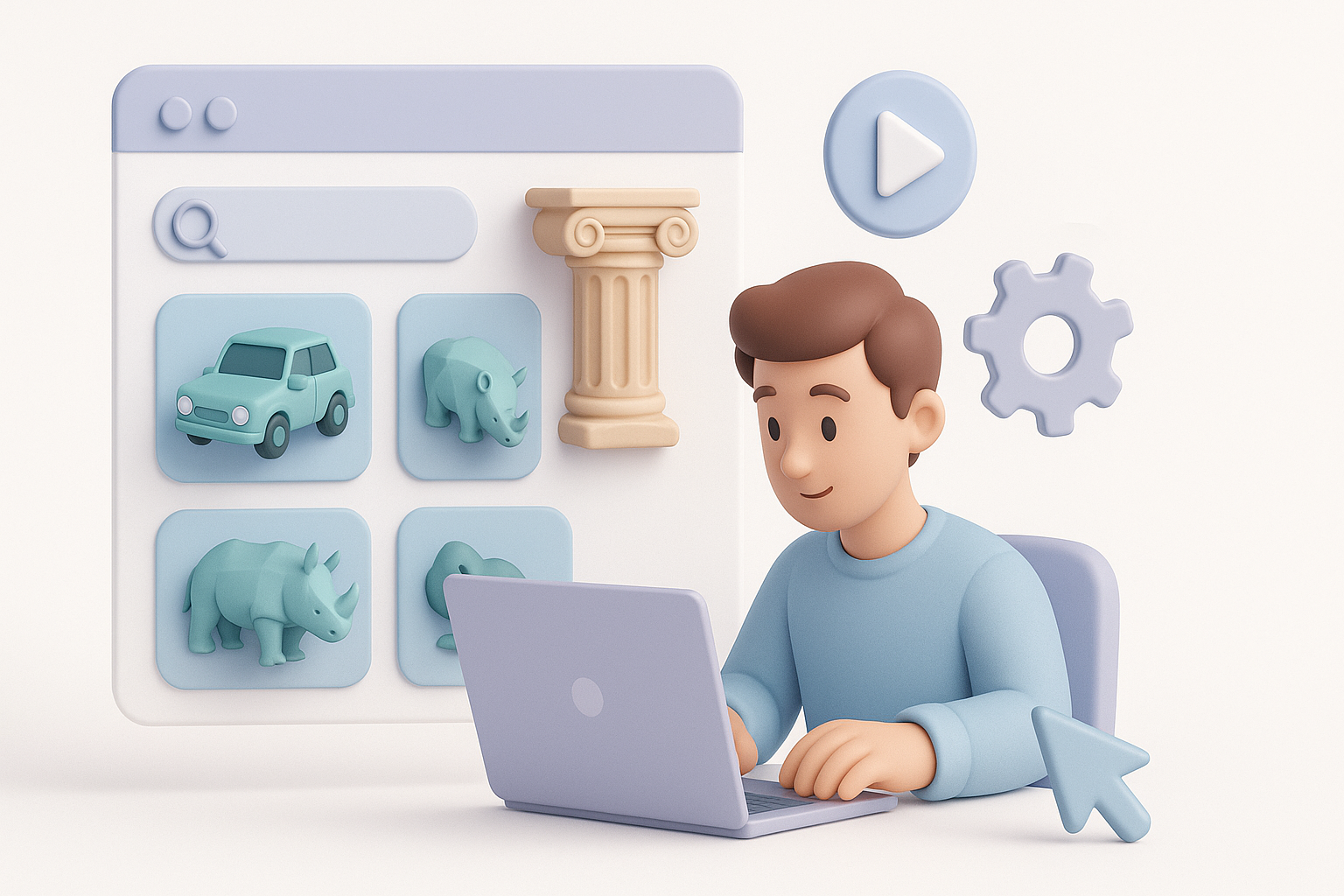
- Sketchfab’s search and filter tools are essential for quickly finding the right 3D assets.
- Always check licensing terms before downloading—many models require attribution or have restrictions.
- Optimize models for your pipeline by retopologizing, adjusting textures, and rigging as needed.
- AI tools like Tripo AI can automate and enhance key steps such as segmentation, UV unwrapping, and texturing.
- Sketchfab excels for variety and accessibility, but know when to supplement with other sources or custom work.
Understanding Sketchfab’s 3D Model Library
Key Features and Categories
Sketchfab’s library is one of the most diverse I’ve used, with models ranging from stylized characters to photorealistic environments. Categories are clearly organized—characters, vehicles, architecture, props, and more—making it easy to browse by project type. Key features that stand out for me include the ability to preview models in 3D, inspect wireframes, and view texture maps before downloading.
When I’m starting a new project, I use these categories to narrow down my search and quickly assess whether a model fits my technical and artistic requirements. The model info page provides polycount, formats, and license details at a glance.
How I Navigate and Search for Models
Efficient navigation saves me hours. I rely heavily on Sketchfab’s search filters: I set polycount ranges, filter for downloadable assets, and sort by popularity or recency. Tags are another powerful tool—searching for “game-ready” or “low-poly” often surfaces optimized models.
My quick search workflow:
- Use specific keywords (e.g., “sci-fi crate,” “medieval sword”).
- Filter by downloadable and preferred license.
- Check polycount and formats (I prefer FBX or OBJ for compatibility).
- Preview models in the viewer for mesh and texture quality.
Pitfall: Don’t assume all models are ready for production—always inspect geometry and UVs before downloading.
Best Practices for Downloading and Licensing Models
Licensing Types and What They Mean
Licensing is critical. Sketchfab offers models under various licenses: Creative Commons (CC0, CC-BY, CC-BY-NC), royalty-free, and custom terms. I always read the license summary before downloading—CC0 means free for any use, while CC-BY requires attribution. Royalty-free licenses may still have restrictions on redistribution or commercial use.
Checklist before using a model:
- Confirm the license type and usage rights.
- Note attribution requirements.
- Check for any use-case restrictions (e.g., no resale, non-commercial only).
Pitfall: Ignoring license terms can lead to legal issues—document your sources.
My Workflow for Selecting the Right Model
I don’t just grab the first model I see. My selection process:
- Identify technical requirements (polycount, format, UVs).
- Cross-check license suitability for my project (commercial vs. personal).
- Download and inspect the mesh for errors or missing textures.
- If needed, I run the model through Tripo AI or similar tools for automated cleanup and retopology.
Tip: Keep a spreadsheet of downloaded models, their sources, and license details for future reference.
Integrating Sketchfab Models into 3D Projects

Importing and Optimizing for Different Pipelines
Importing is straightforward—Sketchfab supports common formats like FBX, OBJ, and GLTF. In my workflow, I import directly into my DCC tool (Blender, Maya, etc.), then immediately check scale, orientation, and material assignments.
Optimization steps I follow:
- Re-scale the model to fit my scene.
- Reassign or relink textures if paths are broken.
- Merge or separate meshes as needed for my engine or renderer.
Pitfall: Some models have non-standard pivots or scale—always correct these before rigging or animation.
Tips for Retopology, Texturing, and Rigging
Not all Sketchfab models are game- or XR-ready. I often need to:
- Retopologize high-poly assets for real-time use.
- Re-unwrap UVs if the originals are messy.
- Re-bake or re-author textures for PBR workflows.
I use Tripo AI for fast retopology and UV unwrapping—this saves me hours on manual cleanup. For rigging, I check for consistent edge loops and fix any geometry issues before binding.
Checklist:
- Inspect topology for animation suitability.
- Use AI tools for retopology and UVs.
- Standardize texture sets (Albedo, Normal, Roughness, etc.).
Enhancing and Customizing Models with AI Tools
How I Use AI Platforms for Model Enhancement
AI-driven tools like Tripo AI have changed how I process Sketchfab models. For example, I can auto-segment complex meshes, generate clean UVs, and even texture models with a single input. This is especially useful for speeding up asset prep for games or XR apps.
My typical enhancement steps:
- Import the Sketchfab model into Tripo AI.
- Run auto-retopology and UV unwrapping.
- Apply smart texturing or material generation.
- Export to my target format (GLTF, FBX, etc.).
Tip: Always review AI-generated results—minor manual tweaks are sometimes needed for production quality.
Case Studies: Improving Models for Games and XR
For a recent XR project, I sourced a high-poly prop from Sketchfab. Using Tripo AI, I reduced polycount by 70% without losing silhouette detail, auto-generated PBR textures, and exported directly to Unity. This cut my asset prep time from hours to minutes.
In game development, I often use AI tools to batch process multiple assets—auto-rigging simple characters or standardizing texture sets, which helps maintain visual consistency across my projects.
Pitfall: AI tools aren’t infallible—always check for artifacts or texture seams post-processing.
Comparing Sketchfab with Alternative 3D Model Sources
Strengths and Limitations from My Experience
Sketchfab’s main strengths are its massive variety, real-time 3D previews, and straightforward licensing. I find it especially useful for rapid prototyping and sourcing unique, community-made assets. The main limitations are inconsistent quality and occasional gaps in technical documentation (e.g., missing maps or unclear polycounts).
When Sketchfab works best:
- Quick asset sourcing for prototyping.
- Finding unique or stylized models.
- Projects with flexible quality requirements.
When I run into issues:
- Models needing precise technical specs (e.g., film-level assets).
- Inconsistent UVs or topology in community uploads.
When to Use Sketchfab vs. Other Tools
I use Sketchfab as my first stop for variety and speed. For specialized needs (custom characters, strict topology, or proprietary assets), I turn to dedicated asset creation platforms or commission work. AI-powered platforms like Tripo AI fill the gap by making Sketchfab models production-ready with minimal manual effort.
Decision matrix:
- Use Sketchfab for variety, speed, and prototyping.
- Use AI tools for cleanup and optimization.
- Switch to custom modeling for unique or high-spec requirements.
In summary: Sketchfab is a powerful resource for 3D creators, but real efficiency comes from knowing how to search, vet, and optimize assets—and leveraging AI tools to bridge the gap between raw downloads and production-ready models.