Mastering 3D Model Editors: Workflows, Tips, and Best Practices
As someone who works daily with 3D model editors, I know how crucial the right workflow and toolset are to delivering production-ready assets—whether for games, film, XR, or design. The evolution of AI-powered editors has dramatically reduced technical bottlenecks, letting me focus more on creativity and less on tedious tasks. In this article, I’ll break down the essential features of modern 3D model editors, my step-by-step workflow, and the best practices I rely on for efficient, high-quality results. If you’re a 3D artist, developer, or anyone looking to streamline your 3D asset pipeline, these insights and practical tips will help you get there faster.
Key takeaways:
- Modern 3D editors combine modeling, texturing, and retopology in unified workflows.
- AI-powered tools can automate segmentation, retopology, and texturing, saving hours.
- Non-destructive editing is essential for flexibility and iteration.
- Optimize models early for real-time engines to avoid late-stage headaches.
- Choose editors based on workflow needs, supported formats, and user experience.
- Integrating AI tools can drastically reduce manual labor in rigging and animation.
What Is a 3D Model Editor? Core Features and Use Cases

Key Functions of Modern 3D Editors
Modern 3D model editors are more than just modeling platforms—they’re end-to-end creation suites. The core functions I rely on include mesh editing, UV mapping, texturing, retopology, rigging, and sometimes animation. Many editors now support direct import/export of common formats (OBJ, FBX, GLTF), batch processing, and non-destructive layer-based editing.
Key features I look for:
- Intuitive viewport navigation and selection tools
- Layered editing and history/undo stack
- Automated retopology and UV unwrapping
- Texture painting and baking
- Support for plugins and AI-powered extensions
Common Applications Across Industries
3D model editors are used everywhere—from gaming and VFX to product design and AR/VR. In my work, I see them used for:
- Game-ready asset creation (characters, props, environments)
- Film-quality VFX and animation models
- Rapid prototyping for industrial and product design
- XR experiences—optimized for mobile and headset performance
Tip: Always tailor your workflow and tool choice to the project’s end-use. Real-time applications have different requirements than film.
My Workflow: Editing 3D Models from Concept to Completion
Importing and Preparing Assets
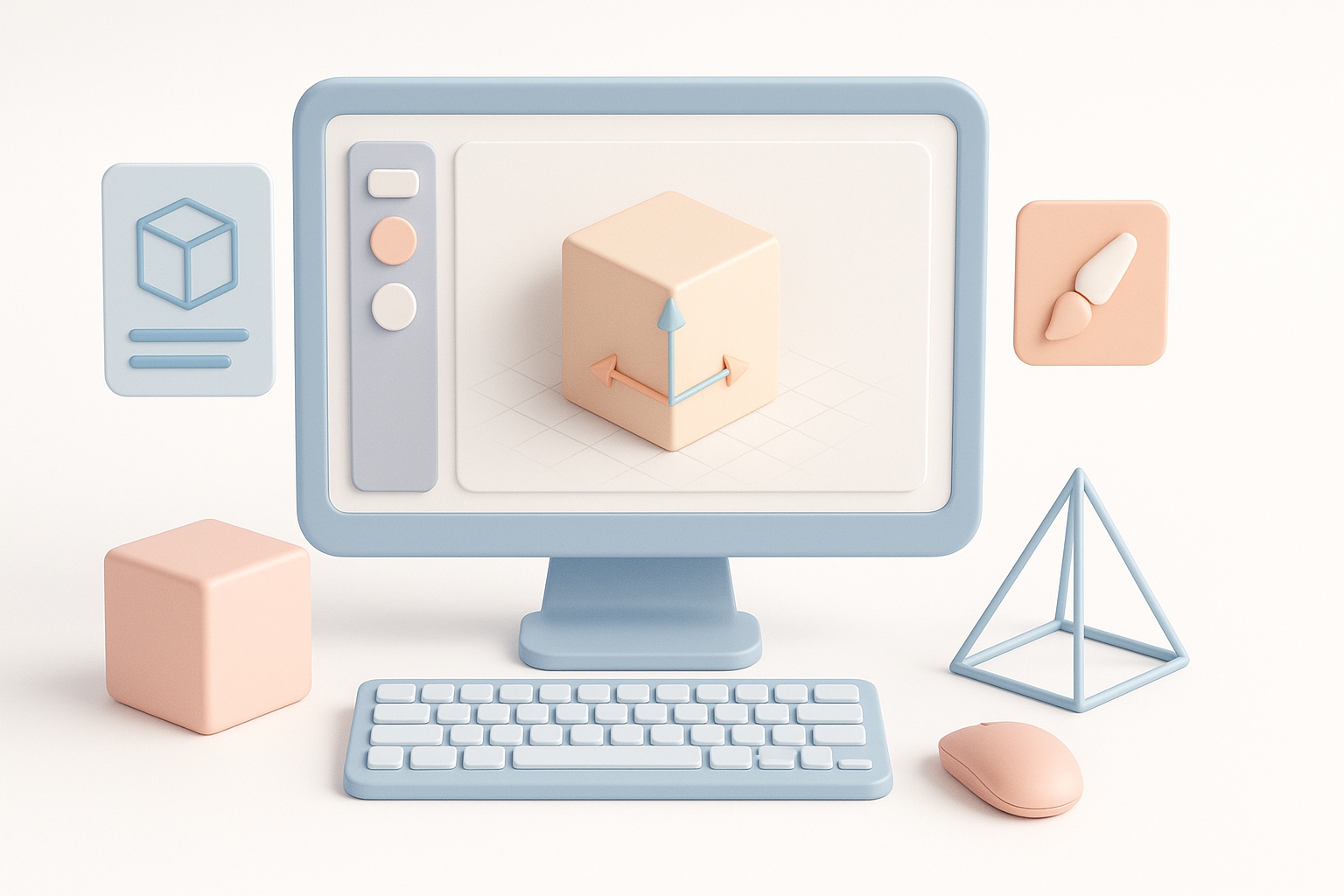
I start by importing concept art, sketches, or reference images—sometimes even rough 3D scans or AI-generated meshes. Prepping assets is all about organization: naming conventions, layer grouping, and scale checks.
My prep checklist:
- Import references and align them in the viewport
- Clean up geometry (remove doubles, fix normals)
- Set up a consistent scale and orientation
- Organize mesh components into logical groups
Pitfall: Skipping asset prep leads to headaches later, especially with scale mismatches or messy hierarchies.
Efficient Editing, Retopology, and Texturing
Once prepped, I move into mesh editing—blocking out forms, refining topology, and applying textures. AI-powered segmentation and retopology tools (like those in Tripo AI) speed up this phase dramatically. For texturing, I leverage procedural masks, smart materials, and auto-baking where possible.
Efficient editing steps:
- Use AI segmentation to isolate model parts
- Run automated retopology for clean, animation-ready meshes
- UV unwrap and auto-pack islands for texture efficiency
- Apply base materials, then layer hand-painted or procedural details
Tip: Save incremental versions—if an automated process goes awry, you’ll want a fallback.
Best Practices for Efficient 3D Editing

Non-Destructive Editing Techniques
Non-destructive editing lets me iterate without losing work. I rely on modifiers, layer stacks, and procedural workflows to make reversible changes.
Best practices:
- Use modifiers for subdivision, mirroring, and deformations
- Keep original meshes on hidden layers for backup
- Apply destructive changes only at export or finalization
Pitfall: Flattening or collapsing modifiers too soon limits flexibility.
Optimizing Models for Real-Time and Production
Optimization is essential, especially for real-time projects. I focus on polygon count, UV efficiency, and texture resolution early.
Optimization checklist:
- Keep polycount within target specs (check engine guidelines)
- Minimize overlapping UVs unless needed for tiling
- Bake normal and AO maps to enhance detail without geometry
- Test models in-engine early to catch performance issues
Tip: Use AI-driven decimation and texture packing tools for last-mile optimization.
Choosing the Right 3D Model Editor: Factors and Comparisons
Evaluating Toolsets and User Experience
When choosing an editor, I assess the toolset, supported formats, and user experience. Some editors excel at sculpting, others at hard-surface modeling or animation.
What I evaluate:
- Breadth and depth of modeling and texturing tools
- UI/UX—how quickly can I access core features?
- Community and documentation quality
- Integration with other parts of my pipeline (game engines, renderers)
When to Use AI-Powered Editors vs. Traditional Methods
AI-powered editors shine when speed and automation matter—especially for segmentation, retopology, and procedural texturing. Traditional editors still have a place for detailed sculpting, custom rigs, or when fine control is critical.
When I use AI-powered editors:
- Rapid prototyping and concept asset generation
- Automating repetitive tasks (retopology, UVs)
- When I need production-ready assets fast
When I stick with traditional methods:
- Highly custom, hand-crafted work
- Advanced animation rigs or physics integration
- When project requirements demand absolute control
Tips for Integrating AI Tools into Your 3D Editing Workflow
Leveraging AI for Segmentation and Retopology
AI segmentation and retopology have become my go-to for speeding up asset prep. With tools like Tripo AI, I can quickly break models into logical parts and generate clean, animatable meshes.
How I integrate AI:
- Use AI segmentation to auto-group mesh components
- Run AI retopology to create quad-based, animation-friendly topology
- Review and manually tweak only where needed
Pitfall: Always inspect AI-generated topology—automated tools aren’t perfect, and manual cleanup is sometimes necessary.
Streamlining Texturing, Rigging, and Animation
AI-based texturing and rigging tools can auto-generate UVs, bake maps, and even auto-rig simple models. This is a huge time-saver for background or secondary assets.
My approach:
- Use AI auto-unwrap and texture suggestion features
- Apply AI-generated rigs for simple characters or props
- Reserve manual work for hero assets or complex characters
Tip: Combine AI tools with procedural texturing workflows for best results—automation for speed, manual tweaks for polish.
In summary:
Mastering 3D model editors today means combining smart workflows, non-destructive practices, and the strategic use of AI-powered tools. By staying organized, optimizing early, and choosing the right editor for each task, I consistently deliver high-quality, production-ready assets—while spending more time on creativity and less on repetitive grunt work.