Creating and Using Phasmophobia 3D Models: Expert Workflow
скачать 3d модель для chicken gun
Creating game-ready 3D models for Phasmophobia or similar horror games requires a deep understanding of both artistic and technical demands. Over years of hands-on experience, I’ve honed a workflow that balances creativity, efficiency, and game engine compatibility. In this guide, I’ll walk through what makes a model suitable for Phasmophobia, my step-by-step creation process, and practical tips for using AI tools like Tripo alongside traditional methods. Whether you’re a solo developer, artist, or part of a small studio, this workflow can help you produce production-ready assets without unnecessary complexity.
Key takeaways:
- Focus on low-poly, optimized models for real-time performance.
- Use AI-powered tools to accelerate early stages, but always refine manually.
- Gather strong references to guide both style and technical requirements.
- Prioritize clean topology, efficient UVs, and texture optimization for game integration.
- Test assets in-engine early to catch compatibility issues.
Understanding Phasmophobia 3D Models

What Makes a Model Suitable for Phasmophobia
Phasmophobia’s art direction relies on realism, atmospheric lighting, and efficient assets that perform well in multiplayer settings. From my experience, models need to be:
- Low to mid-poly, with detail focused where it matters (e.g., silhouettes, faces, props).
- UV-unwrapped for efficient texturing and minimal seams.
- PBR (Physically Based Rendering) ready, with clean albedo, normal, and roughness maps.
- Optimized for real-time rendering—avoid excessive subdivision or unnecessary details.
Mini-checklist:
- Is the polycount within engine guidelines?
- Are textures appropriately sized (usually 1K–2K for props)?
- Are pivots/origins set for correct placement and animation?
Common Use Cases and Game Integration
Most Phasmophobia assets fall into these categories:
- Environmental props (furniture, tools, haunted objects)
- Character models (ghosts, investigators)
- Interactive items (EMF readers, cameras)
Integration requires:
- Exporting to formats compatible with Unity (FBX, OBJ).
- Setting up materials that match in-game shaders.
- Testing for scale, collision, and lighting in the actual game scene.
My Workflow for Creating Phasmophobia-Inspired 3D Models
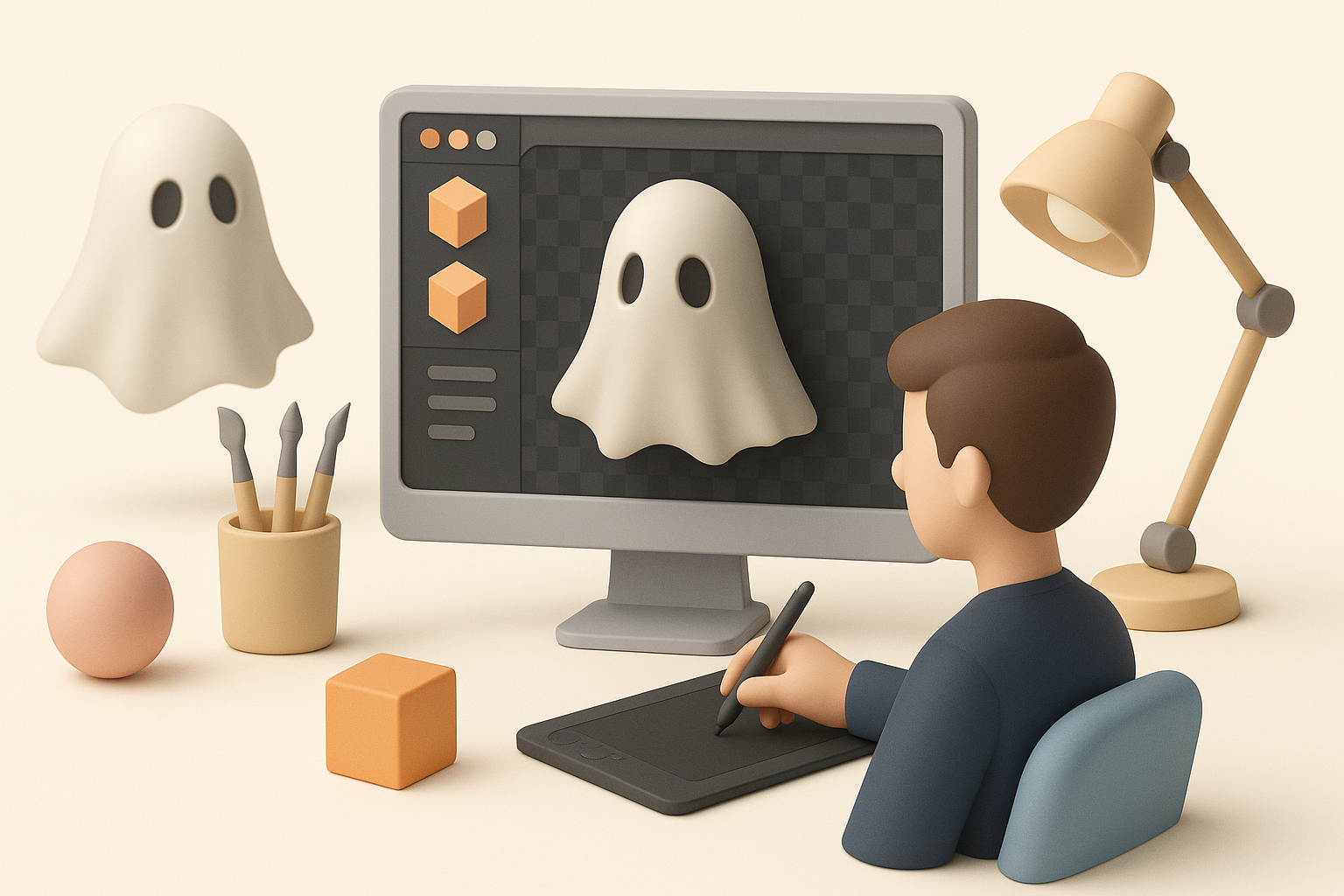
Concepting and Reference Gathering
Before modeling, I always collect references:
- Screenshots from the game for style and scale.
- Real-world photos for authenticity.
- Mood boards to stay aligned with the horror aesthetic.
I sketch or block out ideas—sometimes using AI-powered sketch-to-3D tools to quickly visualize concepts before committing to full modeling.
Tip: Don’t skip the reference phase; it saves time by preventing rework later.
Choosing the Right Tools and Platforms
I blend traditional DCCs (like Blender or Maya) with AI tools such as Tripo for rapid prototyping:
- Use Tripo to generate a base mesh from text or sketches—great for speeding up ideation.
- Refine in a traditional 3D package, ensuring control over topology and UVs.
- For texturing, I prefer Substance Painter or similar, but AI-generated textures can help with base layers.
Pitfall: Relying solely on AI output can lead to technical issues; always review and clean up results.
Step-by-Step: From Idea to Production-Ready Model

Modeling and Sculpting Techniques I Use
I usually start with a blockout:
- Block basic shapes in Blender or generate a base mesh in Tripo.
- Sculpt or model details, keeping polycount in check.
- Use modifiers (subdivision, bevel) sparingly for game assets.
For organic models (ghosts, hands), I sculpt in high-res, then retopologize for game-ready meshes.
Checklist:
- Maintain quads for deformation (especially for characters).
- Use symmetry and mirroring to speed up workflow.
Texturing, Retopology, and Optimization
Once modeling is done:
- Retopologize (if needed) for clean edge flow.
- UV unwrap—pack islands efficiently, avoid stretching.
- Bake high-to-low poly details (normals, AO).
- Texture in Substance Painter or via Tripo’s texturing tools.
I always check texture resolution, optimize maps, and remove unused UV space.
Tip: Test the model in-engine after texturing to catch lighting or material issues early.
Best Practices for Game-Ready 3D Assets
Ensuring Compatibility and Performance
Game engines like Unity require assets to be:
- Scaled correctly (use metric units).
- Pivot/origin set for logical placement.
- Optimized with LODs (Levels of Detail) if needed.
I run regular checks:
- Polycount and draw call budgets.
- Material/shader compatibility.
- Collision mesh setup.
Pitfall: Overly complex models can tank performance, especially in multiplayer horror games.
Rigging, Animation, and Export Tips
For animated assets:
- Rig with simple skeletons—avoid unnecessary bones.
- Use standard animation formats (FBX preferred).
- Export with correct axis orientation (Y-up for Unity).
I always test rigs and animations in the engine, not just in the 3D software.
Mini-checklist:
- Are all bones named consistently?
- Are animations looping and blending correctly?
- Is the pivot at the feet/root for characters?
Comparing AI-Powered and Traditional 3D Workflows
When to Use AI Tools Like Tripo
I use AI tools for:
- Rapid prototyping from text/image/sketch.
- Generating base meshes or initial textures.
- Speeding up repetitive or technical steps (e.g., retopology).
AI is best for early stages or when iterating quickly. For final assets, I always refine manually.
Alternative Methods and Their Pros & Cons
Traditional workflows offer:
- Full control over topology, UVs, and detail.
- Steeper learning curve and longer turnaround.
AI-accelerated workflows:
- Faster results, especially for non-specialists.
- May require more cleanup and technical checks.
What I’ve found: The best results come from blending both—AI for speed, manual work for quality.
What I’ve Learned: Tips for Success and Common Pitfalls

Lessons from Real Projects
- Start simple; iterate based on in-game feedback.
- Test assets in the engine early and often.
- Keep communication open with designers and programmers to catch integration issues before they snowball.
Avoiding Common Mistakes in 3D Asset Creation
- Don’t skip retopology—messy meshes cause animation and lighting problems.
- Avoid massive texture sizes; optimize for memory and loading times.
- Always check for flipped normals, non-manifold geometry, and UV overlaps before export.
Final tip: Stay organized—name files, meshes, and textures clearly to avoid confusion down the line.
By following these workflows and best practices, you’ll be able to create Phasmophobia-inspired 3D models that are both visually compelling and technically robust, ready for seamless integration into horror games and beyond.