Best 3D Models You Can Create on a Low-End PC
Creating impressive 3D models doesn’t require a high-end workstation—I've consistently produced production-ready assets on modest hardware by focusing on smart workflows, efficient tools, and the right model types. If you’re an artist, game developer, or hobbyist working with limited resources, you can still achieve professional results. My experience shows that AI-powered platforms and optimized techniques make it possible to generate, texture, and export models quickly, even on older PCs. This guide distills what works, what to avoid, and how to unlock your creative potential regardless of your hardware.
Key Takeaways for Low-End PC Users
- Stylized and low-poly models are ideal for performance and quality.
- AI-driven tools like Tripo AI streamline modeling, texturing, and rigging—even on basic systems.
- Optimizing software settings is crucial for stability and speed.
- Efficient asset management prevents slowdowns and crashes.
- Export models in lightweight formats to minimize hardware strain.
Executive Summary: Achieving Quality 3D Models on Modest Hardware
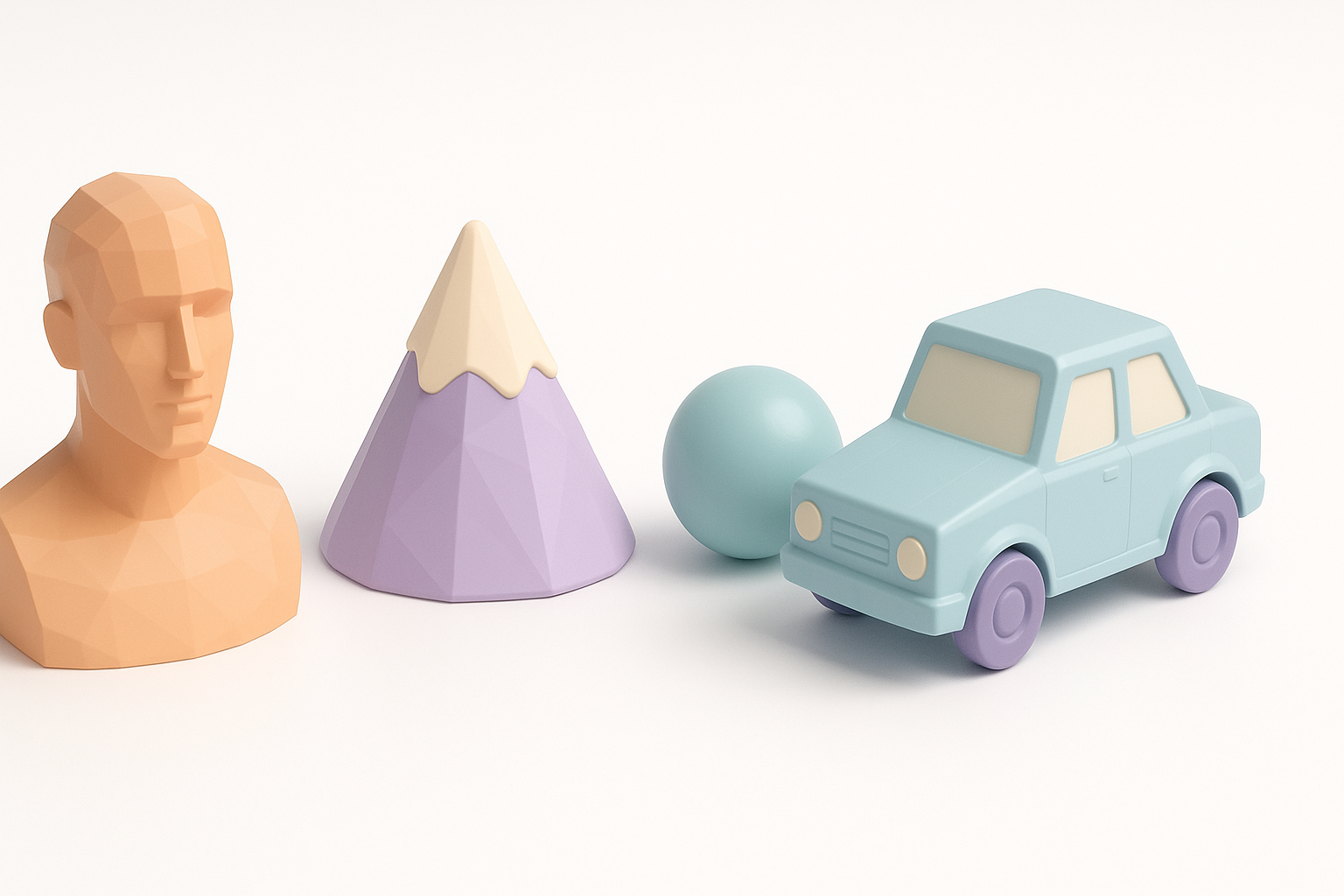
Key Takeaways for Low-End PC Users
The best results on a low-end PC come from focusing on stylized, low-poly, and game-ready assets. I prioritize simple geometry and smart texturing. AI-powered platforms like Tripo AI have transformed how I work, allowing me to generate high-quality models from text or sketches without overloading my hardware. Exporting in efficient formats and keeping file sizes low ensures my workflow stays smooth.
What Surprised Me Most About Modern 3D Creation
Modern AI tools have drastically reduced the technical barriers—what once took hours of manual work can now be accomplished in minutes. I was surprised by how well these platforms handle segmentation, retopology, and even basic animation, all without taxing my system. The creative freedom on a low-end PC today is miles ahead of where it was just a few years ago.
Essential Strategies for 3D Modeling on Low-End PCs
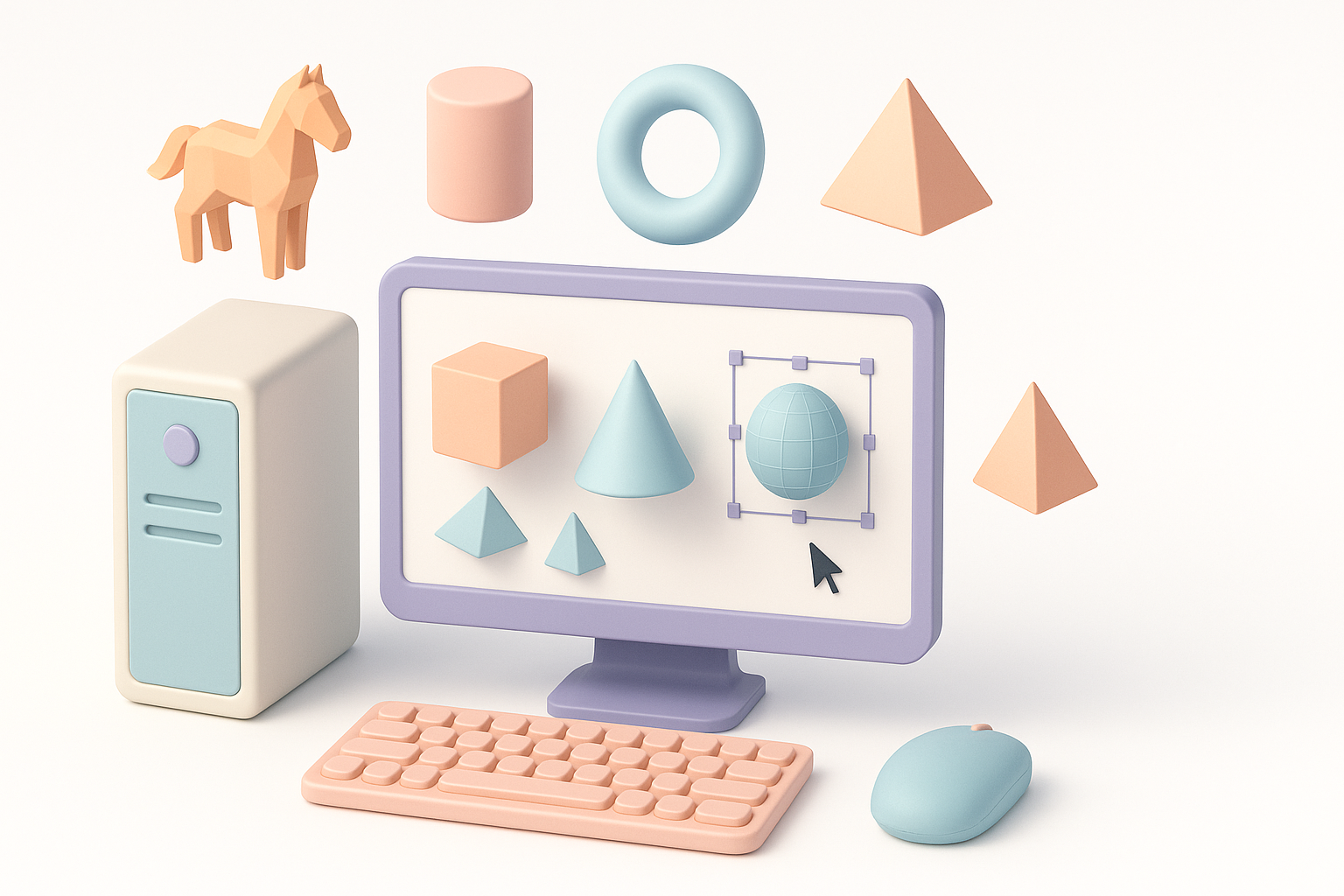
Optimizing Software and Settings for Performance
I always start by tweaking my 3D software for speed: lowering real-time preview quality, using wireframe or bounding box views, and disabling unnecessary effects. I keep background applications closed and rely on lightweight file formats like FBX or OBJ. For AI tools, I prefer cloud-based processing (like Tripo AI offers), so my PC isn’t doing the heavy lifting.
Quick setup checklist:
- Lower viewport resolution and disable shadows/AA in 3D apps.
- Use external or cloud platforms for model generation.
- Regularly save incremental versions to avoid data loss.
My Workflow: Balancing Quality and Speed
My workflow emphasizes iteration: I block out shapes with minimal geometry, use AI for base mesh generation, and only add detail where it matters. Texturing and retopology are handled in short, focused passes. I avoid high-res sculpting or dense meshes unless absolutely necessary.
Pitfall to avoid:
Don’t get bogged down in high-poly modeling—focus on silhouette and texture.
Top 3D Model Types Suited for Low-End Hardware
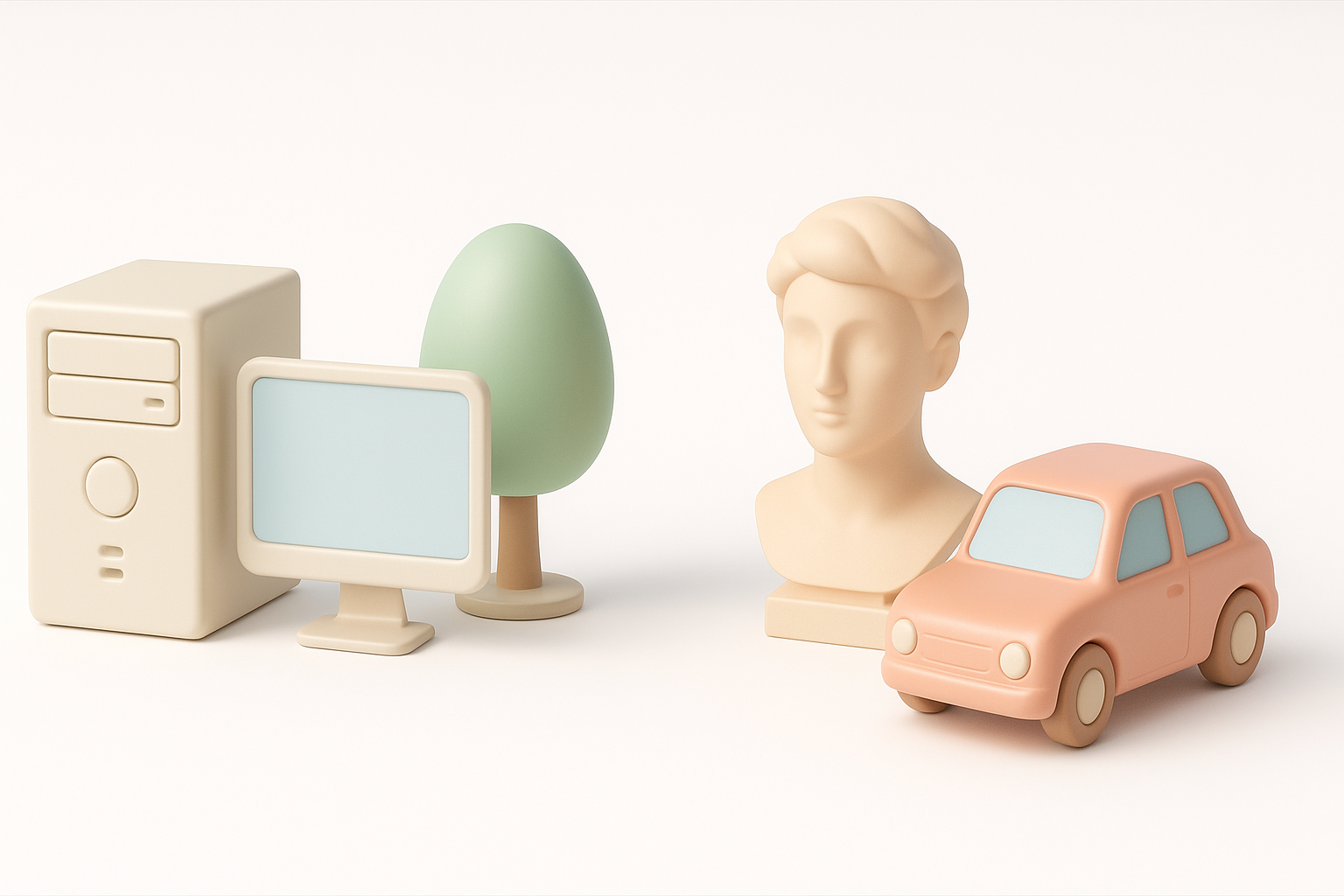
Best Practices for Stylized and Low-Poly Models
Stylized and low-poly models not only look great in games but are also hardware-friendly. I stick to simple shapes, exaggerated proportions, and flat or hand-painted textures. This style minimizes polygon count and makes the most of limited resources.
Best practices:
- Use color and silhouette for impact, not detail.
- Limit materials and texture sizes (512x512 or 1024x1024).
- Bake details into textures rather than geometry.
Examples of Production-Ready Models I’ve Created
On a basic laptop, I’ve created:
- Low-poly props (barrels, crates, tools) for game environments.
- Stylized character busts and creatures for animation tests.
- Modular architecture pieces for level design.
With Tripo AI, generating base meshes from text prompts or rough sketches saves me hours and keeps my files lightweight.
Recommended Tools and AI Platforms for Efficient Modeling
How I Use Tripo AI and Other Tools Effectively
I use Tripo AI for quick concepting—inputting text or uploading a sketch to generate a base model. I then refine geometry and UVs in a lightweight 3D editor. For texturing, I often use procedural tools or hand-paint in simple editors.
My typical process:
- Generate base mesh with Tripo AI (text/sketch input).
- Refine geometry and UVs in a desktop app.
- Texture and export using lightweight tools.
Comparing AI-Driven and Manual Modeling Approaches
AI-driven modeling is a game changer for speed and accessibility. For background assets or prototyping, I rely on AI. For hero assets, I sometimes combine AI-generated bases with manual sculpting and detailing. Manual modeling still has its place, but for most low-end PC workflows, AI saves time and resources.
Tip:
Use AI for initial passes, then polish manually for best results.
Tips for Texturing, Retopology, and Exporting on Limited Systems
Streamlined Texturing and Retopology Techniques
I keep textures small and use tiling or mirroring to maximize detail. For retopology, automated tools (including those built into Tripo AI) handle most of the work, producing clean, animation-ready meshes. If manual retopology is needed, I focus only on visible areas.
Steps:
- Limit texture size and compress files.
- Use AI or auto-retopology for base cleanup.
- Test UVs on a simple checker map.
Export Settings That Work Best for Me
I export in FBX or OBJ, minimizing embedded data. I avoid baking unnecessary maps and keep texture sets simple. For game engines, I use preset export profiles to ensure compatibility and small file size.
Checklist:
- Export only necessary maps (diffuse, normal).
- Use triangulated meshes for best compatibility.
- Compress textures before export.
Common Challenges and How I Overcome Them
Dealing with Crashes and Slowdowns
Crashes happen, especially with limited RAM or VRAM. I save often, use incremental file versions, and break complex scenes into smaller files. Cloud-based AI tools help by offloading heavy tasks.
Tips:
- Save every 10–15 minutes.
- Split large scenes into modular files.
- Clear cache and restart software regularly.
My Solutions for Efficient Asset Management
I organize assets by project and type, keeping folders tidy and file names clear. I use lightweight previews (thumbnails or renders) for quick reference. Version control (even simple zip archives) helps me track changes and roll back if needed.
Best practices:
- Consistent naming conventions.
- Archive old versions.
- Use external drives for backups if space is tight.
Conclusion: Unlocking Creative Potential on Any PC

Final Thoughts and Personal Recommendations
You don’t need a top-tier PC to make professional 3D models. By focusing on stylized, low-poly assets and leveraging AI-powered tools like Tripo AI, I’ve consistently delivered quality work—even on dated hardware. Smart workflows, efficient settings, and disciplined asset management are essential.
Next Steps for Aspiring 3D Artists
- Start with stylized or low-poly projects to build confidence.
- Experiment with AI-based modeling platforms.
- Refine your workflow for speed and reliability.
- Keep learning and adapting—hardware is only one part of the equation.
With the right approach, anyone can create impressive 3D work, no matter their system specs.