Creating and Optimizing Arsenal Roblox 3D Models: My Workflow
As someone who’s worked extensively with Roblox asset creation—especially for games like Arsenal—I’ve developed a streamlined workflow that prioritizes both speed and quality. This guide covers my full process, from planning and modeling to texturing, rigging, and uploading, with a focus on leveraging AI tools like Tripo for rapid iteration. Whether you’re a solo creator or part of a team, these practical strategies will help you meet Roblox’s technical requirements while delivering visually compelling assets. Expect actionable tips, checklists, and insights for avoiding common pitfalls.
Key takeaways
- Always start with clear game-specific requirements and reference materials.
- Efficient blockout and modeling techniques save time and reduce errors.
- Optimize textures and rigs for Roblox's performance constraints.
- AI platforms like Tripo can accelerate segmentation, retopology, and texturing.
- Testing in-game is essential for catching compatibility and performance issues.
- Polishing and iteration are key for production-quality assets.
Understanding Arsenal Roblox 3D Model Requirements
Game-Specific Guidelines and Limitations
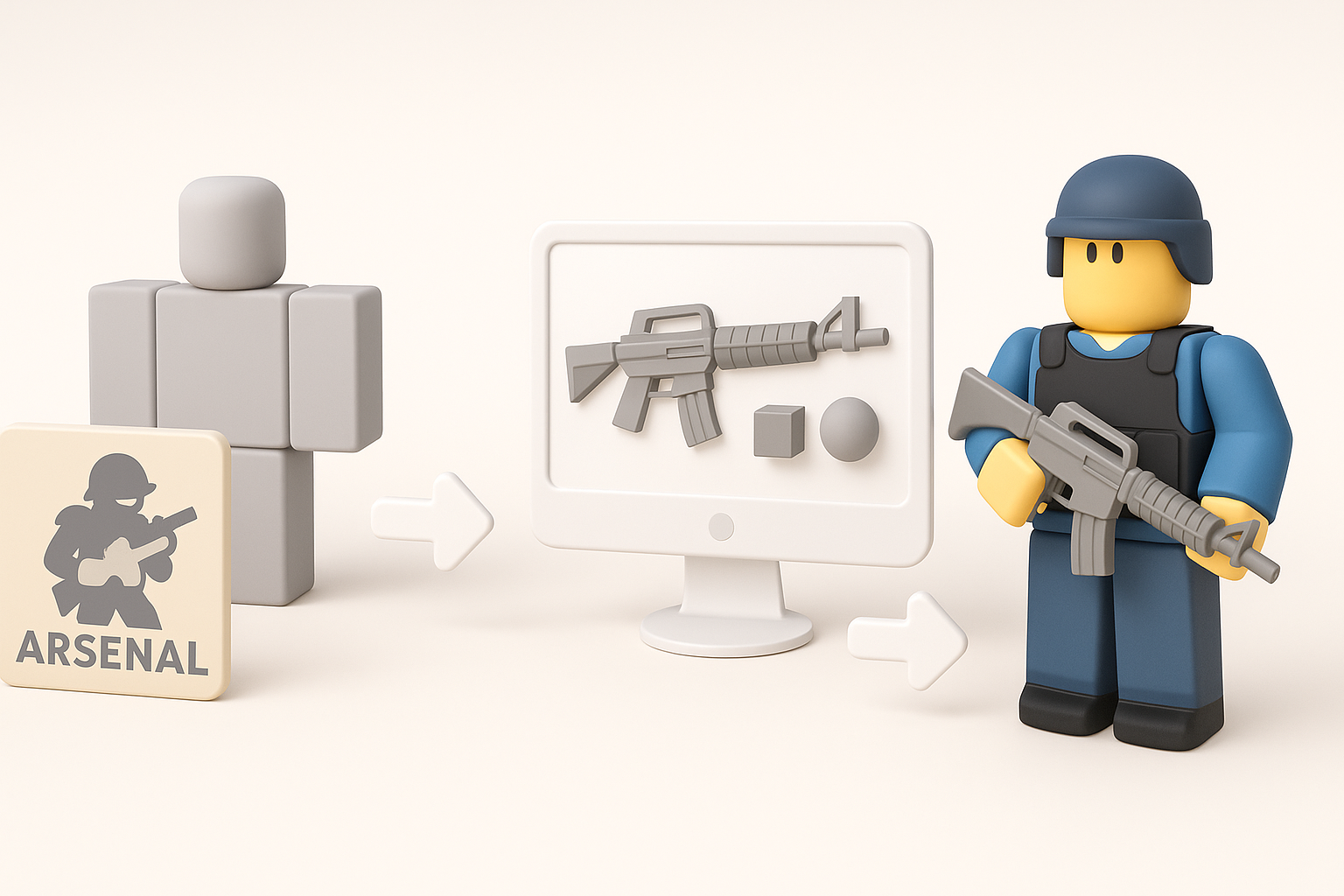
Arsenal has its own set of asset guidelines—mainly around polycount, texture size, and rig complexity. I always check the latest documentation to ensure models won’t cause performance issues or break gameplay logic. Roblox’s engine favors low-poly, tightly optimized geometry and compressed textures.
Checklist:
- Polycount: Stay under 2,500 triangles for weapons/characters.
- Texture size: 512x512 or smaller, PNG preferred.
- Rig: Simple bone structures, avoid complex hierarchies.
Common Model Types and Use Cases
Most Arsenal assets fall into categories like weapons, character skins, and environmental props. Each type has distinct requirements:
- Weapons: Must animate smoothly and fit existing hand rigs.
- Characters: Require modular designs for skin swaps.
- Props: Often static, but should be lightweight for fast loading.
I tailor my modeling and texturing approach depending on the asset type, always keeping gameplay and visual clarity in mind.
My Step-by-Step Process for Building Arsenal Roblox 3D Models
Concept to Blockout: Planning and References
Before opening any modeling software, I gather references—screenshots, concept art, and even community feedback. For Arsenal, I focus on stylized proportions and bold silhouettes.
Blockout steps:
- Sketch or import references.
- Rough out major shapes using primitives.
- Check scale against Roblox avatars.
This blockout phase helps me spot design flaws early and ensures the model will fit seamlessly into Arsenal’s visual style.
Efficient Modeling Techniques for Roblox
Roblox rewards efficient geometry. I use edge loops sparingly and rely on simple mesh shapes. Tripo’s segmentation and retopology tools help automate cleanup, especially for complex models.
Modeling tips:
- Merge overlapping geometry.
- Delete hidden faces.
- Use symmetry and mirroring to speed up workflow.
I regularly check mesh stats and visualize wireframes to catch unnecessary complexity.
Texturing, Rigging, and Animation Best Practices

Optimizing Textures for Roblox Performance
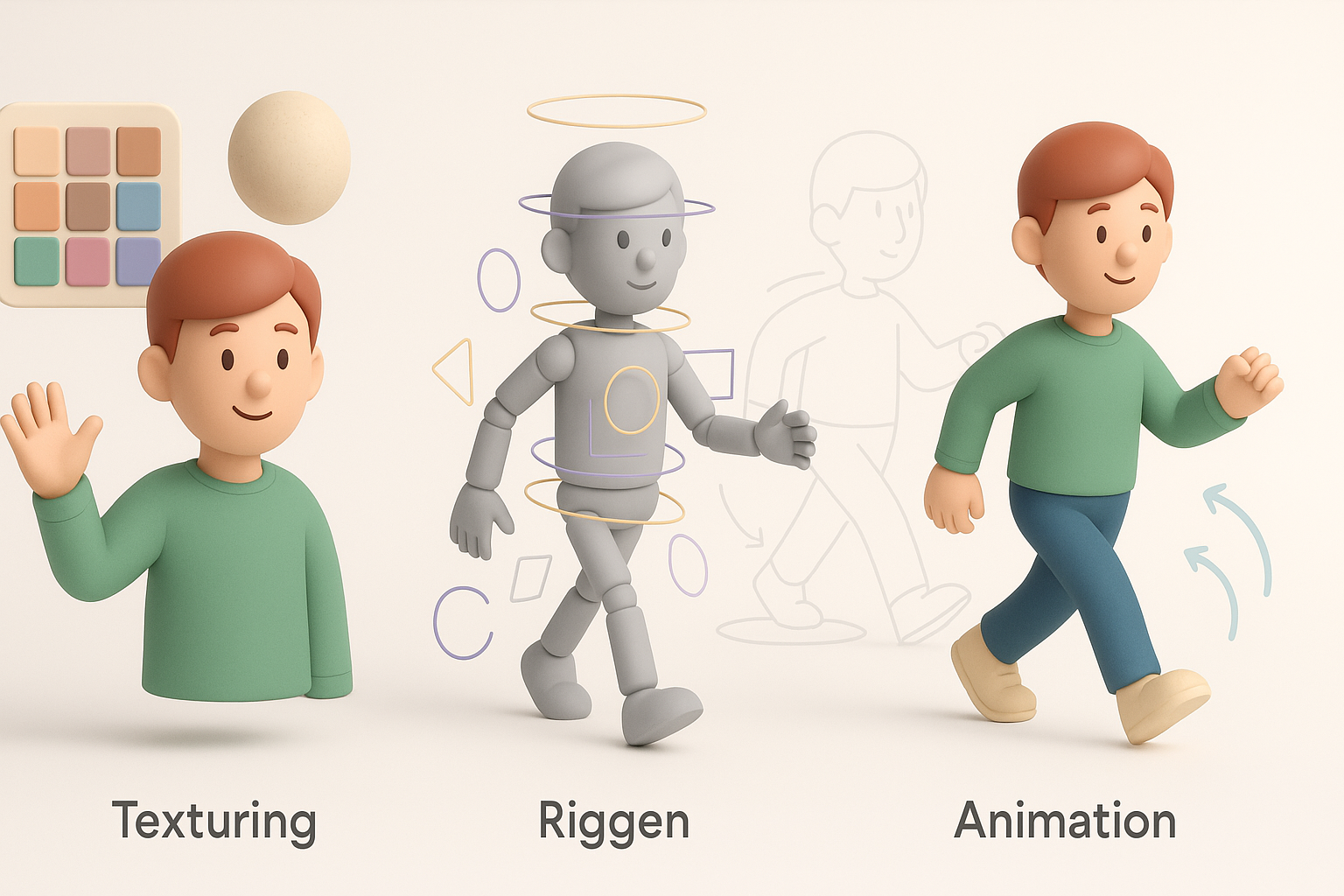
Texture optimization is crucial. I stick to hand-painted or stylized textures, avoiding heavy photo detail. Tripo’s smart texturing tools help me generate UVs and bake ambient occlusion quickly.
Texture workflow:
- Limit palette to 5–8 colors.
- Compress textures before export.
- Avoid alpha channels unless necessary.
Rigging and Animation Tips for Arsenal Assets
Rigging for Roblox is straightforward: simple bone chains and minimal constraints. I use Tripo’s auto-rigging for quick setups, then manually adjust weights.
Animation checklist:
- Test rigs with Roblox’s animation editor.
- Keep animations under 2 seconds for weapons.
- Export as FBX with correct bone naming.
Using AI Tools to Accelerate 3D Model Creation
Integrating AI Platforms Like Tripo in My Workflow
AI tools have changed my workflow. With Tripo, I can generate blockouts from sketches or text prompts, segment meshes, and automate retopology. This saves hours, especially when iterating on multiple assets.
How I use Tripo:
- Generate base mesh from concept.
- Auto-segment and retopo for clean geometry.
- Apply smart UV mapping and basic textures.
Comparing AI-Driven and Manual Methods
Manual modeling gives me full control, but AI tools excel at repetitive tasks. I combine both: use AI for initial stages, then refine manually for polish.
Pitfalls:
- AI outputs may need manual cleanup.
- Always verify topology and UVs before export.
Exporting, Testing, and Uploading to Roblox
Export Settings and Format Compatibility
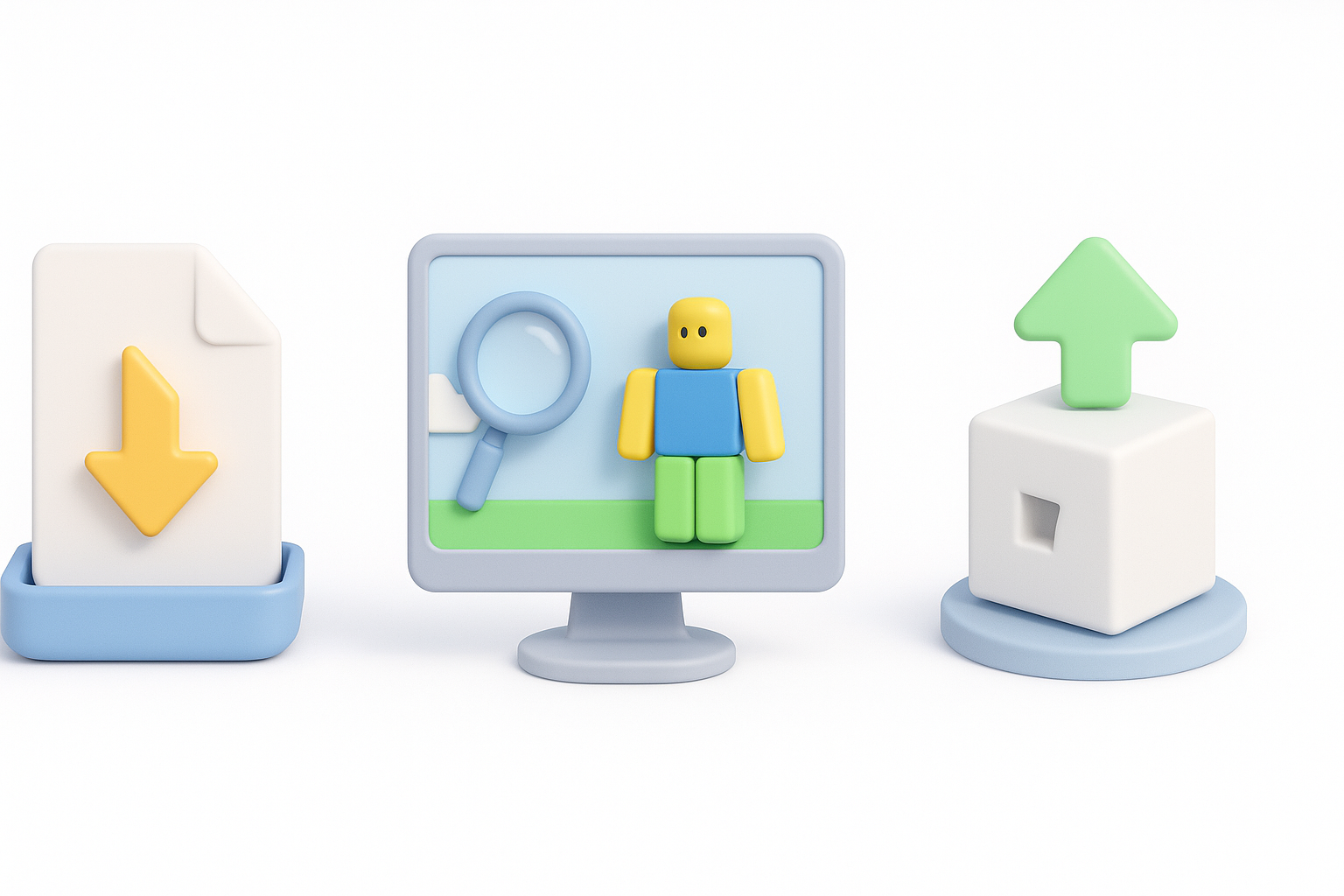
Roblox accepts FBX and OBJ formats. I always double-check export settings to ensure compatibility.
Export checklist:
- Apply transforms and scale.
- Export with triangulated faces.
- Embed textures if possible.
In-Game Testing and Troubleshooting
Testing in Roblox Studio is essential. I import assets, check alignment, and run performance tests.
Troubleshooting steps:
- Fix flipped normals or missing textures.
- Adjust rig hierarchy if animations break.
- Use Roblox’s asset preview for final QA.
Lessons Learned and Advanced Tips
Common Pitfalls and How I Avoid Them
Mistakes happen—here’s what I watch out for:
- Overly complex meshes cause lag.
- Misaligned rigs break animations.
- Texture sizes too large fail to upload.
How I avoid them:
- Regularly check mesh stats.
- Preview rigs and animations in Roblox Studio.
- Compress and test textures before upload.
Polishing Models for Production Quality
Final polish sets assets apart. I add subtle edge highlights, tweak proportions, and verify in-game lighting. AI tools like Tripo help automate repetitive tweaks, but manual attention is key.
Advanced tips:
- Use feedback from testers for last-minute fixes.
- Batch process assets for consistency.
- Keep a library of reusable components.
By following this workflow, I consistently deliver production-ready Arsenal Roblox 3D models that meet performance and visual standards. The combination of manual skill and AI-powered tools like Tripo makes asset creation faster, more reliable, and ultimately more creative.