LOD for Game Assets: How to Optimize Your AI 3D Models
TL;DR
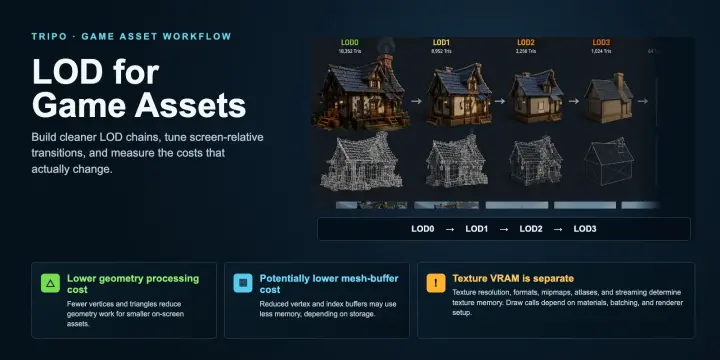
- LOD (Level of Detail) swaps a detailed model for simpler versions as it becomes smaller on screen, reducing geometry processing cost.
- Many standard assets use three or four LOD levels, but the right count and reduction ratio depend on the asset, camera, and target platform.
- Use screen-relative size as the main transition control, then tune each threshold during real gameplay.
- AI tools can generate and retopologize a clean base mesh; create the remaining LODs by repeating reduction at separate target face counts.
- Nanite reduces manual LOD work for supported UE5 assets, while conventional LODs remain important for mobile, stereo VR, translucent materials, and non-Nanite pipelines.
Level of detail (LOD) for game assets means giving a model several versions: full detail up close and progressively simpler geometry as it becomes smaller on screen. This guide explains how many LODs to make, how to set transition thresholds, and how to turn AI-generated models into game-ready assets for Unity and Unreal.
What Is LOD (Level of Detail) for Game Assets?
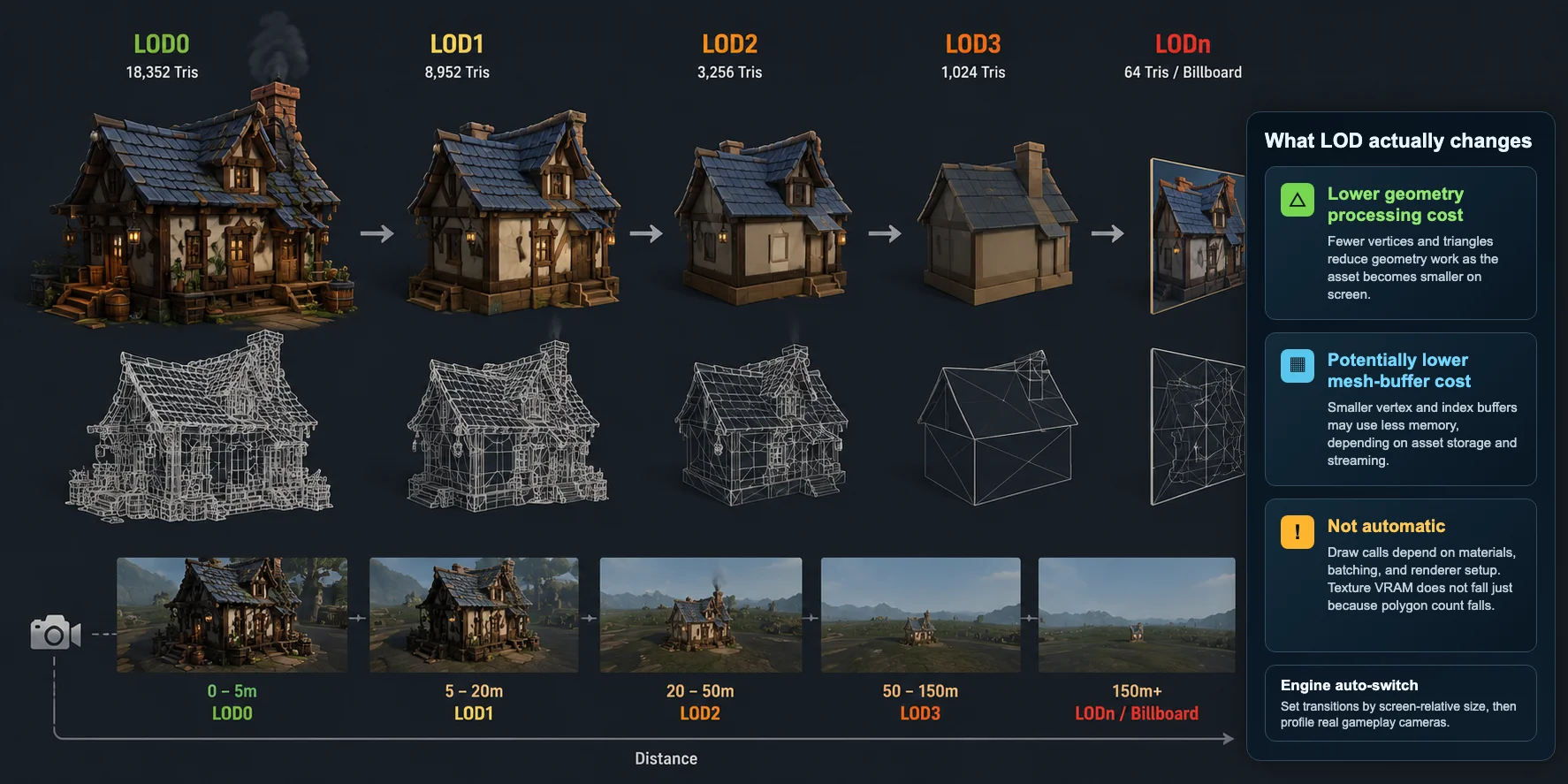
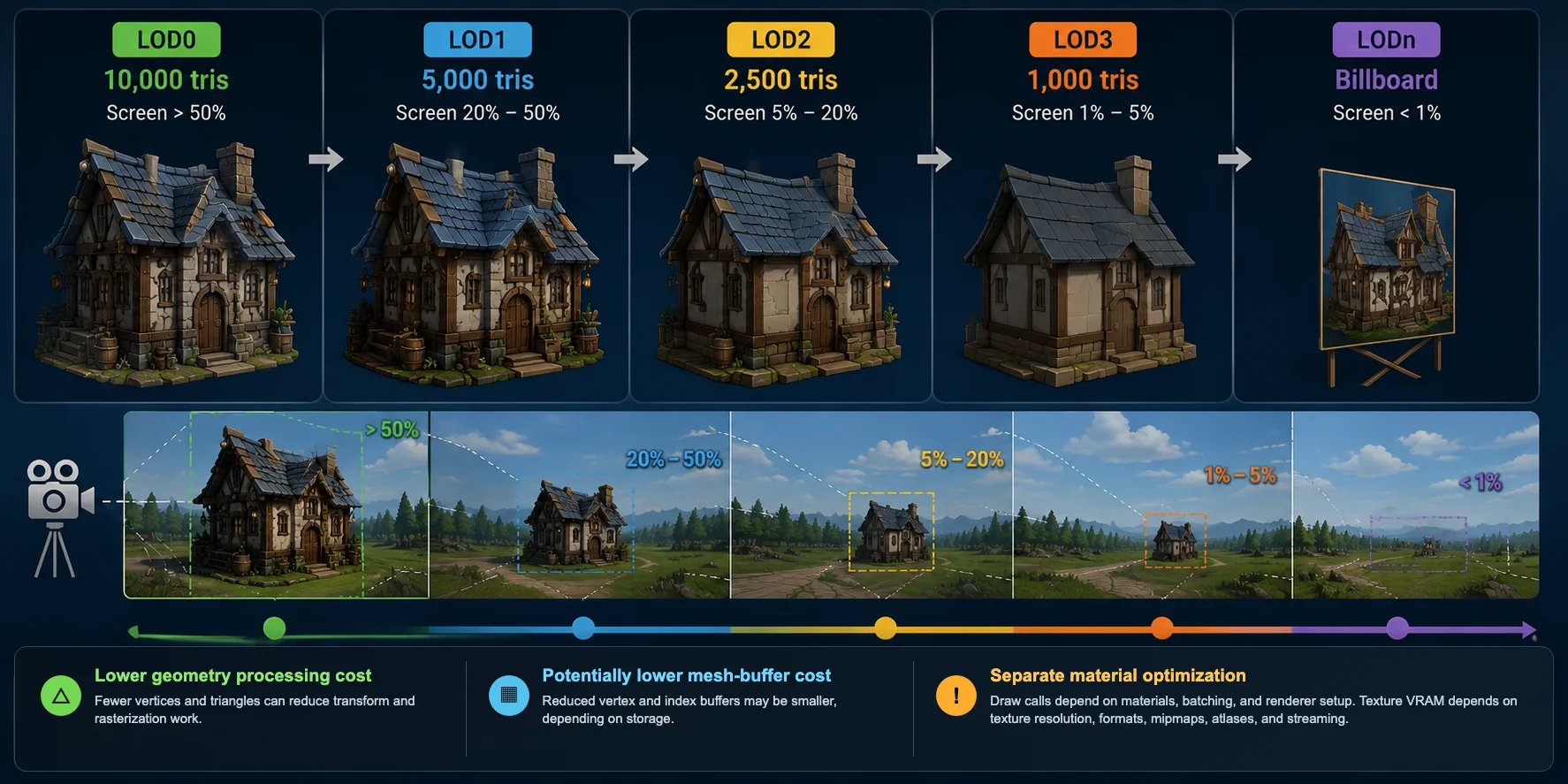
Level of Detail (LOD) is a rendering optimization technique that uses multiple versions of one 3D asset at different geometric complexities. The engine selects a simpler mesh as the object occupies less screen space, so distant objects require less vertex and triangle processing while keeping a similar silhouette.
LOD0 is the highest-detail version for close views; LOD1, LOD2, and later levels progressively remove details that are no longer visible. Unity and Unreal can switch these meshes by screen-relative size or distance. LOD primarily reduces geometry cost; draw calls, texture memory, shaders, and overdraw still need separate optimization.
LOD0 to LODn - What Each Level Is For
Although every project has its own performance budget, a common workflow looks like this:
| LOD Level | Typical Camera Distance | Purpose |
|---|---|---|
| LOD0 | Close-up (0-5 m) | Full-detail mesh for inspection, hero shots, and first-person gameplay. |
| LOD1 | Near-mid distance | Reduce roughly 30-50% of the triangles while preserving the overall silhouette. |
| LOD2 | Mid distance | Simplify geometry further for regular gameplay where small details are no longer visible. |
| LOD3 | Far distance | Low-poly version that keeps only the major shapes and proportions. |
| LODn / Billboard / Cull | Very far distance | Replace with an ultra-low-poly mesh, billboard, or stop rendering entirely. |
For AI-generated assets, the same principles apply. A typical AI 3D LOD workflow begins with a high-quality generated mesh, then creates progressively lighter versions through mesh simplification or retopology. Instead of treating optimization as a separate task after production, many teams build LODs immediately after generating an asset so every exported model is ready for real-time engines from the start.
What LOD Optimization Actually Reduces
Why LOD Matters: The Polygon Budget
A polygon budget is the amount of visible geometry a scene can process while meeting its frame-time target. The useful limit varies with platform, shaders, lighting, overdraw, animation, and the rest of the render pipeline, so there is no universal triangle number for every game.
Without LOD, distant objects may keep processing geometry that contributes little to the final image. Swapping to simpler meshes lowers vertex and triangle work, especially in scenes with many props, trees, rocks, or buildings. LOD does not automatically reduce draw calls or texture VRAM; those depend on material slots, batching, texture setup, and engine configuration.
How Many LODs Should a Game Asset Have?
There is no universal LOD count. Three or four levels are common starting points for standard assets, while small props may need only LOD0-LOD2 and large landmarks may add another mesh, billboard, or cull state. Choose levels by silhouette importance, on-screen size, target hardware, and camera behavior rather than by a fixed recipe.
A Practical Triangle-Count Rule
Reducing the triangle count by roughly 50% per level is a useful starting point, not an industry standard. Preserve the silhouette and deformation-critical areas first, then judge each result in the target engine.
| LOD Level | Example Triangle Count | Typical Use |
|---|---|---|
| LOD0 | 10,000 | Close-up gameplay and inspection |
| LOD1 | 5,000 | Near-mid distance |
| LOD2 | 2,500 | Medium distance |
| LOD3 | 1,000 or less | Far distance |
| LODn / Billboard | Flat card or ultra-low-poly | Extreme distance or background scenery |
Set Transitions by Screen Percentage, Not Just Distance
Fixed distances such as 10, 30, and 60 meters can be useful for a specific camera, but they do not generalize across assets of different sizes or camera field-of-view settings.
A more reliable starting point is screen-relative size: how large the object's bounds appear in the camera view. This keeps transition logic tied to visible size, although the exact calculation and thresholds vary by engine.
A practical starting point is shown below:
| LOD Level | Screen-Space Trigger |
|---|---|
| LOD0 | Above 50% |
| LOD1 | 20-50% |
| LOD2 | 5-20% |
| LOD3 | 1-5% |
| LODn / Billboard | Below 1% |
Treat the table values as test settings, not universal presets. Move the camera at normal gameplay speed, profile the target platform, watch for silhouette changes or popping, and adjust each transition until the visual change and performance cost are acceptable.
Geometry Savings vs Material and Texture Costs
How to Create LODs: Manual vs Automatic vs Nanite
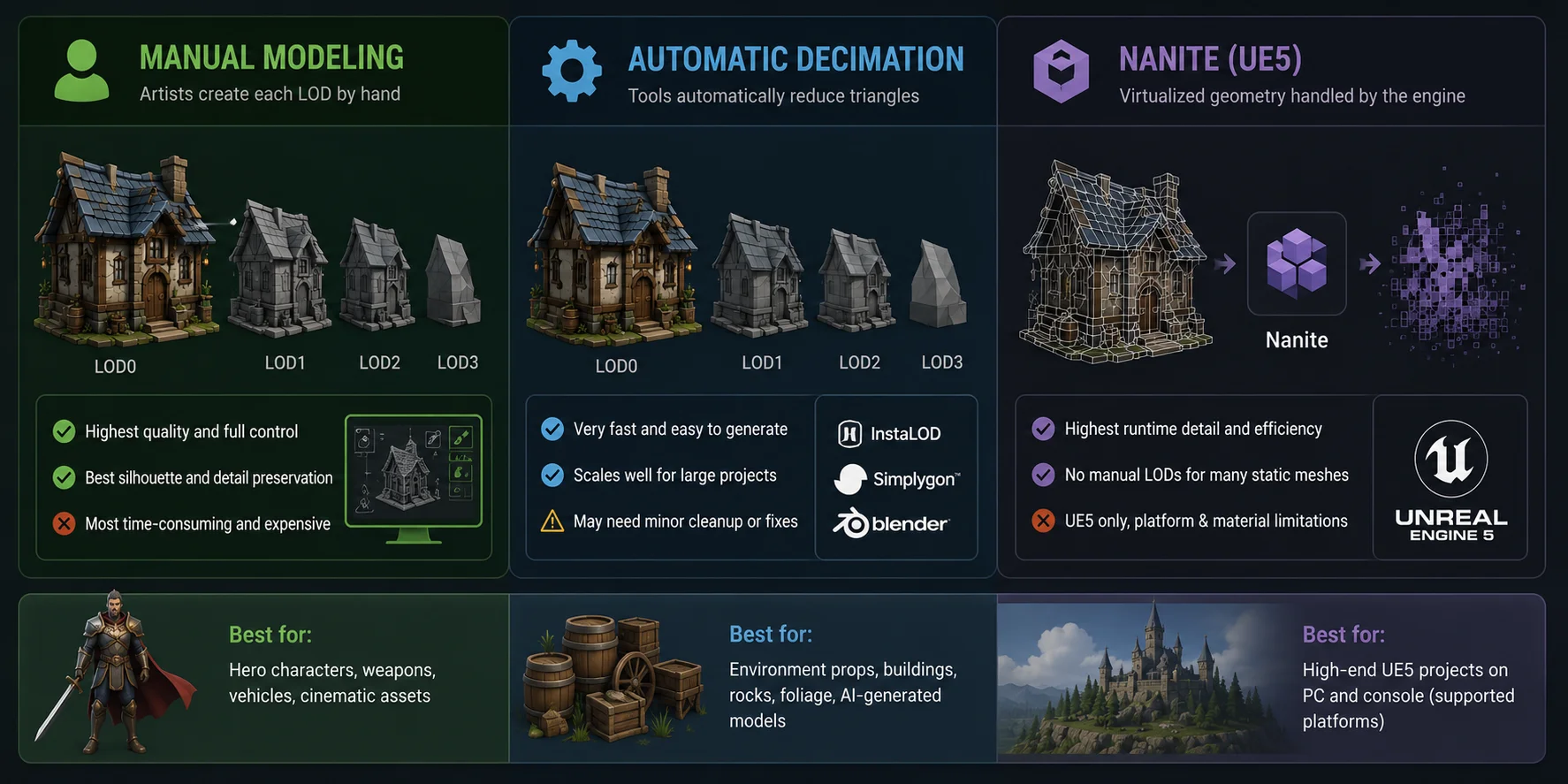
There are three common ways to create LOD for game assets: manual modeling, automatic decimation, and Nanite in Unreal Engine 5. Each offers a different balance between quality, speed, and platform support.
| Method | Speed | Quality | Best For |
|---|---|---|---|
| Manual Modeling | Slow | 5/5 | Hero assets, characters |
| Automatic Decimation | Fast | 4/5 | Props, environments, AI-generated models |
| Nanite (UE5) | Fast | 5/5 | UE5 PC/console projects |
Manual Modeling
Artists can rebuild or retopologize each LOD by hand, giving them direct control over silhouettes, deformation, and important details. This takes the most production time, so it is usually reserved for hero assets, characters, or meshes that do not simplify cleanly with automatic tools.
Automatic Decimation
Tools such as Simplygon, InstaLOD, Blender Decimate, and engine reduction utilities can create lighter meshes quickly. They scale well across large asset libraries, but thin parts, UVs, normals, material boundaries, and animated deformation may still need inspection or manual cleanup.
Nanite (UE5) - Do You Still Need LODs?
Nanite streams and renders virtualized geometry, reducing the need for traditional LOD chains on supported UE5 assets. It is not a universal replacement: conventional LODs remain relevant for mobile targets, stereo VR rendering, translucent materials, unsupported content, and non-Nanite pipelines. Nanite now supports foliage workflows, so foliage should not be presented as a blanket limitation.
Manual vs Automatic vs Nanite Comparison
Use AI to Generate Game-Ready LODs (Step by Step)
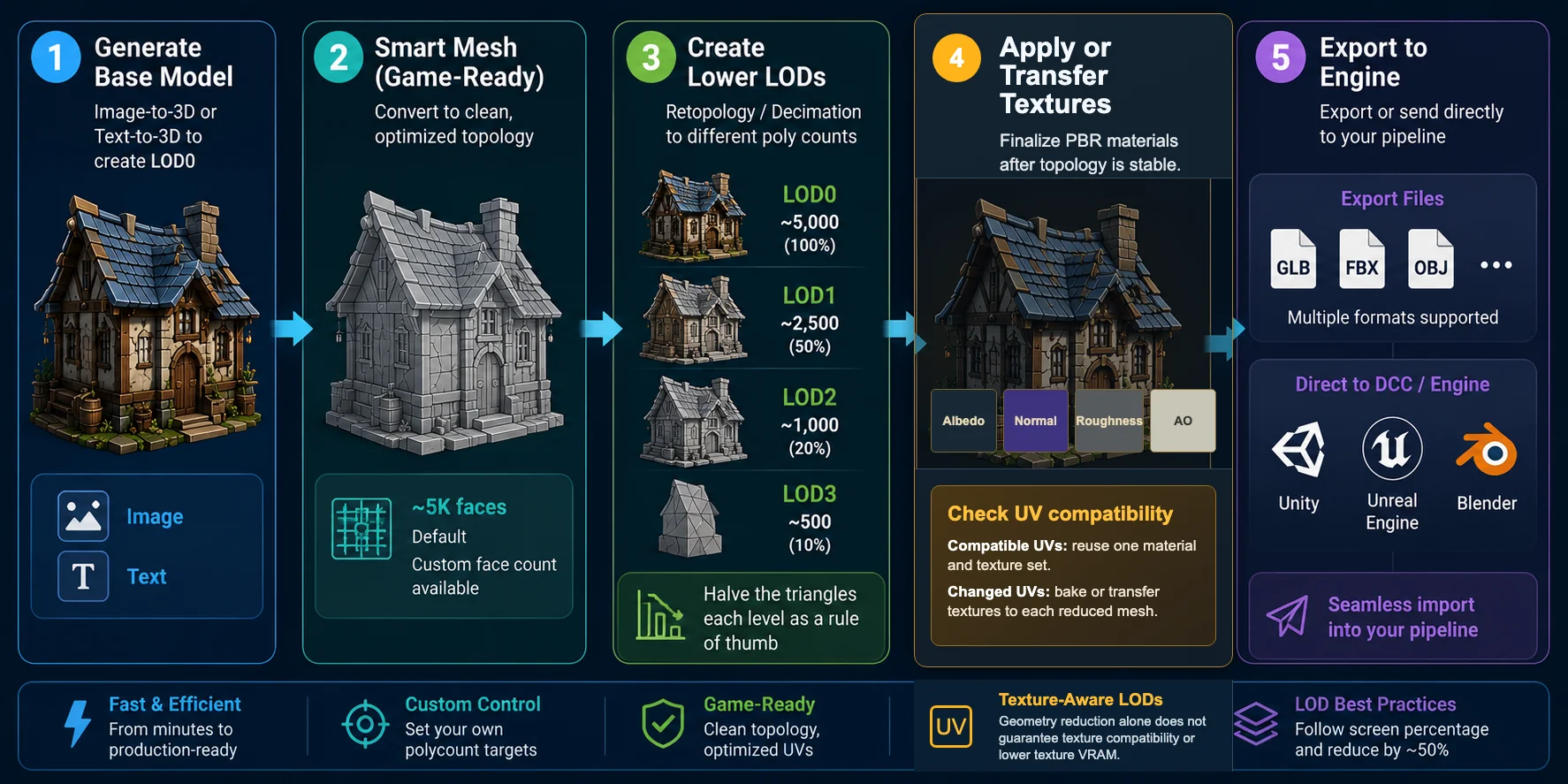
An AI-assisted workflow can shorten the path from source model to engine-ready asset. Generate the base mesh, establish clean topology, create separate reductions for each target LOD, verify materials and UVs, and test the completed chain in the engine.
Generate the Base Model
Start with an image-to-3D or text-to-3D tool to create your initial asset. This becomes your LOD0 candidate-the highest-detail version that players see at close range. Focus on getting the shape and proportions right before worrying about optimization.
Convert to Game-Ready Topology
Use Smart Mesh to generate clean, optimized topology. Its default output is about 5,000 faces, and you can set a custom face target. This creates a suitable base mesh; it does not automatically package a complete LOD0-LOD3 chain.
Create Lower LOD Levels
Create each lower LOD as a separate retopology or mesh-reduction result with a lower target face count, for example 5K to 2.5K to 1K. The sequence is only a starting point: inspect silhouette, normals, UVs, thin parts, and deformation in the target engine before accepting each level.
Generate PBR Textures
Generate or apply PBR textures after the topology is stable. Reuse one material and texture set when the LODs keep compatible UVs; otherwise bake or transfer the source textures to each reduced mesh. Geometry simplification alone does not guarantee texture compatibility or lower texture memory.
Export to Your Engine
Export the finished assets as GLB, FBX, or another supported format, then import them into Unity, Unreal Engine, Blender, or another DCC application. Tripo's DCC Bridge can send supported assets directly to connected tools. Export availability depends on the model version and the user's current Tripo plan.
Use AI to Generate Game-Ready LODs (Step by Step)
Import & Set Up LODs in Unity and Unreal
After generating your level of detail models, the final step is importing them into your game engine and configuring the LOD transitions. Keeping a consistent naming convention, shared materials, and identical pivots ensures every LOD swaps smoothly during gameplay.
Unity - LOD Group
In Unity, place the meshes under one parent object and add an LOD Group component. Assign each Renderer to its LOD slot, then set the transition bars with Screen Relative Height, Unity's measure of the object's visible size. Use Fade Mode or Cross Fade when the active render pipeline and shaders support it, and keep names such as Tree_LOD0, Tree_LOD1, and Tree_LOD2.
Unreal - LOD Settings / DCC Bridge
In Unreal Engine, open the Static Mesh Editor to import existing LODs, configure reduction settings, or preview each level and its transitions. Tripo's Unreal DCC Bridge is a separate convenience path that sends supported assets from Tripo Studio in the browser into Unreal, reducing manual download and import steps.
Unity and Unreal LOD Configuration Workflow
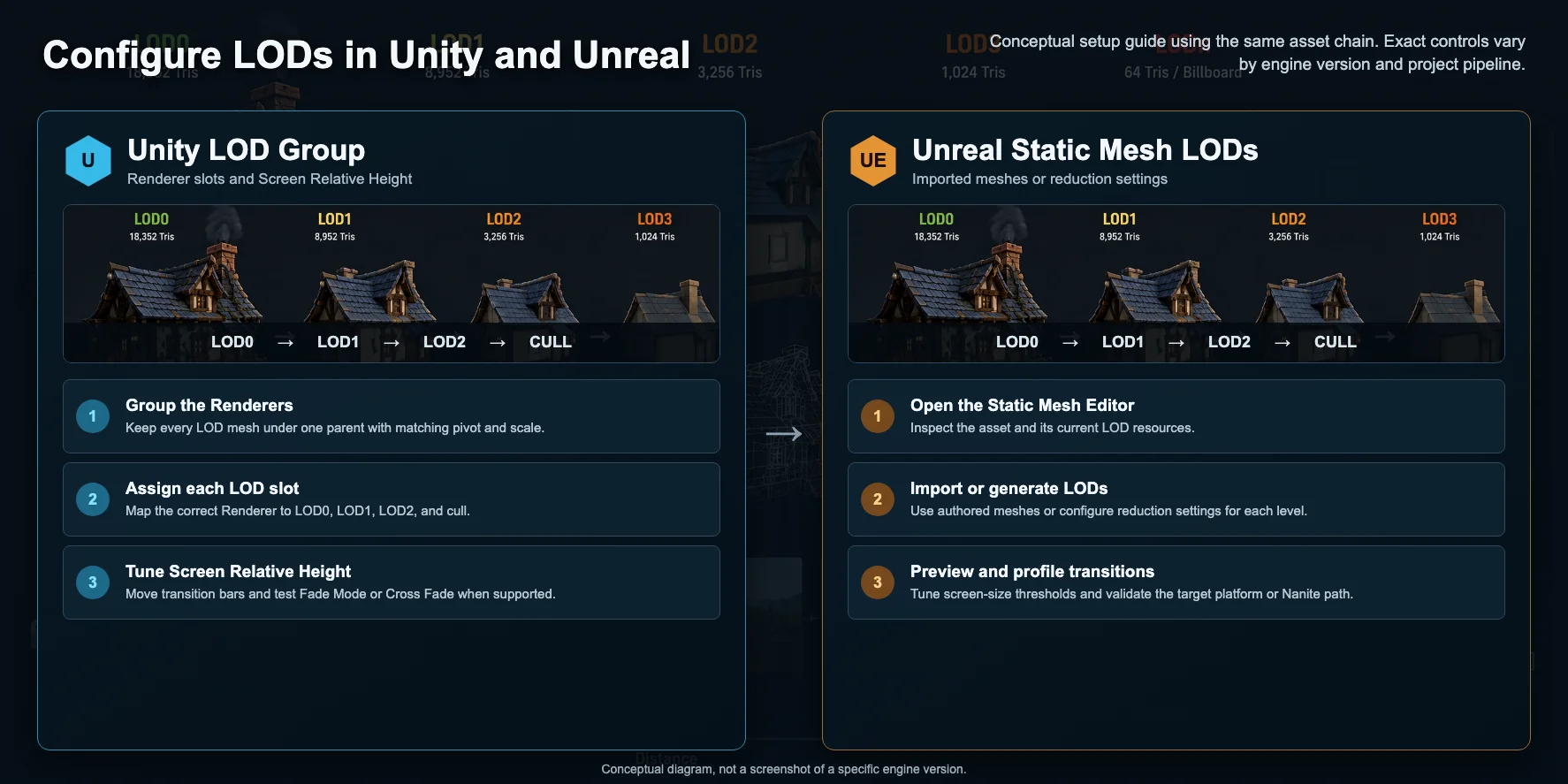
Keep every LOD at the same pivot and scale, use consistent naming such as _LOD0, _LOD1, and _LOD2, and avoid unnecessary material-slot changes. Reusing the same texture resources can prevent duplicated texture memory when the UVs remain compatible, but it does not reduce memory automatically.
Mobile & Performance Tips (and Common LOD Mistakes)
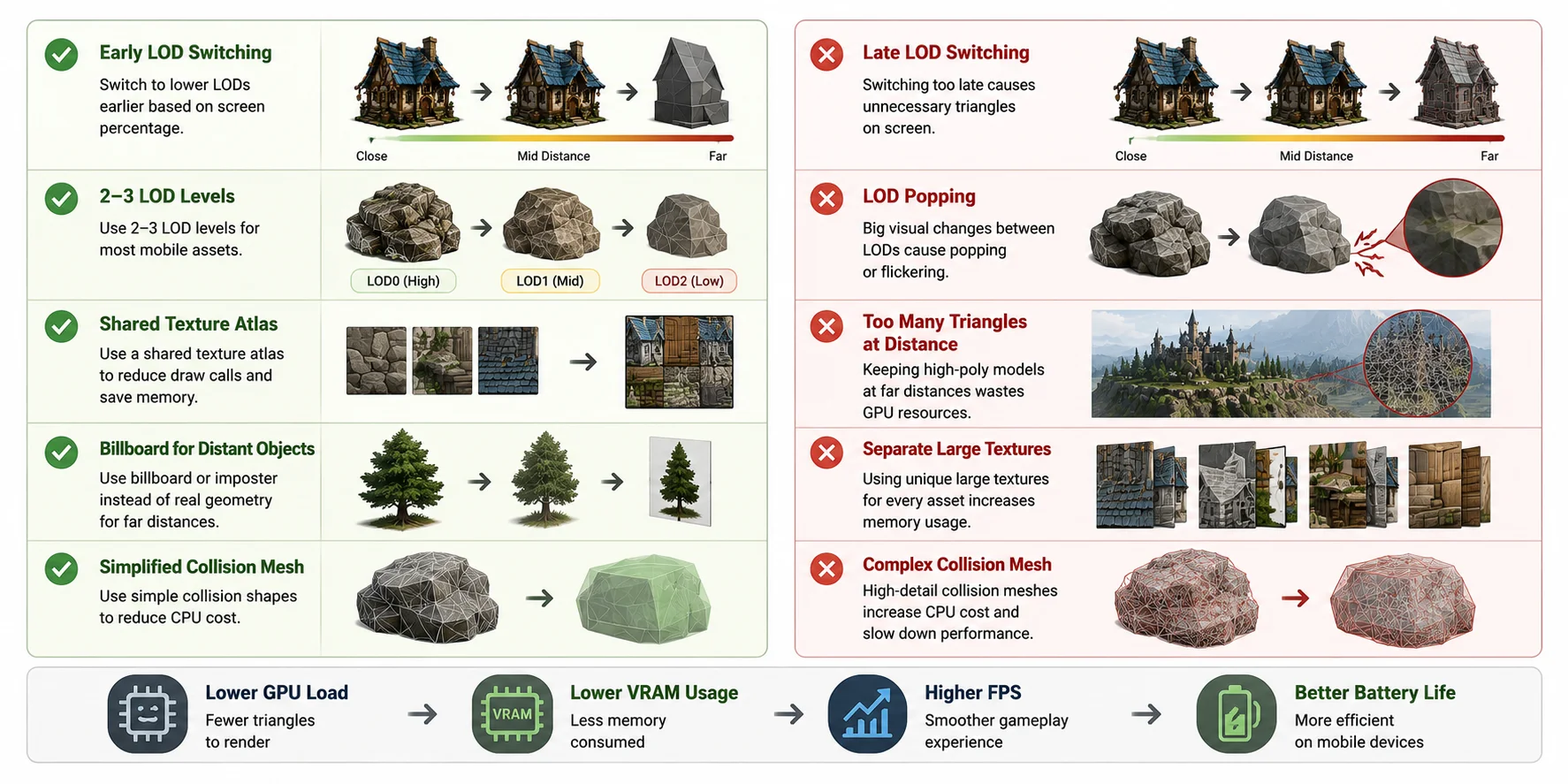
Mobile targets often require earlier transitions and fewer LOD levels, but the correct setup must come from profiling the target devices. A shared texture atlas can reduce material switches and draw calls when assets are authored and batched for it; reducing triangle count alone does not change draw-call count or texture memory.
One of the most common problems is LOD popping, where the model visibly changes shape during a transition. This usually happens when the polygon reduction is too aggressive or the screen-space threshold is set too high. To make transitions less noticeable, reduce the triangle difference between adjacent LODs, fine-tune the switching thresholds, or enable cross-fade or dithering if your engine supports it.
For objects that appear only at extreme distances, replace the final mesh with a billboard or imposter instead of rendering unnecessary geometry. Finally, remember that visual meshes are not the only assets that need optimization-simplifying collision meshes can also reduce CPU overhead. Following these best practices helps optimize 3D models for games while keeping performance smooth across desktop and mobile platforms.
Mobile LOD Best Practices and Common Mistakes
Frequently Asked Questions
What is a LOD in gaming?
A Level of Detail (LOD) is a lower-detail version of a 3D model used when an object is farther from the camera. The game engine automatically switches between LODs to reduce triangle count and improve performance. This helps maintain higher frame rates with minimal visual impact.
What does LOD stand for in the context of game assets?
LOD stands for Level of Detail. It describes multiple versions of the same asset with different polygon counts. LOD0 is the highest-detail mesh, while lower LODs are used as the object becomes smaller on screen.
How many LODs should a game asset have?
Three or four LOD levels are a common starting point, not a fixed requirement. Small props may need only two reduced meshes, while large landmarks may need an additional level, billboard, or cull state. Test the silhouette and frame-time cost on the target hardware before finalizing the chain.
Do I still need LODs if I use Nanite in Unreal Engine 5?
Often not for supported Nanite assets, but conventional LODs are still important for mobile, stereo VR, translucent materials, unsupported content, and non-Nanite pipelines. Nanite also supports current foliage workflows, so decide asset by asset instead of treating all foliage as incompatible.
Can I generate LODs from an AI 3D model automatically?
Yes, but the result is usually a sequence of separate reductions rather than one automatically packaged LOD chain. Generate or retopologize the base mesh, create additional versions at lower target face counts, then configure and test the levels in your game engine.
How do I stop LOD popping/flickering?
Reduce the difference between adjacent LODs and adjust the screen-space transition thresholds. If available, enable cross-fade or dithering to smooth the transition. Testing LODs in real gameplay is the best way to catch visible popping.
Conclusion
Effective LODs balance visible detail against measured rendering cost. Start with screen-relative thresholds, create only the levels the asset needs, and validate every transition on the target platform.
Generate a strong source model, create clean topology, build separate reductions, and test the completed chain in-engine. To start the asset workflow, try Tripo AI Studio.