How to Use Flux Kontext in Tripo Studio: Master Consistent Character Creation
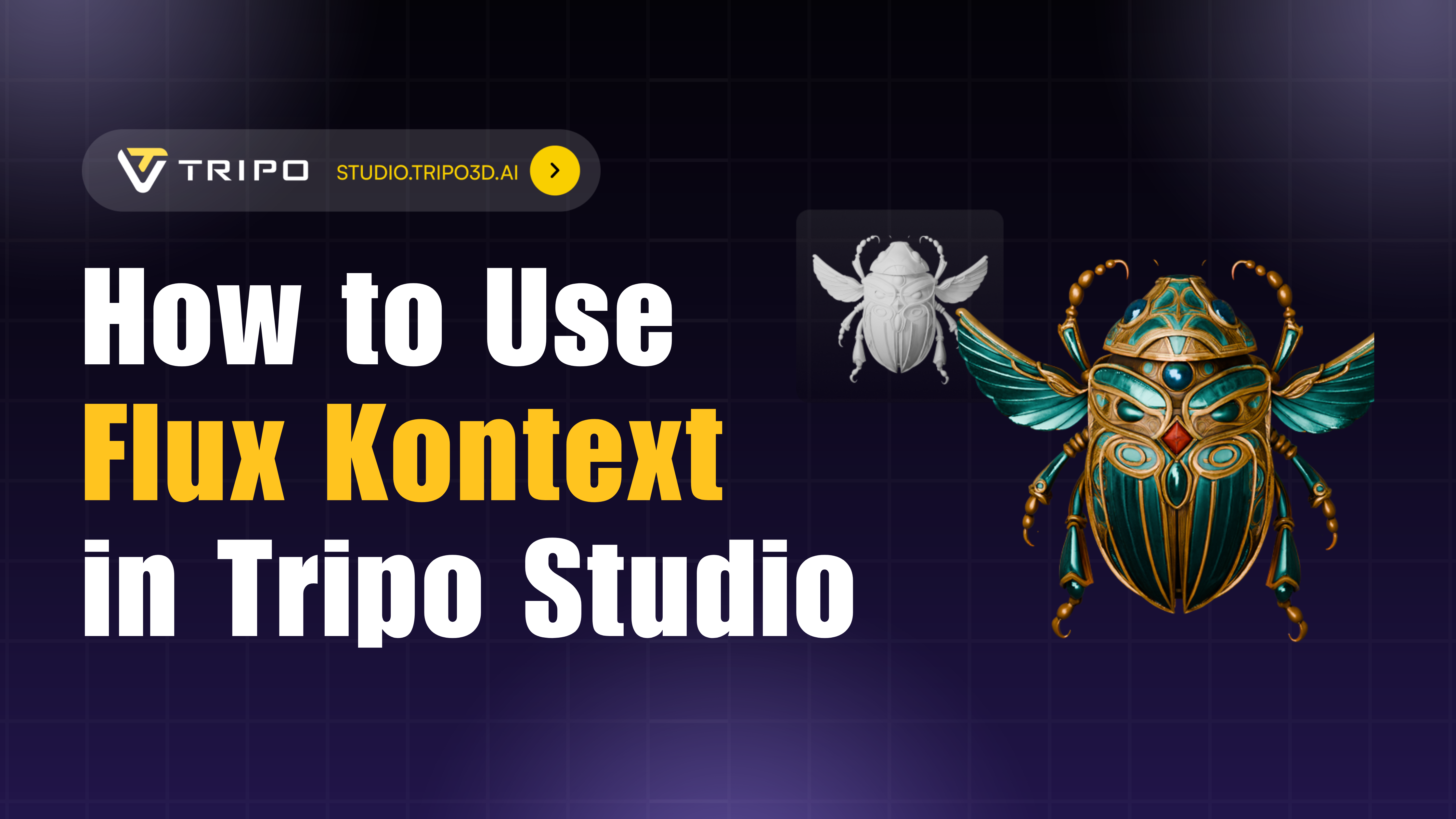
Have you ever struggled to get the same AI-generated character twice, or to keep a collection visually cohesive across multiple assets and poses? If you're nodding your head, you're not alone. Character consistency has been one of the biggest challenges in AI-powered 3D creation—until now.
The big news: Flux Kontext—an in-context, multimodal generation and editing capability—arrives inside Tripo Studio, bringing character consistency and style coherence into a streamlined 3D workflow. No more playing the lottery with AI generations, hoping your character looks the same in different poses.
This article explains what Flux Kontext is, why it matters for creators, and precisely how to use it inside Tripo Studio to produce consistent characters, matching props, and cohesive asset sets. Whether you're building a game, creating an animation, or designing a product line, this feature changes everything.
What is Flux Kontext?
Flux Kontext (FLUX.1 Kontext) is a suite of multimodal, flow-based models that combine text and image inputs for in-context generation and editing, enabling character consistency and context-aware transformations. Think of it as giving your AI a photographic memory for style and identity.
The Problem It Solves
Traditional AI 3D model generators create beautiful one-off models, but try getting that exact same character in a different pose? Good luck. Each generation starts fresh, making it nearly impossible to build cohesive collections or maintain character identity across scenes. It's like trying to hire the same actor for your movie but getting a different person each time.
Flux Kontext changes this game entirely. It extracts and reuses visual concepts from your reference, so subsequent generations maintain identity and style continuity. Your warrior princess stays your warrior princess, whether she's wielding a sword or sitting on her throne.
How to Use Flux Kontext in Tripo Studio
Ready to experience the magic? The process is refreshingly simple. Tripo Studio seamlessly integrates Flux Kontext right into your familiar workflow, making consistent character generation as easy as clicking a dropdown menu.
Step 1: Navigate to Image/Text to 3D
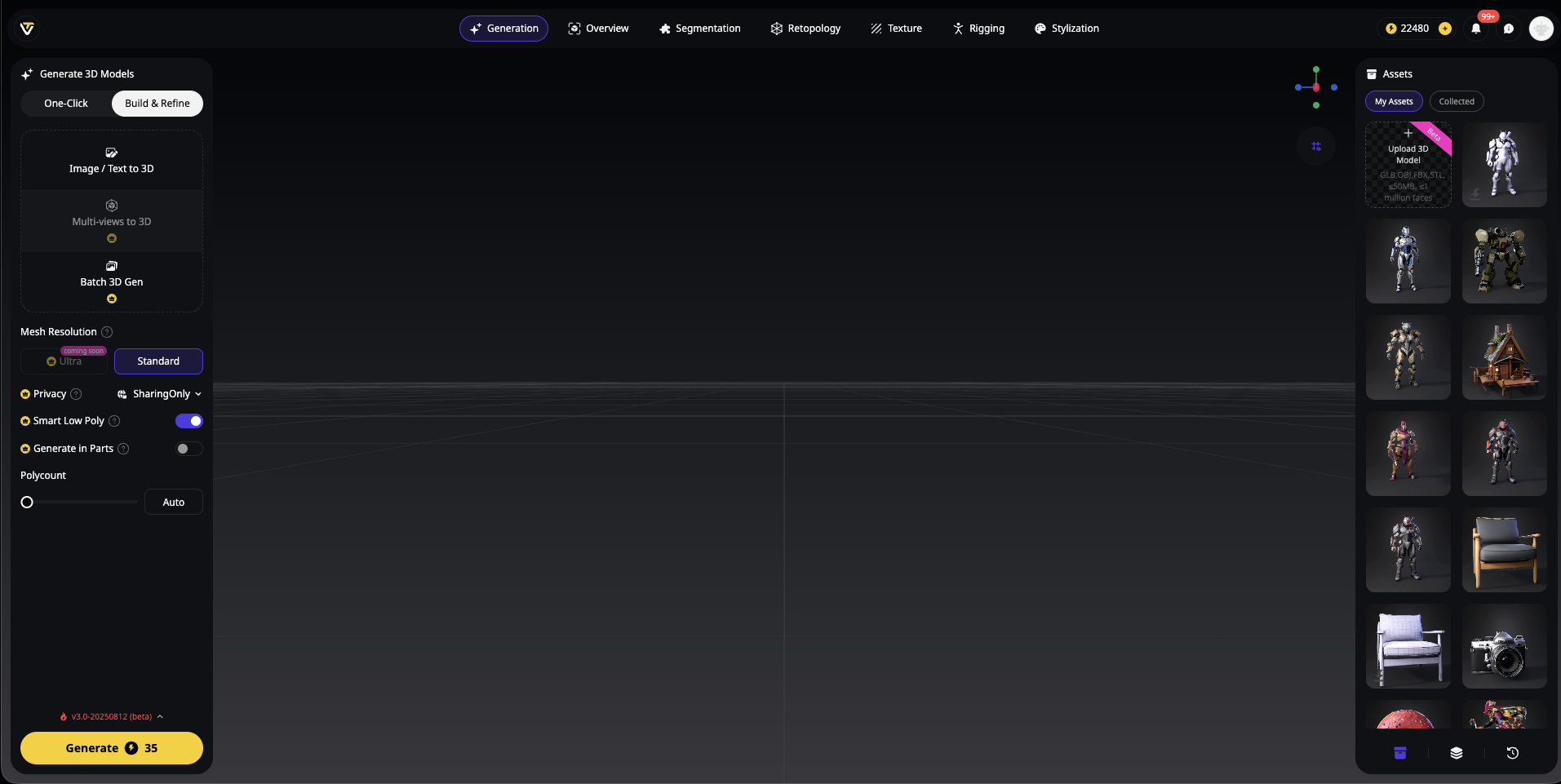
First, head over to Tripo Studio and click on the "Image / Text to 3D" option in the Generate workspace. This is your starting point for all AI-powered 3D creation.
Step 2: Select Flux Kontext from the Dropdown
Here's where it gets exciting. You'll see a dropdown menu with four powerful options:
- FLUX.1 Kontext pro ← Select this one
- FLUX.1 dev
- Nano Banana
- GPT-4o
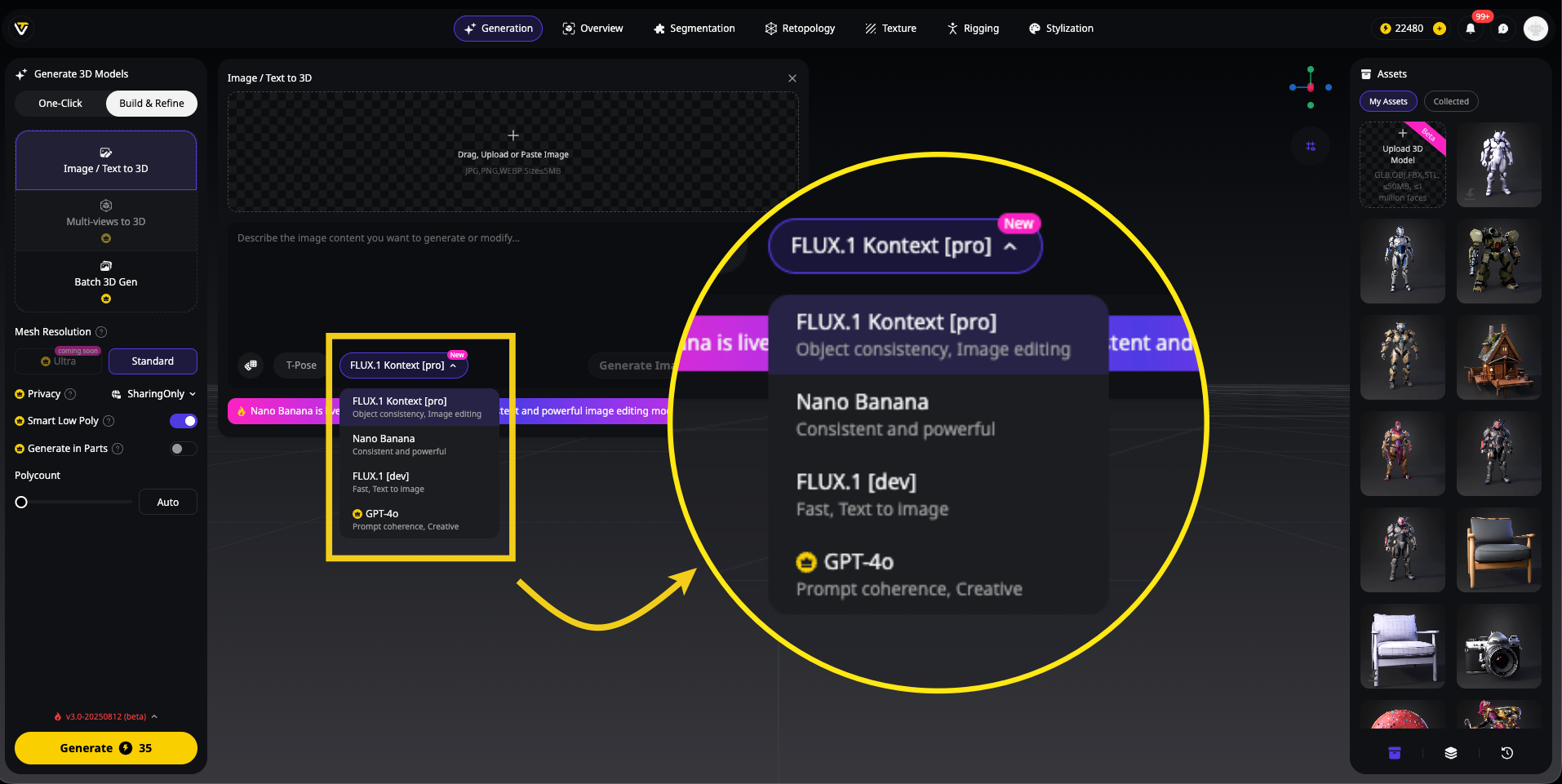
Simply select FLUX.1 Kontext pro to activate the context-aware generation capabilities. This single selection transforms your entire workflow from random to reliable.
Step 3: Craft Your Prompt
Now, enter your prompt in the text box. The beauty of Flux Kontext is that you can describe exactly what you want while the system maintains consistency. Want a futuristic warrior? A medieval knight? A cartoon character? Just describe it naturally.
Example prompts that work great:
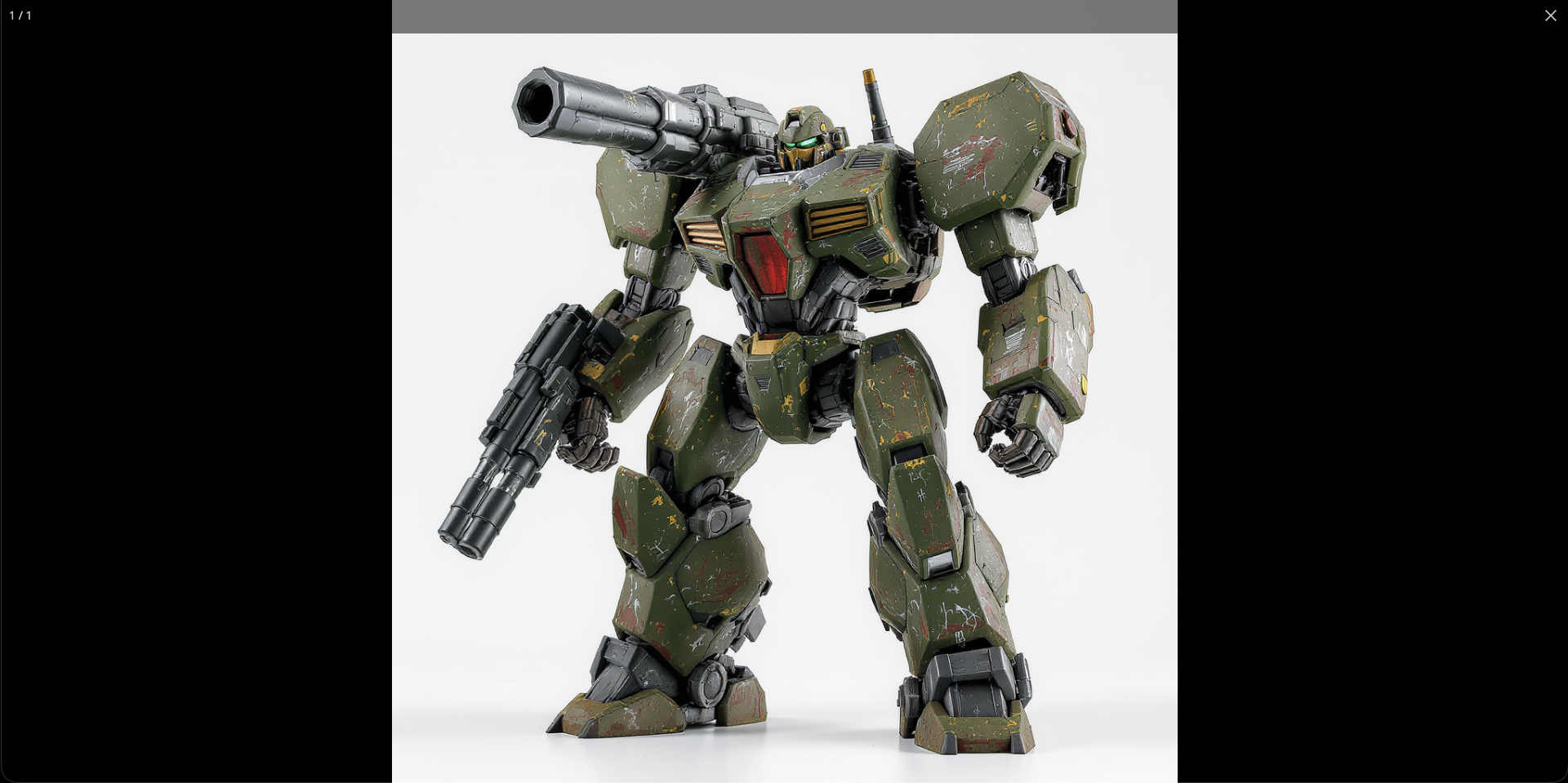
Armored robot: A 3D stylized heavyweight mecha, blocky and imposing armor plates, equipped with a massive shoulder-mounted cannon and a hydraulic-powered gauntlet, battle-worn scratches and scorch marks, military olive green and metallic grey.
Robot companion: Full-body 3D render of a friendly, round robot companion, highly detailed and in a charming pose. It has a polished white body and a large expressive digital eye. Pixar style, soft warm lighting, solid color and clean background.
Dwarf blacksmith: Full-body epic fantasy painting of a dwarf blacksmith, highly detailed and in a powerful stance. He has an intricately braided beard and is hammering a glowing sword. Dramatic lighting, solid color and clean background.
Step 4: Generate Your Image Preview
Click the "Generate Image Preview" button and watch as Flux Kontext creates your vision. Within seconds, you'll see a preview of your character or object, ready for the next step.
Step 5: The Magic Moment - Instant 3D Generation
Here's the best part that sets Tripo apart: you can instantly generate a working 3D model from that image preview without leaving the platform! No exports, no external tools, no complicated workflows. Just click "Try Now" and watch your 2D concept transform into a fully-realized 3D model.
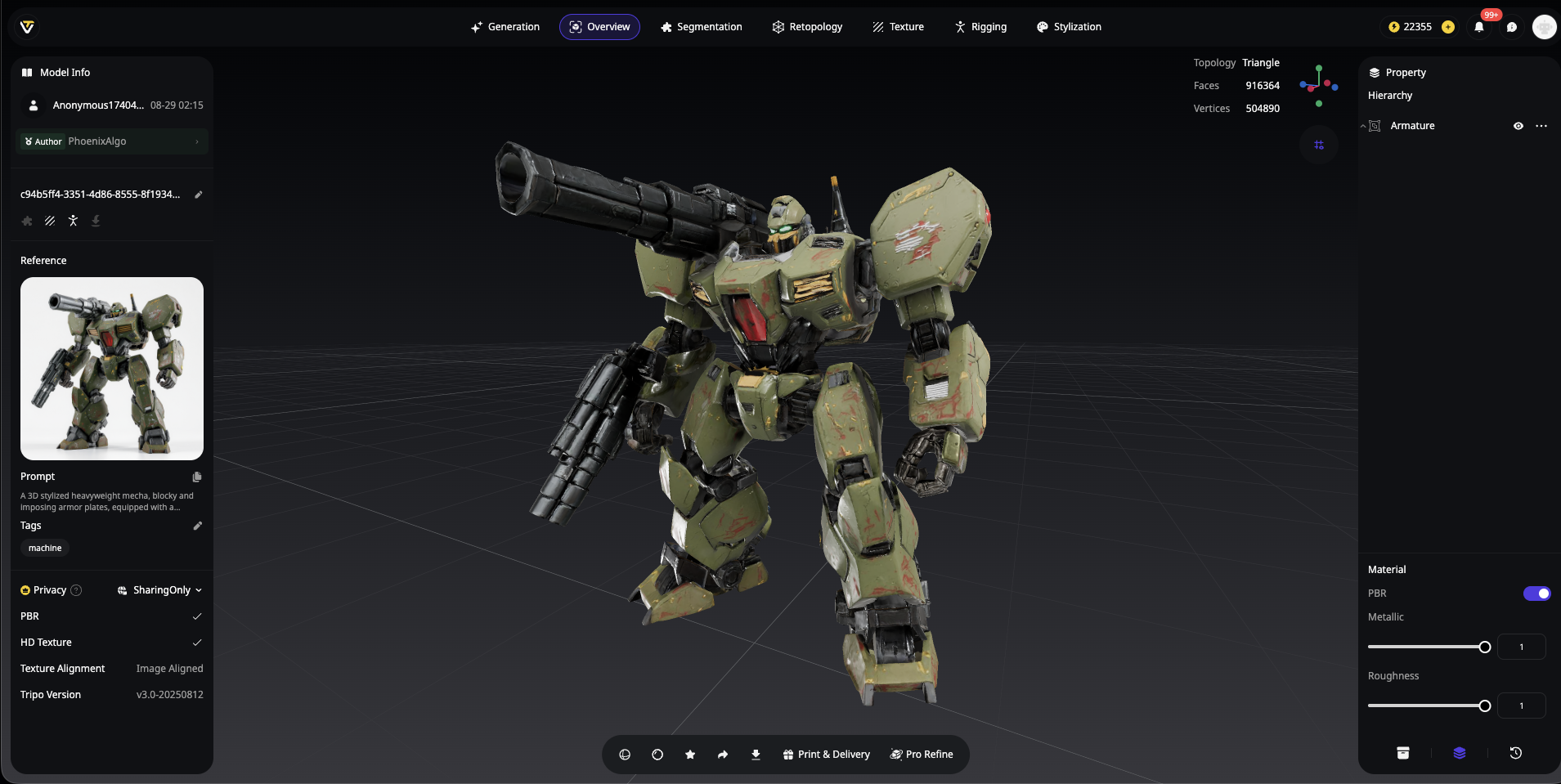
This seamless image to 3D conversion happens in just 100-120 seconds, giving you a professional-quality model ready for editing, texturing, and export.
Pro Tips for Mastering Flux Kontext
After extensive testing with this feature, here are the insider secrets that'll take your results from good to incredible:
Use Clear, Descriptive Prompts
The more specific you are in your initial prompt, the better Flux Kontext can establish a strong visual identity for future variations. Don't hold back on details—every element you describe becomes part of the character's DNA.
Leverage the Preview System
The image preview isn't just a preview—it's your quality control checkpoint. If the 2D image looks right, the 3D model will follow suit. Don't like what you see? Adjust your prompt and regenerate before committing to 3D.
Build Collections Efficiently
Once you've created your first character, use the same Flux Kontext settings to generate complementary assets. Describe variations like "same style armor set" or "matching weapon collection" to build cohesive game assets or product lines.
Real-World Applications
Let's talk about what this means for your actual projects:
Integration with Other Tripo Features
Flux Kontext doesn't work in isolation—it supercharges your entire Tripo Studio workflow. After generating your 3D model, you can:
- Apply advanced textures using Tripo's AI Texturing tools
- Use Magic Brush for precise local edits
- Export in multiple formats (OBJ, FBX, STL, GLB, USDZ)
- Integrate with Blender through Tripo's plugin
Want to learn more about advanced image generation techniques? Check out these Flux image generation tips for Tripo workflows to enhance your creative process.
The Future of Consistent 3D Creation
Flux Kontext represents a paradigm shift in how we approach AI 3D model generation. By solving the consistency problem that has plagued creators for years, it opens up entirely new possibilities for storytelling, product design, and digital art.
The integration within Tripo Studio means you're not just getting a feature—you're getting a complete ecosystem. From initial concept to final 3D model, everything happens in one place, with one consistent vision.
For a deeper technical dive into the underlying technology, explore the FLUX.1 Kontext in-context generation overview from the original developers.
Ready to Create with Consistency?
Stop leaving your creative vision to chance. With Flux Kontext in Tripo Studio, you have the power to create consistent characters, cohesive collections, and unified visual worlds—all with the simplicity of selecting from a dropdown menu.
The future of 3D creation isn't just about speed or quality—it's about creative control. And with Flux Kontext, that control is finally in your hands.
Open Tripo Studio, select FLUX.1 Kontext pro from the dropdown, and start creating consistent, professional 3D models today. Join the 2+ million creators who've already discovered why Tripo AI is the fastest path from imagination to reality.
👉 Start Creating with Flux Kontext
Frequently Asked Questions
Is Flux Kontext a separate model to choose?
- No, Flux Kontext is an advanced option within the Image/Text to 3D workflow. You simply select it from the dropdown menu—it's not a separate tool or export format.
How fast is the generation process?
- Image preview generation takes just seconds, while the full 3D model generation completes in 100-120 seconds. That's faster than making a cup of coffee!
Can I edit the generated 3D models?
- Absolutely! Once generated, your models are fully editable within Tripo Studio. Use AI Texturing, segmentation tools, and export to your favorite 3D software for further refinement.
Is there an extra cost for using Flux Kontext?
- Tripo Studio uses a credit-based pricing model. Each generation deducts credits according to the task type. Check the pricing page for current rates.