Creating a 3D Chrome Hearts Logo and Animated GIF: Expert Workflow
скачать 3d модели для chicken gun
Designing and animating a 3D chrome hearts logo is a process that blends creative vision with technical precision. In this guide, I walk through my full workflow—from concept sketching to rendering and exporting an animated GIF. Whether you’re a designer, game developer, or marketing creative, you’ll find actionable steps, practical tips, and lessons learned from real-world projects. I leverage AI-powered platforms like Tripo to streamline modeling and texturing, but also highlight where traditional methods still have merit.
Key takeaways:
- Reference gathering and sketching are critical to a strong logo foundation.
- AI tools can accelerate modeling, segmentation, and texturing.
- Chrome material setup requires careful attention to lighting and environment.
- Animation for GIF export is best kept simple and loop-friendly.
- Workflow efficiency comes from clear planning and avoiding common pitfalls.
Executive Summary and Key Takeaways
What to Expect from This Guide
I cover the full process of creating a 3D chrome hearts logo, including concept development, modeling, material setup, animation, and GIF export. The workflow is tailored to both AI-powered and traditional approaches, highlighting where each excels.
Summary of Best Practices
- Start with clear references and sketches.
- Use AI tools for rapid prototyping, but refine details manually as needed.
- Prioritize realism in chrome materials with proper environment maps.
- Keep animations minimal for GIF compatibility and visual impact.
- Optimize renders for file size and loop performance.
Designing a Hearts Logo for 3D Modeling

Gathering References and Inspiration
I always begin by collecting visual references—brand logos, heart shapes, chrome finishes, and related motifs. Pinterest, image search, and official brand assets are my go-tos. This step ensures the final logo is both recognizable and stylistically accurate.
Checklist:
- Gather 5–10 reference images (logo, chrome, heart shapes)
- Note design elements: symmetry, stylization, thickness
Sketching and Conceptualizing the Logo
Sketching is essential. I use digital tools (Procreate, Photoshop) or paper to iterate heart shapes and logo layouts. The goal is to clarify proportions and decide how the chrome effect will interact with the form.
Tips:
- Sketch multiple variants before settling on one
- Focus on silhouette and negative space
- Plan for 3D depth: consider bevels and contours
3D Modeling the Chrome Hearts Logo

Choosing the Right Tools and Platforms
For speed and accuracy, I rely on Tripo AI to convert sketches or images into segmented, production-ready meshes. For manual tweaks, I use standard DCCs (Blender, Maya). The choice depends on project complexity and deadlines.
Decision points:
- Use AI tools for quick base meshes and segmentation
- Switch to manual modeling for fine detailing or custom topology
Step-by-Step Modeling Workflow
- Input sketch/image into Tripo AI for mesh generation.
- Review segmentation and retopology; adjust as needed.
- Refine mesh in a DCC if necessary (edge flow, smoothing).
- Export model for texturing.
Pitfalls to avoid:
- Over-reliance on auto-generated topology; always inspect mesh quality
- Neglecting scale and proportions in initial modeling
Applying Chrome Materials and Realistic Textures
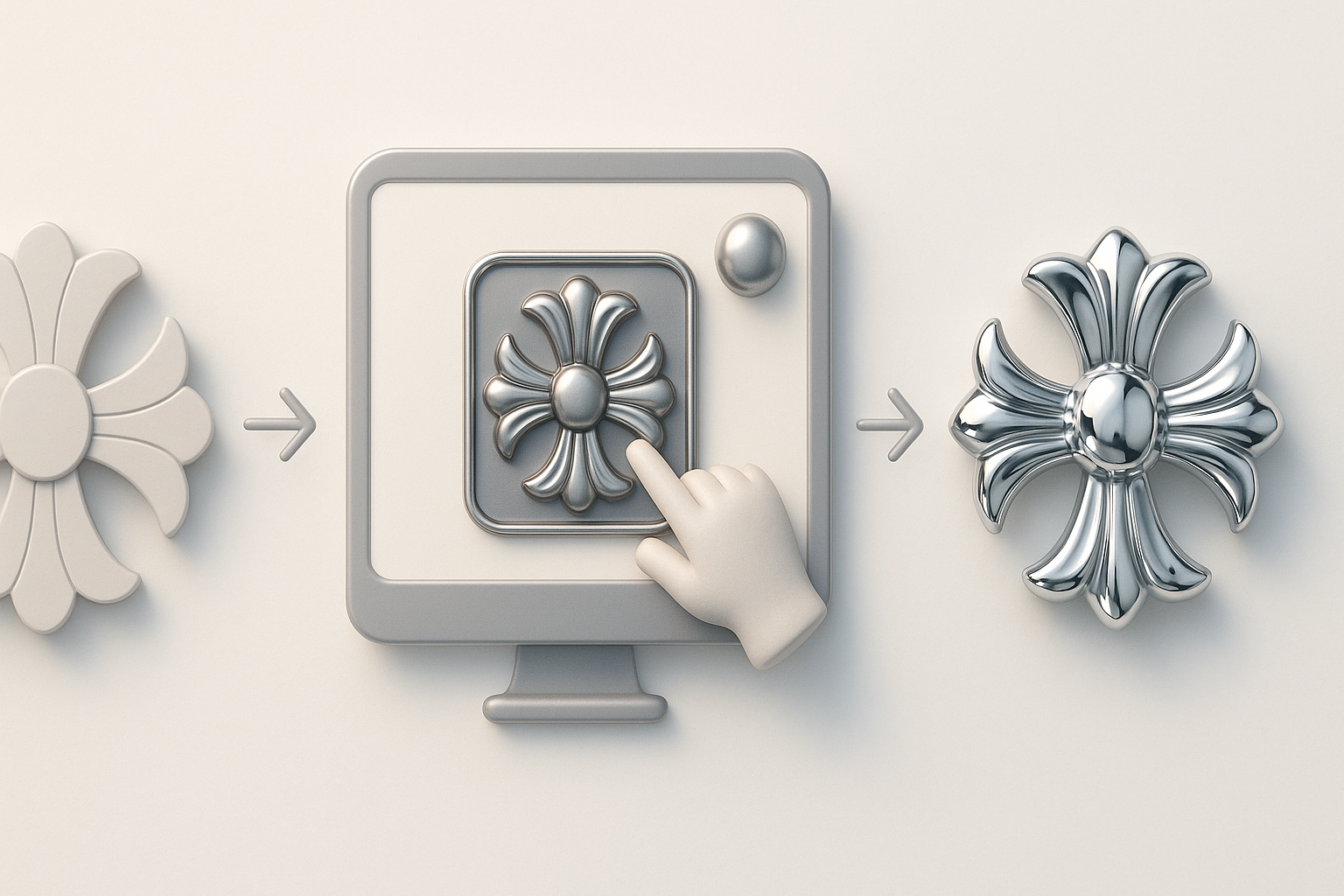
Material Setup for a Chrome Finish
Chrome realism depends on environment reflections and material parameters. I use PBR workflows—setting up metalness, roughness, and HDRI maps. Tripo AI can auto-assign basic chrome presets, but I often tweak for accuracy.
Steps:
- Assign a metal material with high reflectivity
- Add HDRI environment for realistic reflections
- Adjust roughness for subtle surface imperfections
Tips for Achieving Realism in 3D
- Use high-resolution environment maps for reflections
- Add micro-scratches or smudges for authenticity
- Balance lighting to avoid blown-out highlights
Common mistakes:
- Flat lighting or missing environment maps
- Over-polished chrome lacking subtle texture
Animating and Exporting as a GIF
Creating Simple Logo Animations
For GIFs, I keep animations minimal—rotations, pulsing, or shine sweeps. Complex motion can be distracting and doesn’t loop well. I animate in my DCC, then export keyframes for rendering.
Workflow:
- Set up rotation or shine animation (1–2 seconds)
- Ensure seamless loop (start/end frame alignment)
- Render frames with transparent background if needed
Exporting and Optimizing GIFs from 3D Renders
I use video-to-GIF converters or Photoshop for assembling renders. Optimization is critical: reduce frame count, limit color palette, and compress for web use.
Tips:
- Aim for under 2MB for web GIFs
- Test loop playback before final export
- Use dithering sparingly to avoid artifacts
Best Practices and Lessons Learned
Common Pitfalls and How I Avoid Them
- Pitfall: Rushing reference/sketch phase
Solution: Spend extra time upfront for clarity. - Pitfall: Ignoring mesh quality
Solution: Always inspect and clean up topology. - Pitfall: Overcomplicating animation
Solution: Keep it simple for GIFs.
Workflow Tips for Faster, Better Results
- Batch tasks: model, texture, animate in separate stages.
- Use AI for repetitive or technical steps, manual for creative tweaks.
- Save incremental versions and backups.
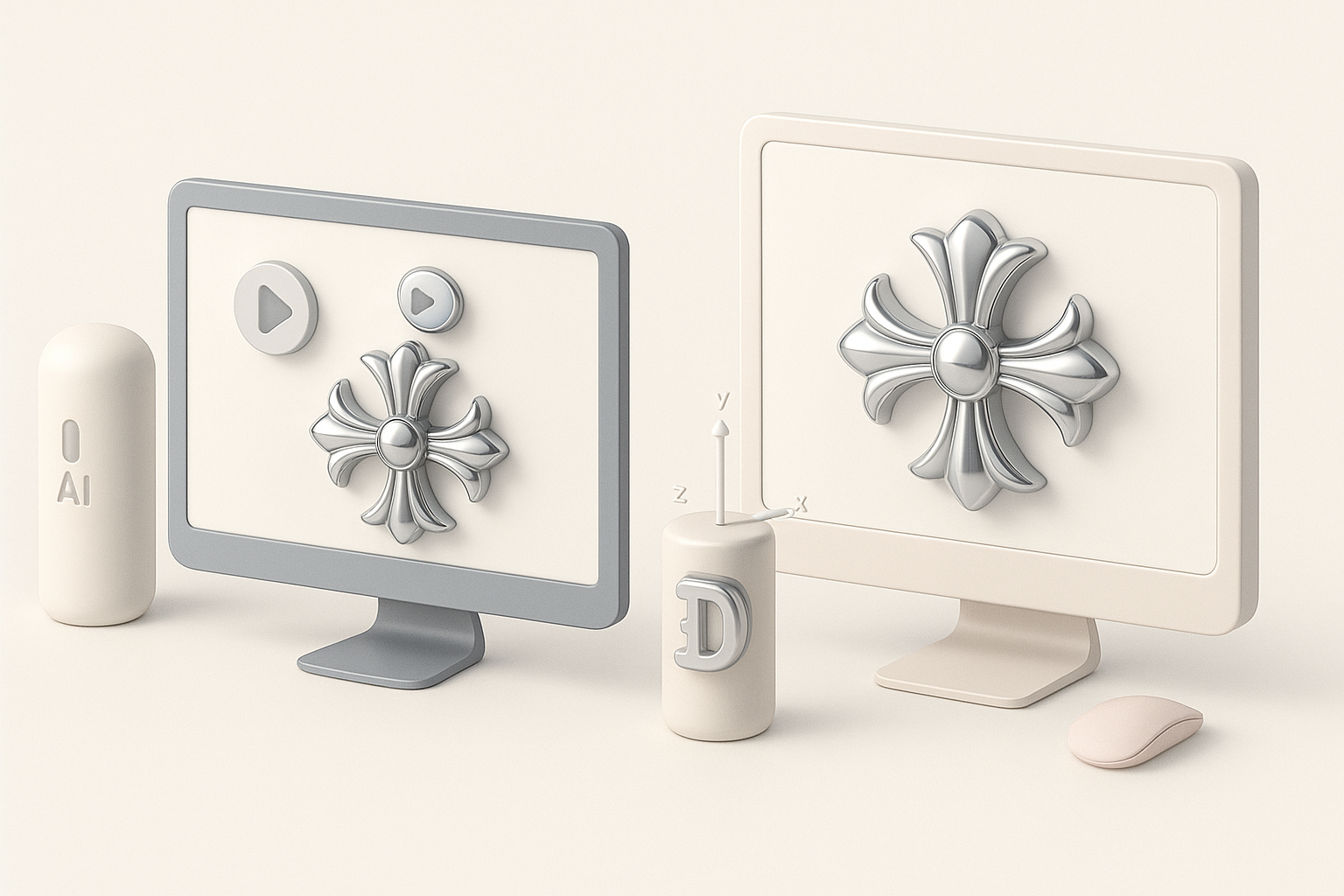
Comparing AI-Powered and Traditional 3D Workflows
Where AI Tools Excel in Logo Creation
AI platforms like Tripo dramatically reduce modeling and texturing time. They handle segmentation, retopology, and basic material assignment, freeing me to focus on creative direction and polish.
Advantages:
- Rapid prototyping
- Automated mesh cleanup
- Fast material setup
When to Use Alternative Methods
For highly custom logos or intricate animation, traditional DCCs are still essential. Manual workflows offer full control over topology, UVs, and animation rigging.
When to switch:
- Custom shapes or advanced deformation
- Detailed material layering
- Complex motion graphics
Conclusion:
Creating a 3D chrome hearts logo and animated GIF is efficient and creative when you combine AI-powered tools with traditional methods. Reference gathering, careful sketching, and attention to materials are key. Keep animations simple for GIF export, and always review mesh and render quality. AI tools accelerate the workflow, but manual refinement ensures professional results.
